Restoring a computer gets confusing because the same word covers a reset, a rollback, a reinstall, an erase, and a file recovery. Pick the wrong route and you can remove more than you meant to, or spend time on a fix that cannot solve the problem. Use the steps below to choose the right current recovery path for Windows 11, macOS, or ChromeOS.
Reset Windows when it still opens
This fixes a Windows 11 PC that still starts but needs a built-in reset or full erase.
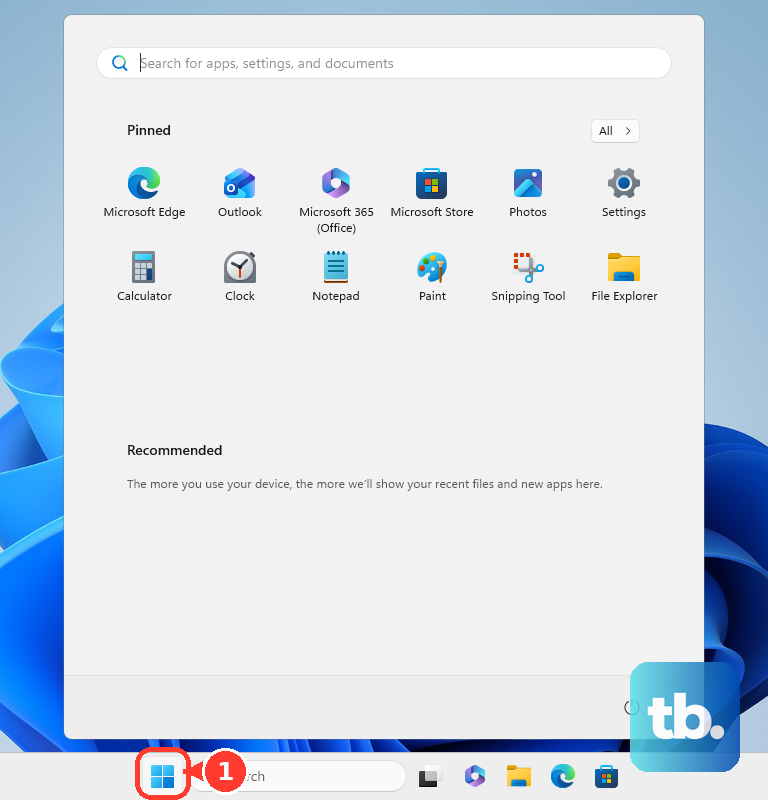
Open Start, then go to Settings > System > Recovery.
Select Reset PC.
Choose Keep my files to keep personal files, or choose Remove everything to erase more completely.
Pick Cloud download or Local reinstall.
Follow the on-screen instructions until Windows begins the reset.
Recover Windows when it will not start
Use Windows Recovery Environment when the normal desktop will not load. From a working Windows session, open Settings > System > Recovery > Advanced startup > Restart now. From the sign-in or power menu, hold Shift while selecting Power > Restart.
When Windows cannot get that far, interrupt startup by holding the power button during startup twice. On the third boot, select Advanced options, then choose Troubleshoot > Reset this PC and pick the reset options that match what you want to keep.
If this method fails, try Startup Repair from Troubleshoot > Advanced options before moving to USB recovery media.
Roll back Windows without a full reset
Use System Restore when the problem started after a driver, app, or system change and you want to restore Windows system files and settings without affecting personal files.
Open Control Panel.
Select Recovery, then choose Open System Restore.
Select Next.
Choose a restore point.
Select Scan for affected programs to see what changes.
Select Next, then Finish.
Press Windows logo key + R, type rstrui.exe, and press Enter when you want the direct shortcut.
System Restore changes system files and settings, not personal files.
Use Windows recovery media
A recovery drive or Windows installation media is the fallback when the built-in reset tools are not enough.
- 1.On a working Windows PC, open Start, search for Recovery Drive, and select Recovery Drive.
- 2.Keep Back up system files to the recovery drive selected, then choose Next.
- 3.Select the USB drive and choose Next.
- 4.Boot the problem PC from the recovery drive.
- 5.Choose the language and keyboard, then select Troubleshoot > Recover from a drive or Reset this PC.
Fix Windows after a recent change
The most common cause is a bad app or driver update that changed Windows just before the problem started.
For an app, open Start > Settings > Apps > Installed apps.
Find the app, select More, then choose Uninstall.
For a driver, right-click Start and open Device Manager.
Expand the device category, right-click the device, then open Properties > Driver.
Choose Roll Back Driver when it is available.
If rollback is not available, choose Uninstall device, select Uninstall, and restart Windows.
Restore or erase a Mac
Choose the Mac option that matches the result you need.
- 1.To erase a supported Mac, open Apple menu > System Settings > General > Transfer or Reset > Erase All Content and Settings, enter administrator credentials, then follow the prompts.
- 2.To restore a file from Time Machine, open a Finder window for the item’s location, open Time Machine, select the backup, then choose Restore.
- 3.To restore an Apple silicon Mac from Time Machine Recovery, shut down, hold the power button until the system volume and Options appear, choose Options > Continue, then select Restore from Time Machine.
- 4.To reinstall macOS on Apple silicon while keeping files and settings, use the same Recovery startup, then choose Reinstall macOS > Continue.
- 5.On an Intel Mac, restart and immediately hold Command-R, then choose Reinstall macOS > Continue.
Powerwash or recover a Chromebook
Powerwash is the normal Chromebook factory reset. Sign out first, then press and hold Ctrl + Alt + Shift + r, select Restart, choose Powerwash, select Continue, and follow the steps. The Google Account used after reset becomes the owner account unless the Chromebook is managed.
For recovery on a Chromebook with a keyboard, enter recovery mode by holding Esc + Refresh, then pressing Power and letting go of Power. Some models use Esc + Maximize in place of Refresh. On a Chromebook tablet, hold Volume Up + Volume Down + Power for at least 10 seconds, then release. Select Recover using Internet connection and follow the on-screen instructions. If that option never appears, the Chromebook is an older model that does not support Internet recovery, so use USB recovery media instead.
If this method fails, create USB recovery media on another computer with the Chromebook Recovery Utility, then return to recovery mode and choose Recover using external disk.
Restore files and settings from backup
The most common cause is resetting the computer before files and settings are backed up.
On Windows 11, open Start, type backup, and open Windows Backup.
Expand Folders, turn on the folders you want, expand settings, choose the items you want, then select Back up.
During Windows setup or the restore experience, sign in with the same personal Microsoft account and choose the backup to restore.
Work or school Microsoft accounts do not work with the consumer Windows Backup app.
For individual Windows files, open File Explorer, go to the folder that used to contain the item, right-click the folder name or drive, select Restore previous versions, then choose the version to restore.

On a Mac, use Migration Assistant from Applications > Utilities after setup, or choose migration from backup during Setup Assistant.
Handle work and school computers
Managed devices use organization-controlled recovery options. IT can reprovision a Windows work or school PC through Microsoft Intune admin center > Devices > All devices > Autopilot reset, but that is not a way to keep your files. Autopilot reset removes user data, settings, and apps, then reapplies the organization’s original configuration so the device can be reused or reassigned. The separate restore path is Windows Backup for Organizations, which can show a restore page during enrollment that brings back your Windows settings on a Microsoft Entra joined device. Microsoft does not support that restore page in the Autopilot reset flow, so ask IT which one you are getting before the device is wiped.
Some managed Windows 11 devices also use Quick machine recovery or Point-in-time restore policies set by IT. Organization-owned Macs can be erased through device management, or through Apple Business > Devices > Inventory > select the Mac > Erase when the Mac is supervised and enrolled in Apple Business built-in device management and the signed-in account has permission to view and manage devices.
Managed Chromebooks are reset from Google Admin console > Menu > Devices > Chrome > Devices. For a single device, select its serial number, then choose Reset. For several devices, tick their checkboxes, then choose More > Reset. Either way, pick Clear User Profiles or Factory Reset, tick the acknowledgement that the data cannot be recovered, then select Reset again. Use your IT help desk first, because a normal consumer reset can be blocked or can trigger enrollment again.
Frequently Asked Questions
Does restoring a computer delete everything?
Not always. Windows Reset this PC can keep personal files or remove everything. System Restore changes system files and settings without affecting personal files. Erase All Content and Settings, Powerwash, and clean recovery options erase the device.
What is the safest first step before a full restore?
Back up first when the computer still works. On Windows 11, use Windows Backup with a personal Microsoft account. On a Mac, use Time Machine or Migration Assistant. On a Chromebook, make sure needed files are not only stored locally.
Should I use System Restore or Reset this PC on Windows?
Use System Restore when a recent Windows change caused the problem and you want to roll back system files and settings. Use Reset this PC when you need a broader reinstall or want to remove everything from the PC.
Can I restore a computer that will not boot?
Yes. Windows can use Windows Recovery Environment, Startup Repair, a recovery drive, or installation media. Macs can use macOS Recovery. Chromebooks can use Internet recovery or USB recovery media.











