

To restart your computer from Command Prompt, run shutdown /r /t 0 and press Enter. This command restarts Windows with no countdown. You can use it on Windows 11 and Windows 10.
The short version
- Restart now: Run
shutdown /r /t 0for a restart with no countdown. - Add a countdown: Run
shutdown /r /t 60for a 60-second delay, which also implies forced app closure and can lose unsaved work. - Cancel in time: Run
shutdown /ain a new Command Prompt during the countdown. - Force closure carefully: Adding
/fforces applications to close and can lose unsaved work.
| Task | Command | What to expect |
|---|---|---|
| Restart immediately | shutdown /r /t 0 | No countdown |
| Use the default delay | shutdown /r | 30-second countdown with forced app closure |
| Choose a delay | shutdown /r /t 60 | 60-second countdown with forced app closure |
| Cancel a pending restart | shutdown /a | Run during the countdown |
| Force an immediate restart | shutdown /r /f /t 0 | Forced app closure can lose unsaved work |
| Open advanced boot options | shutdown /r /o /t 0 | Restarts into advanced boot |
Open Command Prompt
Press Windows + R to open Run. Type the following command, then press Enter to open Command Prompt.
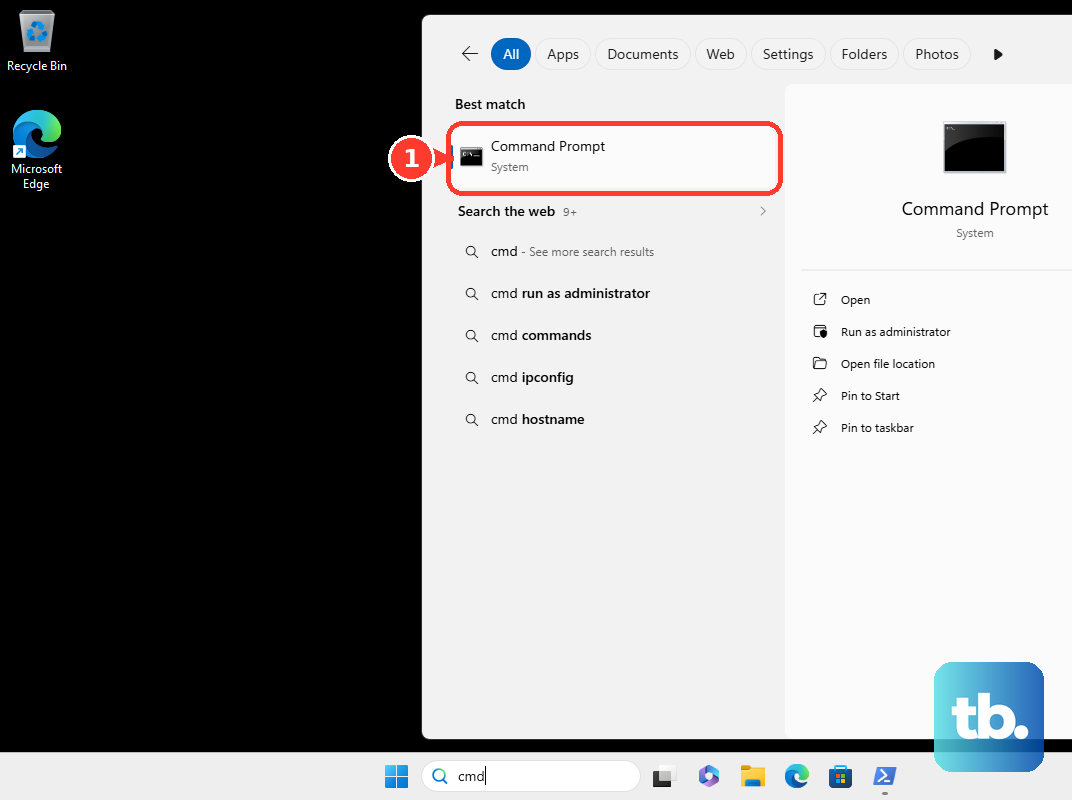
cmdYou can also press the Windows key, search for cmd, and select Command Prompt. If you already have File Explorer open, type cmd in its address bar and press Enter.
Restart your computer immediately
In Command Prompt, enter the command below and press Enter. The /r option selects a restart, and /t 0 sets the delay to zero seconds.
shutdown /r /t 0Set a restart countdown
For the default 30-second countdown, enter the following command and press Enter. Microsoft says a positive timeout implies forced application closure, which can lose unsaved work.
shutdown /rTo choose a 60-second countdown, enter the command below and press Enter. The number after /t sets the delay in seconds. This positive timeout also implies forced application closure and can lose unsaved work.
shutdown /r /t 60Cancel a restart before the countdown ends
While the countdown is running, press Windows + R, enter cmd, and press Enter to open a new Command Prompt. Enter the following command in that new window and press Enter. You must run it before the countdown ends.
shutdown /aForce applications to close when necessary
To force applications to close during an immediate restart, enter the command below and press Enter. Adding /f explicitly requests forced closure. Forced application closure can lose unsaved work.
shutdown /r /f /t 0Restart into advanced boot options
To restart into advanced boot options, enter the command below and press Enter. The /o option selects advanced boot options, while /t 0 removes the countdown.
shutdown /r /o /t 0You can also enter recovery by holding Shift while selecting Power > Restart. If you prefer to use Windows Settings, follow the path for your version below.
On Windows 11, open Settings > System > Recovery. Under Recovery options, beside Advanced startup, select Restart now.
On Windows 10, open Settings > Update & Security > Recovery. Under Advanced startup, select Restart now.
Fix problems restarting your computer
If you need to run the restart command with administrator authorization, search for cmd, right-click Command Prompt, and select Run as administrator. If prompted, select Yes, then run your restart command in that window.
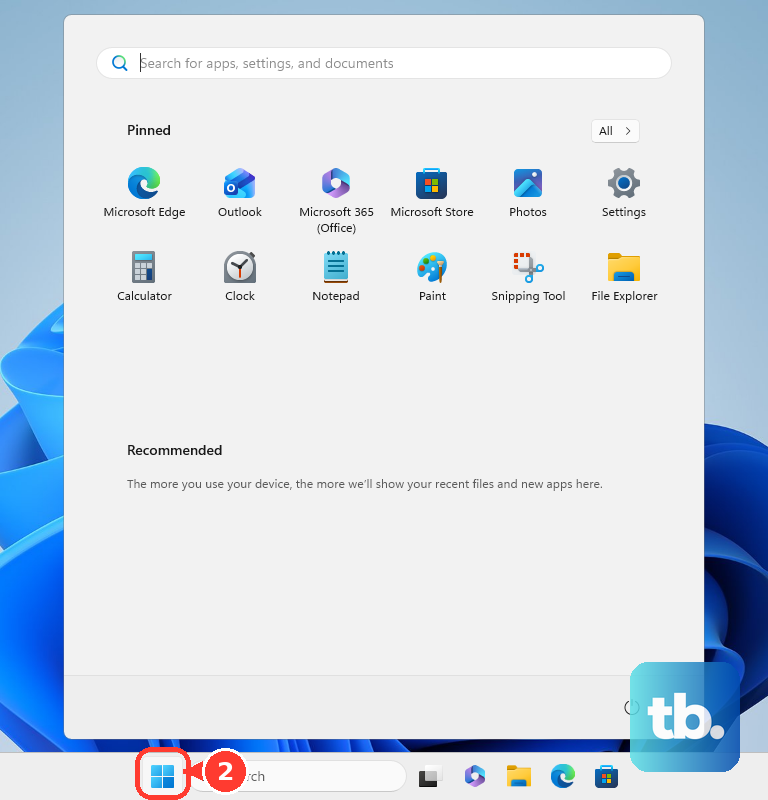
For a menu alternative, select Start > Power > Restart. You can also press Ctrl + Alt + Delete, select Power in the lower-right corner, then select Restart.
If software restart controls fail, you can restart a computer that is unresponsive using its physical power button. A forced power-off can lose unsaved work. Hold the power button until the PC turns off, wait briefly, then press it again to start. The timing varies by model, so follow your computer model's instructions.
Frequently Asked Questions
Can I use Command Prompt inside Windows Terminal?
Yes, open Windows Terminal, select the down arrow beside the + button, then select Command Prompt. You can run the restart command in that tab on Windows 11 or on Windows 10 with Windows Terminal installed.
Can a restart reopen my applications automatically?
Use shutdown /g /t 0 to restart the computer and restart registered applications. Application restoration depends on Automatic Restart Sign-On.
Should I use a WMIC reboot command from an older tutorial?
Microsoft deprecated WMIC and directs you to PowerShell or WMI APIs instead. WMI itself remains supported.
Do I need to download PsShutdown to restart from Command Prompt?
No, the built-in shutdown command does not require PsShutdown. That optional Microsoft Sysinternals utility also supports timed restarts, messages, multiple targets, and cancellation.