


To change your Wi-Fi router, connect the replacement to your modem or incoming Ethernet connection, complete its setup, and reconnect your devices using your chosen network name and password. Reusing your previous Wi-Fi details can let compatible devices reconnect automatically, although device and security compatibility still matter.
Record your existing network name and password before disconnecting anything. Complete the setup for your router, then reconnect phones and computers before moving on to speakers, printers, and other home devices. The Windows steps below use Windows 11 menus.
The short version
- Prepare first: Record your current Wi-Fi name and password before unplugging the old router.
- Follow your model: Use the replacement router’s supported app or browser setup.
- Keep familiar credentials: Reusing your network name and password can let compatible devices reconnect automatically.
- Handle remaining devices: Join the new network manually or update the connection through each device’s app.
| Replacement situation | Setup route | Main consideration |
|---|---|---|
| New eero network | eero app | Connect the gateway to your modem or ONT |
| Compatible TP-Link router | Tether app | Match the connection type to your internet service |
| Supported NETGEAR router | Local browser setup | Connect to the router before opening routerlogin.net |
| Unit in an existing eero mesh | Replace eero | Choose the existing unit in the app |
| New main unit in a supported Deco mesh | Replace Main Deco | Let the app synchronize network settings |
| Existing Deco satellite becoming the main unit | Set Main Deco | Select an eligible satellite and complete the guided change |
Save your current network details
Write down the network name and password while the old router is still available. If your connection requires PPPoE credentials or VLAN information, have those details ready for setup. On TP-Link New Interface models that offer it, choose PPPoE as the Connection Type during web setup, select Retrieve settings from your old router, and follow the connection instructions while the old router still works.
A connected device can also help you recover the Wi-Fi password. On current Windows 11 builds with password display, open Settings > Network & internet > Properties, then select Show beside Wi-Fi network password. On an iPhone running iOS 27, open Passwords > Wi-Fi, select the network, and tap Password.
Connect and set up the replacement router
For a new eero network, disconnect the old router and modem from power; an ONT need not be powered off. Connect an Ethernet-equipped eero gateway to the modem or ONT with Ethernet, then power the modem and eero. Get the eero app on a supported phone running iOS 15 or later or Android 9 or later, with Bluetooth 4.0 or later.
Open the eero app, complete discovery, and assign the gateway a location. Enter your chosen network name and password, then tap Finish Setup. To continue building the mesh, tap Add another eero.
For a compatible TP-Link router using the New Interface, get TP-Link Tether and connect your phone to the Wi-Fi network printed on the router’s label. In Tether, select the router under Devices, create its local password, then select Auto Internet Port if the detected port is correct and your internet service doesn’t require a VLAN ID. Otherwise, select Set Manually, choose the port, and select Next. Check Connection Type against your internet service requirements and enter PPPoE or VLAN information when required.
Configure the TP-Link Wi-Fi name and password, then select Next. Choose Enable Auto Update or Skip, select Apply, and finish with Finish. Connection options vary by model, so follow the choices presented for your router.
For NETGEAR models covered by its browser installation process, connect the modem or incoming Ethernet line to the router’s Internet port and power the router. Connect a computer through a LAN port or the labeled Wi-Fi network, then open routerlogin.net in a browser. Select If you don’t have a compatible smartphone, click here and complete the internet detection and setup screens.
Replace a unit in an existing mesh
Replacing one unit in an existing mesh has its own app workflow. In the eero app, open Home, select the blue plus icon, and choose Replace eero. Select the existing unit and complete the replacement instructions; a solid white light means the replacement is online.
For a supported Deco network, connect your phone to the existing Deco Wi-Fi and select Replace Main Deco in the Deco app menu. Let the app discover the replacement and synchronize settings, then make the wiring changes it requests. The new unit must support the existing operating mode, and advanced settings can differ between models.
You can also promote an eligible Deco satellite instead of adding new hardware. While connected to Deco Wi-Fi, open the Deco app and select Network, open the three-dot menu, choose Set Main Deco, and select the satellite. Complete the guided change, and if internet access fails afterward, power the modem off for five minutes, then restart it.
Choose the network name and password
Keeping your previous network name and password can save you from entering new credentials on every device. Google supports this approach for Nest Wifi and Google Wifi, but automatic reconnection depends on device and security compatibility. Turn off the old router when it is no longer needed so it stops broadcasting a separate network with identical credentials.
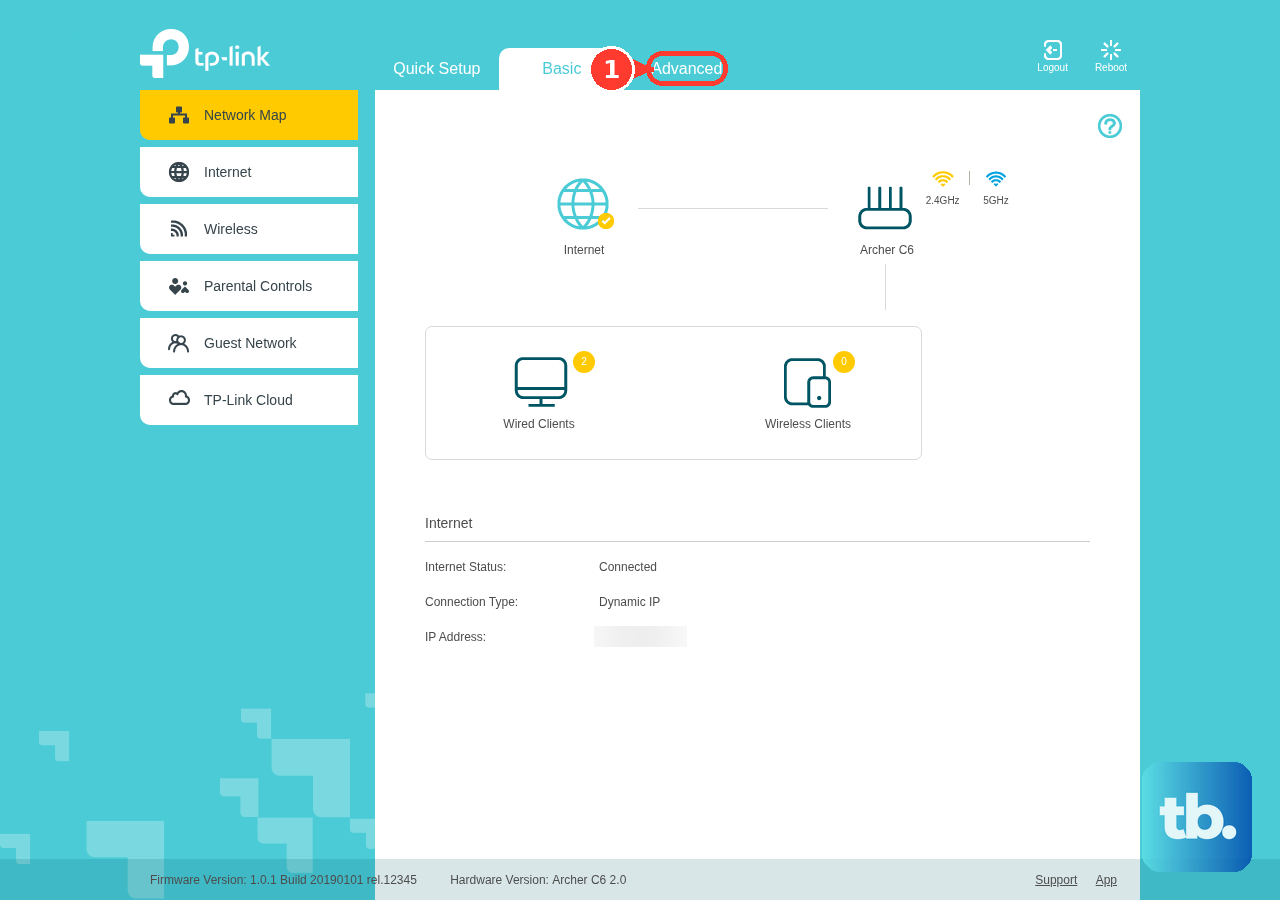
On supported TP-Link Archer and TL-WR routers, you can change your WiFi router password through the local web interface. Connect locally, sign in at https://tplinkwifi.net/, and open Advanced > Wireless > Wireless Settings. Saving replaces the network name and password currently configured for that network. Edit those details and select Save; the Wi-Fi 8 interface instead uses Wi-Fi > Main Network.
For Tether-compatible routers, open Devices, select your router, then open More > Wi-Fi Settings and choose the band or MLO Network. Saving replaces that network’s existing credentials. Edit the name and password, select Save, then use those details when reconnecting devices.
Reconnect phones and computers
On iPhone or iPad, open Settings > Wi-Fi and turn on Wi-Fi. Select the replacement network and enter its password. A blue checkmark beside the network name confirms the connection.
For Android devices using Google’s interface, open Settings > Network & internet > Internet, select the network, and enter its password when requested. You can also swipe down, tap Internet, and choose the network. Some steps require Android 12 or later, and other manufacturers use different labels.
On Windows 11, select the taskbar Network, Sound, or Battery area, then select Manage Wi-Fi connections beside Wi-Fi. Choose the replacement network and select Connect. Enter the password and select Next.
On a Mac running macOS 27, open the Wi-Fi menu and select the network, using Other Networks to find additional networks. Enter the password and select Join. For a hidden network, select Other Networks > Other, enter Network Name, choose Security, supply the password, and select Join.
On a Chromebook, select the time, open Settings > Network > Wi-Fi, choose the network, enter its password, and select Connect. School or workplace policies can restrict network changes, so contact your administrator if those controls prevent you from changing the connection.
Update speakers and other home devices
For supported Echo devices, open Alexa, select Devices, choose your device, and open Device Settings > Change or remove a Wi-Fi network. Choose a saved network or select Join another Wi-Fi Network, then complete the prompts. For supported Amazon and Matter accessories, select the accessory under Devices, open the gear icon, and select Change under Wi-Fi Network; use the manufacturer’s app for other Wi-Fi accessories.
For a supported Google Home or Nest speaker or display, forgetting its network removes the saved Wi-Fi connection, so you will need to complete setup again. In Google Home, open Home > All devices, hold the device tile, and select Settings > Device information > Wi-Fi > Forget this network. Return to Home > Add > Device > Search for device and complete setup.
For HomePod or HomePod mini with supported software, open Home, select your HomePod, and open Settings > Wi-Fi Network to change its network. Alternatively, connect your iPhone to the desired network and, under HomePod Network Mismatch, select View Details, then select Move HomePod to [Wi-Fi network], where the bracketed text is your network’s name.
For Nest Thermostat and Nest Learning Thermostat (4th gen), stand near the thermostat and open Google Home. Select Home > All devices, choose the thermostat, and open Settings > Device information > Wi-Fi to complete the network-change prompts.
For supported products using the current Sonos app on iOS or Android, leave Sonos Ethernet cables disconnected during wireless migration. When the app displays No products found, select Settings > Visit Help Center > Update Network. Complete the update for each product, then restore any required Ethernet connections.
Reconnect printers and wired devices
On a supported HP LaserJet Pro with a white-background touchscreen, open the Dashboard, select the Wireless icon, and open Setup > Wireless Settings > Wireless Setup Wizard. Choose the replacement network and enter its password. If your control panel differs, follow your printer model’s setup instructions because its controls use a different path.
For compatible wired devices connected to an Ethernet-equipped eero, move the device’s Ethernet cable to an available port on the replacement eero. With the other end connected to the device, it should reconnect automatically. For a wired Sonos setup managed in the Sonos S1 Controller app, connect the wired Sonos product to the replacement router and restart any Sonos products that remain missing.
Fix devices that stay disconnected
After reusing your old credentials on an eero network, turn an affected device’s Wi-Fi off and back on. If it still does not reconnect, restart that device. If a phone or computer still needs its saved credentials replaced, forget the network and join it again.
Forgetting a network removes its saved connection details, so have the current password ready before proceeding. On Windows 11, open Settings > Network & internet > Wi-Fi > Manage known networks, select the network, and select Forget. Reconnect and enter the replacement network’s password.
On Android using Google’s network interface, forgetting removes the saved network credentials. Open Settings > Network & internet > Internet, touch and hold the saved network, then tap Forget. Select the network again and enter its current credentials.
On iPhone or iPad, forgetting removes the saved network and password, and the change can synchronize through iCloud Keychain. Open Settings > Wi-Fi > Edit, select the network’s More Info button, tap Forget This Network, then tap Forget. Join the replacement network again with its current password.
If you only want to stop an Apple device from reconnecting to the old network, turn off Auto-Join to retain its saved password. Managed Wi-Fi profiles can prevent forgetting a network or changing Auto-Join; ask your administrator to update the deployed configuration if either option is restricted.
If a connected HomePod still has trouble communicating, router isolation, DHCP, firewall, or security settings can affect that communication. Check the settings for your specific router because administrative menus vary by model.
Frequently Asked Questions
Can you transfer an ASUS router backup to a different model?
ASUS restricts configuration imports to replacement routers of the same model. On the old router, open Administration > Restore/Save/Upload Setting and select Save setting. Restoring replaces the destination router’s configuration, so save its settings first if you need to keep them. On the same-model replacement, open the same page, select Upload, choose the configuration file, and allow the reboot to finish before signing in again.
Can you share the new Wi-Fi password without typing it?
On supported Android devices using Google’s interface, open Settings > Network & internet > Internet, select the connected network, and select Share to display a QR code. A QR-capable receiving device can scan it to join. On iOS 27, open Passwords > Wi-Fi, select the network, and select Show Network QR Code.
Can you reconnect an HP printer using WPS?
Supported HP printers can use WPS with a WPS-capable router, but the button sequence depends on the printer model. eero does not support WPS. If your HP setup explicitly requests a WPS PIN, obtain it from the printer’s display or the information sheet printed during setup, enter it, and select Next before it expires.
How do you reconnect a PS5 after changing routers?
Open Settings > Network > Settings > Set Up Internet Connection, choose the network, select Connect, and enter its password. For Ethernet, connect the cable and select Set Up Wired LAN > Connect. PS5 does not support IPv6-only networks.
Should you use the old Google Wifi or NETGEAR Genie app?
Use Google Home for Google Wifi network setup and changes. For compatible NETGEAR routers, use Nighthawk instead of the Genie app, which NETGEAR no longer updates. Check your router’s Nighthawk compatibility before choosing the app; NETGEAR’s supported local browser setup remains another option.