

Restoring Windows 11 can mean repairing a damaged install, undoing a bad change, resetting the PC, or getting deleted files back. The right choice depends on whether Windows still starts and whether you need to keep your files.
Start with the least destructive option that matches the problem. If Windows opens normally, the main controls are in Start > Settings > System > Recovery, where you can use Reinstall now, Reset PC, or Advanced startup.
Work or school PCs can hide some recovery controls because an organization manages Windows Update or backup settings. For a home PC, the paths below take you from the safest repair to the full reinstall options.
Repair Windows before resetting it
If Windows 11 starts but feels damaged, use the Windows Update repair reinstall first. It reinstalls the current version of Windows without deleting your files, apps, or settings.
Open Start > Settings > System > Recovery. Under Fix problems using Windows Update, select Reinstall now, choose whether to allow an automatic restart, then select OK.
This option applies to Windows 11 PCs with the 2022 annual update or later plus the February 2024 optional update or later. On some managed work or school PCs, it is unavailable when Windows Update is controlled by policy.
Undo a recent bad change
The most common cause is a recent driver, app, update, or settings change that damaged Windows while your personal files remained intact.
Open Control Panel > Recovery > Open System Restore, then select Next. Choose a restore point, select Scan for affected programs if you want to see what will change, then select Next and Finish.
System Restore restores system files and settings, not personal files. It only works when restore points already exist, so System Protection must have been turned on before the problem happened.
If Control Panel is hard to reach, press Windows logo key + R, type rstrui.exe, press Enter, and use the same wizard. If System Restore has no usable restore point, use the Windows Update repair reinstall or Reset PC with Keep my files.
Keep files with Reset this PC
The most common reason to use Keep my files is that Windows needs a deeper reinstall but your personal files still need to stay on the PC.
Go to Start > Settings > System > Recovery. Under Recovery options, select Reset PC.
Choose Keep my files, then choose Cloud download or Local reinstall. Follow the on-screen instructions until Windows begins the reset.
This reinstalls Windows and keeps personal files, but it removes apps and settings. After the reset, reinstall the apps you still need and review Windows settings again.
Open recovery tools when Windows will not start
Windows Recovery Environment is the recovery area for PCs that cannot start correctly. From Windows, open Start > Settings > System > Recovery, then select Restart now next to Advanced startup.
From the sign-in screen or Start power menu, hold Shift while selecting Power > Restart. If the PC will not reach those screens, start it, wait for the Windows logo or manufacturer logo, hold the power button until shutdown, repeat that forced shutdown a second time, then turn it on a third time and select Advanced options on Automatic Repair.
For boot problems, open Troubleshoot > Advanced options > Startup Repair, then select Restart. BitLocker-protected devices may ask for the BitLocker recovery key before recovery tools can run.
If Startup Repair does not bring Windows back, use Troubleshoot > Reset this PC, Troubleshoot > Advanced options > System Restore, or Troubleshoot > Advanced options > Uninstall Updates.
Recover deleted files first
The most common cause is deletion, not a broken Windows install, so recover the file before resetting the whole PC.
For a local deleted file, open Recycle Bin, select the files or folders, right-click them, and choose Restore. This works for local files that are still in the Recycle Bin.
For OneDrive files, go to the OneDrive website, sign in, open Recycle bin, select the files or folders with the circle check box, and choose Restore. Personal OneDrive recycle-bin items are automatically deleted after 30 days, while work or school items are deleted after 93 days unless an admin changed the setting.
Microsoft 365 subscribers can restore OneDrive to an earlier time by opening OneDrive on the web, then selecting Settings > Options > Restore your OneDrive. Choose a date or custom date and time, review the activity chart and feed, then select Restore; permanently deleted files cannot be recovered this way.
If File History was already set up, open File Explorer, go to the folder that used to contain the file, right-click the folder or drive, choose Restore previous versions, then use Open, Open in File History, Restore, or Restore to....

Reinstall from installation media
The most common reason to use installation media is that Windows starts but built-in recovery options fail, or the PC needs a clean Windows install.
Create the media from Microsoft’s Download Windows 11 page by using Create Windows 11 Installation Media and Download Now. USB media requires a blank USB flash drive with at least 8 GB.
For an in-place reinstall while signed in, connect the installation media, open File Explorer, select the installation-media drive, open setup.exe, select Yes, then choose Change what to keep. Pick Keep personal files and apps, Keep personal files only, or Keep nothing, then select Next and Install.
For a clean install on a nonworking PC, start the PC from the installation media, choose the language and keyboard settings in Windows 11 Setup, select Install Windows 11, accept I agree everything will be deleted including files, apps, and settings, follow the product key and edition prompts, choose the install location or partitions, and select Install.
If installation media cannot recover the PC, use a Windows recovery drive created for that device. Surface owners can use Microsoft’s Surface Recovery Image download page after trying Windows reset options first.
Set up backups and restore points now
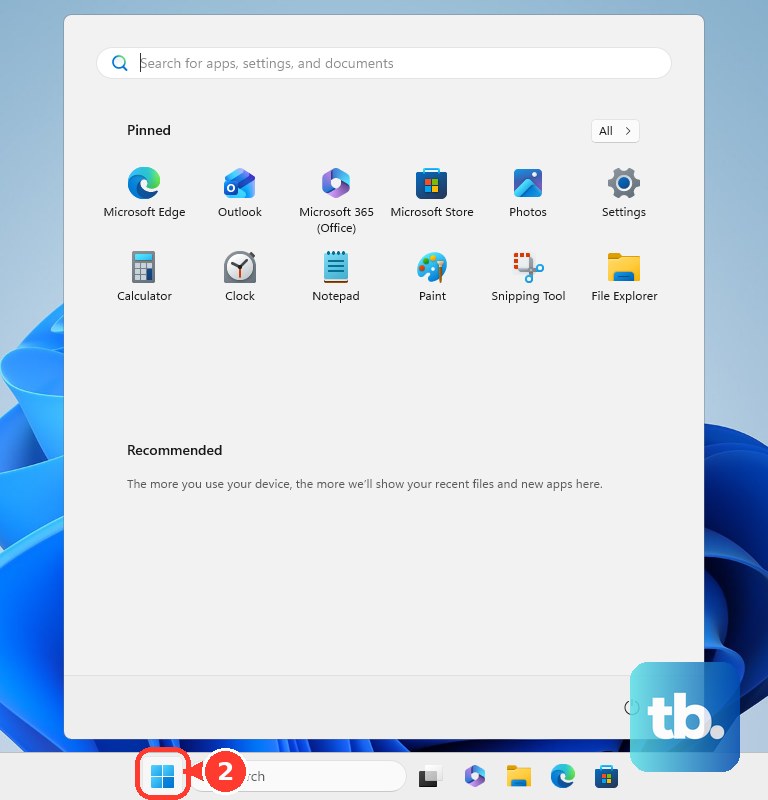
Open Start, type backup, and select Windows Backup.
Expand Folders and turn on the folders you want backed up, including Desktop, Documents, Pictures, Videos, and Music.
Expand settings categories such as Installed apps, Accessibility, Accounts, Wi-Fi network and passwords, Personalization, Language preferences and dictionary, and Other Windows settings, then select Back up.
Open Start, type Create a restore point, and select Create a restore point.
On the System Protection tab, select Configure..., choose Turn on system protection, and adjust the disk-space slider.
To create a restore point immediately, return to the System Protection tab, select Create..., enter a description, and select Create.
If Windows Backup is not available for your account or device, use File History with an external drive or network location and keep restore points enabled for system changes.
Repair update and system file errors first
On Windows 11, start with the automated troubleshooter: type get help in search, open the Get Help app, search for windows update troubleshooter, and run it.
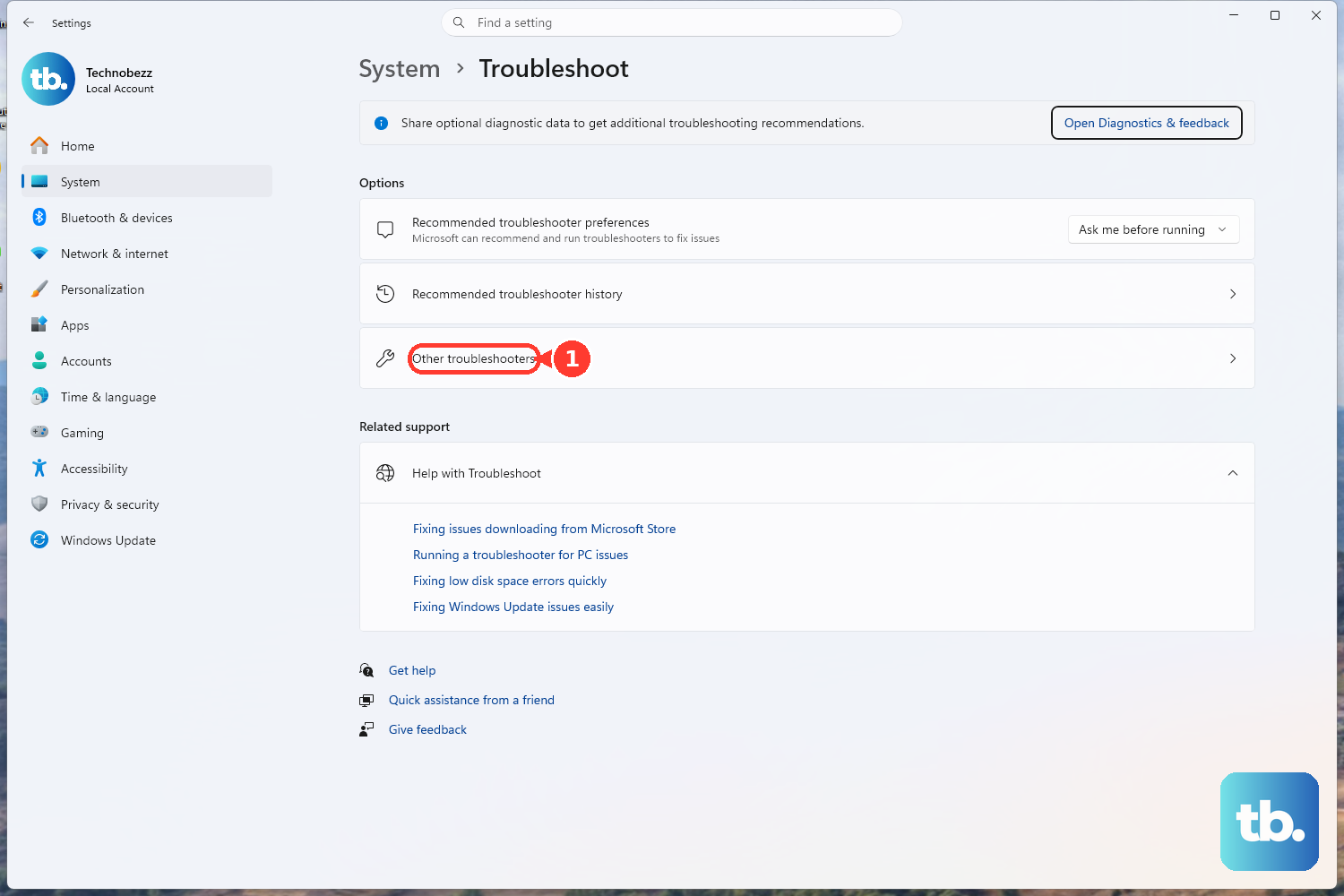
Select Start > Settings > System > Troubleshoot > Other troubleshooters.
Under Most frequent, select Run next to Windows Update.
Restart the PC when the troubleshooter finishes.
Select Start > Settings > Windows Update > Check for updates.
Install every available update.
Open Command Prompt as administrator.
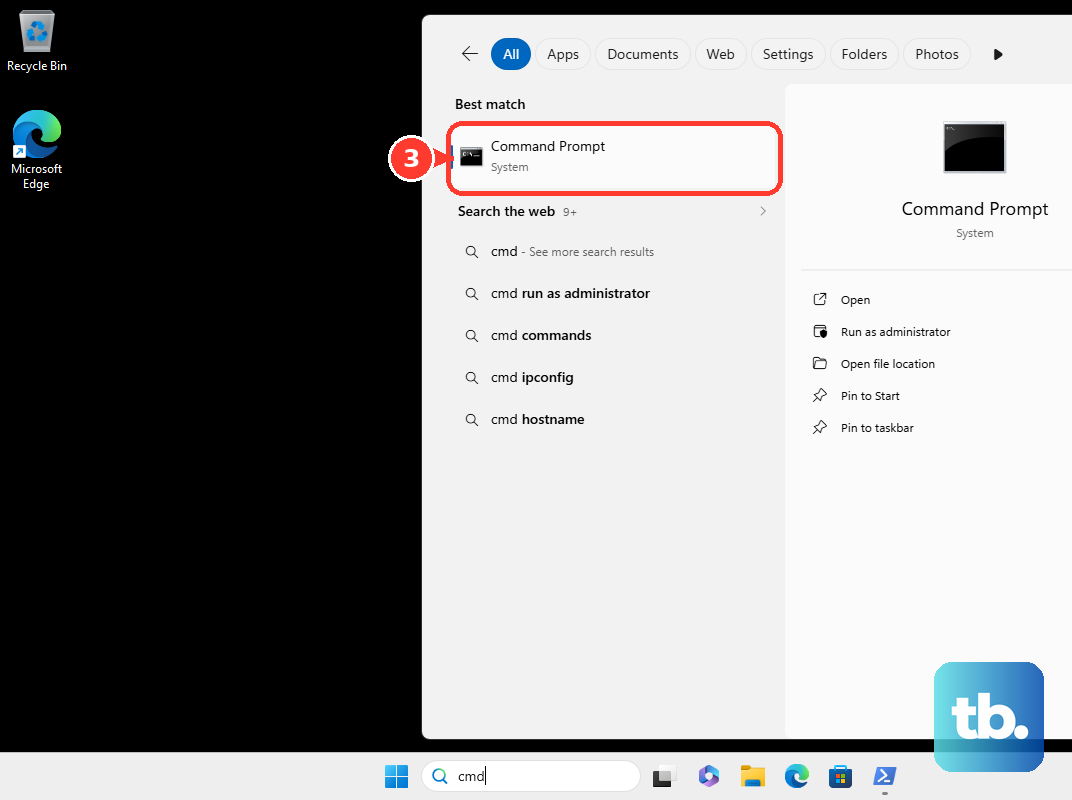
Run sfc /scannow.
For component-store repair, run Dism /Online /Cleanup-Image /ScanHealth, then Dism /Online /Cleanup-Image /CheckHealth, then Dism /Online /Cleanup-Image /RestoreHealth.
Do this before a reset when Windows opens but updates, system files, or Windows components are the thing failing.
Repair apps before repairing Windows
This fixes app-level failures before you repair the whole operating system.
Go to Settings > Apps > Installed apps.
Select the More icon next to the app you want to fix.
Select Advanced options when the app provides it.
Select Repair.
If Repair is not available or does not fix the problem, select Reset. Resetting an app removes that app’s data and settings.
For classic desktop programs, search for Control Panel.
Select Programs > Programs and Features.
Right-click the program, then select Repair or Change.
If an incompatible app blocks a repair or upgrade, remove it from Settings > Apps > Installed apps or Control Panel > Programs > Programs and Features.
Frequently Asked Questions
Will restoring Windows 11 delete my files?
It depends on the option. Windows Update repair reinstall keeps files, apps, and settings. Reset this PC with Keep my files keeps personal files but removes apps and settings. Remove everything and a clean install remove files, apps, and settings.
Can I restore Windows 11 if it will not boot?
Yes. Open Windows Recovery Environment and use Startup Repair, System Restore, Reset this PC, Uninstall Updates, Quick machine recovery when available, or installation media.
Why is System Restore missing my restore points?
System Restore only uses restore points that already exist. Turn on System Protection from Create a restore point so Windows can make restore points before the next problem.
Can Windows 11 restore deleted OneDrive files?
Yes, when the files are still recoverable. Use the OneDrive web Recycle bin for deleted files, Version history for one file, or Restore your OneDrive for a Microsoft 365 account within the last 30 days.