

To remove a Microsoft account from your Windows 10 sign-in, open Settings > Accounts > Your info and select Sign in with a local account instead. To delete another person's Windows user and local data, remove that user under Other users in Settings > Accounts from a different administrator account. Apps such as OneDrive and Outlook have separate account connections.
Choose the action that matches what you want to remove: the Windows sign-in connection, another user, an app connection, or an online device association. Sign in only through Microsoft’s own app or website, and never share a code, password, or remote access with someone who contacts you.
The short version
- Keep using your profile: Switch your Windows sign-in to a local account.
- Delete another user: Back up their files and remove the account from a different administrator account.
- Disconnect apps: Remove or sign out of the account separately in apps that retain it.
- Remove the online listing: Removing a device from your Microsoft account does not erase the PC.
- Give away the PC: Resetting with Remove everything removes all users' local content from the drives it resets.
| Action | Where | What it changes |
|---|---|---|
| Switch to a local account | Windows 10 Settings > Accounts > Your info | Windows sign-in |
| Remove another Windows user | Windows 10 Settings > Accounts, under Other users | Selected user and local data |
| Delete a user with Command Prompt | Administrator Command Prompt | Local user record |
| Delete a user with PowerShell | Administrator Windows PowerShell | Local user record |
| Disconnect work or school | Windows 10 Settings > Accounts > Access work or school | Organizational connection |
| Unlink OneDrive | OneDrive Settings > Account | OneDrive connection |
| Remove new Outlook account | Accounts > Your accounts | Email connection and offline cache |
| Remove classic Outlook account | File > Account Settings > Account Settings | Email configuration and cached content |
| Sign out of Office | Office desktop app | Office sign-in and potentially activation |
| Sign out of Office remotely | Microsoft account Installs page | Office session on the selected PC |
| Sign out of Edge | Edge Settings > Profiles | Browser sign-in and sync |
| Remove an Edge profile | Edge Profile settings | Selected browser profile |
| Sign out of Teams | Teams profile picture | Teams session |
| Unlink Link to Windows | Link to Windows on Android | Companion account connection |
| Remove the device listing | Microsoft account device dashboard | Online device association |
| Unlink Store content device | Microsoft account content-device list | Store download association |
| Sign out everywhere | Microsoft account security dashboard | Account sessions in browsers and apps |
| Reset the PC | Windows 10 Settings > Update & Security > Recovery | All users' local content on the reset drives |
| Reinstall while keeping nothing | Windows 10 installation media | Personal data, settings, and apps |
| Get installation media | Microsoft's Download Windows 10 page | Provides installation-media options |
| Block Microsoft accounts | Group Policy or MDM | Account use, without deleting existing data |
Switch to a local Windows account
Use this option to change your current Windows sign-in to a local account. You will still need to check accounts retained by apps separately.
On Windows 10, open Settings > Accounts > Your info, then select Sign in with a local account instead. Complete identity verification if prompted. Enter the local username, password, and password hint, then select Next.
The next action signs you out to finish changing your Windows sign-in. Select Sign out and finish, then sign in with the local account.
Remove another Windows user and their data
Removing a Windows user through Settings deletes that user's local data, so back up their files before proceeding. Sign in with a different administrator account, and keep an administrator account that you can still access.
On Windows 10, open Settings > Accounts. Under Other users, select the account you want to delete, then select Remove. Removal deletes that user's sign-in information and data from the device.
This leaves the online Microsoft account intact.
Use an administrator command if needed
Command Prompt provides an alternative for deleting the local user record associated with a Windows sign-in. Sign in with another administrator account and open Command Prompt with administrator privileges. Run this command to identify the exact local username:
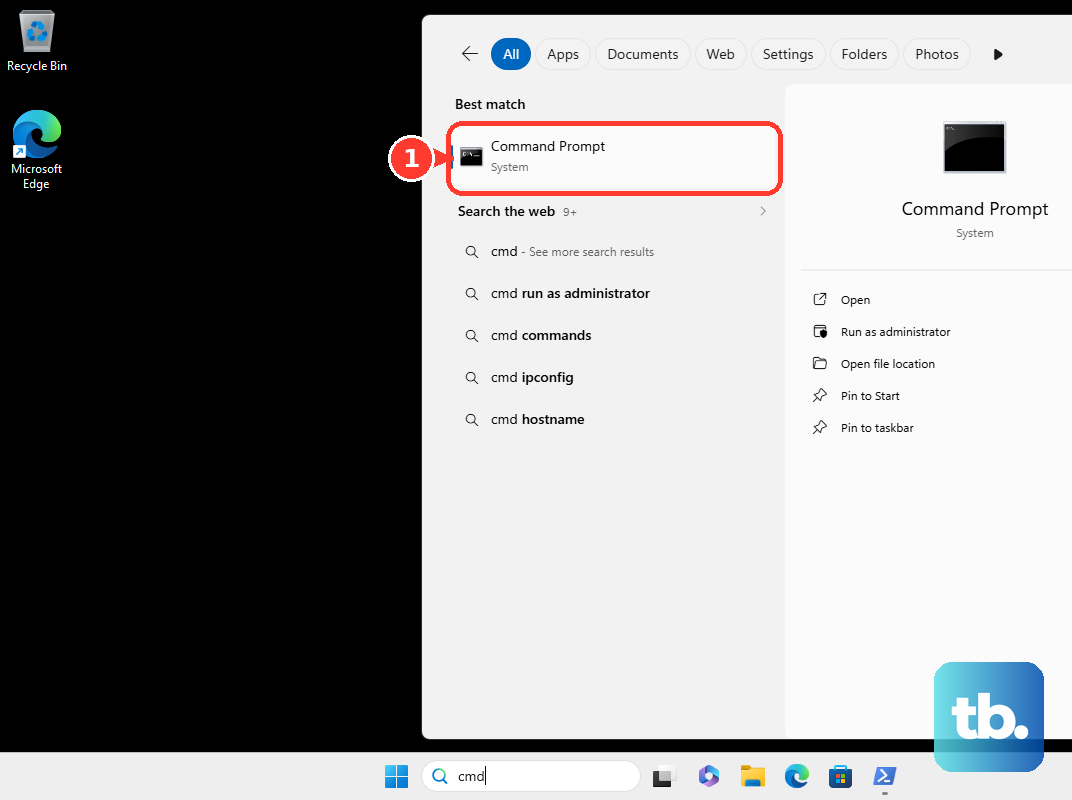
net userReplace USERNAME in the next command with that exact name, and do not add /domain. This command deletes the local account; do not treat it as confirmation that profile files or the online Microsoft account have been removed.
net user "USERNAME" /deleteYou can also use Windows PowerShell when the Microsoft.PowerShell.LocalAccounts module is available. The module is unavailable in 32-bit PowerShell on a 64-bit system; use Command Prompt instead if that condition prevents you from using it.
From a different administrator account, open Windows PowerShell with administrator privileges. Identify the account with this command:
Get-LocalUserReplace USERNAME below with the exact local account name. The next command removes the local user record without closing the Microsoft account online.
Remove-LocalUser -Name "USERNAME"Disconnect a work or school account
A work or school connection is separate from a personal Microsoft account. On Windows 10, open Settings > Accounts > Access work or school, then select the account.
Disconnecting removes the organizational connection from the PC without deleting the account at the organization. Select Disconnect, then select Yes. Organization management can restrict this action; if it does, use Microsoft's official account-management help for further assistance.
Disconnect accounts retained by apps
OneDrive has its own account connection. Unlinking removes that connection; downloaded files remain locally, while online-only files remain accessible through OneDrive on the web.
Select the OneDrive cloud icon in the notification area, then select the Help and Settings icon and open Settings. Open Account and select Unlink this PC. Select Unlink account to confirm.
For email, follow the steps for your installed Outlook version. Microsoft retired Windows Mail and Calendar, so use the new Outlook workflow for their replacement app.
In new Outlook for Windows, open View > View settings, or File > Account info. Open Accounts > Your accounts. Under Email accounts, select Manage beside the account.
Removing this account deletes its offline cached content from Outlook. Under Account details, select Remove. This disconnects the Outlook account without deleting the Microsoft account or Windows user.
For classic Outlook with a Microsoft 365 subscription, open File > Account Settings > Account Settings. Select the email account you want to remove. If it is the last email account, Outlook may first require you to create a new Outlook data-file location.
Removing the account deletes its email configuration and cached content from classic Outlook. Select Remove, then select Yes.
Signing out of Microsoft 365 or Office can affect Office activation. In an Office desktop app, open File > Account and select Sign out. In Outlook, open File > Office Account and select Sign out.
Close all Office apps after signing out. Unlink OneDrive separately if you also want to disconnect its sync app.
Signing out of Edge stops the signed-in browser profile's sync without removing the Windows user. In Edge, open Settings and more > Settings > Profiles, then select Sign out. If a confirmation dialog opens, select Sign out again.
To remove an Edge profile instead, select the Profile icon, then Profile settings. This removes the selected browser profile, without deleting the Windows user or online Microsoft account. Under More profiles, select the delete button beside the profile, select Remove profile, and review the additional confirmation before confirming removal.
In Teams, select your profile picture at the top, then select Sign out. Other apps can continue accessing the account, so sign out of them separately where needed.
For an Android device paired through Phone Link, open Link to Windows and select the Microsoft account name under Linked Account. Open Account Settings. Unlinking disconnects the companion account relationship without changing your Windows sign-in. Select Sign out and unlink account, then select Unlink.
Link to Windows labels can vary with the app version and Android device. If those labels differ on your device, use Microsoft's official Phone Link troubleshooting help for the applicable instructions.
Remove online associations and sessions
The Microsoft account device dashboard controls the PC's online association with your account. Removing that association does not erase the PC or delete its Windows user.
Sign in to the Microsoft account device dashboard and select the PC. The next action removes the PC's online association with your Microsoft account. Select Remove device, check I’m ready to remove this device, then select Remove.
You can also complete the device-removal controls with the keyboard. Press Tab to reach the device, removal button, checkbox, and final button, and press Enter to activate them.
For a Microsoft Store download association, sign in to your Microsoft account's content-device list and find the PC. Unlinking removes that content-device association and frees a slot without removing the Windows account. Select Unlink, review the device details, then select Unlink again.
For Microsoft 365 for home, you can sign out of Office on a PC remotely through your Microsoft account's Installs page. Sign in there and locate the PC under Devices. Signing out can affect Office activation. Select Sign out of Microsoft 365 or Office; the Windows user and OneDrive sync connection remain separate.
To revoke personal Microsoft account sessions more broadly, sign in to Additional security options on the Microsoft account security dashboard. Scroll to Sign out everywhere. This signs you out of account sessions in browsers and apps without deleting the local Windows user or its files. Select Sign out.
Reset or reinstall Windows before giving away the PC
Use a reset when selling or giving away the PC, or when you want a complete fresh start. Resetting with Remove everything removes all users' local content from the drives it resets, while online Microsoft accounts and cloud files remain separate. If the PC has more than one drive, Windows lets you remove data from all drives or only the drive where Windows is installed, so choose all drives when you are giving the PC away.
This reset removes local content for every user, so back up needed files and obtain the BitLocker recovery key if applicable before starting. On Windows 10, open Settings > Update & Security > Recovery. Under Reset this PC, select Get started.
Select Remove everything, then choose Cloud download or Local reinstall. For a PC you are selling or giving away, enable Clean data and complete the reset prompts. For the broader reset process, follow the steps to factory reset a laptop.
Reinstalling Windows with compatible Windows 10 installation media is another option for a fresh start; for a PC you are selling or giving away, use the reset with Clean data above. Microsoft's Download Windows 10 page provides official installation-media options; ordinary account switching and removal require no download. Installation and activation requirements apply to the reinstall.
Reinstalling with Keep nothing removes personal data, settings, and apps, so back up needed files first. Connect the installation media, open it in File Explorer, and run setup.exe. Select Yes, then select Change what to keep. Select Keep nothing, select Next, then select Install.
Block Microsoft accounts on a managed PC
On Windows 10 Pro, Enterprise, Education, and IoT Enterprise, Group Policy can prevent Microsoft account use without deleting existing accounts or data. The stronger option also blocks Microsoft account logons, so ensure an alternative administrator can sign in before applying it.
In Group Policy, open Computer Configuration > Windows Settings > Security Settings > Local Policies > Security Options > Accounts: Block Microsoft accounts. Choose the option that prevents adding Microsoft accounts, or the stronger option that prevents both adding and logging on with them.
For MDM on those editions running Windows 10 version 1709 or later, the corresponding setting is ./Device/Vendor/MSFT/Policy/Config/LocalPoliciesSecurityOptions/Accounts_BlockMicrosoftAccounts. Value 1 blocks adding accounts. Value 3 also blocks their logon, so ensure an alternative administrator can sign in before applying that value.
Frequently Asked Questions
Do the local account and reset steps apply to Windows 10 22H2?
Yes, both workflows apply to Windows 10 22H2. Switching to a local account changes your Windows sign-in, while resetting with Remove everything removes all users' local content from the drives it resets.
Does signing out of Teams on the PC sign you out on other devices?
No, Teams on other devices remains signed in. Signing out on this PC affects that Teams session.
Can a PC return to the Microsoft Store content-device list after unlinking?
Yes, downloading Microsoft Store content on that PC later can associate it again. Unlinking frees a content-device slot without removing the Windows account.
Does Sign out everywhere include Xbox consoles?
No, Microsoft excludes Xbox consoles from Sign out everywhere. The option revokes Microsoft account sessions in browsers and apps.