


To recover deleted Chrome history, check surviving Google Account activity, an earlier export, or a Chrome profile backup from before the deletion. These can help you find lost pages or recover older files, but Google does not document a general history undelete command. First check whether your history is still in another profile or whether you only closed the tabs, since finding a page again does not necessarily restore its original visit record.
The short version
- Check surviving history: Search Chrome history and switch to the profile you used for the missing visit.
- Look in your account: Previously saved Google activity may help you find the page again.
- Sync has limits: Deleting synchronized history also deletes it from devices synchronizing that history.
- Backups must predate the loss: Earlier archives or profile backups may retain information that a new export cannot recover.
| Method or place | What it can provide | Main requirement or limit |
|---|---|---|
| Desktop history | Existing visit records | Entries still saved |
| Address bar history search | Matching saved pages | Surviving history only |
| Android history | Existing visit records | Entries still saved |
| iPhone or iPad history | Existing visit records | Entries still saved |
| Original Chrome profile | History stored in another profile | Original profile still present |
| Google Account history | Previously saved account history | Account records still retained |
| Other device tabs | Access to open pages | Same account and tab synchronization |
| History and tab shortcuts | Saved history or retained tabs | Cannot undo deletion |
| Desktop session restoration | Previously open pages | Previous session still retained |
| ChromeOS session restoration | Retained apps and tabs | Session data still available |
| Android tablet recent tabs | Retained tabs or windows | Recent tab data remains |
| Android inactive tabs | Hidden tabs or groups | Items remain in the inactive section |
| iPhone or iPad inactive tabs | Retained tabs and existing iPad windows | Immediate undo only while offered |
| AI history search | Matches from surviving history | Eligible desktop Chrome and prior activation |
| Gemini history search | Previously visited pages | Eligible access and synchronized personal account |
| Google account activity | Separately saved activity | Activity retained before the loss |
| Account activity settings | Control over future retention | Cannot reconstruct missing activity |
| Search Services History | Searches and visited search results | Account has received the settings rollout |
| Google Takeout | Exported account records | Only an earlier archive may preserve deleted data |
| Bookmarks | Previously saved links | Bookmark still present |
| Downloads | Website clues | Records or downloaded files remain |
| Chrome profile location | Correct folder to check in backups | Preparation for file restoration |
| Windows File History | Backed up profile files | Existing backup includes the profile |
| macOS Time Machine | Backed up profile files | Existing backup includes the profile |
| Windows File Recovery | Potentially recoverable deleted files | Actual file deletion on Windows 11 local storage |
| Microsoft Store installation | Windows File Recovery app | Supported Windows PC |
| Point-in-time restore | Entire system drive rollback | Feature available and suitable snapshot retained |
| Windows DNS cache | Possible domain clues | Relevant resolver records remain |
| Administrator check | Explanation for missing recording | Managed Chromebook or restricted AI feature |
| Chrome installation | Browser on a replacement computer | Recovery still depends on surviving data |
Search the history Chrome still has
On desktop Chrome, including ChromeOS, open More > History > History. Search for the page, or select By date or By group. Sensitive entries hidden from groups may still appear in search, so search directly before assuming an entry is gone.
You can open history on Windows or Linux with Ctrl + H, or on Mac with Command + Y. To search from the desktop address bar, enter @history, press Tab or Space, enter keywords, and select a result. These routes find surviving records without reversing deletion.
If you might be using a different desktop profile, select Profile at the top right and choose the profile used for the missing session. Open its History and search again. Profiles keep separate browsing information, so an empty history in one profile does not establish that another profile’s records were deleted.
On Android, open Chrome and tap More > History, then tap an entry. If the address bar is at the bottom, swipe up on it and tap History. On an iPhone or iPad, open More > History and open a surviving entry.
If you use desktop Chrome in English in the United States, you can enable AI history search through More > Settings > AI innovations > History search, powered by AI. Search the History page with a description of at least two words, then review Best matches from your history. AI matching covers sites visited after activation, so enabling it now cannot recover erased entries.
If you already opted into Gemini in the latest Chrome and have access, select Ask Gemini and enter a description such as Show me the article I was reading this morning about the stock market. Use the same personal Google Account used for browsing, with history synchronized. Desktop access covers eligible Windows, Mac, and Chromebook Plus devices, subject to region, language, age, and rollout restrictions. This searches surviving history, and Google excludes Live chats from the feature.
Reopen retained tabs and sessions
If you closed a tab, press Ctrl + Shift + T on Windows or Linux, or Command + Shift + T on Mac. Repeat the shortcut for additional closed tabs while their records remain. For a page visited within an open tab, hold or right-click Back or Forward to inspect its navigation history.
To find a page still open on another device, use desktop Chrome and select More > History > History > Tabs from other devices. Open a surviving tab from the relevant device. This requires the same Google Account and tab synchronization, and restores access to the page rather than its deleted visit record.
For a retained desktop session, open More > Settings > On startup, then select Continue where you left off. Chrome can reopen pages from its retained previous session. Enabling this setting cannot recreate a session already lost.
On ChromeOS, select the time, open Settings > System preferences, and find Startup. Select Ask every time and select Open when prompted after sign-in, or select Always restore to restore the previous session automatically. This requires retained session data and restores apps and tabs rather than erased history.
On Android tablets, open More > Recent tabs and select the retained tab or window. You can also tap Switch tabs > Search and enter a tab name. Tab search includes recently closed and other device tabs when those records remain.
On Android, tap Switch tabs > Inactive tabs and open the missing tab or group. To stop tabs moving there in the future, open More > Settings > Tabs and tab groups > Move to inactive section and select Never. The Automatically close inactive items toggle controls automatic closing.
On an iPhone or iPad, tap Switch Tabs > Inactive Tabs and select a tab. If you just closed inactive tabs, tap Undo while offered. To prevent future hiding, open More > Settings > Tabs and tab groups > Inactive and select Never move. On iPad, touch and hold the Chrome app icon and select Show All Windows to locate another existing window.
Retrieve surviving Google Account history
After losing or replacing a computer, you may be able to access history that remains in your Google Account. If installation is needed, get Chrome from Google’s official Chrome page. Installing the browser alone does not recover deleted history.
On desktop Chrome, sign in to the original account and open More > Settings > You and Google. Select your account name, turn on History and tabs, and open Chrome’s History. This requires previously saved account history that still exists.
Synchronization is not a backup: deleting synchronized history propagates the deletion to devices synchronizing that history. With a custom sync passphrase, cross-device history is limited to addresses entered in the address bar. If the account no longer holds the records, check separately retained activity or an earlier archive.
Find pages in saved Google activity
Open your Google activity in a desktop or mobile browser and sign in to the account used during browsing. Browse by day or use search and product or date filters, then open a surviving entry. Viewing this separately retained activity does not import its records back into Chrome.
Chrome activity required history synchronization and the relevant account activity setting before the visit. To check future retention, open Google Account personalization settings and check Include Chrome history and activity from sites, apps, and devices that use Google services if your account exposes it. Chrome must also be signed in and synchronizing history. Google is transitioning account settings, so the controls may differ, and enabling them afterward cannot reconstruct missing activity.
For accounts receiving Search Services History, click Search on the activity page and select the relevant Search service or feature. Review saved searches and visited search results to retrace how you found the website. Accounts awaiting the rollout still use Web & App Activity for Search services, and this activity is separate from Chrome’s browsing history.
Check exports bookmarks and downloads
Check an existing Google Takeout archive created before deletion, since it may preserve older records. A fresh export contains only data that remains available. Google documents exporting Chrome data, but does not document a history import or undelete function for putting those records back into Chrome.
To export surviving account data, open Google Takeout and select Chrome. Select Next step, choose the archive options, select Send download link via email, and select Create export. In the resulting email, select Download archive.
For a previously bookmarked page, open desktop Chrome and select More > Bookmarks and lists > Show all bookmarks. Browse the saved folders and reopen the relevant page. A bookmark can return you to the website without recovering its visit dates.
For download clues, open desktop Chrome’s More > Downloads and inspect retained records. Open relevant downloaded files for information about the original page. This can help reconstruct where you browsed, but it does not restore deleted history entries.
Restore profile files from existing backups
Before checking backups, locate the correct profile in desktop Chrome on Windows, macOS, or Linux. Open chrome://version in the address bar and record Profile Path. Use that location when searching backups, since not every profile is named Default. The Windows steps below use Windows 11 menus.
On Windows 11, File History requires an existing backup that actually includes your Chrome profile. It protects libraries, so do not assume the profile under AppData was included. In File Explorer, locate the backed-up profile folder or its parent, right-click it, and select Restore previous versions.
Select a version from before the loss, expand Open, and select Open in File History to inspect it. To recover a separate copy without replacing current files, expand Restore and select Restore to.... Without a suitable backed-up version, this route cannot supply the older files.
On macOS, you need an existing Time Machine backup containing the profile. Preserve a copy of the current profile and quit Chrome before attempting replacement, then open the relevant profile location in Finder. Use Spotlight to open Time Machine, navigate to a backup from before the loss, select the backed-up items, and click Restore.
Apple restores items to their original location, which is why preserving your current profile matters. These backup tools restore files, but their makers do not guarantee a Chrome history database replacement procedure.
Recover an actually deleted profile file
Windows File Recovery can attempt recovery of an actually deleted local profile file on Windows 11. Microsoft does not promise recovery of individual history entries removed from a database that still exists. If you used Chrome’s history deletion controls, recovering a deleted file is a different operation.
Minimize writes to the affected drive because overwritten data may be unrecoverable. Install Windows File Recovery from Microsoft through the Store installation flow. Press the Windows key, search for Windows File Recovery, open it, and select Yes when prompted.
Use different source and destination drives, replacing the placeholders with the affected drive, recovery drive, and path to the deleted file. Run this command:
winfr source-drive: destination-drive: /regular /n "<path-to-deleted-file>"Press Y to start recovery. If regular recovery fails, use /extensive when appropriate. Recovering a file still does not guarantee that Chrome can restore its browsing records.
Consider whole system restoration carefully
On Windows 11 devices that expose the feature, inspect Settings > System > Recovery > Point-in-time restore > View or edit for a snapshot from before the loss. Availability varies, and this route requires a suitable retained snapshot. Restoring older local profile files is a possible consequence of whole-drive restoration, not a Chrome-specific recovery guarantee.
To use an available snapshot, open Windows Recovery Environment and select Troubleshoot > Point-in-time restore. Enter the BitLocker recovery key if requested, select a restore point, and review the warnings. Select Continue, then select Restore.
This rolls back the entire system drive, including newer files and changes, making it disproportionate for recovering one website. Keep this consequence in mind before proceeding, even when a suitable snapshot exists.
Check domain clues and recording restrictions
On Windows 11, the DNS cache may offer recognizable domain names if relevant records remain. Open Command Prompt and run:
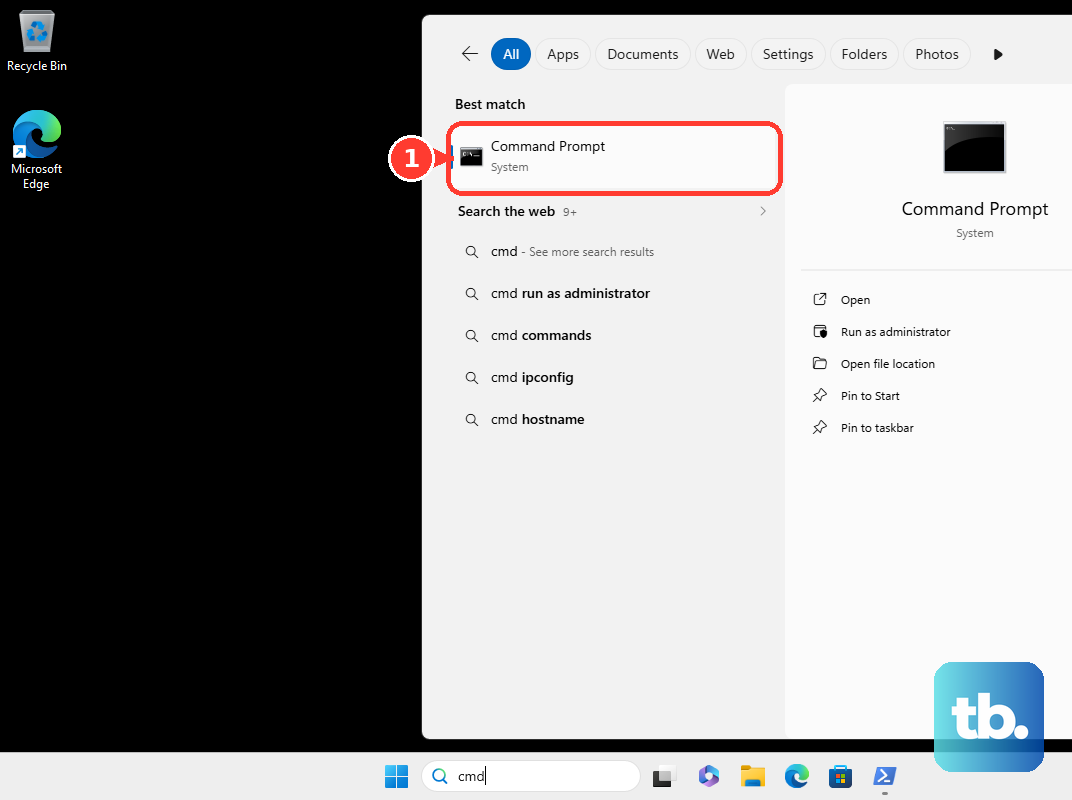
ipconfig /displaydnsInspect the output for domains you recognize. These are resolver records that can come from other applications or background requests, not a list of Chrome visits, full URLs, or visit times. They can supply clues but cannot restore Chrome history.
On a managed Chromebook, ask your administrator whether history recording is disabled. Enabling future recording cannot recreate visits that were never saved. Your organization may also restrict Chrome’s AI history search, so ask the administrator if that feature is blocked.
Frequently Asked Questions
Can you recover Incognito browsing history from Chrome?
Incognito visits do not appear in ordinary Chrome history. Searching that history or changing its display will not reveal those visits.
Why are older visits missing even if you never deleted them?
Desktop Chrome history normally covers the last 90 days. An older visit can therefore be absent without a recent manual deletion.
Can reinstalling Chrome recover deleted history?
Google does not document uninstalling and reinstalling Chrome as an undelete method. Uninstalling can remove profile data, so avoid using it as a history recovery step.
Will conventional Windows System Restore recover browsing history?
Conventional Windows System Restore affects system files and settings rather than recovering personal files. It is distinct from Point-in-time restore and should not be treated as a Chrome history recovery method.
Why do older instructions mention Journeys?
Older Chrome instructions used the name Journeys for history grouping. Current documentation uses By group, and grouping has never been a way to undelete browsing history.
Can a work or school account export Chrome data?
Work or school restrictions may affect whether you can export Chrome data through Google Takeout. The export steps apply when your account has exportable Chrome data.