


To recover deleted Yahoo emails, open Trash, select the messages, and move them to Inbox. If they have already left Trash, you can request Yahoo restoration when the loss or deletion happened within the previous seven days.
Yahoo keeps messages in Trash for seven days, so check that folder first. Restoration requests have a separate seven-day window based on when the email disappeared, regardless of when you originally received it, and recovery is not guaranteed.
The short version
- Desktop recovery: In New Yahoo Mail, click the More (More options) icon, select Trash, select the message, and click Restore to Inbox.
- App recovery: Tap your profile icon, swipe down to Trash, select the email, and use Move to choose Inbox.
- Missing from Trash: Request restoration within seven days of the loss, with no guarantee of recovery.
- Other copies: Existing downloads, backups, forwarded messages, or another recipient’s copy may preserve the email.
| Recovery option | When it helps | What you need |
|---|---|---|
| New Yahoo Mail desktop | Restore deleted mail directly | Message remains in Trash |
| Desktop folder move | Move found mail to a chosen folder | Message still exists in the account |
| Yahoo Mail Android or iOS app | Recover mail from your phone | Message remains in Trash |
| Mobile browser | Recover mail through the website | Message remains in Trash |
| Desktop keyboard shortcut | Restore a selected message quickly | Select it in Trash and press Shift + E |
| iPhone or iPad keyboard shortcut | Use Restore to Inbox undo | Yahoo Mail with a keyboard |
| Yahoo restoration request | Seek mail missing from Trash | Loss occurred within seven days |
| Archive | Retrieve archived mail | Message remains in the account |
| Spam | Retrieve incorrectly filtered mail | Message remains in Spam |
| Search and other folders | Find misplaced messages | Message still exists |
| Existing POP download | Find an independent local copy | Message downloaded before deletion |
| Apple Mail on iPhone | Move retained Yahoo mail | Yahoo configured and message in Trash |
| Apple Mail on iPad | Move retained Yahoo mail | Yahoo configured and message in Trash |
| Apple Mail on Mac | Drag retained mail to another mailbox | Message remains in the configured Trash |
| Outlook for Windows | Move retained Yahoo mail | Yahoo configured and message retained |
| Outlook PST backup | Retrieve an earlier saved copy | Existing PST contains the message |
| Apple Mail or MBOX import | Recover mail from an export | Existing backup contains the message |
| Time Machine | Restore downloaded mail files | Existing backup includes those files |
| Thunderbird profile import | Retrieve backed-up messages | Backup contains complete messages |
| Windows File History | Restore saved local mail files | Existing Windows 11 backup includes them |
| Saved or manually forwarded copy | Retrieve the message or its contents | Independent copy made before deletion |
| Automatic forwarding destination | Find a previously forwarded copy | Forwarding enabled before arrival |
| Sender or another recipient | Receive a new forwarded copy | Another participant retains the message |
| AT&T restoration request | Seek recently lost AT&T Yahoo mail | AT&T account and emails from the past seven days |
| Yahoo Mail app installation | Access the app’s recovery controls | Supported Android or iOS device and retained mail |
Restore deleted messages on the Yahoo Mail website
Sign in to New Yahoo Mail in a desktop browser. Click the More icon (Yahoo also calls it More options) on the left below your mail folders, then select Trash. Select the email you want back and click the Restore to Inbox icon.
To put a retained message in another folder, select it, click Move above the message list, and choose the destination. You can also drag messages to folders where that interaction is available. These controls move messages that still exist in the account; they cannot retrieve mail already removed from it.
For a desktop keyboard shortcut, open Trash, select the message, and press Shift + E to restore it to Inbox. Alternatively, press D and choose a destination folder.
Recover emails in the Yahoo Mail app or mobile browser
In the Yahoo Mail app for Android or iOS, tap your profile icon, swipe down, and tap Trash. Select the email, tap the Move icon, and select Inbox. Swipe up the destination menu if you cannot see Inbox.
If you need to install the app, open Yahoo’s official mobile product page and follow its App Store or Google Play link for your supported device. Installation gives you access to the app’s controls; it does not itself restore deleted messages.
To recover mail in a phone or tablet browser, open Yahoo Mail, open Trash, and select the messages. Tap the Move to icon at the bottom of the page, then choose Inbox or another destination folder.
In Yahoo Mail on an iPhone or iPad with a keyboard, press Command + Z for the Restore to Inbox undo action. Yahoo does not specify its undo-history depth or time limit. Use the folder steps above to locate a particular message still in Trash.
Request restoration when the email has left Trash
If the message is no longer in Trash, open Yahoo’s email recovery page and click Send a Restore Request. Continue through the restoration flow if it opens. The request applies to messages lost or deleted within the previous seven days, including older emails deleted recently.
Recovery is not guaranteed, and you cannot cancel a restoration request. Yahoo excludes messages from Spam and Draft, along with certain marketing-list messages, from restoration. A request may therefore leave some missing emails unrecovered.
After restoration, check both Inbox and Trash for recovered messages. Check their previous folders as well, since restored mail may return to different locations.
For an AT&T email account using the AT&T/Yahoo service, first preserve important messages received or sent during the previous seven days, as AT&T instructs. Open AT&T’s missing email restoration page and select Complete a restore request. AT&T says it can only restore emails from the past seven days, and restoration efforts aren’t always successful.
Find messages in Archive and other folders
If you are unsure whether an email was deleted, search for it in New Yahoo Mail on desktop. Enter a sender, subject, or keyword in the top search bar and click the Search icon. For a narrower search, click Advanced Search, enter criteria under From, To, Subject, Keyword, or Date, then click Search.
Check Trash and Spam manually because Yahoo excludes both folders from search results. To retrieve a message incorrectly marked as spam, click the More options icon, select Spam, and select the message. Click Not spam to move it to Inbox.
Archived messages remain in your account. Click the More (More options) icon below your mail folders and select Archive. Open or select the message, then click Restore to Inbox.
Move retained messages back through Apple Mail or Outlook
If you already use Yahoo through Apple Mail or Outlook, check the Yahoo account’s Trash folder for retained messages. IMAP synchronizes deletions between Yahoo and connected apps, so another synchronized device is not automatically a separate backup. If the message has disappeared there too, use the restoration request or look for an existing independent copy.
In Apple Mail on an iPhone using iOS 27 with Yahoo configured, open Mail and tap the Mailboxes button until Mailboxes appears. Under your Yahoo account, tap Trash and open the email. Tap the Mailbox button and choose Inbox or another mailbox.
On an iPad with Yahoo configured in Apple Mail, open Mail and tap the Sidebar button. Tap the Collapsed button beside the Yahoo account to expand its mailboxes, then tap Trash and open the message. Tap the Move button and select Inbox or another mailbox.
In Mail on Mac, select the Yahoo account’s Trash mailbox and drag the message to Inbox or another mailbox. This works while the message remains in the configured Trash mailbox; Yahoo’s retention still applies to messages stored on its server.
In supported classic Outlook editions, including Microsoft 365 and Outlook 2024, open the Yahoo account’s Trash or Deleted Items folder and select the message. Right-click it, select Move, and choose Inbox. In new Outlook for Windows, open that folder, select the message, and use Home > Move to choose Inbox. You can also drag an available message to the destination folder.
Find an existing download or forwarded copy
Open any desktop mail app you previously used to download Yahoo messages through POP, such as Outlook, Thunderbird, or Mac Mail. Search its downloaded mail and local folders for the missing email. A surviving downloaded copy may remain after the server copy is gone, but setting up POP after deletion cannot recreate missing mail.
Check another mailbox for a copy you forwarded before deletion, along with saved text documents, PDFs, or printed copies. These can preserve the contents even when they do not restore the original Yahoo message.
If another participant still has the email, ask them to forward it to your Yahoo address. If they use New Yahoo Mail, ask them to open the message, click the Forward icon, enter your address, and click Send. You will receive a new forwarded message.
If you enabled automatic forwarding before the message arrived, check that destination mailbox. In New Yahoo Mail on desktop, click the More options icon, select Settings, then click Mailboxes. Under Mailbox list, select your primary account and inspect Auto-forwarding to identify the destination. Sign in to that mailbox and look for its surviving copy.
Yahoo offers automatic forwarding as a Yahoo Mail Plus feature in selected locales. It helps only when forwarding was enabled before the message arrived; turning it on after deletion cannot recover earlier mail.
Open an existing mail backup
A backup helps only if it already contains the missing message. In classic Outlook, select File > Open & Export > Open Outlook Data File, select the existing PST file, and select Open. Browse its folders for the email.
In new Outlook, select Settings > Files > Outlook Data Files > Add file, select the PST, then select Open. Browse the file’s folders for the message. Opening a PST in new Outlook requires classic Outlook to be installed with matching 32-bit or 64-bit architecture. The account used in new Outlook also needs a Microsoft 365 subscription. PST files are unsupported in the ARM version of new Outlook, and new Outlook cannot be in Safe or Recovery mode.
For an Apple Mail or MBOX backup, open Mail on Mac and select File > Import Mailboxes. Select Apple Mail for a Mail-exported mailbox or Files in mbox format for an appropriate MBOX source, then click Continue and locate the backup. Recovered messages appear in Import; drag the ones you need to the Yahoo Inbox to return copies to the account.
In current desktop Thunderbird, open the ≡ menu and select Tools > Import. Choose Import from a file for a supported backup file, click Continue, and choose the source. For a profile folder, choose Import from another Thunderbird installation, then Choose a profile folder.
Select the data to import, click Continue, then click Start Import. ZIP imports are limited to 2 GB, so use the profile-folder route for larger profiles. The backup must contain complete messages; importing it does not recover purged Yahoo server data.
Restore saved mail files from a computer backup
Time Machine can help when an existing Mac backup contains downloaded mail or saved mailbox files. In Finder, open the location that contained the file, then open Time Machine using Spotlight. Go to a backup from before deletion, select the needed file or folder, and click Restore.
Open the recovered message or import the recovered mailbox through Mail’s File > Import Mailboxes. Recovery depends on what Mail downloaded and what the backup included.
On Windows 11, File History can restore local mail files included in an existing backup. Open File Explorer, locate the folder that previously held the message or mailbox file, right-click it, and select Restore previous versions. Select a backup containing the file, expand Open, and select Open in File History to inspect it.
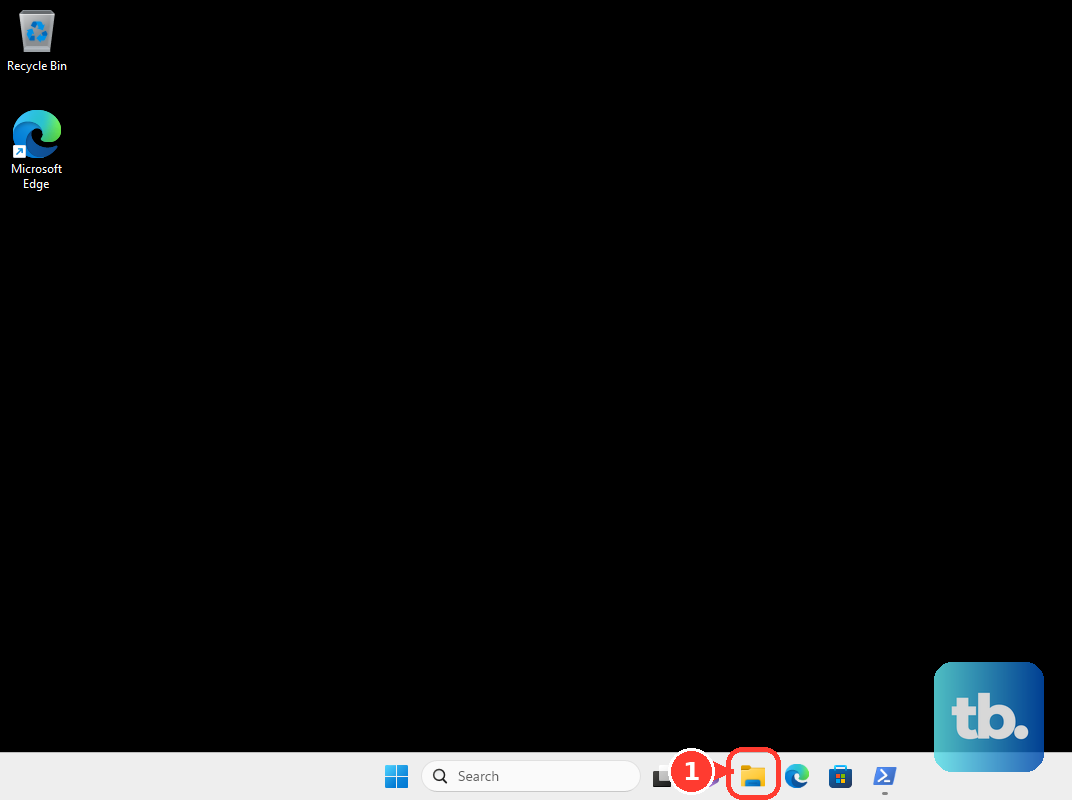
To recover the file elsewhere, expand Restore and select Restore to..., then open or import the recovered file in its mail app. File History cannot recover Yahoo cloud messages that were never saved locally. If no backup contains the email, ask the sender or another recipient for a surviving copy.
Frequently Asked Questions
Can you extend Yahoo Mail’s seven-day Trash retention?
Yahoo says you cannot change its seven-day Trash retention. A connected mail app’s retention settings do not extend Yahoo’s server retention.
Will reactivating an inactive Yahoo mailbox restore its old emails?
Reactivating your mailbox does not restore contents removed after prolonged inactivity. Yahoo says those deleted contents cannot be restored.
Can Outlook’s Recover Deleted Items From Server recover Yahoo emails?
Outlook’s Recover Deleted Items From Server feature does not extend Yahoo recovery. Microsoft says accounts displaying Trash do not support that recovery layer. You can instead move retained messages, request Yahoo restoration, or retrieve an existing backup.
How can you see Yahoo Mail’s available keyboard shortcuts?
On Yahoo Mail desktop web, press Shift + ? to display available shortcuts. In Yahoo Mail on an iPhone or iPad with a keyboard, hold Command for two seconds.
Can you install an older Yahoo Mail app to recover messages?
Yahoo says you cannot revert to an older Android or iOS Mail app. Use the current app’s Trash recovery controls or request restoration for an eligible recent loss.