

To reconnect an AirTag to your iPhone, open Find My, tap Items, select your AirTag, and move closer; if it is unpaired or was removed, hold it beside your unlocked iPhone and tap Connect. An AirTag already registered to your Apple Account may need its connection or account access restored. Check whether it is still listed before removing or resetting it.
The short version
- Already listed: Select the AirTag in Items and move closer to restore a local connection.
- Replacement iPhone: Sign in with the Apple Account that owns the AirTag.
- Ready for setup: Hold the AirTag beside your unlocked iPhone and tap Connect.
- Still disconnected: Check Bluetooth, location access, internet access, and the AirTag battery before resetting.
- Previous owner: The owner must remove the AirTag from their account before you can register it.
| What you see | What to do | Key condition |
|---|---|---|
| AirTag listed nearby | Tap Find or Play | Move closer to connect |
| AirTag outside local range | Turn on Notify When Found | Wait for network detection |
| AirTag missing on a replacement iPhone | Sign in to the owning account | Use the account that registered it |
| App deleted | Restore Apple’s app from App Store | Tap Redownload |
| Unpaired or removed AirTag | Hold it nearby and tap Connect | Unlock your iPhone |
| Setup prompt unavailable | Open Find My and add it from Items | Keep one AirTag nearby |
| Setup cannot complete | Check connection and account settings | Bluetooth and internet access required |
| Setup still fails | Restart your iPhone | Retry after it starts |
| iPhone unresponsive | Force restart your iPhone | Use when ordinary shutdown is unavailable |
| iOS below the required version | Install an available iOS update | Requirements differ by AirTag generation |
| Low Battery warning | Replace the CR2032 battery | Choose an AirTag compatible battery |
| Existing account connection needs removal | Have the owner remove it in Find My | A reset cannot release the account lock |
| Original AirTag needs a reset | Repeat the battery insertion sequence | Listen for a different fifth sound |
| AirTag (2nd generation) needs a reset | Follow its additional hold and wait timings | Original AirTag timings do not apply |
Check whether your AirTag is still registered
Open Find My, tap Items, and select your AirTag. For a nearby tag, tap Find and move around and closer until your iPhone connects, then follow the distance and direction display. Some versions call this control Find Nearby, and Precision Finding requires a supported Ultra Wideband iPhone.
Tap Play to check for an audible connection; some versions label it Play Sound. Registration does not require Precision Finding, so the absence of directional guidance does not mean you need to pair the AirTag again.
For an AirTag outside local range, under Notifications, turn on Notify When Found. Its location updates when the Find My network detects it again. You do not need to remove and register it again for network detection.
Restore access on a replacement iPhone
Sign in with the Apple Account used to register the AirTag. Open Settings, select Apple Account, then tap Sign in Manually. Enter that account’s email address or phone number and password, followed by the verification code when requested.
Alternatively, select Use Another Apple Device and complete sign-in with a nearby signed-in iPhone or iPad. After signing in, open Find My and tap Items to check for your AirTag. This restores access to its existing registration.
If you deleted the app, open App Store, search for Find My, select Apple’s app, and tap Redownload. You can follow the steps to find and reinstall deleted apps for help restoring it. Once restored, open Find My and tap Items; deleting the app is not a reconnection step.
Add an unpaired or removed AirTag
Hold the AirTag beside your unlocked iPhone and tap Connect. Choose a category, or select Custom Name and choose a name and emoji. Then follow the onscreen prompts to register the AirTag to your Apple Account.
To start inside the app, open Find My, tap Items, select Add (+), and choose the AirTag option. Then follow the onscreen steps to finish setting up the AirTag.
When the setup animation disappears, press Side or Sleep/Wake to lock your iPhone, then wake and unlock it. Wait 15 seconds before trying again. Keep only one AirTag nearby during setup.
Check the settings needed for reconnection
Open Settings > Bluetooth and turn on Bluetooth. Check the switch in Settings because the Bluetooth control in Control Center does not completely disable Bluetooth. For internet access, open Settings > Wi-Fi, turn on Wi-Fi, and select a working network, or use a strong cellular connection.
A blue checkmark identifies your connected Wi-Fi network. If the connection fails, return to Settings and turn off Airplane Mode, then retry setup once internet access works.
Open Settings > Privacy & Security > Location Services and turn on Location Services. On that screen, select Find My, allow location access, and turn on Precise Location. These permissions are especially relevant when nearby finding is unavailable.
Next, open Settings, tap your name, then select Find My. Select Find My iPhone, turn on Find My iPhone, and turn on Find My network. Retry setup once those settings are enabled.
Account alerts can also block setup. Open Settings, tap your name, and complete any Update Apple Account Settings instructions. When you see Some iCloud data isn't syncing, tap Resume data sync.
For iCloud Keychain, open Settings, tap your name, and select iCloud. Under Saved to iCloud, tap Passwords, then turn on Sync this iPhone and enter the requested device passcode or Apple Account password. On iOS 17 or earlier, the entry is Passwords and Keychain.
An account without two-factor authentication needs that security feature enabled for iCloud Keychain. Open Settings, tap your name, select Sign-In & Security, and follow the instructions to turn on two-factor authentication. Return to AirTag setup after completing the account requirements.
Restart your iPhone and check iOS compatibility
Apple recommends restarting your iPhone when AirTag setup fails. Open Settings > General > Shut Down and drag the power-off slider. After shutdown, hold Side until the Apple logo appears, then retry setup.
If your iPhone is unresponsive and ordinary shutdown is unavailable, force restart your iPhone. Quickly press and release Volume Up, then quickly press and release Volume Down. Hold Side until the Apple logo appears, then release it. After your iPhone starts, open Find My and retry.
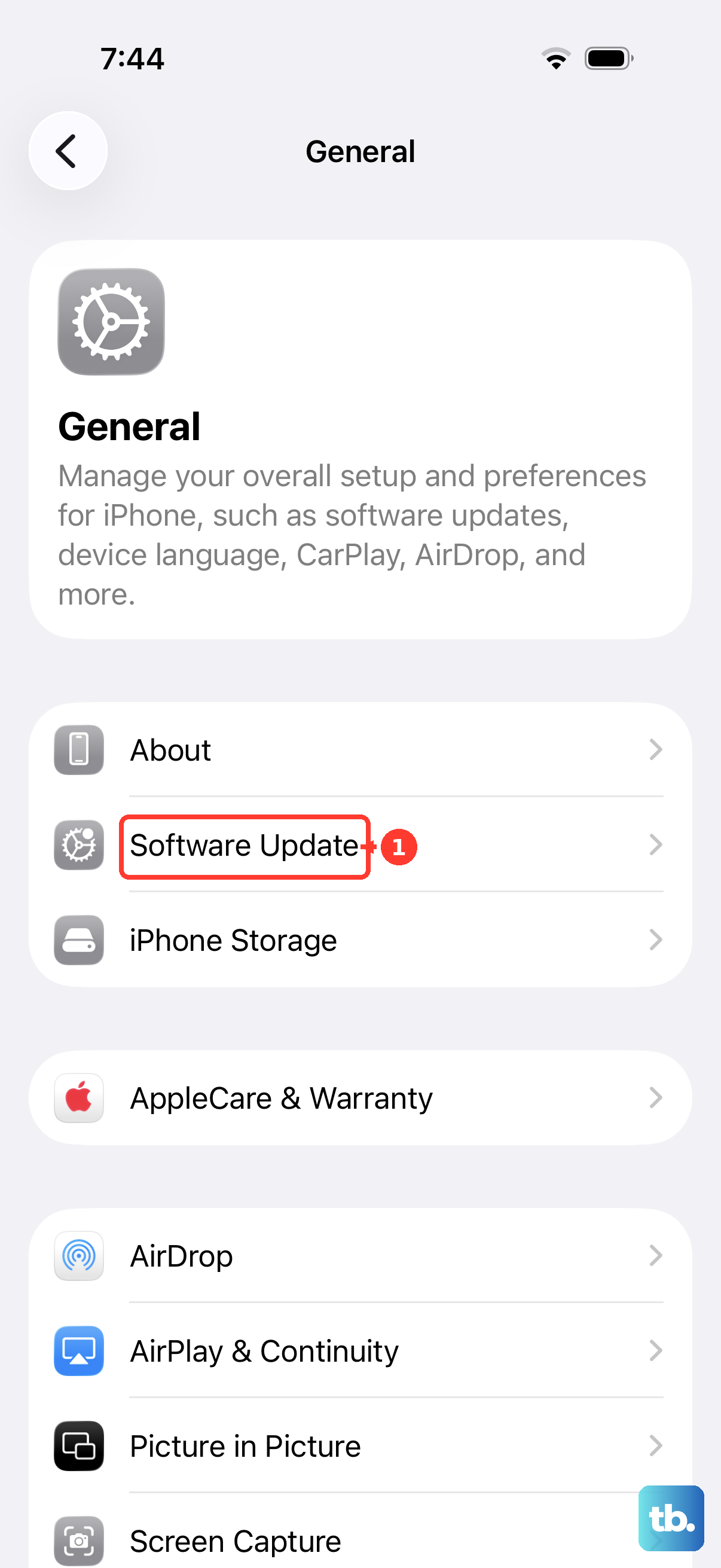
The original AirTag requires iOS 14.5 or later, while AirTag (2nd generation) requires iOS 26.2.1 or later for setup. Apple recommends the latest available iOS. Back up your iPhone, connect it to power and Wi-Fi, then open Settings > General > Software Update. If an update is available, tap Download and Install, complete the instructions, and retry AirTag setup afterward.
Check the AirTag battery
Open Find My, tap Items, select your AirTag, and look for Low Battery. To replace an AirTag battery, press down on its steel cover and turn it counterclockwise. Remove the cover and battery, keeping the battery and removable parts away from small children.
Insert a compatible CR2032 lithium 3V battery with the positive side facing up and listen for the connection sound. Align the cover’s three tabs with the slots, then turn clockwise until secure. Some bitterant-coated batteries are incompatible, so choose packaging that identifies AirTag compatibility.
Remove an existing account connection when necessary
To remove the existing registration before adding your AirTag again, use an iPhone or iPad signed in to its owning account. Open Find My, tap Items, select the AirTag, and open its details with Details, or with More in iOS 27. Tap Remove or Remove Item, then follow the onscreen instructions to confirm.
Run setup on the intended iPhone after removal. When removal happened outside Bluetooth range, hardware-reset the AirTag first using its generation’s procedure below. Account removal cannot be performed on a Mac.
For a secondhand AirTag connected to another Apple Account, the previous owner must remove it. Apple cannot remove that account lock for you, and repeating hardware resets will not release it.
Reset your AirTag using the correct procedure
Reset your AirTag if it still will not set up after the connection and battery checks, or if it was removed from its account while outside Bluetooth range. The reset timings differ between generations. A reset cannot release another owner’s Find My Lock.
For an original AirTag, press down on the steel cover and turn it counterclockwise, then remove the cover and battery. Reinsert the battery and press it for approximately two seconds until it sounds. After the sound ends, repeat the battery removal, insertion, and pressing four more times, letting each sound finish.
The fifth sound must differ from the earlier sounds; continue the cycle if necessary until you hear it. Align the cover’s three tabs with the slots, press down, and turn clockwise. Hold the AirTag beside your unlocked iPhone and run setup again.
For AirTag (2nd generation), press down on the steel cover and turn it counterclockwise, then remove the cover and battery. Reinsert the battery and press for approximately two seconds until it sounds, then keep holding for two seconds longer. After the sound ends, remove the battery and wait 12 seconds before repeating.
Repeat that sequence four more times, listening for a different fifth sound. Continue if necessary, holding the battery for up to 12 seconds to hear that sound. Align the cover’s tabs with the slots, press down, and turn clockwise, then try setup again.
If your AirTag still fails after the connection, battery, and reset steps, contact Apple Support for hardware diagnosis. If setup still reports another owner’s account, that owner must remove the AirTag before you can register it.
Frequently Asked Questions
Can you reconnect an AirTag through iCloud.com?
You cannot reconnect an AirTag through iCloud.com because AirTags do not appear at iCloud.com/find. Mac and Apple Watch can locate registered items, but they do not replace iPhone setup.
Can someone share an AirTag with you instead of transferring ownership?
The owner can open Find My, tap Items, select the AirTag, tap More, and tap Add Person under Share AirTag. They enter your Apple Account information, select the person and account, then tap Done. On your iPhone, open Find My, tap Items, locate the invitation, and tap Add. Sharing requires iOS 17 or later, compatible newer software for AirTag (2nd generation), iCloud Keychain for both people, and owner two-factor authentication; child accounts cannot receive shared items.
Why does Find My refuse to add another AirTag?
You can have up to 32 items, including shared items and qualifying AirPods entries. Remove an unused item, then retry AirTag setup.
Can you manually update AirTag firmware to fix a connection?
You cannot start an AirTag firmware update with a manual update button. Apple delivers firmware periodically while your AirTag is within Bluetooth range of its iPhone, which requires an existing working connection. To check the installed version in iOS 27, open Find My, tap Items, select your AirTag, tap More, then tap the AirTag’s address to see its model, serial number, and firmware version.
Should you reset network settings to reconnect an AirTag?
Reserve this for an unresolved iPhone network problem after other network remedies fail; it is not a direct AirTag pairing step. Open Settings > General > Transfer or Reset iPhone > Reset, then tap Reset Network Settings. This removes saved Wi-Fi networks and passwords, cellular settings, and VPN/APN settings. Consult your administrator first for a school or business network.