


To open Excel in Safe Mode, press Windows + R, enter excel /safe, and select OK. Save your work and close Excel before you start. These direct methods apply to Excel for Microsoft 365 and Excel 2024 desktop for Windows.
The short version
- Quickest method: Open Run with Windows + R and enter
excel /safe. - Shortcut alternative: Hold Ctrl while double-clicking the Excel application shortcut, keep it held until the confirmation appears, then select Yes.
- Command spacing: Include a space between
exceland/safe. - Repeated access: Create a desktop shortcut with the quoted full Excel executable path followed by a space and
/safe.
| Method | When to use it | What to know |
|---|---|---|
| Run command | Open Safe Mode directly | Enter excel /safe |
| Ctrl and Excel shortcut | Open without typing a command | Keep Ctrl held until the confirmation |
| Full executable path | Launch a specific Excel installation | Use the actual location of EXCEL.EXE |
| Dedicated desktop shortcut | Keep a reusable launch option | Add a space and /safe after the quoted path |
| Automatic Safe Mode | Respond to certain startup failures | Triggered by a failure |
| Excel check troubleshooter | Follow automated troubleshooting | Back up the registry and startup-folder files first |
Open Excel with the Run command
Save your work and close Excel, then press Windows + R to open Run. Enter this command, including the space before /safe:
excel /safeSelect OK to launch Excel in Safe Mode. If the command does not launch Excel, use the application shortcut method next, or launch Excel with its full executable path.
Open Excel with the keyboard shortcut
Close Excel, then hold Ctrl while you double-click the Excel application shortcut. Keep Ctrl held until the Safe Mode confirmation appears, then select Yes. If the prompt does not appear, use the Run command instead.
Launch Excel using its full path
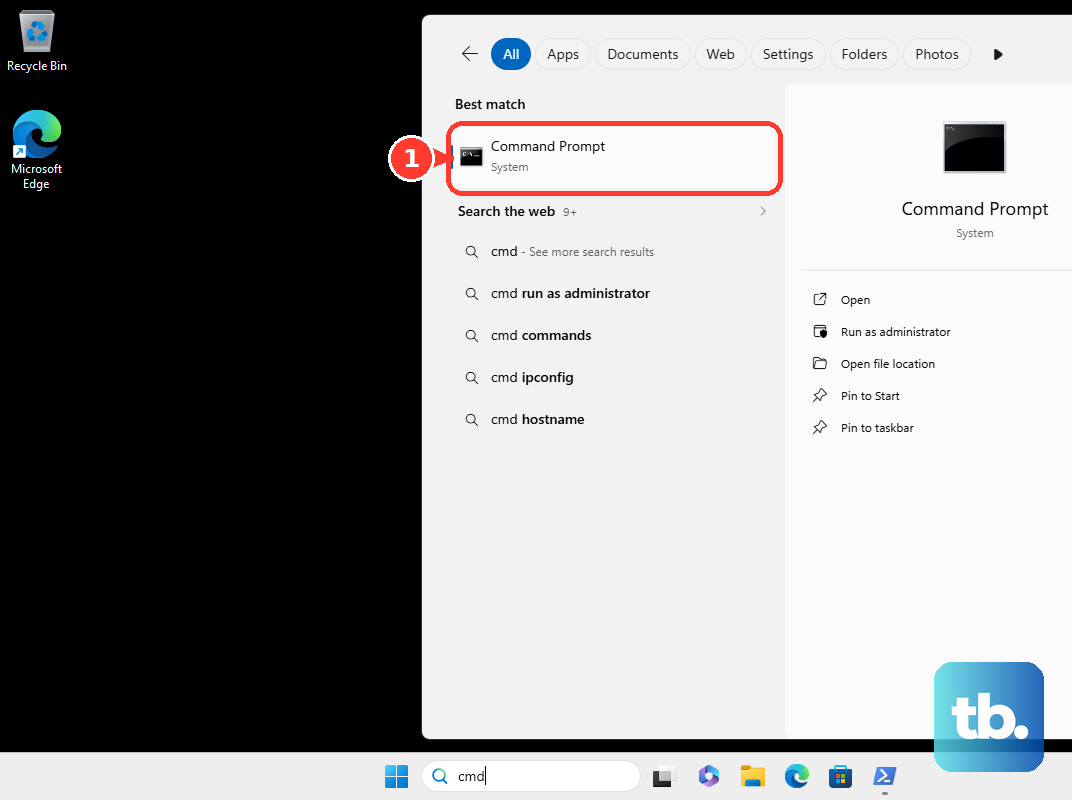
Close Excel and open Command Prompt. Enter the following command, substituting the actual location of EXCEL.EXE on your computer:
"C:\Program Files\Microsoft Office\root\Office16\EXCEL.EXE" /safePress Enter to launch Excel. Keep quotation marks around the executable path and a space before /safe, outside the closing quotation mark.
Your installation can use Program Files (x86) instead of Program Files. If the example path does not match your installation, substitute the actual executable location. If you do not know that location, use the Ctrl shortcut method.
Create a reusable Safe Mode shortcut
Right-click the desktop and select New > Shortcut. In Type the location of the item, enter the quoted full path to EXCEL.EXE, followed by a space and /safe, using your installation's actual location:
"C:\Program Files\Microsoft Office\root\Office16\EXCEL.EXE" /safeSelect Next, then enter Excel Safe Mode in Type a name for this shortcut. Select Finish to create it. Double-click this shortcut whenever you need to open Excel in Safe Mode.
The shortcut needs the correct executable path, just like the command-line method. If you cannot supply that path, use excel /safe in Run or hold Ctrl while opening the existing Excel application shortcut.
Recognize automatic Safe Mode
When you launch Excel normally, certain startup failures can automatically trigger recovery prompts about problematic components. Automatic Safe Mode is triggered by a failure, so use one of the direct methods above when you want to start it yourself.
Use the Excel check troubleshooter
Microsoft's Excel check troubleshooter includes starting Excel in Safe Mode as part of a guided troubleshooting process. Use it on the Windows PC that contains Excel.
The troubleshooter can change the registry, disable add-ins, move files, and rename toolbar files, so back up the registry and Excel startup-folder files before running it. Open the Microsoft 365 troubleshooters page, then under Excel check troubleshooter, select Start. If your browser displays the Get Help handoff prompt, select Open. Follow the prompts in Get Help.
Frequently Asked Questions
Can you open Run without the Windows keyboard shortcut?
Right-click Start and select Run. Enter excel /safe, then select OK.
Can you use the full Excel executable path in Run?
Yes, the same quoted full-path command works in Run. Keep the executable path in quotation marks and place a space followed by /safe after the closing quotation mark.
Where can you review components disabled during automatic recovery?
In Excel, open File > Options > Add-Ins. In Manage, select Disabled Items, then select Go to review the components.
Which Windows versions can run the Excel check troubleshooter?
You need Windows 10 or later to use the Get Help troubleshooting route. Run it on the same PC that contains Excel.