The Windows Start menu can get cluttered fast, and some older fixes no longer apply to current Windows 11. You can still open it quickly, pin the right items, change the view, move it left, adjust colors, and control the phone pane with Microsoft’s built-in settings.
1. Open the Start menu fast
This fixes a Start menu you need to open without hunting through the screen.
Select the Start button on the taskbar.
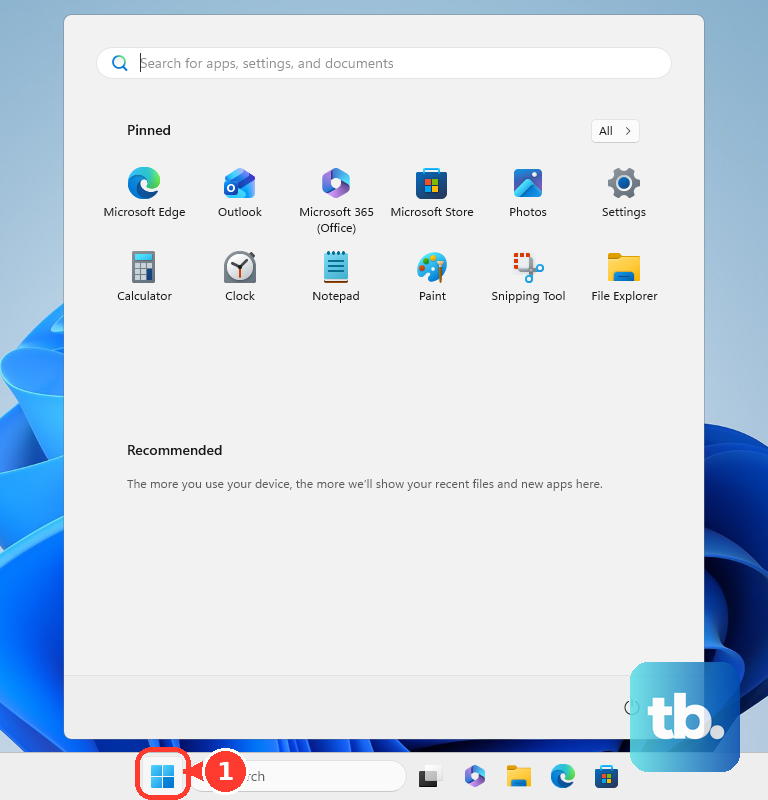
Press the Windows key to open or close Start.
Press Ctrl + Esc to open Start from the keyboard.
With a screen reader, move to the Windows icon on the taskbar, listen for start button, then press Enter.
2. Use accessibility options to open Start
Open Start > Settings > Accessibility > Keyboard, then turn on On-Screen Keyboard.
Select the Windows key on the On-Screen Keyboard to open Start.
For voice control, open Start > Settings > Accessibility > Speech, then turn on Voice access. Voice access is available in Windows 11, version 22H2 and later.
When Voice access is listening, say Click Start or Tap Start.
Use voice access on Windows 11, and use the keyboard shortcuts when you want the fastest fallback.
3. Reach Start settings quickly
The direct path is Start > Start settings.
Select Start, right-click the bottom of the Start menu, then choose Start settings.
That opens the Start customization area without going through the full Settings app.
4. Pin apps folders and websites
To pin an app, type its name in the Search box on the taskbar or in the Start menu.
Right-click the app, then select Pin to Start.
To pin a folder, open File Explorer, right-click the folder, then select Pin to Start.
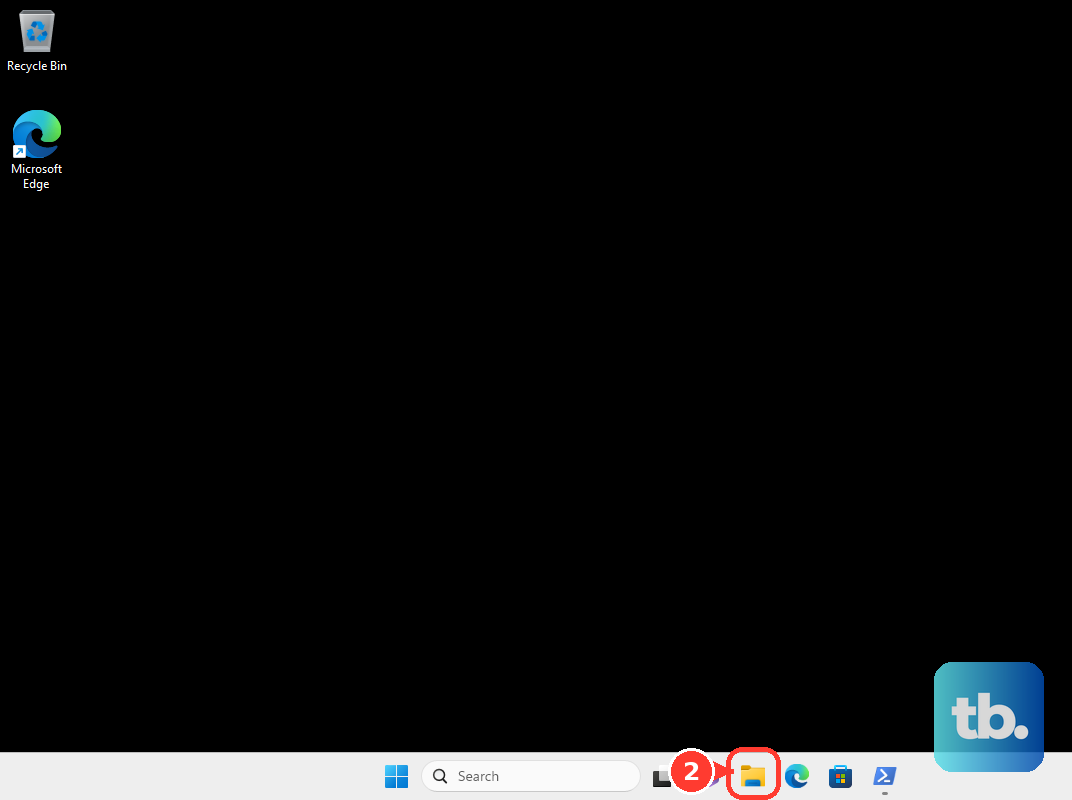
To pin a website, open it in Microsoft Edge, select More options > More tools > Pin to Start.
Keep Start focused on the apps, folders, and sites you open often.
5. Clean up pins and remove apps
Right-click a pinned item on Start, then select Unpin from Start.
To uninstall an app, select Start > All apps.
Find the app in the list, press and hold or right-click it, then select Uninstall.
Leave built-in apps that Windows does not allow you to uninstall.
6. Add folders beside the Power button
Use Start > Start settings > Folders to choose folder shortcuts beside the Power button.
Turn on each folder you want to show there.
Leave the rest off so the lower edge of Start stays clean.
7. Organize the Start layout
This fixes a Start menu with messy pins, crowded folders, or the wrong taskbar alignment.
Drag a pinned item from its current spot to a new position.
Create a Start folder by dragging one pinned item over another.
Add more pins by dragging them into that folder.
Remove a pin from a folder by opening the folder and dragging the pin out.
When only one pin is left, the folder is removed from Start.
Open Start and select Show all to expand pinned apps.
In the All section, choose Category, Grid, or List. Start remembers the last selected view.
To move Start to the left side of the taskbar, right-click the taskbar, select Taskbar settings, expand Taskbar behaviors, then choose your preferred Taskbar alignment.
8. Change Start color and personalization
Open Settings > Personalization > Colors.
Under Choose your mode, select Dark or Custom.
Turn on Show accent color on Start and taskbar.
To change Start and search personalization, select Start > Settings > Privacy & security > General.
Choose your preferred setting for Let Windows improve Start and search results by tracking app launches.
9. Manage the phone pane or a locked work Start menu
To show or hide the mobile device companion, open Settings > Personalization > Start, then turn Show mobile device in Start on or off.
To connect a phone from Start, open the Start menu, select Android or iPhone in the pane, then follow the on-screen instructions.
After setup, Android users can reach Messages, Calls, Photos, Recent activities, and Send Files from Start.
After setup, iPhone users can reach Messages, Calls, Recent activities, and Send Files from Start.
On a managed work or school PC, admins can lock pins, recommendations, app removal, power options, and other Start controls.
Ask your admin to change the managed Start layout when those controls are locked.
The mobile device Start feature requires Windows 11 or later, Phone Link version 1.25032.82.0, and a Microsoft account. Your Android device and PC also need to be connected via Wi-Fi, and an iPhone and PC need to be connected via Bluetooth LE. Microsoft is rolling the feature out gradually.
Frequently Asked Questions
What keyboard shortcut opens the Windows Start menu?
Press the Windows key. You can also press Ctrl + Esc to open Start.
Can I open Start without a physical Windows key?
Yes. Turn on On-Screen Keyboard from Start > Settings > Accessibility > Keyboard, then select the Windows key on the on-screen keyboard.
Can Windows 11 show Start on the left?
Yes. Windows 11 supports left taskbar alignment, which places Start on the left side of the taskbar.
Can I pin a website to the Windows Start menu?
Yes. Open the website in Microsoft Edge, choose More options > More tools > Pin to Start.
Why are some Start menu options blocked on my work PC?
Managed Windows devices can use policy settings that control pins, recommendations, uninstall options, power commands, and other Start behavior.