

To make Windows 11 look like Windows 10, align the taskbar icons to the left, restore button labels, apply familiar wallpaper and colors, and use Start11 for a Windows 10-style Start menu. These steps use Windows 11 menus. Begin with the built-in settings, then choose an optional customization app for further changes.
The short version
- Start with the taskbar: Left alignment and separate buttons with labels bring back a familiar layout.
- Match the desktop: Use a Windows 10 wallpaper you already have, then adjust colors and desktop icons.
- Simplify File Explorer: Enable Compact view and make it open to This PC.
- Go further with an app: Start11 recreates a Windows 10-style Start menu, while StartAllBack offers the Windows 10 Explorer ribbon.
| Area | What to change | Main limitation |
|---|---|---|
| Taskbar layout | Left alignment and labeled buttons | Labels require updated Windows 11 22H2 or later |
| Taskbar dimensions | Position and small size | Controls depend on version and rollout |
| Desktop appearance | Wallpaper, colors, themes, and icons | Native themes do not replace Start or Explorer |
| Built-in Start menu | App list, pins, folder buttons, and size | Layout controls vary by Start version |
| File Explorer | Compact spacing, This PC, and context menus | These settings do not restore the ribbon |
| Lock screen | Picture background and widgets | Earlier builds use different status controls |
| Window snapping | Hide layout overlays | Keep Snap windows on for edge snapping |
| Start11 | Windows 10-style Start menu and button | Requires a compatible third-party app |
| StartAllBack | Windows 10 ribbon and classic menus | Its Start menu uses a two-column design |
Align the taskbar and bring back labels
Right-click the taskbar and select Taskbar settings. Expand Taskbar behaviors, open Taskbar alignment, and choose Left. This moves the Start button and taskbar icons to the left.
To show separate buttons with text labels, open Settings > Personalization > Taskbar > Taskbar behaviors. Set Combine taskbar buttons and hide labels to Never. This control applies to updated Windows 11 22H2 and later; configure the separate combining setting for additional displays if you use them.
Return to Taskbar items and turn off Widgets. Set Task view to your preference, then choose Search box, Search icon only, or Hide for Search. Drag your pinned application icons into the order you want.
To restore the corner button that shows your desktop, expand Taskbar behaviors. Check Select the far corner of the taskbar to show the desktop.
Choose the taskbar position and size
You can change taskbar position and alignment using the controls available on your Windows version. On Windows 11 24H2 or 25H2 with KB5120998 or subsequent updates, and on 26H2, open Settings > Personalization > Taskbar > Taskbar behaviors. Select Taskbar position, then choose Bottom, Top, Left, or Right.
These position controls roll out gradually. On updated 24H2, 25H2, and 26H2 installations with the size feature enabled, choose Taskbar size > Small to reduce the taskbar height and icon size together. The smaller taskbar works in the top and bottom positions.
Windows 11 26H1 receives positioning and resizing through KB5124006 or subsequent updates, also through a gradual rollout. Use the same Taskbar position and Taskbar size controls. Small size and the search box support horizontal positions on that version.
If your installation instead has Show smaller taskbar buttons, select Always under Taskbar behaviors. That earlier control, available on Windows 11 24H2 with KB5060829 or later and subsequent versions retaining it, shrinks the icons but leaves the taskbar height unchanged. If the newer position and size controls are missing, continue with alignment and the other appearance settings.
Match the wallpaper colors and desktop icons
Open Settings > Personalization > Background. Under Personalize your background, select Picture, choose Browse, and select a Windows 10 background image you already have. You can also right-click that image in File Explorer and select Set as desktop background.
Next, open Settings > Personalization > Colors. Set Choose your mode to Light, Dark, or Custom, then select Manual under Accent color and choose your color. Adjust Transparency effects to match your preferred appearance.
For a colored taskbar, enable Show accent color on Start and taskbar. This requires dark or custom Windows mode, so switch modes if that setting cannot be selected. You can also enable Show accent color on title bars and window borders, although individual applications can override the system appearance.
To restore familiar desktop icons, open Settings > Personalization > Themes > Desktop icon settings. Select the icons you want and choose OK. Right-click the desktop, open View, and choose Medium icons or Small icons to adjust their size.
To save a coordinated appearance, open Settings > Personalization > Themes. Customize Background, Color, Sounds, and Mouse cursor, then select Save. A native theme changes those components, but it does not replace the Start menu or File Explorer interface.
Make the built in Start menu more familiar
On Windows 11 with the redesigned Start menu, open Start and choose List in All. Drag your pinned apps into order, or drag one onto another to create a folder. Select Show all to keep the pinned section expanded.
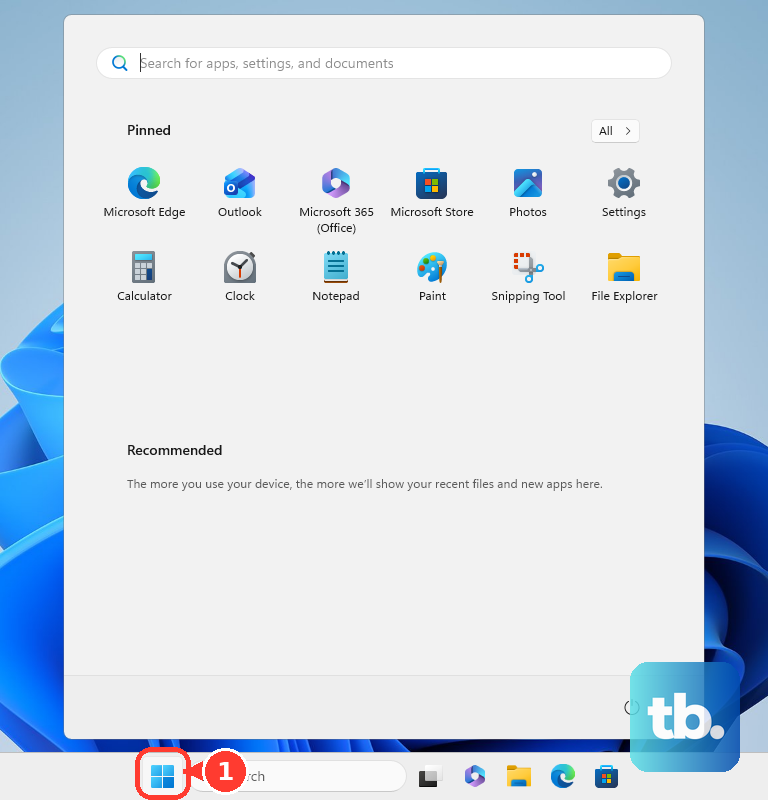
Earlier Start versions have different layout controls, so use folder shortcuts to add familiar destinations if your menu does not match that layout. Right-click the bottom of Start, select Start settings, and open Folders. Turn on shortcuts such as Documents, Downloads, or Personal folder; these appear beside Power, rather than in Windows 10's original left rail.
On updated Windows 11 24H2, 25H2, and 26H2 installations with the newer Start changes enabled, open Settings > Personalization > Start > Start menu size. Choose Small or Large. This control rolls out gradually, so use the other Start controls available on your installation if it is missing.
If your Start menu includes the mobile-device companion panel, open Settings > Personalization > Start. Turn off Show mobile device in Start to hide that panel.
Give File Explorer familiar spacing and navigation
Press Windows + E to open File Explorer. Select View > Compact view to reduce the spacing between items.
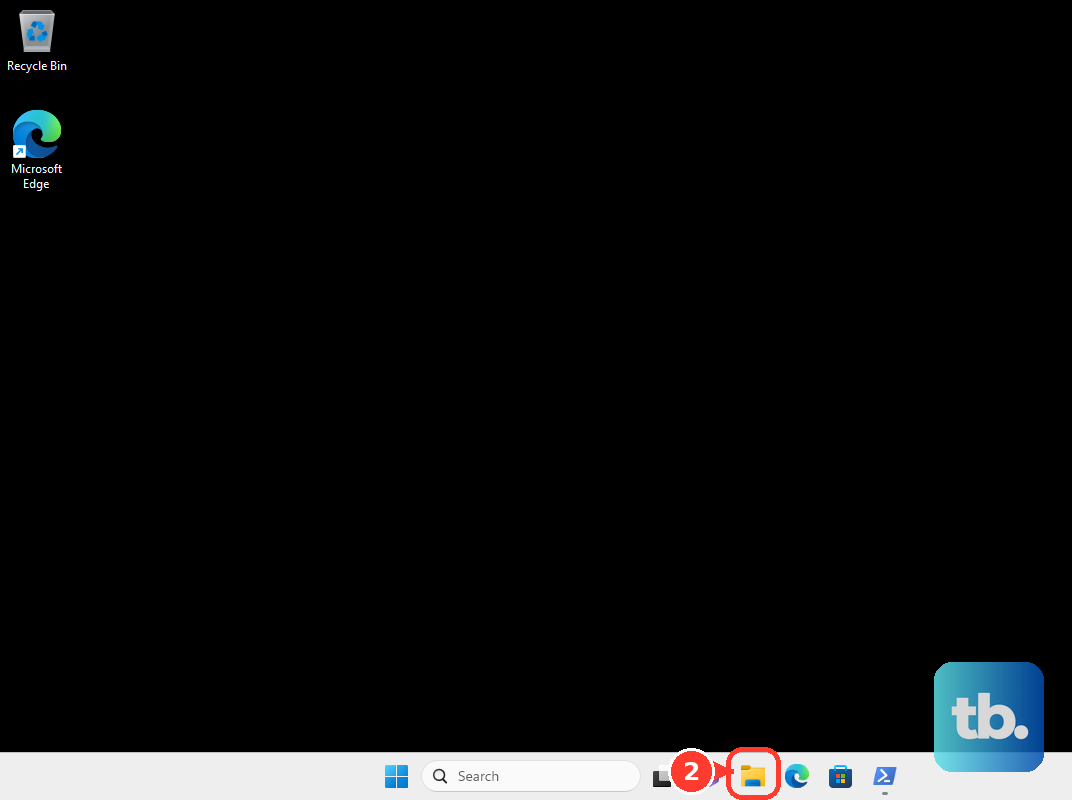
To open File Explorer at This PC, open See more > Options. Set Open File Explorer to to This PC, then select Apply. This changes the opening location, but it does not restore the Windows 10 ribbon or place all user folders back under This PC.
Restore the sidebar through View > Show > Navigation Pane. Right-click frequently used folders and select Pin to Quick access to keep them within reach.
For the previous-style context menu, right-click a file or folder and choose Show more options. Alternatively, select the item and press Shift + F10; if the modern menu opens, choose Show more options. The commands shown depend on your installed applications and shell extensions.
Simplify the lock screen and window snapping
For a familiar lock-screen picture, open Settings > Personalization > Lock screen. Set Personalize your lock screen to Picture and select your preferred image. Adjust Show the lock screen background picture on the sign-in screen to your preference.
On the current lock-screen interface, turn off Widgets to remove them from that screen. Earlier builds use different status controls; if yours lacks this switch, you can still apply the picture change.
To keep ordinary edge snapping while removing the layout overlays, open Settings > System > Multitasking > Snap windows. Leave Snap windows on, then turn off the setting that reads "Show snap layouts when I hover over a window's maximize button". Also turn off the setting that reads "Show snap layouts when I drag a window to the top of my screen".
Use Start11 for a Windows 10 style Start menu
For a Windows 10-style Start menu, get Start11 v2 from the official Start11 product page. Select Try Free or Get it Now. On Windows 11 26H2, use an updated Start11 v2 release containing Stardock's 26H2 compatibility enhancements before applying menu or taskbar customizations.
After installing Start11 v2, open its configuration application and select Start Menu > Windows 10 Style. This gives you a third-party recreation of the Windows 10-style menu.
You can also change the button through Start Button > Custom Start Button. Turn the option on, then choose a supplied button or select Pick Image to use your own suitable image. Reproducing a particular Windows 10 button requires the matching image.
For additional taskbar controls on supported Windows 11 builds, open Taskbar in Start11 and turn on Let Start11 enhance the taskbar. Return to Start Button for the additional button and taskbar alignment controls.
Use StartAllBack for the Windows 10 Explorer ribbon
To restore the Explorer ribbon, download the current version from the official StartAllBack product page. StartAllBack lists Windows 11 25H2 and 26H2 support for its current release. After installing it, open its configuration and select Explorer.
Under Choose Explorer style, select Win10 Ribbon UI, then open a new File Explorer window. In the same configuration area, check Classic context menus to use classic menus. You can also check Classic search box and Details pane on bottom, then open a new Explorer window to see those changes.
StartAllBack's Start menu uses a classic two-column design rather than Windows 10's tiled menu. If you specifically want a Windows 10-style Start menu, choose the Windows 10 Style option in Start11.
Frequently Asked Questions
How do you show more application icons beside the taskbar clock?
Open Taskbar settings > Other system tray icons and enable the application icons you want visible. You can also drag icons from the overflow area onto the taskbar.
Can you bring back the longer taskbar date and time?
Yes, on updated Windows 11 installations with the abbreviated-clock option, right-click the clock and select Adjust date and time. Expand the time-and-date display options and uncheck Show abbreviated time and date.
How do you keep the desktop taskbar when using a convertible PC as a tablet?
On supported Windows 11 two-in-one devices, open Taskbar settings > Taskbar behaviors. Turn off Optimize taskbar for touch interactions when this device is used as a tablet.
Can you add familiar app and folder shortcuts to the desktop?
Yes, drag an application from Start > All onto the desktop. For a file or folder, right-click it and select Show more options > Send to > Desktop (create shortcut).
How do you pin a website to Start?
Open the website in Microsoft Edge and open its more options menu. Select More tools > Pin to Start.