


To change the taskbar position in Windows 11 on supported builds, open Settings > Personalization > Taskbar > Taskbar behaviors, then choose an edge under Taskbar position. To move the icons within the bar, use Taskbar alignment. The position control depends on your Windows version, installed updates, and feature rollout, so it may not appear on your PC yet.
The short version
- Move the whole bar: Use Taskbar position to choose Bottom, Top, Left, or Right on supported Windows builds.
- Move the icons: Use Taskbar alignment to choose Left or Center on a horizontal taskbar.
- Missing position control: Install applicable Windows updates, then return to Taskbar behaviors.
- Multiple monitors: Change your main display to move the primary taskbar to another screen.
| What you want | Control or method | Main limitation |
|---|---|---|
| Move the whole taskbar | Taskbar position | Requires a supported build and feature rollout |
| Move icons left or center | Taskbar alignment | Changes icon alignment within the bar |
| Get missing position controls | Windows Update | Updates do not guarantee immediate feature availability |
| Move the primary taskbar to another monitor | Check Make this my main display | Also changes your primary display |
| Show taskbars across monitors | Check Show my taskbar on all displays | Requires multiple extended displays |
| Change app icon order | Drag individual app icons | Does not move the taskbar itself |
| Reorder tray icons | Drag movable system tray icons | Does not move the entire tray |
| Choose different edges across monitors | Start11 position controls | Vertical positions require v2.5 or later |
| Separate Start from centered app buttons | Start11 alignment controls | Individual controls vary between releases |
| Use a classic taskbar with edge and alignment controls | StartAllBack taskbar settings | Requires a release compatible with your Windows version |
| Let Windows manage placement while keeping Start11 | Allow Windows to control taskbar position | Requires Start11 v2.8 or later and native position controls |
| Remove a taskbar customization app | Installed apps > Uninstall | Does not necessarily reset saved Windows alignment |
Move the taskbar to another screen edge
Open Settings > Personalization > Taskbar and expand Taskbar behaviors. Open Taskbar position and select Bottom, Top, Left, or Right. The top and bottom positions keep the taskbar horizontal, while the left and right positions make it vertical.
After choosing a vertical position, return to Taskbar alignment to place the icons toward the top or center them vertically. The Search box and smaller taskbar support horizontal positions only. Keep the bar at the top or bottom if you want those features.
To undo the move, return to Taskbar position and select your previous edge. Older instructions that tell you to unlock and drag the native taskbar describe the Windows 10 method. For the native Windows 11 taskbar, use the position control.
Align taskbar icons left or center
Right-click an empty area of the taskbar and select Taskbar settings. Expand Taskbar behaviors, open Taskbar alignment, and select Left or Center. On a horizontal taskbar, this moves the icon group without changing the bar's screen edge.
You can also reach these controls through Settings > Personalization > Taskbar. Choose Left to group icons toward the left edge, or select Center to return them to the middle. To put the whole taskbar along the left side of your screen, use Taskbar position instead.
Fix a missing taskbar position control
If Taskbar position is missing, open Settings > Windows Update and select Check for updates. Install the applicable updates offered to your PC and restart when required. Then return to Settings > Personalization > Taskbar > Taskbar behaviors and look for Taskbar position again.
Microsoft makes native edge controls available through the feature rollout introduced in KB5120998 for Windows 11 24H2 and 25H2, and KB5124006 or subsequent cumulative updates for 26H1. Windows 11 26H2 also includes native taskbar positioning. Availability depends on updates and rollout, so installing updates does not guarantee that the control appears immediately.
If the position setting remains absent, you can still adjust horizontal icon alignment through Taskbar alignment. For additional placement options, consider a customization app compatible with your Windows version. Start11 and StartAllBack provide those controls, with their setup steps below.
Choose which monitor shows the taskbar
To move the primary taskbar to another monitor, open Settings > System > Display. Select the intended monitor, expand Multiple displays, then check Make this my main display. This also changes which screen Windows treats as your primary display.
For taskbars on every extended display, return to Settings > Personalization > Taskbar > Taskbar behaviors and check Show my taskbar on all displays. To keep the taskbar only on the main display, uncheck Show my taskbar on all displays. These controls choose which screens show taskbars; they do not select a different edge for each screen.
Reorder individual taskbar icons
Drag an app icon along the taskbar to put it in a different position. This changes the order of individual icons while preserving the taskbar's edge and overall alignment.
Drag movable system tray icons within the tray or between the tray and its hidden-icons area. This changes their order or visibility without moving the entire tray. To move the whole bar to another screen edge, return to Taskbar position.
Set up additional layouts with a taskbar app
For different taskbar positions across monitors or additional Start button layouts, get Start11 from the official Start11 product page, which offers trial or purchase options. Use a current release compatible with your Windows version. Vertical taskbar positions require Start11 v2.5 or later.
Open Start11 and select Taskbar, then turn on Let Start11 enhance the taskbar. Under Taskbar position, configure Primary monitor and Secondary monitors using Align Top, Align Bottom, Align Left, or Align Right. Complete any Explorer restart prompt shown by your installed version.
To keep the Start button separate from centered app buttons, open Start Button > Configure Taskbar and Start Button Layout and choose the desired alignment controls. Stardock supports centered app buttons with Start at the left. Individual alignment controls can differ between releases.
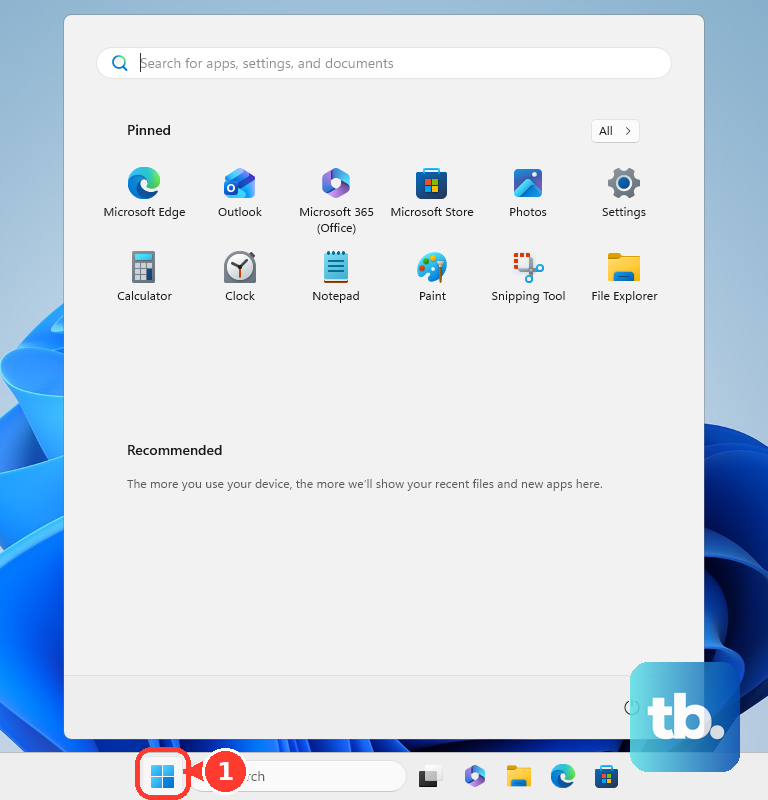
For a classic taskbar with placement and centering controls, download the StartAllBack installer from the official StartAllBack product page. Open its configuration and select Taskbar. Turn on Use enhanced classic taskbar and choose the required edge under Taskbar location on screen.
Enable Centered task icons to center application buttons in StartAllBack. The adjacent choices control whether Start is centered with them or stays separate. Use a current release compatible with your Windows version.
Restore Windows taskbar controls
If you use Start11 and want Windows to manage placement, open Start11 > Taskbar and select Allow Windows to control taskbar position. This option requires Start11 v2.8 or later and Windows' native movable-taskbar feature. Then choose your preferred edge in Windows' Taskbar position setting.
To remove a taskbar customization application, open Settings > Apps > Installed apps. Find the application, open its More menu, and select Uninstall. Complete its uninstaller and restart if requested.
After removal, return to Settings > Personalization > Taskbar > Taskbar behaviors and choose your alignment and, where available, position again. Uninstalling a customization app does not necessarily reset Windows' saved alignment. Select your preferred layout in the available controls.
Frequently Asked Questions
Can you open taskbar settings directly with a keyboard shortcut?
Press Windows + I, search Settings for taskbar, and open the relevant result. This opens the settings where you complete the adjustment; the shortcut does not directly move the taskbar.
Do the old registry hack and Taskbar11 still work?
The old StuckRects3 registry positioning trick is not a current supported method. Taskbar11's developer halted development because its registry positioning tweaks no longer work on newer Windows versions. Use the native Taskbar position control on eligible builds instead.
Should you install TaskbarX to center Windows 11 icons?
TaskbarX is archived and depends on the Windows 10 taskbar. Its centering instructions do not apply to the current native Windows 11 taskbar. You can center native Windows 11 icons with Taskbar alignment.
How do you undo a Windhawk taskbar positioning mod?
Open Windhawk > Home, open the installed mod's Details, and select Disable. To remove it completely, select Remove, then Remove mod. Windows' saved taskbar settings determine the restored layout. If a vertical taskbar leaves visual artifacts, restart Windows Explorer.