You went to open Facebook and instead saw a message saying your account is locked, or your password no longer works. Maybe it reads something like "We've locked your account because someone recently tried to log in from an unfamiliar location." It feels alarming, but a lock is usually a security hold, not a permanent ban.
Most lockouts clear once you prove the account is yours. This guide walks through every verified recovery path, ordered from the fastest and most common to the methods reserved for harder cases (lost email, a hacked account, or an identity check).
Work top to bottom. Stop as soon as one method gets you back in, and try to use a device you have logged in from before, since that alone often shortens the process.
Why Your Facebook Account Got Locked
Knowing the trigger helps you pick the right fix. The verified causes are:
Suspicious or unusual activity, such as a login attempt from an unfamiliar location, device, or IP address.
Too many failed login attempts or repeatedly entering the wrong password.
Suspected automation, meaning bots, automation tools, or third-party apps used to manage activity.
Spammy behavior, such as posting, friend-requesting, or messaging too fast, or joining many groups quickly.
Community Standards or Terms of Service violations, including offensive content, harassment, impersonation, or fake accounts.
Being reported by other users for inappropriate behavior or spam.
A hacked or phished account, where an attacker may have changed your email and password to lock you out.
Requesting recovery codes too many times in a short period, which can also flag the account.
A simple forgotten password, which is not strictly a lock but uses the same recovery flow.
If you suspect the account was hacked (your email or password were changed), skip ahead to the hacked-account section first.
Reset Your Password From a Web Browser
This is the primary recovery route and resolves most lockouts. Use a desktop browser, ideally on a computer or network you have used before.
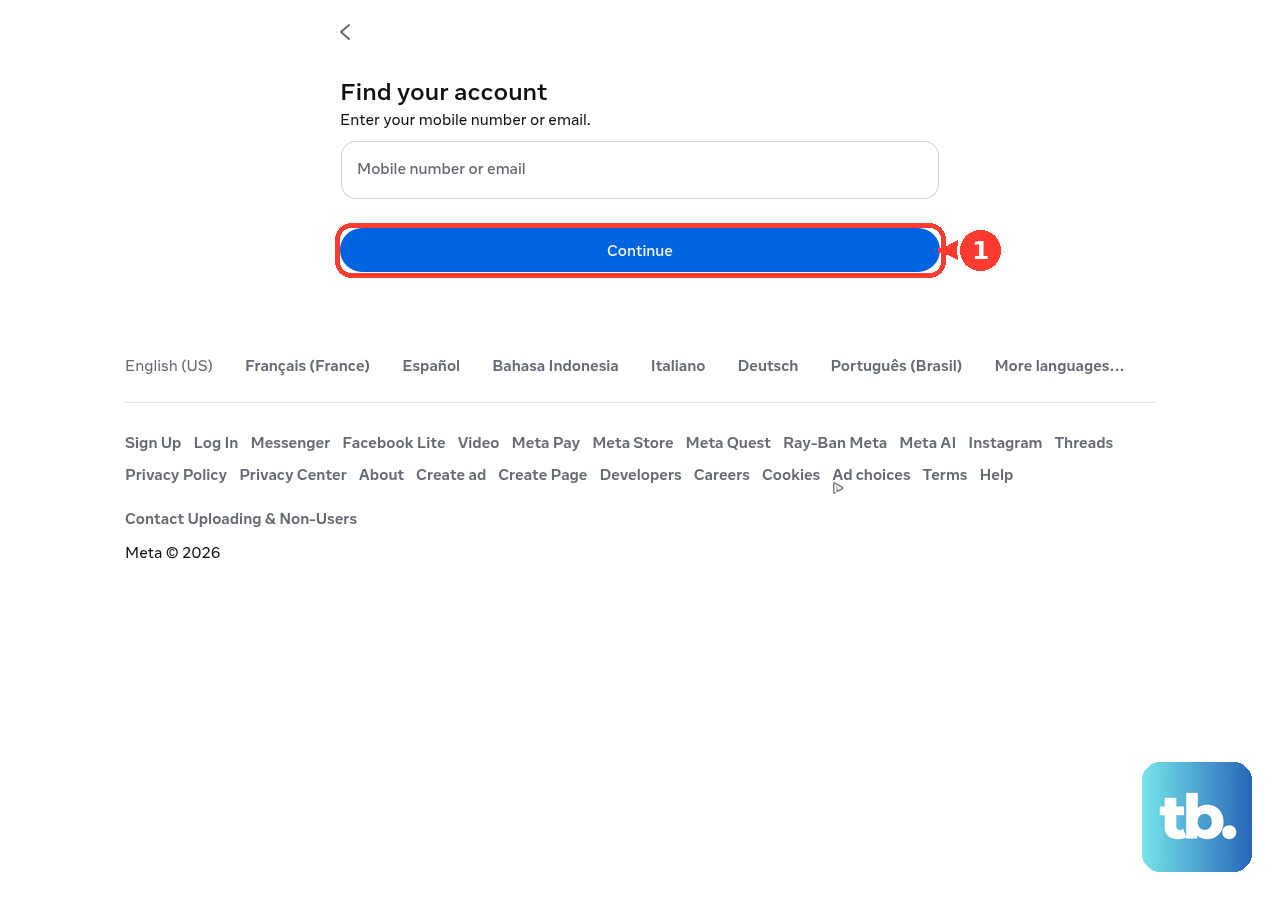
- 1.Go to facebook.com/login/identify (also reachable at facebook.com/recover/initiate). The page heading reads "Find your account".
- 2.In the single field labeled "Mobile number or email", enter the email address or phone number tied to the account.
- 3.Click "Continue".
- 4.Facebook locates the matching account and offers to send a reset code to the email and/or phone on file. Choose a method and continue.
- 5.Retrieve the verification code from your email or SMS, enter it, and continue.
- 6.Create a new password when prompted, then log in.
Once you set a new password, the temporary lock typically lifts on its own after you finish the verification steps.
Fix a Reset Code That Will Not Arrive
If you can still receive email or texts from Facebook but the code is not showing up, the official guidance is to confirm you can get those messages, then retry the reset. Work through these quick checks:
Confirm you can still get emails and texts from Facebook, then use the password reset page to request a code again.
Check your email spam or junk folder for the code.
Verify your internet and phone connection.
Wait a few minutes, then request a fresh code if the first one does not arrive.
Avoid requesting code after code in quick succession. Too many requests can create extra security flags and slow you down.
Reset Your Password From the Facebook App
The mobile flow works the same on iOS and Android. Open the app first.
Open the Facebook app and go to the login screen.
Tap "Forgot password?".
If your account is not detected automatically, enter your email or phone number to find it, then tap your account when it appears.
Choose where to receive the reset code (email or SMS) and tap "Continue".
Enter the code you receive and tap "Continue".
Create a new password, then tap "Continue" to log in.
Recover From a Device You Have Used Before
Facebook is more likely to trust you on hardware and networks it recognizes, so this can quietly skip extra verification.
Run the login or recovery flow from a computer, browser, phone, or network you have previously used for the account.
If Facebook recognizes the device, it may skip second-factor verification or offer a simpler recovery path.
Logging in from a brand-new device, location, or network reduces the chance Facebook recognizes you, so a home computer, an old phone, or a familiar Wi-Fi network all improve your odds.
Recover When You No Longer Have Your Email or Phone
If the only reset options listed are an email or phone you can no longer access, you can redirect recovery to an address you control.
In the password-reset menu, look for the "No longer have access to these?" link.
Click it to start a new recovery process.
Facebook asks for a new email address you can access and sends a confirmation code to it.
Enter that code to continue recovery.
Your success here depends heavily on the information you set during signup. A real name plus accessible recovery contact info makes this much easier; outdated contact details make it significantly harder.
Report and Recover a Hacked Account
If an attacker changed your email or password, do not use the normal reset flow. Start with the dedicated hacked-account page instead.
On a device or browser you have previously used for the account, go to facebook.com/hacked.
Follow the on-screen prompts to report that the account was compromised and to recover it.
Work through the guided steps to secure the account, such as resetting your password and reviewing recent activity.
After regaining access, change your password and turn on two-factor authentication.
Confirm Your Identity When Other Methods Fail
When automated recovery does not work, or Facebook prompts you after a lock, you may be asked to prove who you are.
Follow the on-screen request to confirm your identity.
If asked, upload a photo of a government-issued ID (such as a driver's license or passport) and provide the phone number or login email on the account.
You may instead be asked to confirm profile details such as your date of birth, or to identify friends from tagged photos.
Submit and wait for Facebook to review. If you cannot access the account at all, complete this from the Facebook Help Center on another device.
This review is not instant. Plan to wait, and resist the urge to start more recovery attempts in the meantime, since repeated tries during a review can add security flags.
Frequently Asked Questions
How long does a temporary Facebook lock last?
A temporary lock typically resolves once you finish the verification steps. Reports put it at roughly 24 to 48 hours, but Facebook does not publish an official duration, so treat it as an estimate rather than a guarantee.
What is the fastest way to get back in?
Reset your password at facebook.com/login/identify, ideally from a device you have used before. Recognized devices often skip extra verification, making this the quickest and most common fix.
My email and password were both changed. What do I do?
That points to a hacked account. Go to facebook.com/hacked from a previously-used device rather than the standard reset flow, then follow the prompts to report the compromise and recover access.
The reset code never arrives. Is my account gone?
Not necessarily. Check your spam or junk folder, confirm your internet and phone connection, wait a few minutes, and request a new code. If your contact info is outdated, use the "No longer have access to these?" link to route recovery to an email you can access.
How long does identity verification take?
It is not immediate. Third-party sources report the ID review can take anywhere from a few days to several weeks. While it is pending, minimize retries so you do not trigger additional security flags.
Why did my account get locked in the first place?
Common triggers include a login from an unfamiliar location or device, too many failed password attempts, suspected automation, spammy posting or messaging, Community Standards violations, reports from other users, or a hacked account. Matching the cause to the right recovery path above speeds things up.