

To install League of Legends on a Mac, download Riot’s official Mac installer, open it, and follow the prompts so Riot Client can download and install the game. Check your Mac against Riot’s requirements before downloading, then address any Rosetta or macOS security prompt that applies.
The short version
- Start with Riot: Select Download Mac Installer on the official League download page.
- Check compatibility: Riot’s current Mac requirements table lists M1, a Metal-capable GPU, 8 GB unified memory, 40 GB available storage, and macOS 12.
- Rosetta is conditional: Install it when an Intel component requests it on an Apple silicon Mac running macOS 27 or earlier.
- Repair before reinstalling: Use Riot Client’s Repair option for missing or corrupted game files.
| Option or task | When you need it | Where to start |
|---|---|---|
| Official Mac download | Downloading the installer | League download page |
| Riot installer and Riot Client | Installing the game | Downloaded Mac installer |
| Requirements and macOS update | Checking compatibility before installation | Riot’s requirements and Software Update |
| Epic Games Store | Acquiring League through Epic | League listing and launcher Library |
| Automatic Rosetta installation | An Intel component requests translation on Apple silicon with macOS 27 or earlier | macOS Rosetta prompt |
| Terminal Rosetta installation | Alternative Rosetta setup on Apple silicon with macOS 27 or earlier | Terminal |
| Allow identified developers | An App Store only policy blocks installation | Privacy & Security |
| Individual installer exception | An unmodified official installer has an authenticity or notarization warning | Open Anyway, where available |
| Administrator access | Installation or patching needs access | An existing administrator |
| Installation folder permissions | An existing installation has incorrect permissions | Sharing & Permissions |
| Riot Client repair | Game files are missing or corrupted | Settings > League of Legends > Repair |
| Finder reinstallation | Removing and reinstalling League | Finder > Applications |
| PBE selection | Accessing the test environment with a PBE account | Arrow beside Play |
| PBE registration | Creating a PBE account | Sign-up link in Riot’s PBE FAQ |
| PBE Mac download | Downloading from the PBE page | DOWNLOAD ON MAC |
| Embedded Vanguard | Mac anti-cheat installation | Included with the game |
Check your Mac before downloading
Riot’s November 2026 requirements table lists an M1 processor, a Metal-capable GPU, 8 GB of unified memory, 40 GB of available storage, and macOS 12. Compare those requirements with your Mac, including its available storage, and check how much RAM you have before starting the download. Riot says Intel configurations may continue playing, while support primarily focuses on Apple silicon.
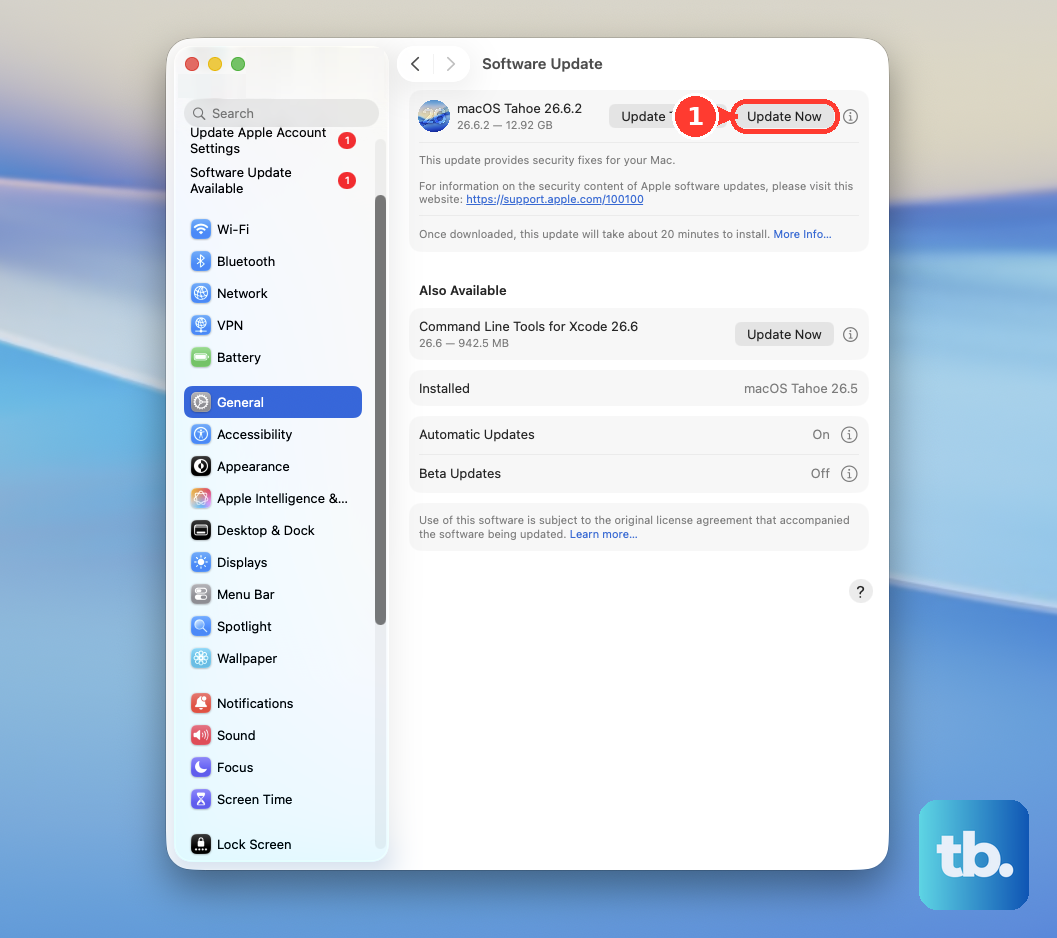
On a Mac that uses System Settings, open System Settings > General > Software Update to check for an operating system upgrade. Riot says macOS 13 becomes mandatory on January 5, 2027, so account for that change when preparing your Mac.
Download and install League through Riot
Open the official League of Legends download page and select Download Mac Installer. Open the downloaded installer and complete its installation prompts. This installs Riot Client, which handles downloading and installing League of Legends.
Riot includes Embedded Vanguard in the Mac game client. You do not need an additional installation for this anti-cheat component.
If you prefer to acquire League through Epic, open its League of Legends listing and select Get. Once the game is in your account, open Epic Games Launcher, select Library, select League of Legends, choose the installation directory, and select Install. Use Riot’s requirements above to check compatibility, because Epic’s displayed requirements contain older information.
Install Rosetta when requested
On an Apple silicon Mac running macOS 27 or earlier, an Intel-based installer or application may request Rosetta. Connect your Mac to the internet, open that installer or application, and select Install if macOS requests Rosetta. Enter your macOS username and password to complete the installation; Rosetta then operates automatically.
You can also install Rosetta through Terminal on an Apple silicon Mac running macOS 27 or earlier. Connect to the internet, open Applications > Utilities > Terminal, and enter this command:
softwareupdate --install-rosettaPress Return, then follow the displayed instructions. Use this as an alternative to the automatic Rosetta prompt when you need translation for an Intel component.
Resolve macOS security blocks
If your Mac’s download policy blocks apps obtained outside the App Store, open System Settings > Privacy & Security and scroll to Security. Under Allow apps downloaded from, select App Store and identified developers, then retry the official Riot installer. This changes your Mac’s app download policy.
On an organization-managed Mac, these controls may be unavailable. Ask your administrator to handle the restriction if you cannot change the policy.
For an authenticity or notarization warning, use an individual exception only after confirming the installer is the unmodified official download. First attempt to open it, then open System Settings > Privacy & Security, scroll down, and select Open Anyway if available. When the warning returns, select Open. This exception is not a remedy for a malware warning.
Apple removed the older Control-click Gatekeeper override beginning with macOS Sequoia. On macOS 15 and later, use the Privacy & Security exception workflow where available.
Fix installation and patching permissions
Riot identifies administrator access as relevant to Mac installation and patching. On macOS 27, an existing administrator can open the Apple menu > System Settings > Users & Groups, select the information button beside your user, and enable Allow this user to administer this computer. On a managed Mac, ask your administrator to resolve access restrictions.
If an existing League installation has incorrect folder permissions, open Finder and press Command + Shift + G. Enter /Applications/League of Legends.app/Contents/ for the default installation, substituting the actual location if you installed League elsewhere. Open that folder, press Command + I, and expand Sharing & Permissions.
Inspect the Privilege value beside your account. If necessary, unlock the pane with your password and select Read & Write for your account. Close the window and relaunch League.
Repair missing or corrupted game files
If you can access an existing League installation through Riot Client, use its repair option for missing or corrupted game files. Sign into Riot Client and select the profile icon at the upper right. Open Settings > League of Legends > Repair, then complete the displayed repair prompts.
Reinstall League if problems continue
Quit League and Riot Client before starting the removal. Moving League of Legends.app to the Trash removes the installed application from its location. In Finder > Applications, move League of Legends.app to the Trash.
Emptying the Trash permanently removes everything it contains. Choose Finder > Empty Trash. Restart your Mac, then download the official Mac installer again and run it to reinstall League.
Set up the PBE for upcoming changes
The Public Beta Environment lets you test upcoming League changes and requires a PBE account rather than just your live-server login. To register, open Riot’s Public Beta Environment registration information, select its sign-up page link, and follow the instructions there.
Sign into Riot Client with that PBE account and select League of Legends. Open the small downward arrow beside Play and select League of Legends PBE. Riot says a separate PBE client is no longer required.
To download from the official PBE download page, open that page and select DOWNLOAD ON MAC. If you already use Riot Client, Riot directs you to the PBE selector inside the client.
Frequently Asked Questions
Can you play League of Legends on a Mac through GeForce NOW?
NVIDIA says League became unplayable on GeForce NOW following patch 14.9 because Vanguard does not support its virtual machines. Use the official Mac installation route instead of older cloud-streaming instructions.
Can you use Parallels or VMware to play the Windows version on a Mac?
Riot’s VAN 9100 guidance rejects virtual-machine environments and directs Windows players to a regular Windows installation. Running Windows League and Vanguard inside a Mac-hosted virtual machine is not a Riot-supported installation-and-play route.
Does League of Legends work through CrossOver on macOS?
CodeWeavers rates Windows League through CrossOver on Mac as “Installs, Will Not Run,” with CrossOver 26.3.0 listed in its compatibility entry. A downloadable installation recipe does not mean you can play the game through it.
Do you need a particular Honor level to create a PBE account?
Riot currently says anyone can create a PBE account. You do not need to meet the Honor-level eligibility requirement described in older tutorials.