


To install Google Drive for desktop on Windows, download GoogleDriveSetup.exe from Google, run the installer, then open the app and sign in to your Google Account. Once setup is complete, you can open your Drive files from File Explorer and choose how they sync with your PC.
The short version
- Download: Expand Install on Windows on Google’s installation page and select DOWNLOAD FOR WINDOWS.
- Set up: Run GoogleDriveSetup.exe, launch Google Drive, and click Get started, then Sign in.
- Find your files: Open Drive from the Windows notification area and select Open Drive folder.
- Choose syncing: Keep the default Stream files option or select Mirror files to download the contents under My Drive locally.
| Option | When to use it | What to do |
|---|---|---|
| Google’s product page | Starting from the Drive website | Select Download in the navigation |
| Google’s installation page | Getting the Windows installer | Expand Install on Windows and select DOWNLOAD FOR WINDOWS |
| Compatibility and WebView2 | Checking installation requirements | Check your Windows version and install WebView2 manually if needed |
| Drive on the web | Already viewing files in a browser | Open Settings and choose Get drive for desktop |
| First launch | Connecting your account | Click Get started, then Sign in |
| Another account | Accessing files from another Google Account | Select your profile picture, then select + Add account |
| File Explorer access | Checking access after installation | Select Open Drive folder from the desktop app |
| Syncing preferences | Choosing streaming or local downloads | Select Stream files or Mirror files |
| Windows app restrictions | Installer blocked outside S mode | On Windows 11, select Anywhere under Choose where to get apps if policy permits |
| Switching out of S mode | Running the installer on a PC in S mode | Permanently leave S mode through Microsoft’s switching page |
| Administrator deployment | Installing on managed devices | Deploy Google’s installer through software-management tools |
| Administrator access settings | Desktop access restricted for a managed account | Have a Drive & Docs administrator enable access |
| Reinstallation | Troubleshooting an existing installation | Download the latest Windows installer and run it again |
| Preparation for removal | Before uninstalling Drive | Preserve unsynced work, disconnect the account, and quit Drive |
| Windows Settings removal | Uninstalling on Windows 11 | Find Google Drive under Installed apps and select Uninstall |
| Start or Control Panel removal | Uninstalling on Windows 10 or Windows 11 | Remove Google Drive through All apps or Programs and Features |
| Administrator silent removal | Removing a managed installation | Run the version-specific uninstaller with the documented removal command |
Check your Windows compatibility
Google Drive for desktop supports Windows 10 or later on x64 PCs. An ARM64 PC needs Windows 11 or later. Google does not support 32-bit Windows or beta operating systems for Drive for desktop.
The installer automatically installs Microsoft WebView2 when it is missing. If you need to install that component manually, follow the WebView2 steps below.
Download and run the Windows installer
Open Google’s Drive installation page, expand Install on Windows, and select DOWNLOAD FOR WINDOWS. Open the downloaded GoogleDriveSetup.exe file, then follow the installer’s prompts to complete installation. If you start from Google’s official Drive product page instead, select Download in its navigation.
You can also start from Google Drive in your browser. Open Settings, choose Get drive for desktop, and follow the linked installation instructions. An organization can hide this entry, so use Google’s installation page linked above if it is missing. For a work or school account, your administrator may also need to permit desktop access.
For keyboard access from Drive on the web, press Ctrl + Shift + S to open its settings menu. Press Down arrow to reach the download entry, then press Enter and follow the installation instructions.
Sign in and open your files
Launch Google Drive for desktop, click Get started, then click Sign in. Complete authentication with the Google Account whose files you want to access on this PC. Sign in only through Google’s own app or website, and never share a code, password, or remote access with someone who contacts you.
After signing in, open Google Drive from the notification area at the lower right of Windows. Select Open Drive folder to open its location in File Explorer. Open My Drive, then double-click a file to open it. You can also open Shared drives if your account has access to them.
Choose how your files sync
Streaming is the default syncing mode. To review your choice, open the Google Drive desktop app and select Settings > Preferences > Google Drive. Under My Drive syncing options, choose Stream files or Mirror files.
Select Mirror files when you want to download the contents under My Drive locally. Before switching modes on an account that is already syncing, let its existing changes finish syncing.
Allow installation when Windows restricts apps
If Windows 11 restricts installation based on where an app comes from, open Start > Settings > Apps > Advanced app settings. Under Choose where to get apps, select Anywhere, then reopen GoogleDriveSetup.exe. This setting applies outside S mode and only where organizational policy permits the change. If policy prevents it, ask your administrator to deploy Drive.
For Windows 11 Home in S mode or Windows 10 in S mode, you need to leave S mode to run Google’s desktop installer. Switching permanently removes S mode restrictions, and you cannot switch back. Continue only if you want that permanent change.
Open Microsoft’s S mode switching page and select Switch out of S Mode to open the Microsoft Store page. Select Get, wait for confirmation, then run Google’s installer.
Handle a missing component or an installation problem
If WebView2 is missing and you need to install it manually, open Google’s system requirements page and follow its link to Microsoft’s WebView2 download page. Under Evergreen Standalone Installer, select Download, then run the downloaded installer. If Windows requests administrator permission, click Yes, or click Allow when that is the displayed button.
For a problem with an existing Drive for desktop installation, download the latest Windows installer from Google and run it again. Google recommends reinstallation as a troubleshooting step. Afterward, open Drive from the notification area and select Open Drive folder to check access to your files.
Set up Drive for work or school
If your managed account cannot use Drive for desktop, ask your administrator to check desktop access and device restrictions. Administrators can enable access, restrict eligible devices, and hide the download promotion in Drive on the web.
If you have Drive & Docs administrator privileges, open the Admin console and select Apps > Google Workspace > Drive and Docs > Google Drive for desktop > Enable Drive for desktop. Check Allow Google Drive for desktop in your organization, then click Save.
As an administrator, you can also deploy Google’s installer through software-management tools on supported Windows devices. Google provides this silent installation command:
GoogleDriveSetup --silent --desktop_shortcutThe --desktop_shortcut flag is optional. Add --skip_launch_new to prevent immediate launch, or add --gsuite_shortcuts=false to omit Docs, Sheets, and Slides shortcuts.
Remove Drive if you need to uninstall it
Uninstalling removes the Drive desktop application, and disconnecting an account removes its offline files associated with streaming, so preserve unsynced work first. In Drive, open Settings > Preferences > Advanced Settings, choose the account, and click Disconnect account. Click OK, then select Settings > Quit.
On Windows 11, open Start > Settings > Apps > Installed apps. Find Google Drive, open More, and select Uninstall. Complete the uninstaller.
On Windows 10 or Windows 11, you can alternatively open Start, locate Google Drive in All apps, right-click it, and select Uninstall. Another route is to open Control Panel and select Programs > Programs and Features, select Google Drive, and invoke its removal command. Complete the displayed uninstaller for either route.
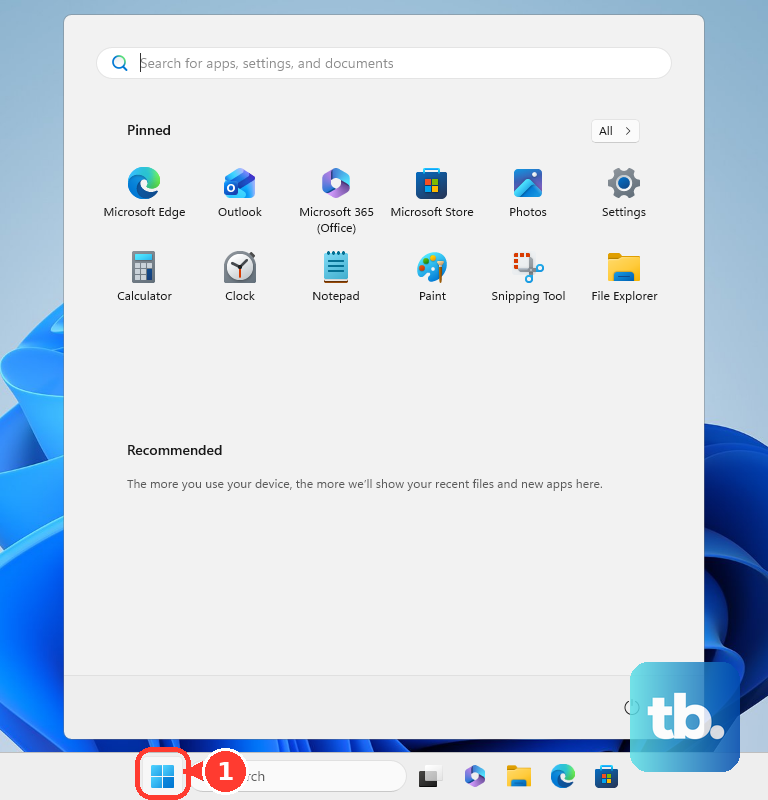
For an administrator-managed installation, silent removal stops the running application and uninstalls it without confirmation, so preserve unsynced work and complete the account-disconnection steps first. Substitute the installed version directory for <VERSION> in Google’s removal command:
"%PROGRAMFILES%\Google\Drive File Stream\<VERSION>\uninstall.exe" --silent --force_stopFrequently Asked Questions
Can you add another Google Account without reinstalling Drive?
Yes, Drive for desktop supports up to four simultaneous accounts. Open the desktop app’s menu, select your profile picture, then select + Add account. Complete authentication in your browser and restart the application.
Should you follow an older Backup and Sync or Drive File Stream tutorial?
Use the current Drive for desktop installer, which unified Backup and Sync and Drive File Stream. Google ended Backup and Sync sign-in capability in 2021, and the original Google Drive for Mac/PC client began shutting down in May 2018. You may still see the historical Drive File Stream name in current filesystem paths.
Can you enable Google Photos backup during Drive installation?
Google Photos backup is no longer available in Drive for desktop. Use Google Photos for that task instead of following older setup instructions that include a Photos backup stage.
Can you install Drive for desktop on Windows Server?
Yes, Google lists Windows Server 2016 or later on x64 systems among its supported platforms. The installer also automatically installs Microsoft WebView2 if it is missing.
Does choosing mirroring also download shared drives?
No, shared drives remain streamed. The streaming and mirroring choices apply to the files you find when you open My Drive.