


To check your Surface Pro model, open the Surface app, expand Device information, and read Surface model. You can also find the model in Windows Settings or System Information. If Windows cannot start, use the serial number under the kickstand to identify the device through your Microsoft account.
The short version
- Fastest check: Open the Surface app and read Surface model under Device information.
- Built into Windows: System Information shows both System Model and System SKU.
- Without Windows: Find the serial number under the kickstand and register it in your Microsoft account.
- Exact identification: Keep the complete model name and SKU because a printed hardware number can refer to more than one generation.
| Method or place | When to use it | What it provides |
|---|---|---|
| Surface app | The app is installed and compatible | Surface model |
| Surface app download | The app is missing | Access to the app method |
| Windows Settings | Windows starts | Model below the device name |
| About keyboard shortcut | You prefer keyboard access | The same model information in Settings |
| System Information | You need configuration details | System Model and System SKU |
| Run shortcut | You want to open System Information directly | The same model and SKU fields |
| Microsoft account | You have a registered device or its serial number | Device information under Info & support |
| Kickstand marking | Windows cannot start | Serial number for account lookup |
| Original packaging | You have the matching box | Serial number on the barcode label |
| Settings serial number | Your Windows build displays the field | Serial number for account lookup |
| Surface app serial number | You need account lookup details | Serial number |
| UEFI hardware buttons | A compatible Surface cannot start Windows | Model or Serial number |
| UEFI through Recovery | A compatible Surface runs Windows 11 | The same firmware information |
| PowerShell SKU query | You need the complete configuration identifier | Full System SKU string |
| PowerShell CIM model query | You prefer a command | Manufacturer and model |
| PowerShell computer information query | You want the model property | CsModel |
| Command Prompt | You want text output | System Manufacturer and System Model |
| DirectX Diagnostic Tool | You want another Windows tool | System Model |
| Microsoft SKU reference | You have the complete SKU | Matching device and configuration |
| Printed hardware model number | You need supporting identification | Possible matches in the regulatory table |
| Surface Diagnostic Toolkit | You have a compatible toolkit build | Device model and serial number |
| Toolkit Store page | You need the toolkit for a compatible personal Surface | Access to the toolkit method |
| Toolkit service download | You need the technician version | The service toolkit package |
| Intune inventory | Your organization manages the Surface in Intune | Product name and serial number through IT |
Find the model in the Surface app
Select Start, search for Surface, and open the Surface app. Expand Device information and read Surface model. Record the complete name rather than shortening it to just Surface Pro.
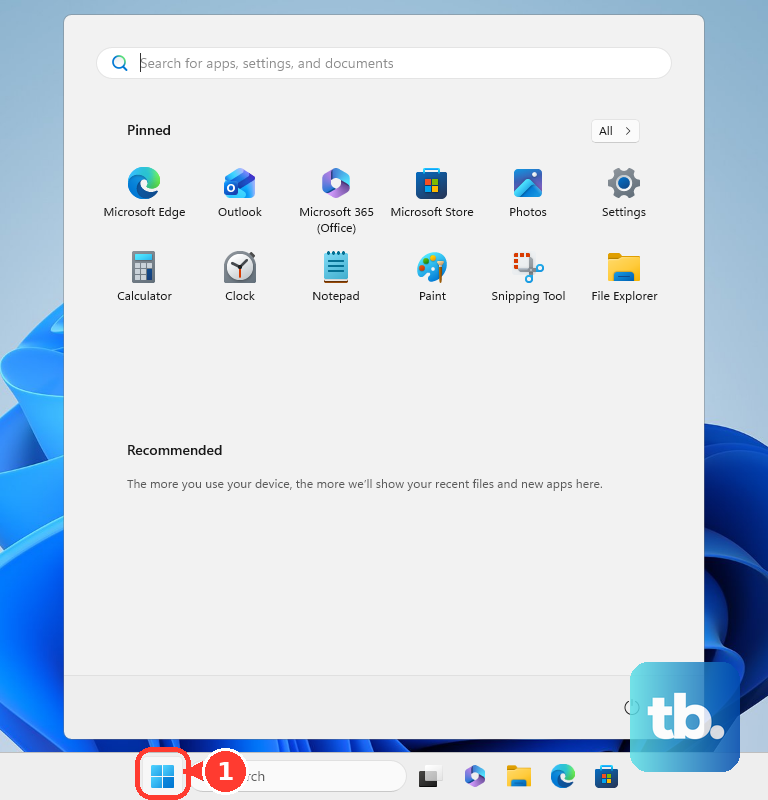
If the app is missing, get it from the official Surface app download page, then open Device information. This method requires a Surface Pro compatible with the app. If you cannot use it, continue with Windows Settings or System Information.
Check the model in Windows Settings
On Windows 11, right-click or long-press Start, then select Settings > System > About. Read the model name below the device name. Keep those two names separate when recording the result.
On Windows 11, press Windows + Pause to open Settings > System > About; this requires a keyboard with a Pause key. Alternatively, on Windows 11 or Windows 10, press Windows + I to open Settings, then select System > About. Presentation can vary by Windows build.
If the model shown there does not give you enough detail, use System Information next. It gives you both the model and the SKU, which helps distinguish configurations sharing a model name.
Read the model and SKU in System Information
Select Start, type system, and open System Information. Select System Summary, then find System Model and System SKU in the right pane. Record both values, keeping the full SKU string.
You can also open the tool through Run. Press Windows + R, type the following command, and press Enter.
msinfo32Read System Model and System SKU under System Summary. This method works on Intel and Arm Surface Pro devices running Windows 11 or Windows 10.
Identify your Surface through your Microsoft account
Open the Microsoft account Devices page and sign in to your personal Microsoft account. Locate your Surface and select Info & support to inspect its device information. You can do this from another computer or phone, including when the Surface cannot start.
If your Surface is absent, select Register device and register its serial number. After registration, inspect the resulting device information to identify the model.
For a Surface that still runs, open the Surface app, expand Device information, and read Serial number. Use that number with the account registration method if you need the online device information.
On Windows 11 or Windows 10, you can also right-click or long-press Start, then select Settings > System > About. Under Windows Specifications, look for Serial number and use it for account registration. If that field is absent on your Windows build, use the Surface app or the marking under the kickstand.
Find the serial number when Windows cannot start
Flip out the Surface Pro kickstand and find the serial-number string near its base. Enter that number through Register device on your Microsoft account Devices page, then inspect the device information. This route works for any Surface Pro model without starting Windows.
If you have the original packaging for that particular Surface, find the serial number on its barcode label. Use it with the same account registration method and inspect the resulting device information.
You can identify the device before troubleshooting Windows. Once you have the model, you can follow the steps to fix a Surface that will not turn on if startup is also a problem.
Check Surface UEFI for model information
Surface Pro 4 and later models, including all Surface Pro X models, use the newer Surface UEFI interface. You can check its hardware information without starting Windows. Fields vary by firmware, so use the serial-number account lookup if the model field is missing.
Shut down your Surface and wait approximately 10 seconds. Hold Volume Up while pressing and releasing Power, then keep holding Volume Up until UEFI appears. Open PC information and read Model; if that field is missing, record Serial number for the Microsoft account lookup.
On Windows 11 on these models, you can also open Start > Settings > System > Recovery, then select Restart Now beside Advanced startup. This lets you access the Windows Recovery Environment. At Choose an option, select Troubleshoot > Advanced Options > UEFI Firmware Settings > Restart, then open PC information. Read Model if displayed, or use Serial number with the account lookup.
Use PowerShell or Command Prompt
On Windows 11 or Windows 10, you can query the manufacturer and model through Windows PowerShell or PowerShell 7 on Windows. Open Windows PowerShell, enter the following command, and press Enter.
Get-CimInstance -ClassName Win32_ComputerSystem | Select-Object Manufacturer, ModelRead Model in the output. If that name does not distinguish your configuration, retrieve the complete System SKU next.
For the complete SKU on Windows 11 or Windows 10, open Windows PowerShell and enter the command below. Press Enter and retain the entire result to match against Microsoft's Surface System SKU reference.
(Get-CimInstance -Namespace root\wmi -ClassName MS_SystemInformation).SystemSKUAnother model query works in Windows PowerShell 5.1 and PowerShell 7 on Windows, on Surface Pro devices running Windows 11 or an appropriate Windows 10 installation. Open Windows PowerShell, enter the following command, press Enter, and read CsModel.
Get-ComputerInfo -Property CsModelCommand Prompt offers a separate route on Windows 11 and Windows 10. Open Command Prompt, type the following command, and press Enter.
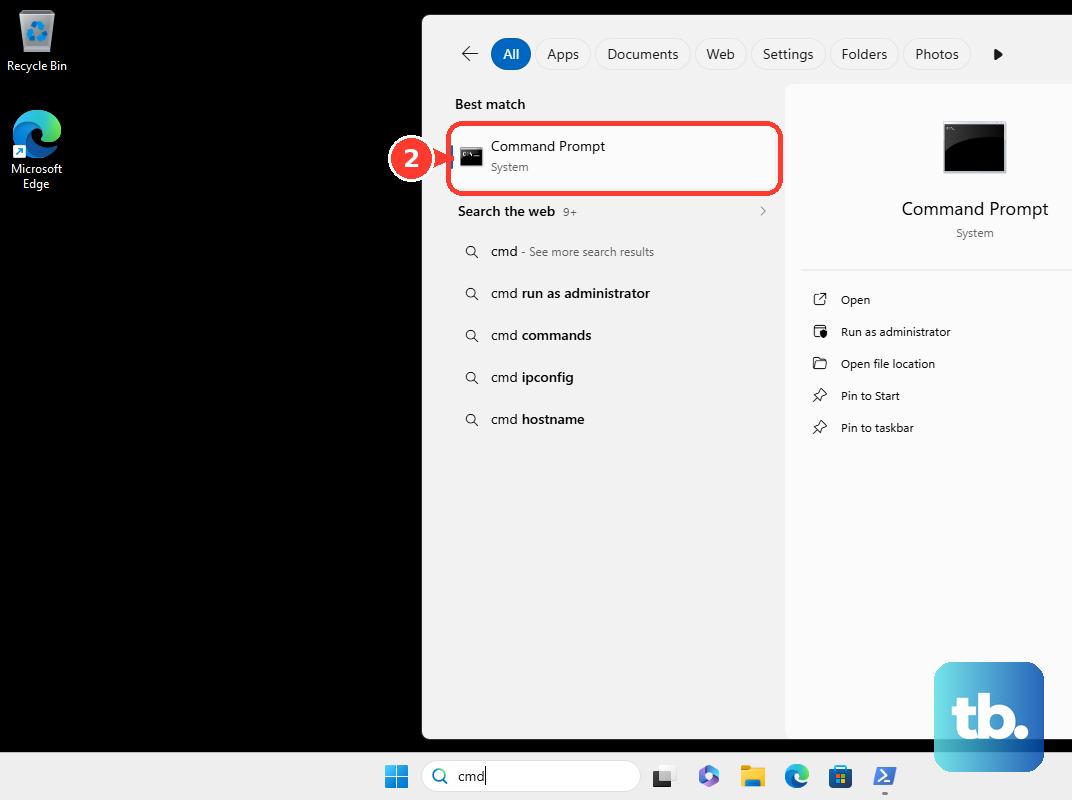
systeminfoFind System Manufacturer and System Model in the output. Those labels are localized when Windows uses another language.
Check other tools or ask your IT administrator
On Windows 11 or Windows 10, search Windows for dxdiag and open it. If asked about checking digitally signed drivers, select Yes. Select the System tab and read System Model under System Information.
If you have Surface Diagnostic Toolkit on a Surface compatible with the installed build, launch it and open the hamburger menu in the upper-left corner. Select System Information and read the device model and serial number. Use the Surface app or System Information if your Surface is not compatible with that toolkit build.
For a compatible personal Surface, you can obtain Surface Diagnostic Toolkit from its official Microsoft Store product page. After installing it, open the toolkit's menu and select System Information to read the model and serial number.
If you need the service build for Windows 10 or Windows 11, open Microsoft's Surface Service Guides download page and select Download. Select Surface Diagnostic Toolkit_2.245.zip, then select Download again. This version is intended primarily for technicians and requires a local administrator account.
If your Surface is enrolled in Microsoft Intune, ask an authorized IT administrator to identify it from the device inventory. If you have that administrator access, open the Microsoft Intune admin center, select Devices > All devices, select the Surface, and open Device details. Under System enclosure, read Product name, then use Serial number under System to confirm the correct device.
Confirm the exact Surface Pro edition
Copy the complete System Model and System SKU from System Information, or retain the SKU returned by PowerShell. Find the complete SKU in Microsoft's Surface System SKU reference and read its Device entry. Match all suffixes, including edition, business, cellular, and regional identifiers.
Keep screen size and edition separate when identifying your Surface. Microsoft's reference includes Surface Pro 12-inch first and second editions, 13-inch 11th and 12th editions, and business and cellular variants. Its Surface Pro coverage begins with the fifth generation, so use the serial-number account lookup for an older model or a result you cannot match.
You can also read the hardware model number printed on the device and compare it with Microsoft's Surface regulatory table. If several products share that number, complete identification using the full System SKU or the serial-number account lookup. Appearance, keyboard, processor family, or Windows edition alone may also fail to distinguish configurations.
Frequently Asked Questions
Why does hardware model number 1796 give more than one Surface Pro result?
Microsoft's regulatory table lists 1796 for both Surface Pro 5 and Surface Pro 6. If your device carries that number, use its full System SKU or serial-number account lookup to distinguish the generation.
Why does an older WMIC command fail on an updated Windows 11 Surface?
Microsoft removed WMIC from currently supported Windows 11 versions and from Feature on Demand availability. Use the PowerShell CIM model query instead; you do not need to restore WMIC to identify your Surface.
Why does Get-WmiObject fail in PowerShell 7?
The Get-WmiObject cmdlet was removed from modern PowerShell and is unavailable directly in PowerShell 7. Use the Get-CimInstance model query instead.
Do these identification methods mean Windows 10 is still supported?
No, a method working on Windows 10 does not establish its support status. Ordinary Windows 10 support ended in October 2025, and identification compatibility is separate from your Surface model's hardware support lifecycle.