

To fix Zoom video not working on a laptop, click Start Video, select the correct camera in Zoom, and allow camera access in your laptop’s privacy settings. Then check the camera shutter and close other apps using the webcam. The Windows Settings steps below use Windows 11 menus.
The short version
- Start with Zoom: Turn on video and check the selected camera in its preview.
- Check physical controls: Open the camera shutter and check your laptop’s camera key or switch.
- Allow camera access: Check operating system permissions and, for browser meetings, website permissions.
- Narrow down the failure: Test the camera outside Zoom before moving to drivers or reinstalling the app.
| Fix | When to use it |
|---|---|
| Start video and select the camera | Video is off or Zoom uses the wrong device |
| Check shutters and competing apps | The camera is blocked or busy |
| Check meeting visibility controls | Your preview works but video is hidden |
| Allow operating system access | Zoom cannot access the webcam |
| Allow browser access | Video fails in a browser meeting |
| Test outside Zoom and restart | You need to distinguish a Zoom problem from a camera problem |
| Update Zoom and macOS | App or system software needs an update |
| Remove backgrounds and reduce HD video | Video fails with effects or increased processing demand |
| Improve the connection | Network performance causes frozen or degraded video |
| Run Windows camera diagnostics | The webcam also fails outside Zoom |
| Enable the camera in Windows | The camera was disabled in camera settings |
| Scan for hardware and update drivers | The camera is missing or needs a driver update |
| Reinstall Zoom | The camera works elsewhere but Zoom still fails |
| Join through your browser | You need a desktop-app workaround and the meeting permits it |
| Use another webcam or seek service | The built-in camera continues failing |
Turn on video and select the correct camera
In the meeting toolbar, click Start Video. The slash through the camera icon disappears when video starts. If the meeting prevents you from starting video, check the host controls below.
To check the camera directly, click your Zoom profile picture, open Settings > Video & effects, and inspect the preview. Under Camera, select the webcam you intend to use. During a meeting, open the arrow beside Video, select Video settings, and change Camera.
If your camera starts turned off whenever you join, open Zoom’s Settings > Meetings & webinars > Join experience. Turn off Keep my camera off, then turn on Show video preview first to inspect the picture before joining.
Check the shutter and close competing apps
Open the camera’s privacy shutter and remove any cover or protective film obstructing the lens. Gently clean a dirty lens with a clean, soft cloth. For an external webcam, reconnect it, check its power connection when applicable, and try another USB port.
Some laptops also disable the webcam through a keyboard control. On equipped HP models, slide the webcam privacy switch away from its adjacent icon or press the webcam shutter key, adding Fn when required; an illuminated shutter-key light means the camera is off. On supported Lenovo models, press the key bearing a camera icon, using Fn with it when the keyboard mode requires it, and open ThinkShutter if fitted.
For ASUS laptops with the camera function assigned to F10, press F10 or Fn + F10 until Camera on appears. These shortcuts depend on the model, so check your model’s keyboard layout. Close other conferencing apps, camera utilities, and browser tabs using the camera before testing Zoom again.
Check whether meeting controls are hiding video
If other people can see you but your own preview is missing, click View > Show Self View in desktop meeting layouts with that control. Hiding self-view does not stop your video from reaching other people. A missing preview alone does not mean the webcam has failed.
When the host prevents participants from starting video, ask them to open Host tools and enable Start video under Allow all participants to. Layouts with nested controls use Host tools > Participants first. Another desktop entry is the arrow beside Participants > Host tools for participants.
If the host stopped your individual video, ask them to open Participants, find your name, open the ellipsis menu, and click Ask to start video. You then start your video. If other attendees cannot see you while the host can, Focus mode may explain the difference: it normally hides participant videos from other participants, and the host or co-host can end it. In the Windows or macOS desktop app, they click More > Host tools > Advanced and turn off the Focus mode toggle; in the Zoom Web App, they click More > Stop Focus Mode.
In a webinar, ordinary attendees need panelist camera privileges. The host opens Participants > Attendees, finds your name, and chooses Promote to panelist. If you are already a panelist, the host can open Participants > Panelists and select Ask to start video.
Allow camera access on your laptop
On Windows 11, open Start > Settings > Privacy & security > Camera. Turn on Camera access, Let apps access your camera, and Let desktop apps access your camera. Desktop Zoom and browsers normally depend on the desktop-app permission; enable the relevant individual Microsoft Store app toggle if listed.
If camera access is locked on a work or school laptop, contact the device administrator to review camera restrictions. Windows error 0xA00F4292 also calls for an administrator to check those restrictions.
On a Mac, open the Apple menu > System Settings > Privacy & Security > Camera, then enable Zoom or the browser you use for meetings. The application appears in this list after requesting camera access. Quit and reopen it when requested.
Screen Time can also restrict a MacBook’s camera. Open the Apple menu > System Settings > Screen Time > Content & Privacy > App Restrictions, then select Camera. Return to App Limits and disable any limit affecting Zoom or its browser.
On a Chromebook, select the time, then open Settings > Privacy and security > Privacy controls. Turn on Camera access and grant access to the relevant app. Open any physical camera switch, then refresh the web app after changing permissions.
Check website permissions for browser meetings
A browser meeting also needs permission for the Zoom website to use your camera. In Chrome, select Allow while visiting the site at the camera prompt. To correct a saved block, open More > Settings > Privacy and security > Site settings > Camera, select the blocked Zoom site, and change its permission to Allow.
Restart the call or Chrome if necessary after changing access. If your managed browser prevents permission changes, ask your administrator to review its camera policy.
In Edge, select Allow at the camera prompt. For an existing block, open Settings and more > Settings > Privacy, search, and services > Site Permissions > All sites. Select the Zoom website and change Camera to Allow.
In Firefox, select Allow at the camera prompt, or open Page Info > Permissions to change an existing permission. Under Use the camera, uncheck Use Default, then choose Allow. In Safari on a Mac, open Safari > Settings > Websites > Camera and permit the Zoom website to use the camera.
Test the webcam outside Zoom and restart
On Windows, search for and open Camera. On a Mac, test the webcam in Photo Booth or FaceTime. Close the test app before returning to Zoom so it does not compete for camera access.
Failure across applications points toward the camera, permissions, or driver. Restart the laptop and test Zoom again; follow the steps to restart a computer if you need help with the restart. If the camera works elsewhere but still fails in Zoom, continue with Zoom updates and video settings.
Update Zoom and reduce video demands
Sign in to the Zoom desktop app, click your profile picture, and select Check for Updates. Install the offered update and test the camera again. If that control is absent on an MSI-managed installation, request the update from IT.
For a MacBook with continuing camera problems, open the Apple menu > System Settings > General > Software Update. Install the compatible update offered, then test the camera again.
If the picture fails with a virtual background, open Zoom’s Settings > Video & effects > Backgrounds and click None. To reduce HD processing or bandwidth demand, open Settings > Video & effects > Camera and turn off HD video, if available. Some Zoom layouts call that control HD; check the picture again after changing it.
Frozen or degraded video can also result from network performance. Move closer to the Wi-Fi access point, connect by Ethernet, or try another network. These connection changes address interrupted video, rather than a camera Zoom cannot detect.
Check Windows camera diagnostics and drivers
On Windows 11, open Start > Settings > System > Troubleshoot > Other troubleshooters. Beside Camera, click Run to start the camera diagnostics. This is a useful next step when the webcam also fails outside Zoom.
A camera disabled through Windows camera settings needs to be enabled there. On Windows 11, open Settings > Bluetooth & devices > Cameras; under Disabled cameras, select your camera and click Enable. This change requires administrator access.
For a missing camera, open Device Manager, then choose Action > Scan for hardware changes. Restart after detection and driver installation. To look for a driver update manually, right-click Start, open Device Manager, right-click the camera, and select Update driver.
On Windows 11, you can also open Settings > Windows Update > Advanced options > Optional updates. Select the applicable camera driver updates, click Download and install, and restart. Driver names depend on your laptop and camera.
Reinstall Zoom or switch to another camera
If the webcam works in other apps but Zoom still fails, reinstalling Zoom is a later fallback. Uninstalling removes the Zoom Workplace application from your laptop. On Windows, open Control Panel > Programs and Features, select Zoom Workplace, and click Uninstall, then click Yes when prompted.
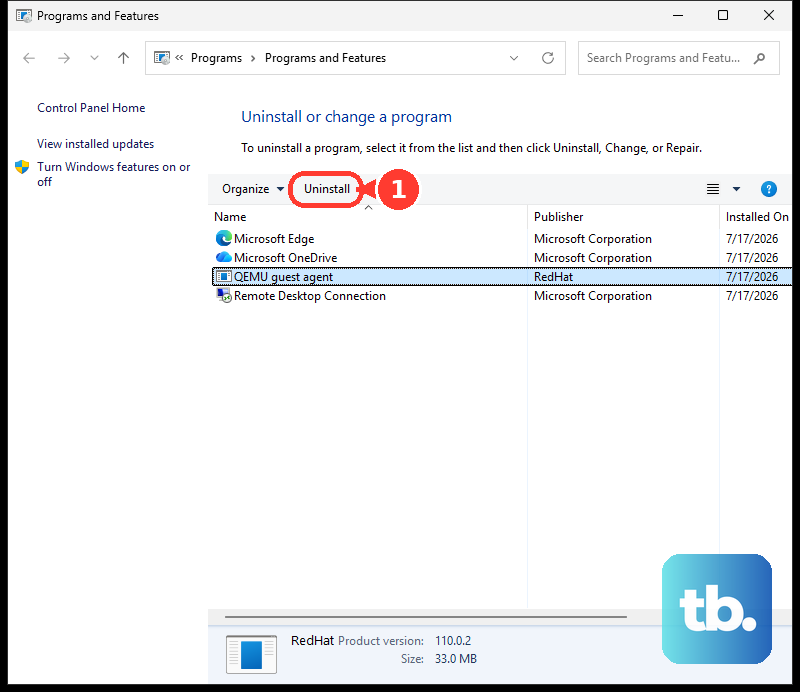
On a Mac, uninstalling likewise removes the Zoom Workplace application. Open Zoom and select Zoom Workplace > Uninstall Zoom Workplace from the macOS menu bar, then click OK. Reinstall the version appropriate for your laptop’s operating system and architecture from the official Zoom Download Center.
For a desktop-app workaround, open the meeting invitation link and click Cancel if the desktop-launch prompt appears. Click Join from your browser, enter your name, allow camera access, and click Join. If the browser option is missing, ask the host to enable Show a "Join from your browser" link; an administrator may control that setting. End-to-end encrypted meetings require the native app, so continue with the desktop app for those meetings.
A compatible external webcam can bypass a faulty built-in camera. Connect it, open the arrow beside Zoom’s video control, and choose it under Select a Camera. If a MacBook’s built-in camera continues failing across apps after permissions, updates, and restart troubleshooting, or its indicator flashes green, contact Apple for hardware service.
Frequently Asked Questions
What keyboard shortcut turns Zoom video on?
In the Zoom desktop app on Windows or Linux, press Alt + V to toggle video, or Alt + N to switch cameras. On macOS, press Command + Shift + V to toggle video. Review customized bindings through your profile picture > Settings > Keyboard shortcuts; desktop shortcuts do not automatically apply to the Zoom Web App.
How do you fix a Zoom picture that is very dark?
Open Zoom’s Settings > Video & effects > Camera and enable Adjust for low light on supported desktop apps and hardware. Choose Auto, or choose Manual and adjust the slider. This changes a dark live picture, rather than fixing an undetected camera.
Why can you no longer see other participants’ videos?
If incoming video was stopped locally, restore it in the desktop app through View > Start incoming video. In the Zoom Web App, click More > Start Incoming Video. These controls restore the participant video you stopped locally.
Why does the Zoom Web App keep joining with video off?
In the Zoom Web App side menu, open Settings > Video, then disable Turn off my video when joining a meeting. If only your own preview is missing, disable Hide Self View in the same area. These controls also apply when the Zoom Web App is installed on ChromeOS.