
If the YouTube app is not working, close and reopen it, then restart your device and update YouTube from the App Store or Google Play. If videos still will not play, switch between Wi-Fi and mobile data to check the connection before clearing data or reinstalling the app.
The short version
- Close and reopen YouTube, then restart your device if playback still fails.
- Switch networks and lower video quality when videos keep buffering.
- Update the app before clearing Android cache or reinstalling on iPhone.
- For browser playback, check extensions, stored site data, and browser updates.
- For TV playback, restart the TV and check sign-in or casting separately.
- Check account restrictions when only certain videos or features are missing.
| Fix | What it does | Time | Use it when |
|---|---|---|---|
| Service and connection checks | Narrows down playback trouble | A few minutes | Videos fail to load or keep buffering |
| Mobile app repair | Restarts or refreshes the app | A few minutes | YouTube freezes or closes |
| Cellular access | Allows mobile data use | Under a minute | Wi-Fi works but cellular fails |
| Browser repair | Checks extensions and site data | A few minutes | Only browser playback fails |
| System update check | Checks available device software | Under a minute to check | The app cannot update |
| TV playback and sign-in | Restarts TV playback and accounts | A few minutes | YouTube fails on the TV |
| Casting and pairing | Connects your phone to the TV | A few minutes | The TV is missing from Cast |
| Restrictions and feedback | Checks filters and reports errors | A few minutes to check and report | Content is blocked or errors persist |
Check the service and your connection
Before changing settings, check for an acknowledged service issue. Open YouTube's feedback help page and follow its Known Issues page link to see problems YouTube is working on. If a notice matches your symptom, follow the notice and retry later.
For a page that will not load, use the browser's refresh button or Reload if the error offers it. If that does not help, retry later rather than repeatedly deleting data. A notice about missing comments or buttons can describe a service interruption even when the video itself still plays.
For buffering, switch from Wi-Fi to mobile data, or from mobile data to Wi-Fi, and replay the video. Mobile data charges may apply, so use Wi-Fi for longer checks when possible. If your device is far from the router, move closer and reduce other streaming activity on the same network.
In the video player, open Settings, then Quality. In the mobile app, choose Auto to adjust to the connection, or Data saver for a lower-quality picture that may start faster. To choose a specific resolution, open Advanced when available and select a lower option; on a computer or TV, select a lower resolution directly under Quality.
Restart your device and repair the mobile app
Restart before deleting anything
Close YouTube and reopen it, then replay the video. If the app remains stuck, restart the phone, tablet, or computer and return to YouTube. Try playback after each change so you can stop as soon as the problem clears.
On iPhone, open Settings, select General, then Shut Down, and drag the power slider. After the phone turns off, hold its side button to turn it back on. On an older iPhone SE of the first generation, iPhone 5, or earlier model, use the top button to turn it on instead.
Repair YouTube on Android
Open Google Play Store, tap your profile icon, and choose Manage apps & device. Under Updates available, tap See details, then Update beside YouTube if an update is offered. Reopen the app before moving on to its storage settings.
On a Google Pixel running Android 8.1 or later, open Settings, then Apps, See all apps, and YouTube. Choose Force stop, confirm with OK, and reopen YouTube. Other Android phones can use different menus, so find YouTube's app settings rather than assuming every phone matches the Pixel path.
Return to YouTube's app settings and open Storage & cache, then tap Clear cache. This removes temporary data; Clear storage is a stronger reset that deletes app data. Use the storage reset only if the earlier checks fail, and read its confirmation before accepting.
If YouTube is removable on your phone, reinstalling it from Google Play is another option after the earlier checks fail. Uninstalling removes saved app data, so keep this step after the earlier repairs. Open Google Play Store, tap your profile icon, choose Manage apps & device, then Manage, select YouTube, and tap Uninstall if available.
After uninstalling, return to Manage, choose This device, then Not installed, and select YouTube. Tap Install and reopen it to check playback. If your phone keeps YouTube as a preinstalled app that cannot be removed, use the cache or storage reset above instead.
Repair YouTube on iPhone or iPad
For an unresponsive iPhone app, swipe up from the bottom of the Home Screen and pause to show recent apps. On an iPhone with a Home button, double-click Home instead. Find YouTube, swipe its preview upward to close it, then reopen it.
On iPadOS 27 and 26, open Exposé by swiping up from the bottom and pausing, or double-clicking Home on a model with that button. Swipe upward on YouTube to close it, then reopen it. On iPadOS 18, open the App Switcher, then swipe up on YouTube instead.
To update YouTube on iPhone or iPad, open App Store, tap your photo or My Account, select App Updates where shown, and tap Update beside YouTube. If App Updates is not shown, scroll down on the account screen and tap Update beside YouTube, as on iOS 18. App Store apps update automatically by default, but checking manually is useful when an app fails.
If YouTube still will not open, touch and hold its icon, choose Remove App, then Delete App, and confirm with Delete. Download it again from the App Store and check playback. Deleting an app can remove data stored within it, so keep this step after closing, restarting, and updating.
Allow YouTube to use cellular data
If switching to Wi-Fi fixes playback, check whether YouTube can use cellular data. On iPhone, open Settings, choose Cellular or Mobile Data, and enable YouTube in the app list. On a cellular iPad, the settings page may be named Cellular Data.
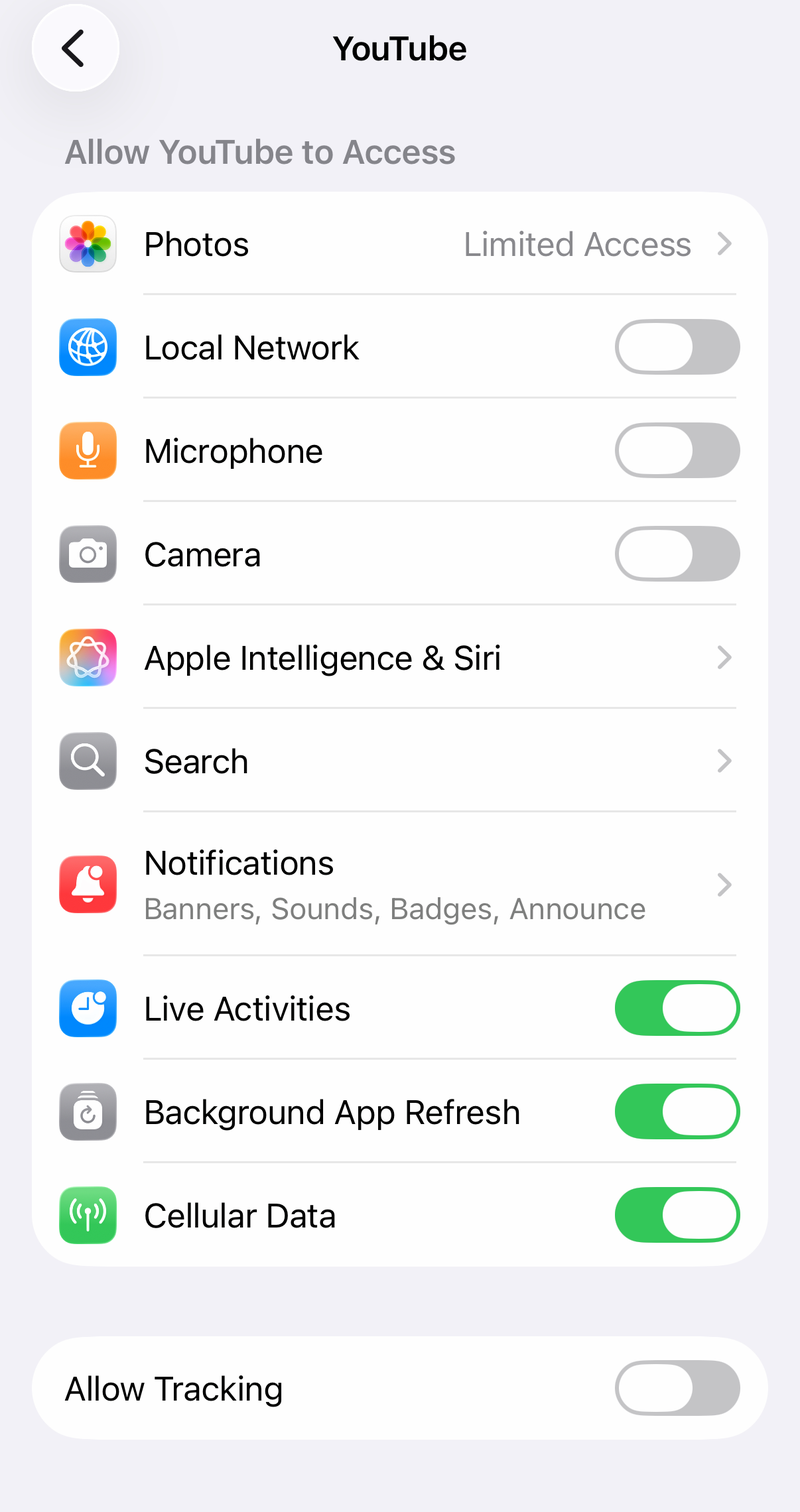
The screenshot shows the Cellular Data switch on YouTube's individual settings page. Use the app list under Cellular to check YouTube's access if your settings look different. When access is disabled for an app, it uses Wi-Fi for data, so reopening YouTube alone will not change that permission.
On a Pixel, open Settings, then Network & internet, Data Saver, and Unrestricted data to allow YouTube background data while Data Saver is on. You can also turn Data Saver off for a comparison. This setting concerns background use, so continue checking your connection if a video will not play while YouTube is open.
Repair YouTube in your browser
Compare a private session
In Chrome, open More and choose New Incognito window. In Edge, use Settings and more, then New InPrivate window; in Firefox, open the menu and choose New private window. Disable any extensions allowed in private mode for this check. Try an ordinary public video, and sign in if YouTube asks you to.
For a check without your usual signed-in session, use the steps for watching YouTube without logging in. Age-restricted videos require sign-in, so they are unsuitable for a signed-out comparison. Success in a private session is a reason to check extensions and site data, rather than proof of one specific cause.
In current Safari on iPhone, tap More, then New Private Tab. On iOS 17 and earlier, tap Tabs, swipe to the Private tab group, and open a tab there. On iPad, touch and hold Tabs and choose New Private Tab.
Check extensions and clear stored data
Turn off an ad blocker for YouTube and retry playback. In Chrome, use More, Extensions, and Manage extensions; in Edge, select Extensions, then Manage extensions. In Firefox, open the menu's Extensions and themes or older Add-ons and themes entry, select Extensions, and turn off the relevant extension.
In desktop Chrome, open More, then Delete browsing data. Choose a time range, select Cookies and other site data and Cached images and files, then select Delete data. Leave unrelated data types unchecked if you want to keep them.
In Edge, open Settings and more, Settings, Privacy, search, and services, then Clear browsing data. Select Choose what to clear, choose the time range, check cookies and cached files, and select Clear now. Removing cookies can sign you out of websites, so be ready to sign in again.
In Firefox, open Settings and select Privacy and security, which older layouts label Privacy and Security. Find the cookies or browsing data section and choose Clear browsing data, or Clear Data… in the older layout. Select cookies and temporary cached files, then click Clear.
Clearing Safari history also removes cookies and website permissions for the timeframe and profile you select. Check that scope before confirming either of the iPhone procedures below.
In newer iPhone settings layouts, open Settings, Apps, Safari, then Clear History and Website Data. Choose the timeframe and confirm with Clear History. On iOS 17, open Safari, tap Bookmarks, select History, and tap Clear. Choose the timeframe, then confirm with Clear History.
On iPad, clearing Safari history also removes cookies and website permissions for the selected scope. Open Safari, show the sidebar, choose History, then tap More and Clear. Choose the timeframe and tap Clear History. This clears Safari browsing data; it is a browser repair rather than an app reset.
Update the browser
In Chrome, open More, Help, and About Google Chrome, then choose Relaunch if offered. In Edge, use Settings and more, Help and feedback, and About Microsoft Edge, then restart if prompted. Return to YouTube after the update finishes.
For Firefox downloaded from Mozilla on Windows or Linux, open the menu, choose Help or Help and Report where shown, then About Firefox. On macOS, open the Firefox menu in the menu bar and choose About Firefox. Select Restart to update Firefox after an update downloads.
A Microsoft Store installation receives Firefox updates through that store instead. On Linux, a distribution-installed Firefox receives updates through the distribution's package manager. Safari updates come with Apple system software, so check the device update settings below.
Check system updates and app compatibility
Google's documented Android update path is Settings, System, then Software updates; follow the prompts to check what is available. Google's Pixel troubleshooting page also documents the label Software update. Menus vary by manufacturer, so use the route for your phone.
On a Samsung Galaxy, open Settings, then Software update or System updates. Choose whichever button appears, such as Download and install or Check for system updates, and follow the prompts. On iPhone or iPad, use Settings, General, and Software Update to check what is available.
On Windows 11, open Start, Settings, then Windows Update, and check for updates. Windows 10 uses Settings, Update & Security, then Windows Update. On a Mac, open the Apple menu, choose System Settings, then General and Software Update, or search for Software Update with Spotlight.
If Android will not install a newer YouTube version, check whether a system update is available. An older Android version can prevent the current app from installing, and older YouTube versions eventually lose support. If you cannot update, try m.youtube.com in the mobile browser rather than repeatedly reinstalling the same unsupported version.
If a desktop browser will not update, use its maker's official download page to install a current supported browser. Firefox and Edge both document using their installers when ordinary updates fail. Reopen YouTube afterward and retry the video before changing additional device settings.
Restore TV playback and sign in again
For a smart TV or streaming device, unplug its power cable, wait at least 30 seconds, and reconnect it. Open YouTube and replay the video after the device starts. Check the device's app store for a YouTube update if playback still fails.
For an account problem, open YouTube's left menu, select your profile picture, choose your account, and select Sign out. To sign back in, choose Sign in with your phone and scan the QR code, or type yt.be/activate in your phone's browser and enter the displayed code. If that fails, choose Sign in with your remote and enter your Google Account details on the TV.
If the TV has the wrong account selected, open its left navigation, select your profile picture, and choose the correct account under Accounts. Use Add account if it is missing. When using your phone for sign-in, check that the phone and TV use the same Wi-Fi network.
A message saying the device no longer meets YouTube's requirements needs a compatibility check. A firmware update can sometimes restore access, but the app may no longer work on that model. If the TV has a browser, YouTube says watching through youtube.com may still be possible.
Fix casting and TV code pairing
For normal casting, connect your phone or tablet and TV to the same Wi-Fi network. Open YouTube on both devices, play a video on the phone, tap Cast, and choose the TV. Use the mobile app for this check because YouTube casting is unavailable from a mobile browser.
For code pairing, open YouTube on the TV, choose Settings, then Add a device, and leave the blue code visible. On your phone or tablet, tap Cast, choose Add a device, enter the TV code, and tap Link, then select the device. Code pairing also works when the devices are on different Wi-Fi networks.
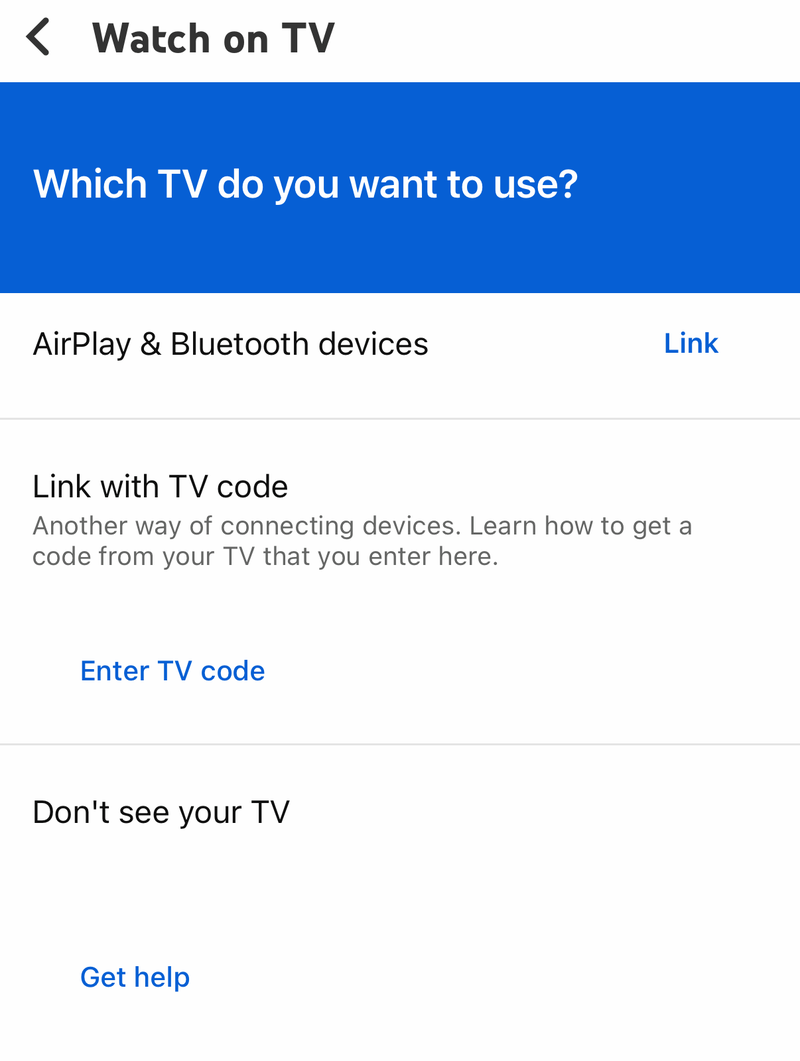
The screenshot shows the older Watch on TV screen with Link with TV code wording. Current YouTube help calls code pairing Add a device, so follow that label when it appears in your app. Match the code displayed on your own TV rather than the screenshot.
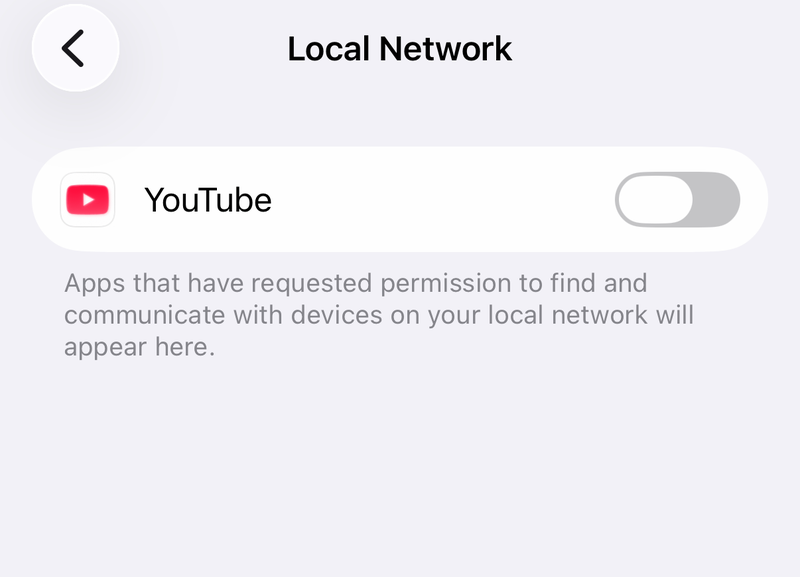
On iPhone or iPad, open Settings, Privacy & Security, then Local Network, and enable YouTube. This permission lets the app discover nearby network devices. YouTube requires local network permission for casting on iOS 14 and later.
On Android 17 and later, YouTube also needs permission to discover streaming devices. In the phone's Settings, select YouTube, open Permissions, then Nearby devices, and choose Allow. You can also tap Cast in YouTube and follow the permission prompt.
Check restrictions and report persistent errors
Check content and account controls
If some videos are missing, check Restricted Mode. In the Android or iPhone app, tap your profile photo, open Settings, then General, and turn Restricted Mode off if you control the setting. It filters potentially mature content and also hides video comments.
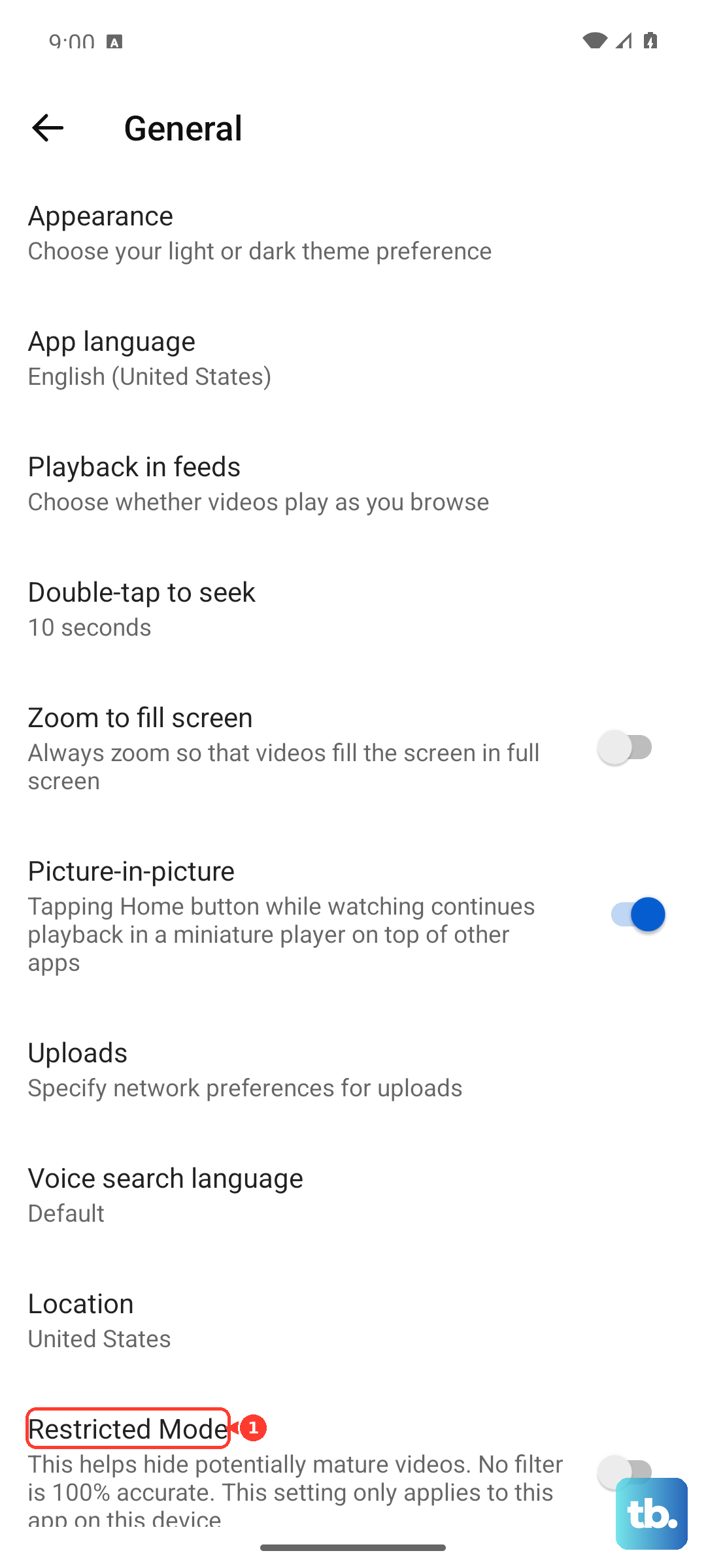
On a computer, select your profile photo, choose Restricted Mode, and turn Activate Restricted Mode off. On Android TV, open YouTube's Settings, choose Restricted Mode or Safety Mode, and select Off. Check each affected browser or device because the setting applies separately.
If the toggle stays locked, follow the steps for turning off Restricted Mode on YouTube. Open YouTube's Restricted Mode help and use its content restrictions checker to identify account or network filtering. Contact the school, workplace, or mobile network administrator if their controls are responsible.
For a supervised child account, ask the parent to review its YouTube controls. In Family Link, select the child, then Controls, YouTube, and YouTube & YouTube Music. Parent-selected content settings limit available videos, and a child cannot override Restricted Mode enabled through Family Link.
Send a useful error report
If the problem continues, report the error and describe which video, device, and connection were affected. In the mobile app, open your profile picture, then Settings and Send feedback; the report can include screenshots and logs. Include what changed when you switched networks or restarted the app.
On a computer, select your profile picture, choose Send feedback, describe the problem, and click Send. On a TV's video watch page, open Settings, select Feedback, choose a reason, and select Submit Report. YouTube may not reply to every report, so keep any displayed error message for further troubleshooting.
Frequently Asked Questions
Why is YouTube not working right now when other apps work?
Check YouTube's Known Issues notices, then close and reopen the app. If the problem continues, update YouTube and compare playback using another connection or a private browser session.
Why does YouTube keep buffering?
Switch networks or move closer to your router, then lower the video quality. In the mobile player, open Settings, Quality, and try Auto or Data saver.
Why does YouTube work on Wi-Fi but not cellular?
YouTube may lack permission to use cellular data, so check its switch in iPhone cellular settings. Android Data Saver concerns background traffic; check it when playback is interrupted as the app moves into the background.
Why is YouTube not working on my TV?
Unplug the TV or streaming device for at least 30 seconds, reconnect it, and check for a YouTube update. If playback trouble concerns an account, sign out and sign back in using the phone or remote option.
Can I clear YouTube cache on iPhone?
For iPhone app trouble, use closing, restarting, updating, and finally deleting and downloading YouTube again. Clearing Safari's website data is a separate browser repair and does not replace repairing the YouTube app.
Why is my TV missing from the Cast menu?
Check that both devices use the same Wi-Fi network and that YouTube has local network permission. If discovery still fails, use Add a device to pair the phone and TV with the TV code.
Why do only some YouTube videos fail?
Check Restricted Mode and supervised account controls before resetting the app. Age-restricted content requires sign-in and cannot be watched by users whose accounts are under 18.