


In Android’s Internet panel, the “Wi-Fi won’t auto-connect for now” message appears when you select mobile data as your connection: Wi-Fi auto-connect is temporarily paused, so the notice alone does not mean your Wi-Fi is broken. To switch back, select the saved network manually, then check your phone’s automatic connection settings. If Wi-Fi still fails to connect, refresh Wi-Fi and reconnect with the network’s current password before resetting saved connections. Menu names vary by manufacturer, so follow the Pixel or Samsung Galaxy steps that match your phone.
The short version
- Connect manually: Open your Wi-Fi settings and tap the network you want to join.
- Check automatic connections: On a compatible Galaxy, enable Auto reconnect for that network.
- Refresh the connection: Switch Wi-Fi off and back on, then retry closer to the router.
- Reset last: Resetting Wi-Fi and Bluetooth settings means reconnecting your networks and Bluetooth accessories afterward.
| Fix | When to use it |
|---|---|
| Select the network in Settings | Start here to reconnect manually |
| Use Quick Settings or a notification | Your phone offers an Internet panel or network notification |
| Enable Galaxy automatic reconnection | Your network offers Auto reconnect |
| Enable Pixel automatic Wi-Fi activation | Wi-Fi stays off near a saved network |
| Turn off Pixel Battery Saver | Automatic Wi-Fi activation is blocked while it is enabled |
| Enable Galaxy automatic Wi-Fi activation | Your compatible phone has a SIM and Wi-Fi stays off |
| Cycle Wi-Fi and move closer | The connection fails or reception is weak |
| Cycle airplane mode | Refreshing Wi-Fi alone does not help |
| Restart a Pixel | You use a Pixel 6 or later |
| Restart a Galaxy | You use a supported Galaxy device |
| Restart the router | You own it or have permission to maintain it |
| Forget and rejoin the network | Saved credentials are incorrect |
| Scan a network QR code | A compatible Galaxy needs network credentials |
| Complete public Wi-Fi sign-in | The network requires an operator login |
| Check Android software updates | Your phone uses Google’s update menus |
| Check Galaxy software updates | Your phone uses Samsung’s update menus |
| Check Galaxy Wi-Fi history | An app may be switching Wi-Fi off |
| Test Pixel Wi-Fi in safe mode | A downloaded app may interfere |
| Test Galaxy Wi-Fi in Safe mode | A downloaded app may interfere |
| Remove an interfering app | Wi-Fi works in safe mode |
| Reset Pixel saved connections | Earlier fixes fail |
| Reset Galaxy saved connections | Earlier fixes fail |
| Run Samsung Members diagnostics | The problem persists on a Galaxy with the app installed |
| Run Pixel Wi-Fi diagnostics | You use a Pixel 11 as a US subscriber in the US |
Select the saved network manually
On a Pixel or another Android device using Google’s menus, open Settings > Network & internet > Internet. Turn on Wi-Fi, tap your network, and enter its password when requested. On a Galaxy, open Settings > Connections > Wi-Fi to reach your networks.
If your phone has the Internet Quick Settings panel, swipe down, tap Internet, and select the network. You can also tap Connect on an available-network notification. If manual connection works, check the automatic connection controls next; if it fails, continue with refreshing Wi-Fi and replacing incorrect saved credentials.
Check automatic connection settings
On Galaxy models offering automatic reconnection, open Settings > Connections > Wi-Fi, then tap the network’s gear icon. Enable Auto reconnect. Samsung also provides saved-network controls through Manage networks, where you can access saved networks.
For a Pixel whose Wi-Fi stays switched off near saved networks, open Settings > Network & internet > Internet > Network preferences. Enable Turn on Wi-Fi automatically. This controls whether Wi-Fi switches on near saved networks, rather than every network’s reconnection preference.
Enable Location and, under Location services, enable Wi-Fi scanning and Bluetooth scanning when required. Google says Battery Saver can block automatic Wi-Fi activation on Pixel. If it is on, swipe down and tap Battery Saver to turn it off, then retry near the saved network.
On compatible Galaxy phones, open Settings > Connections > Wi-Fi > More options > Intelligent Wi-Fi. Enable Turn Wi-Fi on/off automatically if automatic activation is the problem; Samsung says this feature requires a SIM. If Wi-Fi is already on but you still cannot connect, continue with the connection refresh.
Refresh WiFi and restart your equipment
Open Settings, choose Network & Internet or Connections, then open Wi-Fi, depending on your phone. Switch Wi-Fi off and back on, move closer to the router, and try connecting again. If reception is weak, start by improving a weak Wi-Fi signal.
You can also cycle airplane mode as a general connection troubleshooting step. Open Settings, select Network & internet or Connections, then select Airplane Mode. Turn it on, wait 10 seconds, turn it off, and recheck Wi-Fi.
On Pixel 6 and later, hold Power + Volume up, then tap Restart. If the phone is unresponsive, hold Power for up to 60 seconds and release it when the Google logo appears.
On supported Galaxy devices, swipe down from the top right, tap the Power off icon, then tap Restart. If the phone is unresponsive, hold the Side key and Volume down together for more than seven seconds. Button arrangements vary by model.
For a router you own or are authorized to maintain, unplug its power cable, wait 30 seconds, and reconnect it. Allow the router to restart before trying the network again. If connectivity remains unavailable, contact your internet provider or the network host.
Replace incorrect saved network details
Forgetting a network removes its saved details from your phone. If the saved credentials are incorrect, open Settings > Network & internet > Internet on Google’s Android interface, touch and hold the saved network, then tap Forget. Select the network again and enter its current password. Manufacturer menus differ, so saved-network controls may vary on your phone.
Compatible Galaxy devices also let you enter network credentials by scanning a Wi-Fi QR code. Open Settings > Connections > Wi-Fi, tap the QR code icon, and scan the network’s code. If you still cannot connect, continue with the steps that match your network and device.
Complete the public network sign in
Hotel, airport, and other captive-portal networks may require a browser login after you connect. Join the network, then open its sign-in notification or a new browser window. Complete the network operator’s login using the instructions shown there.
The wording of any consent controls depends on the operator. If connectivity remains unavailable after completing the login, contact the network host.
Check for a software update
On Android devices using Google’s update menus, open Settings > System > Software updates. Follow the instructions for an available update, or open an update notification as an alternative starting point. Update availability depends on your manufacturer and model.
On Galaxy phones with these update controls, open Settings > Software update > Check for updates. Follow the offered instructions; regional and carrier labels vary. If the connection problem continues, check whether a downloaded app is involved.
Check for an interfering app
On Galaxy devices with Wi-Fi history, open Settings > Connections > Wi-Fi > More options > Advanced settings > Wi-Fi on/off history. Check the history for apps switching Wi-Fi off. Safe mode provides another way to investigate downloaded apps when ordinary connection steps have failed.
On Pixel 6 and later, hold Power + Volume up, then touch and hold Power off or Restart. Tap OK to enter safe mode, which temporarily disables downloaded apps. Turn Airplane mode off and test Wi-Fi, then restart normally afterward.
You can also enter Pixel safe mode from a powered-off phone. Press Power, then hold Volume down during the startup animation. Once in safe mode, turn Airplane mode off, test Wi-Fi, and restart normally afterward.
On a supported Galaxy, open Quick Settings and tap the Power off icon. Touch and hold Power off, then tap Safe mode. Test Wi-Fi and restart the phone to exit.
If Wi-Fi works in safe mode, removing recent apps individually can help identify the interfering app. Uninstalling removes the selected app from your phone. Open Google Play Store, tap your profile icon, select Manage apps & devices > Manage, then select the app and tap Uninstall. Restart and retest after each removal.
Reset saved connections and run diagnostics
Resetting Wi-Fi and Bluetooth settings means you will need to reconnect your Wi-Fi networks and Bluetooth accessories afterward. On the current Pixel interface, open Settings > System > Reset options > Reset Bluetooth & Wi-Fi, then tap Reset settings. Reconnect to your network and Bluetooth accessories after the reset.
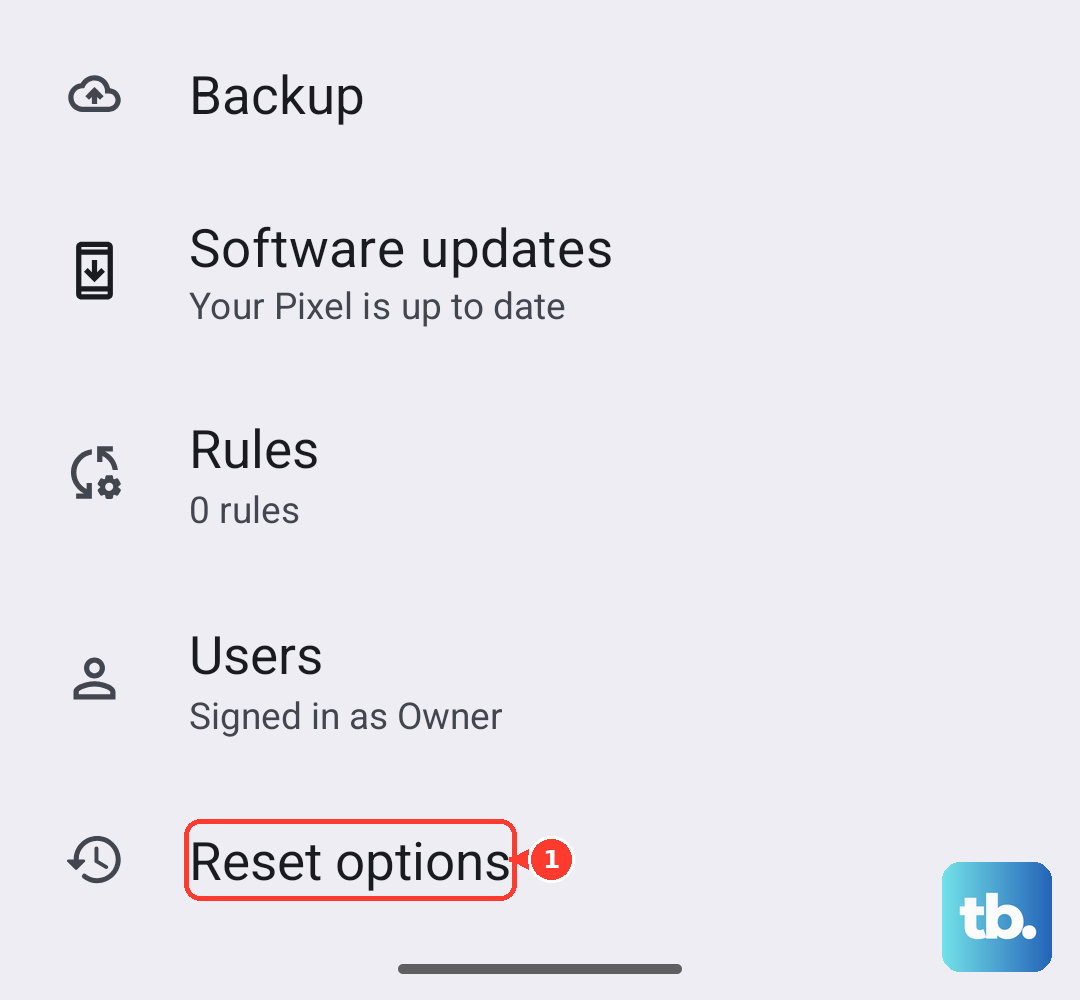
The Galaxy reset also requires reconnecting Wi-Fi networks and Bluetooth accessories afterward. Open Settings > General management > Reset > Reset Wi-Fi and Bluetooth settings, then tap Reset settings. Reconnect your network and accessories, then check the connection.
If the problem persists on a Galaxy with Samsung Members installed, open Samsung Members > Support > Get started. Select Wi-Fi and follow the diagnostic instructions. On Pixel 11 phones used by US subscribers in the US, open Settings > Device health & support > Wi-Fi diagnostics; Connectivity health provides broader results.
Frequently Asked Questions
What should you do if the network is missing from the list?
On Android devices with Google’s network controls, open Settings > Network & internet > Internet > Add network and enter the SSID and security information. For a hidden network, open Advanced options, select Yes under Hidden Network, then tap Save.
Can an active hotspot prevent the phone from joining Wi-Fi?
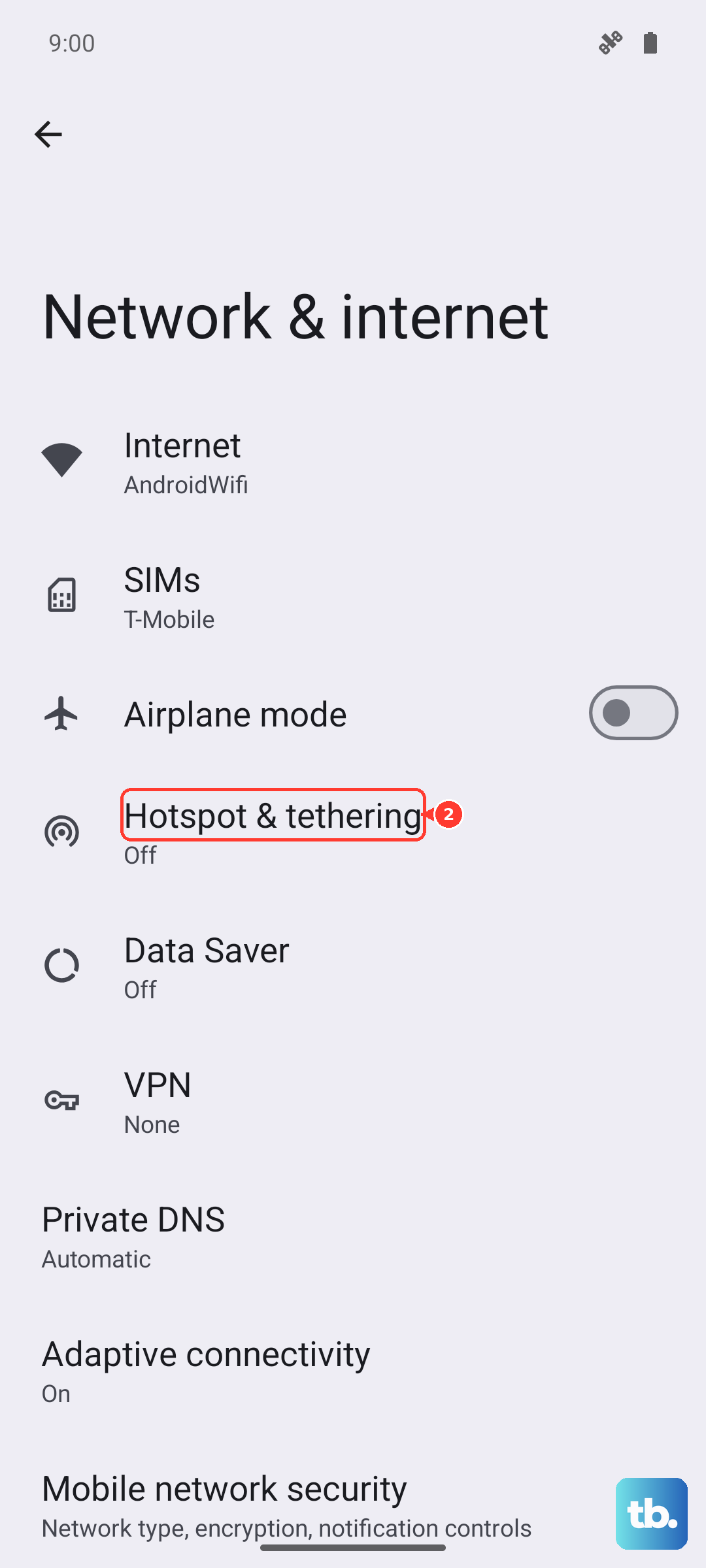
Yes, on devices without simultaneous hotspot and Wi-Fi support, including Pixel 7a. Open Settings > Network & internet > Hotspot & tethering > Wi-Fi hotspot, turn off Use Wi-Fi hotspot, then reconnect to Wi-Fi.
What does the Reset button in the Internet panel do?
On Android devices with this control, it resets the active internet connection. An active phone or video call will end. To use it, swipe down, touch and hold Internet, then tap Reset.
Should you change Private DNS if Wi-Fi connects but internet access fails?
If you configured a custom provider hostname and your phone exposes this setting, open Settings > Network & internet > Private DNS, select Automatic, and tap Save, then retry internet access. This checks whether your custom DNS configuration is involved in an internet access failure after connecting to Wi-Fi; it does not establish the cause of the auto-connect message.
Can you update a Galaxy from a computer when phone Wi-Fi is unavailable?
Compatible Galaxy devices can receive an available firmware update through Samsung Smart Switch on a supported Windows PC or Mac. Connect the unlocked phone by USB, open Smart Switch, select Update when offered, and select OK when prompted. Keep the cable connected until the update finishes.