To fix the update required to activate your iPhone error, restart your iPhone, connect to reliable Wi-Fi, then try activation and an iOS update through a computer if the message remains. Use recovery mode if normal updating fails. Back up if possible before updating, and remember that choosing Restore erases the iPhone.
Start with the connection and restart checks, then move to the computer steps if activation still fails. Settings-based fixes apply only when you can get past setup and open Settings.
The short version
- Start simple: Restart your iPhone and retry activation on reliable Wi-Fi.
- Use a computer: Connect by USB and try activation or an update through Finder on Mac or Apple Devices on Windows.
- Try recovery next: Choose Update first if you have not already attempted it.
- Protect your data: Back up if possible before choosing Restore, which erases the iPhone.
| Fix | When to use it | What to do next |
|---|---|---|
| Activation service check | The activation server is unreachable or unavailable | Wait and retry activation |
| Reliable Wi-Fi | You are activating over cellular data | Retry setup on Wi-Fi |
| Restart | The iPhone responds but activation fails | Retry activation after restarting |
| Force restart | A supported iPhone is unresponsive | Resume activation troubleshooting after it responds |
| Computer activation | Activation on the iPhone fails | Update iOS if activation still fails |
| Finder update | A Mac running macOS Catalina or later recognizes the iPhone | Use recovery mode if normal updating fails |
| Apple Devices update | The Windows app recognizes the iPhone | Use recovery mode if normal updating fails |
| Settings update | You can open Settings | Use a computer if wireless updating fails |
| Update network checks | An update cannot download, verify, or complete | Retry, change Wi-Fi networks, then use a computer |
| Computer connection fixes | USB or update errors interrupt progress | Check software, cable, port, and computer |
| Recovery update | Normal updating fails | Consider a restore if updating fails |
| Recovery restore | Updating fails or activation information is invalid | Get service if recovery fails |
| Carrier checks | A SIM or eSIM error also appears | Contact your carrier about restrictions or provisioning |
| Carrier settings update | You can reach Settings and an update is offered | Accept the displayed prompt |
| Physical SIM check | A SIM error appears on a model with a SIM tray | Reseat the SIM, then test or replace it if needed |
| Apple service | Recovery fails or a required button is broken | Arrange diagnosis |
Check the connection and restart your iPhone
During setup, connect to a reliable Wi-Fi network instead of using cellular data, then retry activation. Check Apple’s System Status page for iOS Device Activation. If that service is unavailable, retry later. If your iPhone reports that the activation server is unreachable or temporarily unavailable, wait a few minutes before trying again.
For a responsive iPhone X or later, hold either Volume button and the Side button until the power-off slider appears. Drag the slider, wait 30 seconds, then hold the Side button until the Apple logo appears. Retry activation after the phone starts.
On iPhone 6, 7, 8, or iPhone SE (2nd or 3rd generation), hold the Side button to bring up the power-off slider. For iPhone SE (1st generation), iPhone 5, or earlier, hold the Top button instead. Drag the slider, wait 30 seconds, then hold the same button until the Apple logo appears and retry activation.
If the phone is unresponsive, force restart the unresponsive iPhone to address the freeze. For models covered by Apple’s iOS 27 force restart instructions, quickly press and release Volume Up, then quickly press and release Volume Down. Hold the Side button and release it when the Apple logo appears. On iPhone Duo, Volume Up is the volume button nearest the Side button.
Try activating through a computer
Use an internet-connected computer with updated Apple software, then connect your iPhone by USB. Open Finder on a Mac running macOS Catalina or later, or Apple Devices on Windows, select your iPhone, and wait for activation. Seeing Set up as New or Restore from Backup means activation has succeeded.
On Windows, get Apple Devices through Apple’s official Windows download page and check Microsoft Store for app updates. Older computer configurations may use iTunes; Finder and Apple Devices are the current primary interfaces. If the computer reports an invalid or incompatible SIM or eSIM, contact your carrier.
Install the update through Finder or Apple Devices
Back up your iPhone if possible before updating. On a Mac running macOS Catalina or later, use an internet connection independent of the affected iPhone’s Personal Hotspot. Connect the iPhone, open Finder, and select it in the sidebar.
Click General > Check for Update, then click Download and Update. Enter your iPhone passcode if requested and follow the onscreen instructions. If Finder cannot perform a normal update, use recovery mode.
With the current Apple Devices app on Windows, connect your iPhone by USB or USB-C and select it in the sidebar. Select General, then Check for Update if needed, and select Update. This route requires the connected iPhone to be recognized, so use the computer connection checks below if that is where progress stops.
Update in Settings when you can reach it
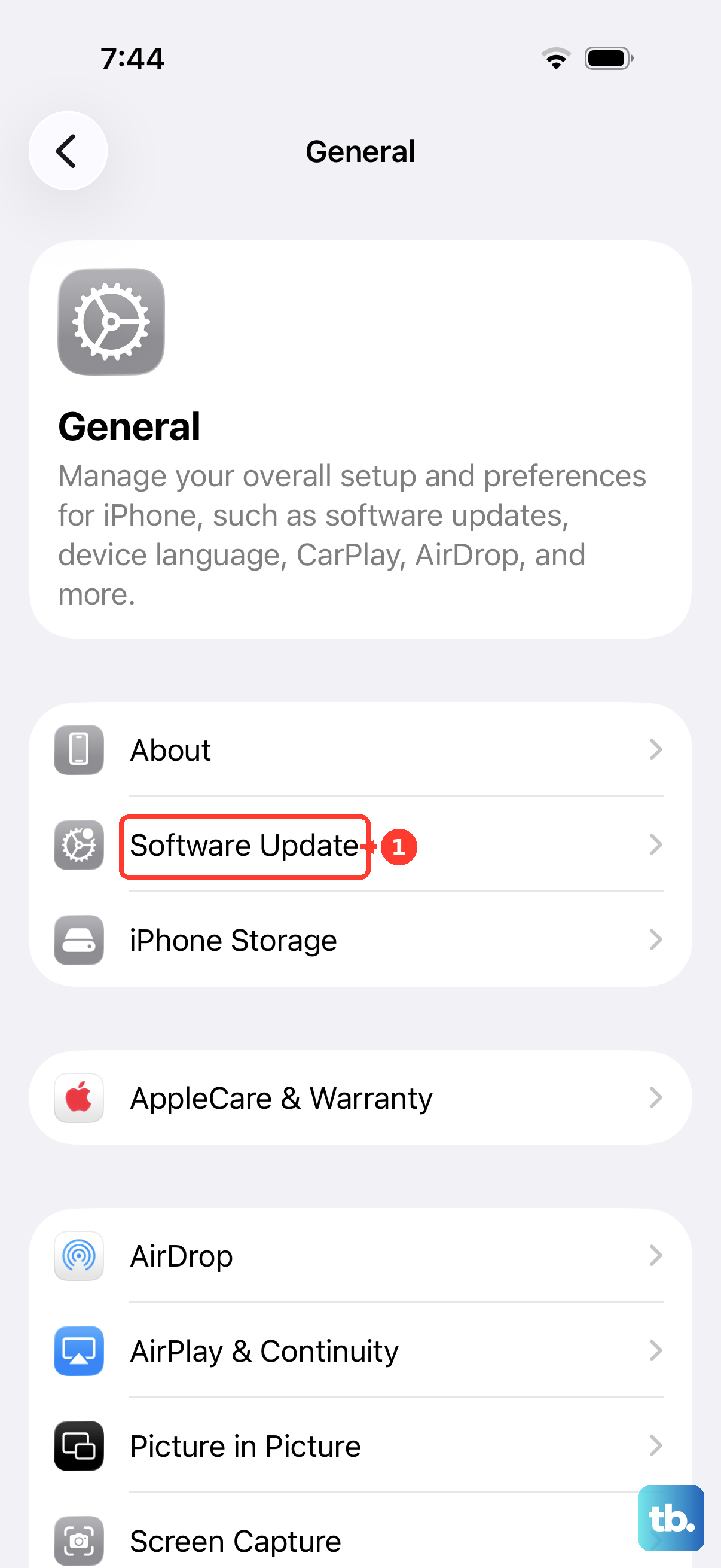
If you can open Settings, back up if possible and connect your iPhone to power and Wi-Fi. Open Settings > General > Software Update, then tap Download and Install when an update is available. If setup prevents you from reaching these controls, use a computer.
If the update asks to temporarily remove apps to make room, those apps will be removed and reinstalled after updating. Tap Continue to allow that temporary removal. Let the update finish before retrying activation.
For an update that fails to download, verify, or complete, retry on the same network, then try another Wi-Fi network if it still fails. Avoid competing downloads and keep the iPhone connected to power. Move to a computer update if wireless updating remains unsuccessful.
Fix errors that interrupt the computer update
When the computer update or restore fails, update macOS or the Windows Apple app before retrying. For a connection failure, try another Apple-certified cable, another USB port on the computer, then another computer. These checks apply when the connection or computer update process itself is failing.
Check whether security software is blocking access to Apple servers. Retry the update after addressing the connection problem. If normal updating still fails, continue with recovery mode.
Use recovery mode when normal updating fails
Connect your iPhone by USB to a computer with updated Finder or Apple Devices. On iPhone 8 or later, including iPhone SE (2nd generation or later), quickly press and release Volume Up, then quickly press and release Volume Down. Hold the Side button until the Connect to computer screen appears. For iPhone 7 or iPhone 7 Plus, hold the top or side button and Volume Down together until the Connect to computer screen appears; for iPhone 6s or earlier, including iPhone SE (1st generation), hold Home and the top or side button together until that screen appears.
Keep holding for that screen rather than releasing at the Apple logo as you would during a force restart. Select the iPhone on your computer, then choose Update first if you have not already attempted it. If updating is unsuccessful, consider the restore step below.
If downloading takes more than 15 minutes and your iPhone leaves recovery mode, let the download finish. Repeat the recovery-mode button sequence, then continue on the computer. Complete setup after the recovery process succeeds.
Restore only after considering your data
Restoring erases your iPhone and reinstalls iOS, so back up if possible before proceeding, although a phone blocked in setup may not permit a new backup. With the iPhone in recovery mode and selected on the computer, choose Restore if updating has failed. Apple also directs you to recovery-mode restoration when activation information is invalid or cannot be obtained.
For the computer and backup workflow, follow the steps to restore your iPhone using a computer. Complete setup afterward. If recovery cannot update or restore the device, arrange Apple service.
Check the SIM when a SIM error also appears
An Invalid SIM, No SIM, or unsupported SIM or eSIM message calls for carrier troubleshooting. Confirm with your carrier that you have an active cellular plan. Contact the carrier for an incompatible SIM, carrier restriction, or eSIM problem.
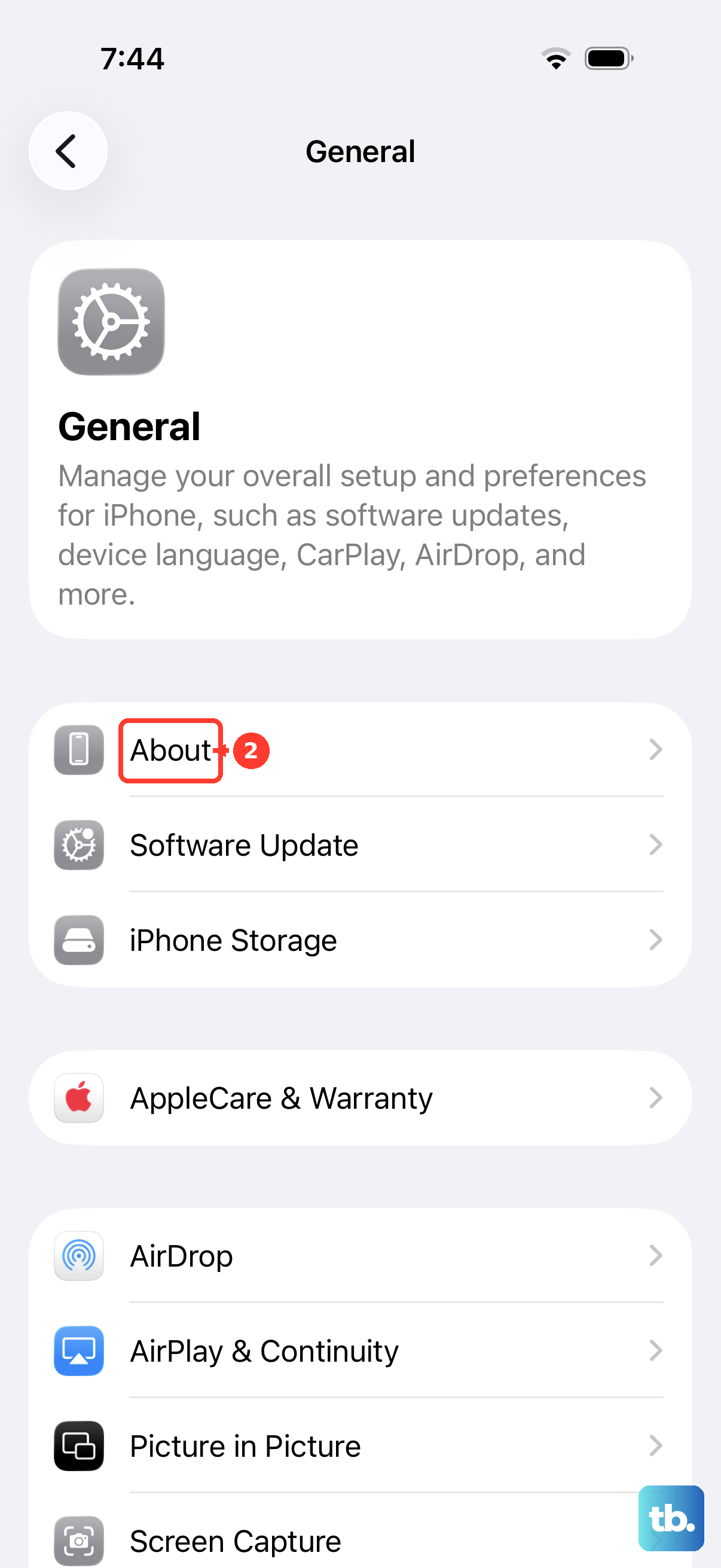
When Settings is accessible, open Settings > General > About and inspect Carrier Lock. No SIM restrictions means the iPhone is unlocked. If a carrier-settings update prompt appears, select Update; if the prompt presents OK instead, select OK.
For an iPhone with a physical SIM tray and a SIM-related error, remove and reinsert the SIM card, ensuring the correct tray closes securely. If the SIM error persists, test another SIM or ask your carrier’s store to test and replace it. This physical SIM step does not apply to eSIM-only models.
Get service if recovery cannot finish
Arrange service when recovery cannot update or restore your iPhone, or when a broken button prevents you from entering recovery mode. Open Apple’s recovery-mode support page and follow Get service. You need a hardware diagnosis before attributing the activation error to a particular component.
Frequently Asked Questions
Which iOS version should you install?
Install the newest compatible version offered to your iPhone. Follow the version available through Software Update or Apple’s computer software, since the update must be compatible with your particular device.
What should you do about errors 1671 and 4037?
For error 1671, let the software download finish before continuing. For error 4037, unlock your iPhone, then continue the computer update or restore attempt.
Can you install a downloaded update now or schedule it for tonight?
On a compatible, accessible iPhone displaying the iOS 27 upgrade controls, open Settings > Update to iOS 27 and tap Update Now or Update Tonight. Alternatively, open Settings > General > Software Update > Automatic Updates and enable Automatically Install for overnight installation while charging on Wi-Fi. These options cannot bypass a blocked activation screen.
What if a failed iOS download is already stored on the iPhone?
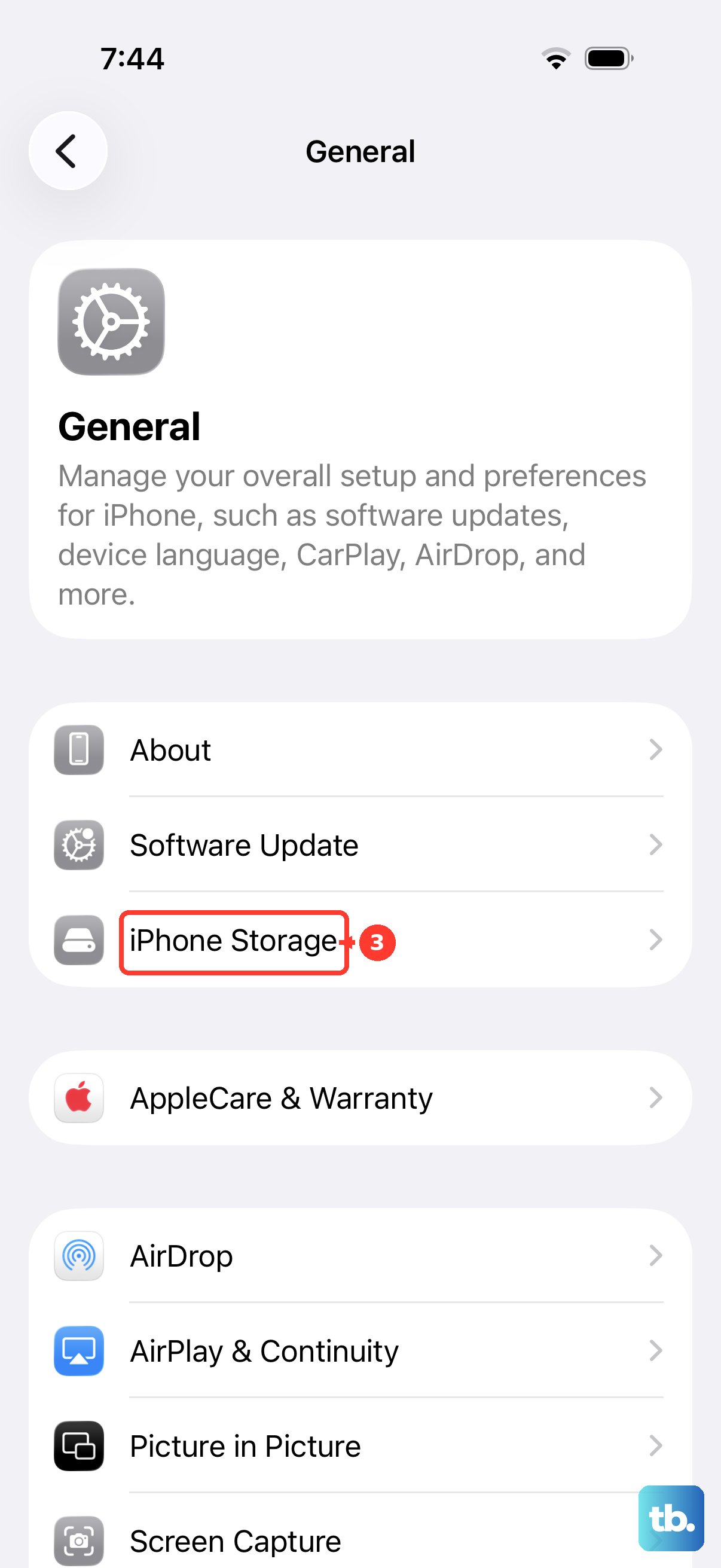
Deleting the update removes the downloaded iOS update. If Settings is accessible, open Settings > General > iPhone Storage, select the downloaded update, and tap Delete Update. Return to Settings > General > Software Update and download it again. If the update is absent or repeated downloads fail, update using a computer.