

To fix ChatGPT’s “There is a problem with your request” error, reload ChatGPT, retry in a new chat, then check your browser and internet connection if the error continues. Check OpenAI’s service status early, because a matching incident means you should wait for recovery before retrying. If the error happens during sign-in, use the authentication fixes below.
The short version
- Start small: Reload ChatGPT or retry your request in a new conversation.
- Check service status: Wait for recovery if an OpenAI incident matches your failure.
- Isolate the cause: Try a private browser window, another device or a different internet connection.
- Use targeted cleanup: Disable interfering extensions and clear only the affected website’s data first.
- Escalate persistent errors: Contact OpenAI Support with the full error, timing and troubleshooting results.
| Fix | When to use it | Action |
|---|---|---|
| Reload or reopen ChatGPT | A request fails on the web or desktop app | Reload, then close and reopen if needed |
| Regenerate or start a new chat | A response stalls or a long conversation fails | Retry the response or resend in a fresh conversation |
| Hard refresh | The error occurs in desktop Chrome | Reload while ignoring cached content |
| Check OpenAI status | ChatGPT or login is failing | Wait if a matching incident is active |
| Try a private session | The error occurs in desktop Chrome | Sign in through an Incognito window |
| Try another browser or device | You need to isolate a local problem | Retry with the same account |
| Disable interfering extensions | Content or script blockers are active | Turn them off and reload |
| Allow JavaScript and cookies | Sign-in or verification fails | Check permissions and obstructing cookie managers |
| Delete affected Chrome site data | The error persists in desktop Chrome | Remove matching site entries and sign in again |
| Delete affected Edge cookies | The error persists in desktop Edge | Find and delete matching cookies |
| Clear Firefox site data | The error persists in desktop Firefox | Clear cookies and site data for ChatGPT |
| Remove Safari website data | The error persists in Safari on Mac | Remove the affected website entries |
| Clear Chrome cookies and cache | Targeted desktop Chrome cleanup has not helped | Clear the selected data across websites |
| Switch connections | The failure may depend on your network | Try mobile data, another Wi-Fi network or a hotspot |
| Pause traffic filters | A VPN, proxy or filtering service is active | Temporarily pause it and retry |
| Disable Chrome Secure DNS | A custom DNS service or filtering resolver is implicated | Temporarily turn off the setting and retry |
| Try the website | The iPhone, iPad or Android app fails | Use the same account and workspace in a browser |
| Reopen the iPhone app | The app is unresponsive | Close its preview and open it again |
| Force-stop the Pixel app | The app needs general troubleshooting | Force-stop ChatGPT and reopen it |
| Update the iPhone app | A ChatGPT update is available | Install it through the App Store |
| Update the Android app | A ChatGPT update is available | Install it through Google Play |
| Clear the Pixel app cache | Simpler app checks have not helped | Clear cached data and reopen ChatGPT |
| Reset Pixel app storage | Simpler Pixel troubleshooting fails | Erase local app data and sign in again |
| Use the original sign-in method | The error occurs during authentication | Use the provider or password used at registration |
| Wait before another login attempt | A login error or suspicious-login warning appears | Follow the waiting period for that warning |
| Allow authentication cookies in Chrome | Blocked cookies disrupt sign-in | Add an exception for the affected authentication site |
| Allow cookies for iOS Google sign-in | Google authentication reports disabled cookies | Turn off Safari’s cookie-blocking setting |
| Change the Android sign-in browser | Android app authentication fails | Select Chrome as the default browser |
| Contact OpenAI Support | The error persists after troubleshooting | Provide the error and reproducible details |
Reload ChatGPT and retry the conversation
Reload ChatGPT in your browser and send the request again. If that does not help, completely close and reopen the browser or the ChatGPT desktop app on Windows or macOS. Start a new chat and resend the request, especially when the failure occurs in a long conversation.
For a response that has stalled, wait 30 to 60 seconds before intervening. In an interface displaying these controls, select Stop generating, then select Regenerate. Start a fresh conversation if the response still will not complete.
Desktop Chrome also lets you reload while ignoring cached content. On Windows or Linux, press Ctrl + Shift + R; on macOS, press Command + Shift + R. Retry the request after the page reloads.
Check for an OpenAI service incident
Open status.openai.com and check the ChatGPT components, particularly Conversations and Login. If an incident matches what is failing, wait for recovery before retrying. This check applies to ChatGPT on the web and in its apps, across all plans.
If the status information does not show a matching incident, continue with a private browser session or another device. Those comparisons help isolate a local browser or device problem before you remove stored data.
Try a private window or another browser
In desktop Chrome on Windows or Linux, press Ctrl + Shift + N to open an Incognito window. On macOS, press Command + Shift + N. Open ChatGPT, sign in and retry the same action.
Extensions explicitly permitted in Incognito can still run, so a private window does not exclude every extension. Chrome also blocks third-party cookies in Incognito by default, which can affect authentication. If you cannot complete sign-in there, try another browser, a fresh browser profile or another device with the same account.
When ChatGPT works in the alternate browser but fails in your usual one, continue with extensions and site data. If it fails across browsers and devices, move on to the connection checks.
Disable extensions that interfere with ChatGPT
In desktop Chrome, open More > Extensions > Manage extensions. Turn off suspected content blockers, privacy tools or extensions that modify scripts, then reload ChatGPT and retry. OpenAI recommends disabling interfering extensions when troubleshooting ChatGPT errors.
For sign-in or Cloudflare verification failures, temporarily disable cookie managers or script blockers that obstruct authentication. Allow JavaScript and cookies for chatgpt.com, openai.com and auth.openai.com. Permission menus depend on your browser; for blocked authentication cookies in desktop Chrome, use the exception controls under the sign-in fixes below.
Clear the affected website’s stored data
Deleting the affected site’s data removes its stored cookies and website data. In desktop Chrome, open More > Settings > Privacy and security > Third-party cookies > See all site data and permissions. Search for chatgpt.com or the affected OpenAI authentication domain, select Delete beside the matching entry, then select Delete again. Reopen ChatGPT and sign in.
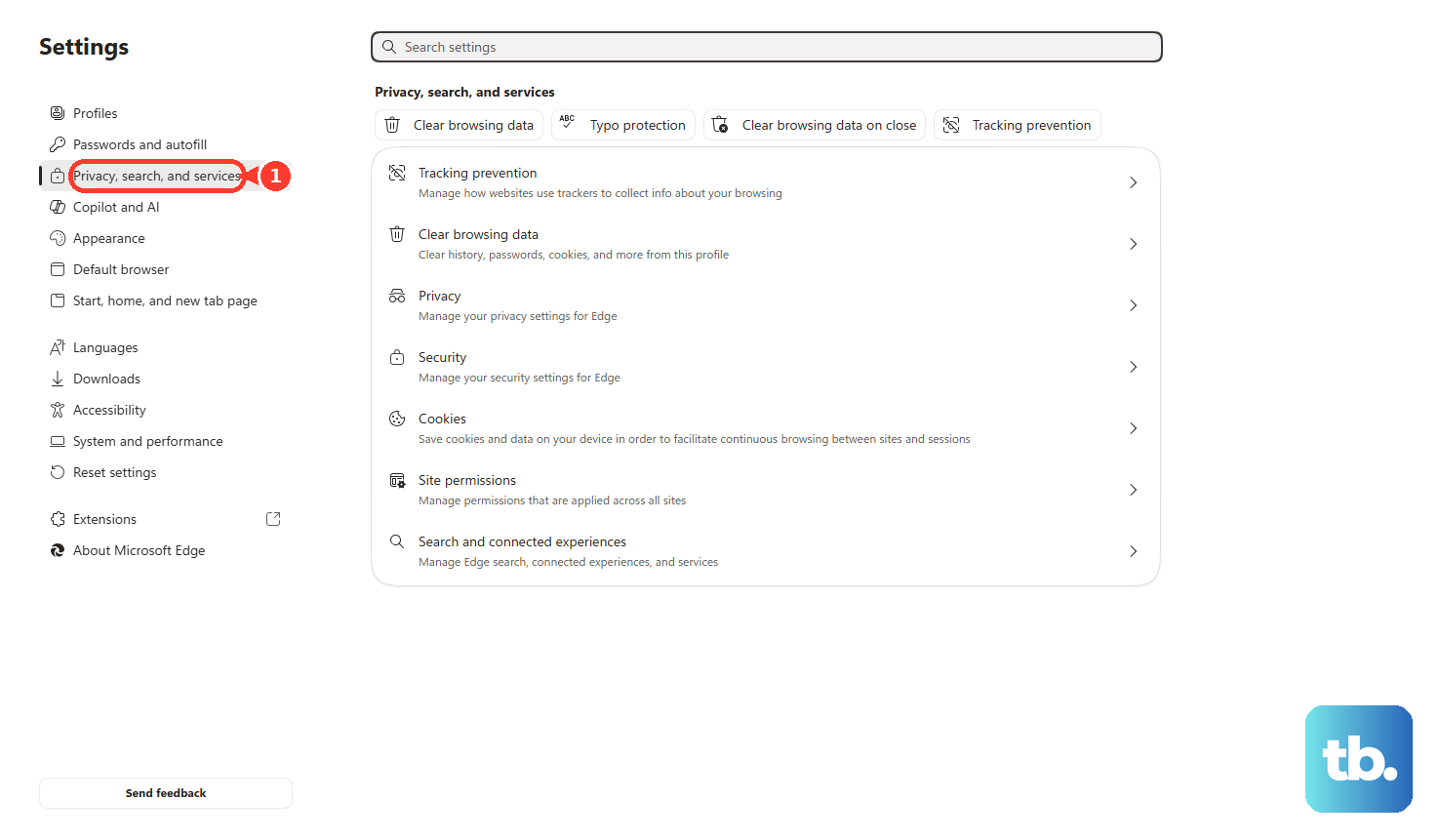
Deleting matching cookies in Edge removes the stored cookies for those entries. In desktop Microsoft Edge, open Settings and more > Settings > Privacy, search, and services > Cookies > See all cookies and site data. Search for the affected ChatGPT or OpenAI domain, expand its entry with the down arrow and select Delete.
Clearing site data in Firefox removes that website’s cookies and site data. In desktop Firefox, open ChatGPT and select the shield icon beside the address bar. Select Clear cookies and site data.
Removing website entries in Safari deletes their stored website data. On a Mac, open Safari > Settings > Privacy > Manage Website Data. Select the affected ChatGPT or OpenAI entries, then select Remove.
A broader Chrome cleanup deletes the selected cookies and cached files across websites. If targeted cleanup has not helped, open desktop Chrome’s More > Delete browsing data and choose All time. Select Cookies and other site data and Cached images and files, then select Delete data. Reopen ChatGPT and sign in.
Test another internet connection
Retry ChatGPT using mobile data instead of Wi-Fi, another Wi-Fi network or a phone hotspot. This comparison helps isolate network-specific failures. If the alternate connection works, check any services filtering traffic on the affected connection.
Temporarily pause an active VPN, proxy, Web Protect or similar traffic-filtering service, then retry ChatGPT. The controls depend on the installed product.
If a custom DNS service or filtering resolver is implicated in desktop Chrome, open More > Settings > Privacy and security > Security. Under Advanced, turn off Use secure DNS temporarily and retry ChatGPT.
Repair a failure in the mobile app
On an iPhone, iPad or Android device, open the ChatGPT website in your browser and sign in to the same account and workspace. Retry the affected action there. The website can provide a workaround while you troubleshoot the app.
To reopen an unresponsive iPhone app, swipe up from the bottom and pause midway on an iPhone without a Home button. On a supported iPhone with a Home button, double-click Home instead. Locate ChatGPT, swipe its preview upward and open the app again.
On a Pixel, open Settings > Apps > See all apps > ChatGPT > Force stop. Tap OK, then reopen ChatGPT. Google provides this as a general app troubleshooting step.
Install an available ChatGPT update before trying deeper app repairs. On iPhone, open the App Store, select your account picture, open App Updates and tap Update beside ChatGPT. On Android, open the Google Play Store, select your profile icon, then open Manage apps & device; under Updates available, select See details, then select Update beside ChatGPT.
Clearing the Pixel app cache deletes its cached data. On a Pixel, open Settings > Apps > See all apps > ChatGPT > Storage & cache, then tap Clear cache. Reopen ChatGPT and retry; other Android manufacturers may use different menu names.
Clearing app storage erases locally stored app data. If simpler Pixel troubleshooting fails, return to Storage & cache and tap Clear storage or Clear data, whichever the screen shows, then tap OK. Reopen ChatGPT and sign in.
Follow the sign in checks when authentication fails
Sign in only through OpenAI’s own app or website, and never share a code, password, or remote access with someone who contacts you. Use the same account and authentication method you used at registration. Select Continue with Google, Continue with Microsoft or Continue with Apple as appropriate, or enter your existing password.
For a generic login error, wait at least 60 seconds before another attempt. If you receive a suspicious-login warning, wait up to one hour before trying again. These waiting periods apply to authentication failures and do not guarantee when a request error will clear.
When blocked cookies disrupt authentication in desktop Chrome, open More > Settings > Privacy and security > Third-party cookies. Under Sites allowed to use third-party cookies, select Add, enter the affected ChatGPT or OpenAI authentication site address, then select Add again. Retry sign-in.
If Google sign-in in the ChatGPT iOS app specifically reports disabled cookies, open Settings > Apps > Safari > Advanced. Turn off Block All Cookies and retry Google sign-in.
For Android app authentication failures, open Android Settings > Apps > Default apps > Browser app and select Chrome. Retry ChatGPT sign-in. OpenAI also supports Brave for Android authentication, and manufacturer menu labels can vary.
Contact OpenAI when the error keeps returning
If the error persists across devices or networks, or the self-service steps have failed, open OpenAI Support and select the chat bubble in the bottom-right corner. The support conversation begins with a virtual assistant. Describe the action that fails and how to reproduce it.
Include the complete error and request ID, the timestamp and time zone, your account email, and the device, browser and app versions involved. Explain which troubleshooting steps you already attempted and whether another browser, device or connection changed the result.
Frequently Asked Questions
What should you do if a DeviceCheckError appears too?
If the clock is incorrect or DeviceCheckError accompanies the failure on an iPhone or iPad, open Settings > General > Date & Time and turn on Set Time Automatically. Apple’s instructions also refer to this toggle as Set Automatically. For location-based time-zone correction, open Settings > Privacy & Security > Location Services > System Services and turn on Setting Time Zone. If the affected mobile device is rooted or jailbroken, try signing in on another device with an unmodified operating system.
What should you do about outdated Google Play components?
For Android sign-in errors involving outdated Google Play components, open Google Play Store, select your profile picture, then open Settings > About > Update Play Store. If ChatGPT displays a prompt because the Play Store is disabled, select Open settings to enable it. If a message prompts you to update Google Play services, follow its update link.
Can you capture a HAR file from the ChatGPT desktop app?
The ChatGPT desktop app does not provide HAR-capture developer tools. For a reproducible browser failure, you can capture a sanitized HAR in your browser for OpenAI Support. Review the file for sensitive information before sharing it with Support.
How can you make sure you are installing the official ChatGPT app?
Open chatgpt.com/download/ and choose the desktop option or the iOS or Android store link for your device. On iPhone or iPad, check that the developer is OpenAI OpCo, LLC; on Android, check that the publisher is OpenAI. Check the linked store listing for current compatibility.