

To fix Google Drive’s “There was a problem playing this video” error, allow third-party cookies for Drive, use the account with access, and let newly uploaded videos finish processing. If playback still fails, check your browser or download the video when downloading is permitted. A damaged or incompatible file needs an intact or compatible replacement from the uploader.
The short version
- Start with cookies: Allow third-party cookies for Drive and reopen the video.
- Check the message: Processing, access, and playback-limit messages need different responses.
- Isolate browser trouble: Update your browser, check extensions, and clear cached data if needed.
- Bypass the preview: Download the original and open it in a compatible player when downloading is permitted.
| Fix | When to use it |
|---|---|
| Temporary Chrome cookie exception | Chrome blocks third-party cookies on Drive |
| Persistent Chrome cookie exception | You want Drive’s cookie permission to remain enabled |
| Android Chrome cookie exception | Playback fails in the Android browser |
| Firefox tracking protection exception | Drive files display incorrectly in Firefox |
| Edge cookie controls | Edge blocks cookies needed for playback |
| Account selection | A different Google Account has access |
| Sign in for playback limits | A signed-out viewer reaches a playback limit |
| Owner sharing correction | Your account lacks permission |
| Wait for processing | The video is processing or temporarily unavailable |
| Compatible replacement upload | The video is damaged or uses an unsupported format |
| Upload size and storage check | The source file exceeds upload or storage limits |
| Chrome reload | You need to retry without cached page content |
| Chrome update | Your browser needs an update |
| Chrome JavaScript permission | JavaScript is disabled in desktop Chrome |
| Mobile Safari JavaScript permission | JavaScript is disabled in iPhone or iPad Safari |
| Another updated browser | You need to check for a browser-specific failure |
| Chrome Incognito check | You suspect an extension or session problem |
| Chrome extension check | An extension may interfere with playback |
| Chrome browsing data cleanup | Browser trouble persists after earlier checks |
| Free browser memory | Playback trouble accompanies freezing or crashes |
| Android Drive update | The Android app needs an update |
| Android Drive player | You want to try playback in the app |
| Pixel app force stop | The Drive app malfunctions on a Pixel |
| Pixel Drive cache cleanup | The Pixel app still has trouble |
| iPhone or iPad Drive update | The Apple device’s app needs an update |
| Browser download | You can download the original for local playback |
| Android app download | You want local playback from an Android download |
| iPhone or iPad download or app handoff | You want to open the file outside Drive’s player |
| Another internet connection | You suspect connection or filtering trouble |
| Drive service status check | A service incident may affect playback |
| Drive feedback | The error persists after troubleshooting |
| Copy a high-traffic file | A high-view or download-volume restriction applies |
| Android offline access | You want to access a downloaded file inside Drive |
Allow cookies for Drive
Start with a site-specific cookie exception in Chrome on your computer. Open the failing video, select Third-party cookies blocked in the address bar, and turn on Third-party cookies. Select Close to reload the page. This exception lasts 90 days in regular browsing or for the current Incognito session.
For a persistent exception, open More > Settings > Privacy and security > Third-party cookies. Scroll to Sites allowed to use third-party cookies, select Add, enter drive.google.com, and select Add again. Reopen the video after adding the exception. If these controls are locked on a managed browser or device, contact your administrator.
On Chrome for Android, open More > Settings > Privacy and security > Third-party cookies > + Add site exception. Enter drive.google.com, then tap Add. This changes browser playback permissions, not a setting inside the Drive app.
In Firefox desktop, visit Drive, select the shield beside the address bar, and turn off Enhanced Tracking Protection. Firefox reloads the page and creates an exception for the site. Try the video again after the reload.
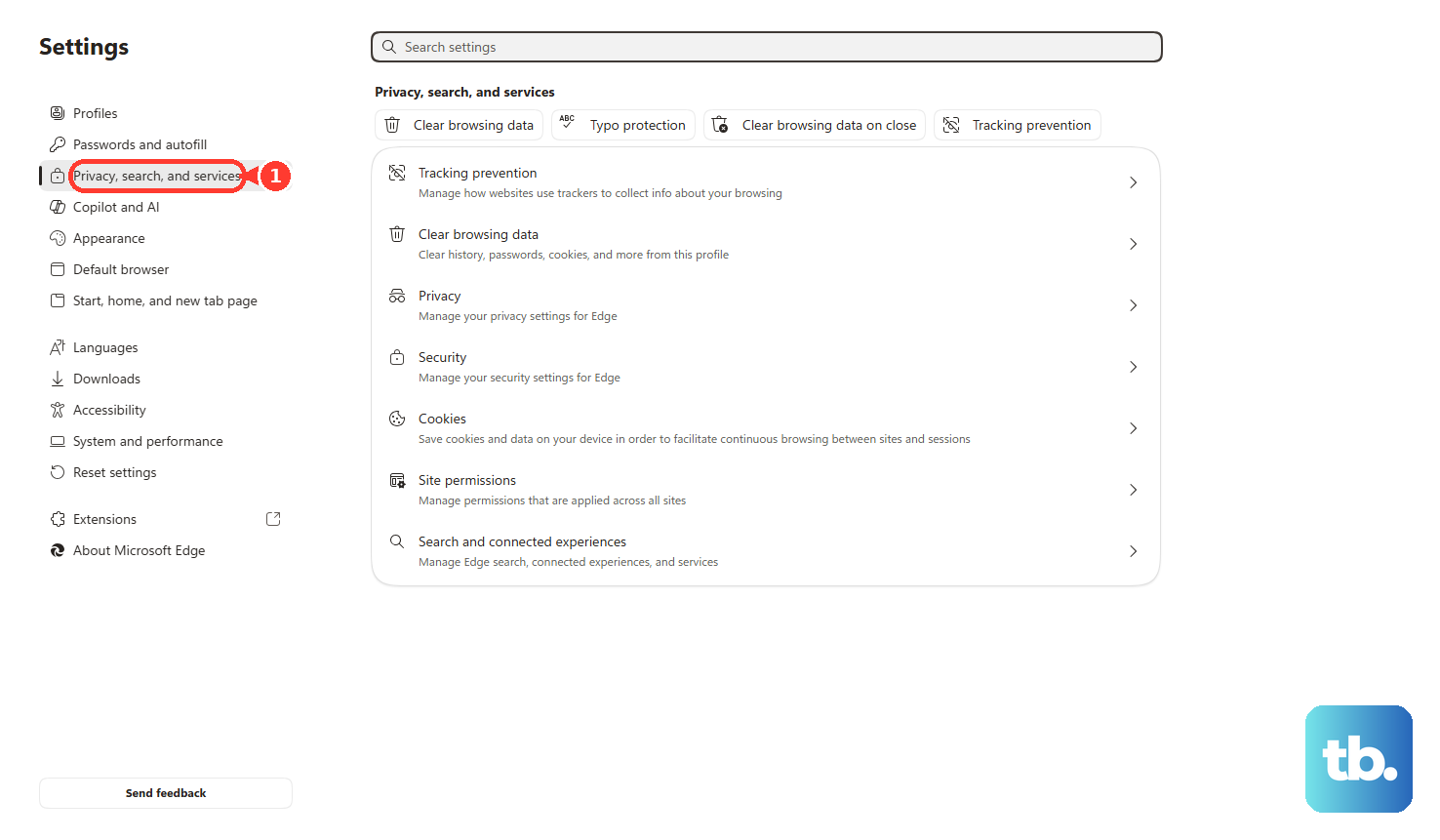
In Microsoft Edge on Windows 10 or Windows 11, open Settings and more > Settings > Privacy, search, and services > Cookies. Enable Allow sites to save and read cookie data (recommended) and turn off Block third-party cookies, then retry Drive. These changes apply across the browser.
Check your account and access
When multiple Google Accounts are signed in, select the account that has permission to view the video. On a Google page, select your profile image or initial, then choose that account. If it is missing from the account list, select Add account and sign in, then reopen the video.
For a Playback limits message while you’re signed out, sign in to your Google Account and reopen the video. Google recommends this for limits affecting signed-out viewers. Sign in only through Google’s own app or website, and never share a code, password, or remote access with someone who contacts you.
If your account lacks permission, ask the owner to share the video with the account you’re using. If you own the file, select the video and Share + in Drive web, enter the viewer’s email address, and select Viewer. Check Notify people and click Send. If a work or school policy prevents external sharing, ask the Workspace administrator to review the restriction.
Wait for processing or correct the video file
For a processing or temporarily unavailable message, wait and reopen the video. Newly uploaded videos may play for the uploader before processing finishes for other viewers. If the uploader can watch it but you cannot, processing may still be underway.
For a damaged or unsupported video, obtain an intact original or ask the uploader to export a supported format. One supported combination is MP4 with H.264 video and AAC audio. The filename extension alone does not establish compatibility, so an MP4 file can still need a different export.
If you are uploading the replacement, select New > File upload in Drive and choose the suitable file. For upload-size problems, check that the file fits the available Drive storage and does not exceed 5 TB. Reduce or split an oversized source file before uploading again.
Reload and update your browser
In Chrome desktop, select Reload to try the video again. To reload while bypassing cached page content, press Ctrl + Shift + R on Windows or Linux, or Command + Shift + R on Mac.
Next, open More > Help > About Google Chrome and let Chrome check for updates. Select Relaunch if offered, then reopen Drive. On Linux, update Chrome through your package manager; on a Chromebook, update ChromeOS.
Also check that JavaScript is enabled in Chrome desktop. Open More > Settings > Privacy and security > Site settings > Javascript, select Sites can use Javascript, and reload Drive. On current iPhone and iPad Safari, open Settings > Apps > Safari > Advanced, turn on JavaScript, and retry Drive.
Another updated browser can help identify a browser-specific failure. Open the same Drive URL there, sign in with the account that has access, and permit cookies and JavaScript. Google recommends using one of the two most recent browser versions.
Check extensions and clear browser data
An Incognito window can help isolate some Chrome extension or session problems. Select More > New Incognito Window, open Drive, and sign in. Allow third-party cookies for Drive before judging the result, because Incognito blocks them by default.
To check extensions directly, open More > Extensions > Manage extensions in Chrome desktop. Turn extensions off and retry the video. Re-enable them individually to identify which one interferes with playback, including any ad blocker or extension that modifies cross-origin requests.
Deleting cookies and cached files removes that browser data and can sign you out. Open More > Delete browsing data, choose All time, and select Cached images and files and Cookies and other site data. Deselect other categories you want to retain, then select Delete data. Sign in again and retry the video.
If playback trouble comes with freezing or crashes, close unnecessary tabs and apps and pause downloads. Quit and reopen Chrome, then try Drive again. This step is most relevant when the browser is under memory pressure.
Update or troubleshoot the Drive mobile app
For playback inside the Android Drive app, open Google Play Store, tap your profile icon, and select Manage apps & devices. Under Updates available, update Drive. To find the video again, open Drive, tap the search bar, select Videos, and tap the file.
On a Pixel, force-stop a malfunctioning Drive app by opening Settings > Apps > See all apps > Drive > Force stop. Tap OK, then reopen Drive. Other Android manufacturers may use different paths.
Clearing Drive’s cache removes its cached data. On a Pixel, open Settings > Apps > See all apps > Drive > Storage & cache > Clear cache. Reopen the app and try playback again.
On iPhone or iPad, open App Store, tap your profile icon, and select App Updates. Install the available Drive update. If no app update is available, check for an iOS or iPadOS update.
Download the video and play it locally
Downloading the original lets you bypass Drive’s preview player. In Drive web, right-click the video and select Download, then open the downloaded file in a compatible installed player. If the owner has disabled downloading, ask them about access to a downloadable copy.
On Android, tap More beside the file in Drive and select Download. Open the downloaded video with a compatible player. Google says the download option is unavailable when network Data Saver is enabled; you can try downloading through Drive web instead when downloading is permitted.
On iPhone or iPad, tap More beside the video and select Download. Alternatively, select Open in > Save to Files, choose a location, and tap Save, or select Open in and choose a compatible app. Downloads must be permitted for these options.
Check the connection and report persistent errors
Connection problems can affect both Drive web and its apps. Connect your device to another working Wi-Fi or internet connection, then reopen the video. If playback works there, the original connection or network filtering may be involved.
Check the Google Workspace Status Dashboard for a Google Drive incident. Open any listed incident for details and retry after recovery.
When the error persists, open Drive web and select Help > Send feedback. Describe the error and the circumstances affecting the file, then select Send. Include whether the problem concerns a new upload, one particular file, or playback across browsers.
Frequently Asked Questions
Can making a copy help when a video has too many views or downloads?
For the high-view or download-volume restriction, you can copy and download the file when you have sufficient access and copying is permitted. Open Shared with me, right-click the file, and select Make a copy. Open My Drive, right-click the copy, and select Download. Alternatively, wait; Google says this restriction typically resets within 24 hours.
Why does a higher-resolution upload play at only 1080p?
Google Drive accepts higher-resolution uploads, but video playback is limited to 1920 × 1080. Seeing that playback resolution alone does not mean your upload failed.
Can you keep a video available offline inside the Android Drive app?
In Drive for Android, tap More beside the file and select Make available offline. Once it finishes, open Menu > Offline to access it. Google’s offline guide does not specifically confirm offline video playback, and offline access does not repair a damaged or unsupported video.
Should you install Flash Player to fix Drive playback?
Google says Flash content no longer plays in any Chrome version. Installing or enabling Flash will not fix Drive playback in Chrome.