

To fix a Mac fingerprint reader that is not working, enter your login password when prompted, clean and dry your finger and the Touch ID sensor, then check your Touch ID settings. If recognition still fails, restart and update your Mac, then enroll a different finger. For a Magic Keyboard with Touch ID, check compatibility and reconnect it directly with a USB cable.
The short version
- Password first: macOS requires your password after startup and certain other security events before Touch ID can work again.
- Clean contact: Moisture, oils, lotion, cuts, and very dry skin can interfere with fingerprint recognition.
- Check the setting: Enable Touch ID for the specific task that fails, such as unlocking your Mac or filling passwords.
- External keyboards: Magic Keyboard with Touch ID requires a compatible Apple silicon Mac and macOS version.
| Fix or option | When to use it |
|---|---|
| Enter your login password | macOS requires password authentication |
| Clean and dry your finger | Your finger is damp or dirty |
| Clean the sensor | The Touch ID surface needs cleaning |
| Enroll a fingerprint | Your account has no enrolled finger |
| Replace a fingerprint | An enrolled finger remains unreliable |
| Add another finger or free a slot | You need an alternative enrollment |
| Enable Mac unlocking | Touch ID does not unlock your Mac |
| Enable Apple Pay | Configured, supported payments need Touch ID |
| Enable store purchases | Touch ID fails for Apple store purchases |
| Enable password AutoFill | Safari or compatible apps need fingerprint authentication |
| Enable fast user switching | You want to switch between signed-in users |
| Disable automatic login | Your Mac logs in automatically |
| Restart the Mac | Initial checks have not helped |
| Force shutdown | The Mac itself is unresponsive |
| Update macOS | A compatible update is available |
| Find the updater through Spotlight or Siri | You need another route to Software Update |
| Use Apple’s macOS download page | You need another compatible installation method |
| Check Magic Keyboard compatibility | You use an external Touch ID keyboard |
| Power-cycle and connect the keyboard | External Touch ID fails on a compatible Mac |
| Enable Bluetooth | The wireless keyboard cannot connect |
| Enable Bluetooth with a keyboard | You have no available pointing device |
| Charge and pair by cable | The keyboard needs power or pairing |
| Reduce wireless interference | The keyboard works over USB but fails wirelessly |
| Enable Safari AutoFill | Safari alone fails to fill passwords |
| Use a password with the lid closed | Built-in Touch ID is out of reach |
| Enable Chrome biometric authentication | Chrome password filling needs Touch ID |
| Enable or reactivate 1Password Touch ID | 1Password alone fails to offer fingerprint unlocking |
| Enter your 1Password account password | The app requires password confirmation |
| Use the 1Password Mac download page | You need to install or replace an outdated app |
| Review management restrictions | Your organization manages the Mac |
| Finish repair calibration | A qualifying replacement part needs Repair Assistant |
| Run Apple Diagnostics | You suspect Mac hardware trouble |
| Arrange hardware service | Failure persists or hardware is damaged |
Enter your password before retrying Touch ID
Type your Mac login password when macOS asks for it, then try Touch ID on a subsequent unlock. Apple requires a password after startup or logout, after more than 48 hours without unlocking, and after five failed fingerprint attempts. Changing Touch ID settings also requires your password.
A password prompt under those conditions is expected. If your fingerprint works on later unlocks, you can stop troubleshooting; otherwise, continue with the cleaning and settings checks.
Clean and dry your finger and the sensor
Remove moisture, sweat, oils, and lotion from your finger, and let it dry before trying again. Cuts and very dry skin can also prevent recognition, so try another enrolled finger if your usual finger is affected.
Before cleaning a MacBook, shut it down and disconnect its power supply. For an external keyboard, switch it off and disconnect it. Gently wipe with a soft, lint-free cloth lightly dampened with water, keeping moisture out of openings and never spraying liquid directly onto the device.
Apple specifically prescribes water-only cleaning for MacBook Pro models with Touch Bar and Touch ID. Let the sensor dry before using it again, then rest your enrolled finger on it when authentication is requested.
Check your settings and fingerprint enrollment
Sign in to your own password-protected Mac account, then open the Apple menu > System Settings > Touch ID & Password. If you have not enrolled a fingerprint for that account, click Add Fingerprint, enter your login password, and complete the fingerprint scans.
For trouble unlocking the Mac, turn on Use Touch ID to unlock your Mac. For password filling in Safari and compatible apps, turn on Use Touch ID for autofilling passwords. These controls apply to separate tasks, so enable the one that matches the failure.
For store purchases, turn on Use Touch ID for purchases in iTunes Store, App Store and Apple Books. For Apple Pay, turn on Use Touch ID for Apple Pay. The Apple Pay option applies when Apple Pay is configured, and availability depends on your region and payment support.
If your Mac logs in automatically, open the Apple menu > System Settings > Users & Groups. Open Automatically log in as, then choose Off. At the next startup, log in with your password before using Touch ID.
If the same finger still fails, return to Touch ID & Password and click Add Fingerprint. Enter your login password, complete enrollment with a different finger, and try that finger when authentication is requested.
Deleting a fingerprint removes that saved fingerprint from your Touch ID settings. To replace an unreliable fingerprint, click it in Touch ID & Password, enter your password, click Unlock, then click Delete. Click Add Fingerprint and complete enrollment again.
Restart your Mac and install compatible updates
Save your work, open the Apple menu > Restart, then click Restart. Enter your login password after startup before trying Touch ID again.
Use a forced shutdown only if the Mac itself is unresponsive. A forced shutdown may lose unsaved changes. To restart a computer that is unresponsive, hold the Mac’s power button until it shuts down, then turn it on again.
On a Mac laptop with Touch ID, the Touch ID button is also the power button. The sensor on an external Magic Keyboard is not the Mac’s power button, so use the Mac’s own button for a forced shutdown.
Back up your Mac before installing an update. Open the Apple menu > System Settings > General > Software Update, then install the offered compatible update. Enter an administrator password when requested, and keep the Mac awake with its lid open during installation.
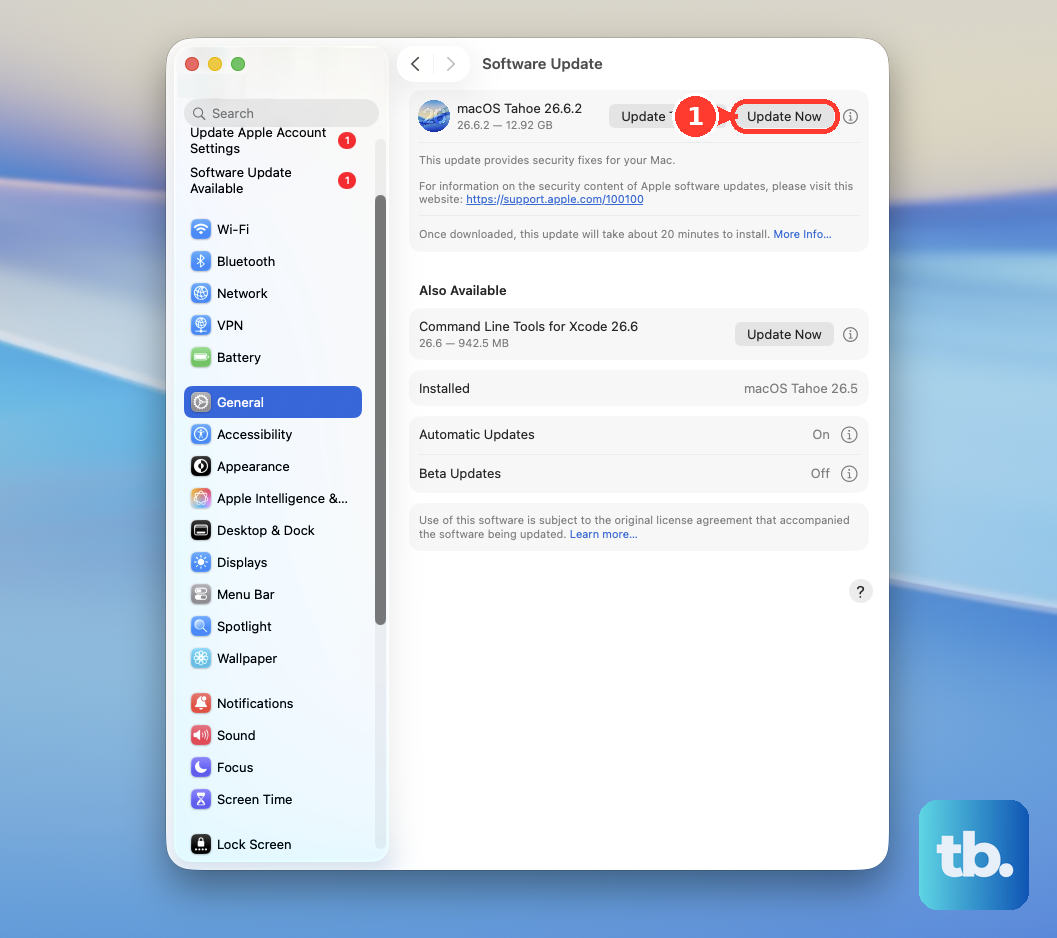
You can also open Spotlight or Siri in the menu bar, search for Software Update, and open the result. To check again in the updater, click Check for Updates or press Command + R. Available updates depend on your Mac model.
If you need another installation route, open Apple’s macOS download and installation page and select a method compatible with your Mac. Apple recommends Software Update as the preferred route.
Reconnect a Magic Keyboard with Touch ID
Check the keyboard’s charging connector, your Mac’s processor, and its macOS version. USB-C Touch ID keyboards require Apple silicon and macOS 15.1 or later; Lightning Touch ID keyboards require Apple silicon and macOS 11.4 or later. Magic Keyboard fingerprint functionality is unsupported on Intel Macs.
On a compatible Mac, switch the keyboard off and back on, then connect it directly to the Mac with a USB cable. Wait at least 10 seconds before retrying Touch ID setup or authentication. For charging and pairing, leave its compatible USB-C or Lightning cable connected for one minute, then disconnect it to check wireless operation.
Check the battery charge through Control Center > Bluetooth. If wireless connectivity is missing, use the built-in trackpad or a USB mouse to open the Apple menu > System Settings > Bluetooth, then turn on Bluetooth. If Bluetooth cannot be enabled, save your work, restart the Mac, and try again.
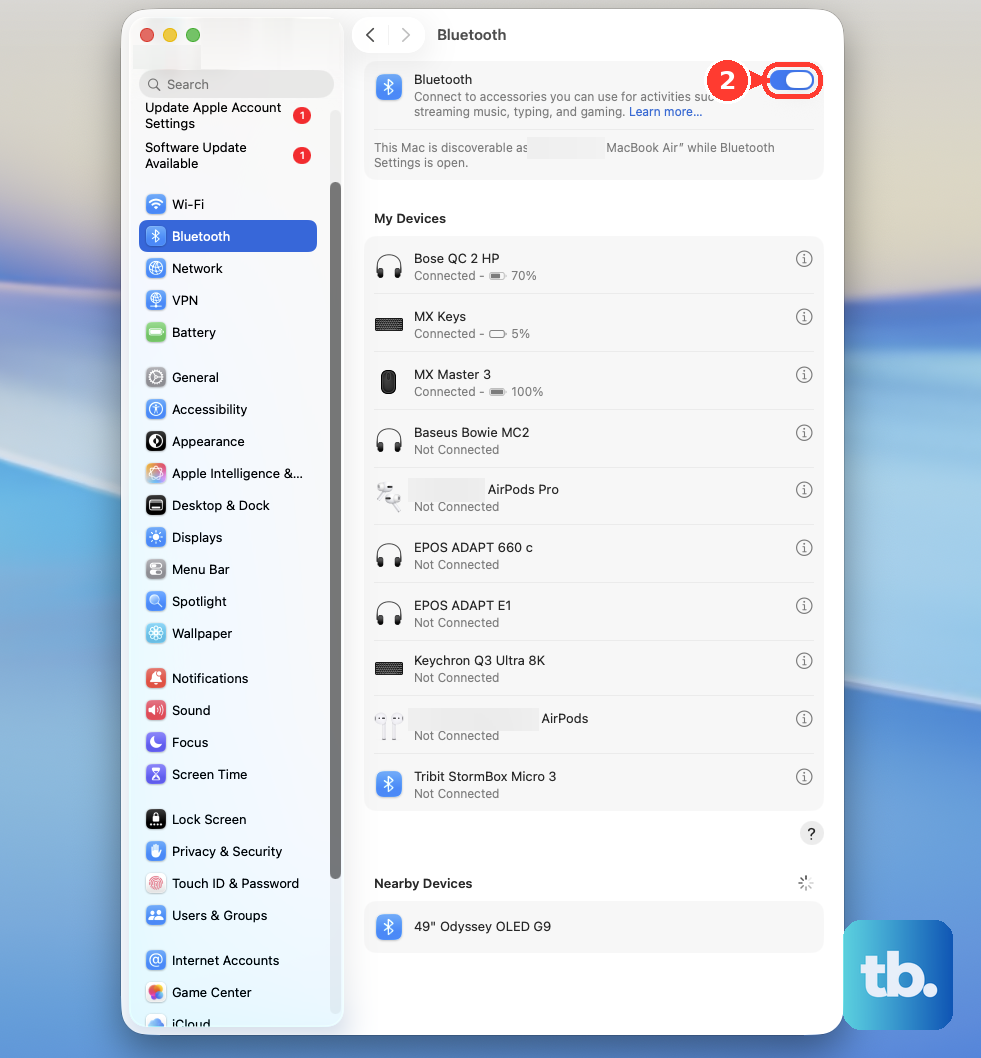
If Bluetooth is off and you have no pointing device, use a working connected keyboard. Press Command + Space, type Bluetooth File Exchange, and press Return. Press Return again to enable Bluetooth.
If the keyboard works over USB but fails or disconnects wirelessly, move it closer to the Mac and remove metal obstructions. Move USB 3 and Thunderbolt devices and hubs away, use shielded cables, and disconnect unused USB 3 devices. Reduce nearby interference sources and, where supported, move Wi-Fi traffic to 5 GHz or choose a less congested router channel.
Check browser settings when password filling fails
If Touch ID unlocks your Mac but Safari does not fill passwords, open Safari > Settings > AutoFill, then select User names and passwords. Also turn on Use Touch ID for autofilling passwords in the Mac’s Touch ID & Password settings. If only one website fails, check whether its form supports AutoFill.
Google says Chrome’s biometric authentication is off by default. With a system screen lock configured and Touch ID available, open More > Passwords and autofill > Google Password Manager > Settings. Turn on Use your screen lock when filling passwords, then complete the authentication prompt.
Restore Touch ID in 1Password
Sign in only through 1Password’s own app or website, and never share a code, password, or remote access with someone who contacts you. If you use 1Password for Mac, unlock it, select your account or collection, then open Settings > Security. Turn on Unlock using Touch ID.
Select your account or collection, choose Lock, then unlock with your account password. If the fingerprint prompt is absent later, select the Touch ID button on the lock screen.
1Password requires your account password after you add or delete a fingerprint, when Touch ID is unavailable, or when its password confirmation interval expires. To review that interval, open Settings > Security and find Confirm my account password. If trouble persists, update 1Password and check whether Touch ID unlocks your Mac.
If you need to install or replace an outdated installation, open 1Password’s official Mac download page and select Download 1Password for Mac. That download requires macOS 12 or newer; installing 1Password is unnecessary for fixing system Touch ID. For unresolved app-specific trouble, use 1Password’s official Touch ID help page.
Have your administrator check managed Mac restrictions
If your organization manages the Mac, ask its administrator to review the device-management configuration. Apple provides restrictions named Use Touch ID to unlock device, Modify Touch ID fingerprints, and Enforce Face ID or Touch ID timeout. An administrator must change an enforced restriction, and the management-console path depends on the vendor.
Finish repairs and investigate hardware trouble
If Touch ID stopped working after a hardware repair, a qualifying replacement part may need Repair Assistant to finish calibration. On an eligible Apple silicon Mac running macOS Tahoe 26 or later, connect to the internet and open the Apple menu > System Settings > General > About > Parts & Service. Click Restart & Finish Repair, install any requested macOS update, and complete Repair Assistant.
Those controls appear only for applicable repairs and parts. If the repair cannot finish, contact the repair provider. For persistent failure outside that situation, Apple Diagnostics can help investigate Mac hardware trouble, but running it does not guarantee a Touch ID repair.
To run Apple Diagnostics, shut down the Mac and disconnect unnecessary peripherals, keeping power and required input and display devices connected. On Apple silicon, hold the power button until Options appears, release it, then hold Command + D until the Mac restarts. On an Intel Mac, start up while holding D; try Option + D if necessary.
Follow the diagnostic instructions and keep any reference codes. For a Mac laptop with persistent Touch ID failure or damaged hardware, open Apple’s Mac laptop service and repair page, select Get started, and describe the failure. Available service routes include the Genius Bar, Apple Authorized Service Providers, and mail-in service, depending on your location and model.
Frequently Asked Questions
How many fingerprints can you save on a Mac?
Each user can enroll three fingerprints, and the Mac can store five in total. Removing an unused fingerprint deletes that saved enrollment. If enrollment is full, remove an unused fingerprint before adding another. Other users must manage their own fingerprints.
Can you use Touch ID in a Guest account?
Guest and sharing-only accounts cannot use Touch ID. Sign in to your own password-protected user account and enroll a fingerprint there.
How do you fill Safari passwords with the MacBook lid closed?
When using an external display with the laptop’s built-in display closed, enter your Mac account password, then click AutoFill. Open the lid to regain physical access to built-in Touch ID.
Why does Touch ID fail when switching to another Mac user?
The destination user must already have logged in with their password during the current session. Open the Apple menu > System Settings > Touch ID & Password and turn on Use Touch ID for fast user switching.