
To fix the failed to initialize Steam error, open Steam, sign in to the account that owns the game, and launch it from your Library. If it still fails, restart Steam and your computer, install pending updates, and verify the game's files.
Steam initialization can fail when the client is closed, your account lacks the game's license, or Steam and the game run with different permissions. Try launching the affected game after each fix, and stop when it opens normally.
The short version
- Launch through Steam: Open Steam first and start the game from your Library instead of its executable.
- Check access: Use the account that owns the game and run Steam and the game with matching permissions.
- Repair the basics: Restart, finish updates, and verify the installed game files.
- Escalate selectively: Check launch settings, software conflicts, and installation problems if the earlier fixes fail.
| Fix | When to use it |
|---|---|
| Launch from Library | You started the game's executable directly |
| Check the owning account and purchase | The game or its license appears to be missing |
| Match account and permissions | Steam and the game use different operating system accounts or privileges |
| Restart Steam and the computer | Temporary client or process trouble is possible |
| Force quit Steam | The client cannot close normally |
| Update the Steam client | A client update is available |
| Finish game updates | The game has an incomplete or pending update |
| Change the download region | A download or update keeps failing |
| Verify game files | Game files may be missing or corrupted |
| Clear the download cache | Download or startup trouble continues |
| Repair the library folder | Permissions prevent installation or updates |
| Remove custom launch arguments | The game has custom launch settings |
| Disable Steam compatibility settings | Windows compatibility settings are enabled |
| Leave the client beta | You use a Steam beta build |
| Exit conflicting software | Background applications may interfere |
| Allow Steam through the firewall | Firewall blocking is confirmed |
| Restore a quarantined game file | A confirmed safe file was wrongly removed |
| Check maintenance notices | Steam or the game also has connection trouble |
| Restart the router | Login, downloads, or network access also fail |
| Try Ethernet or another connection | Your current network may be interfering |
| Test matching administrator access | PUBG fails to initialize on Windows |
| Disable fullscreen optimizations | PUBG continues to have launch trouble |
| Update and restart Steam Deck | You play on Steam Deck |
| Try official Proton | A Windows game or native Linux build fails on SteamOS |
| Repair the existing Steam installation | Earlier Windows client fixes fail |
| Uninstall and reinstall Steam | Client trouble persists after less disruptive repairs |
| Check system requirements | The game's platform or hardware support is uncertain |
| Contact support | The error survives the relevant fixes |
Launch through Steam with the right account
Open Steam and sign in, then select Library, choose the affected game, and click Play. Avoid opening the game's executable directly. Launching through Steam gives the game the Steam application context it needs to initialize.
Confirm that you are using the Steam account that owns the game and that the game appears in its Library. For a suspected missing purchase or incorrect edition, select your account name, open Account Details, then choose View purchase history. Check that the purchase completed and that you are trying to launch the edition you own.
Steam and the game also need to run under the same operating system account and with matching privileges. Close both, reopen Steam under the account you use for the game, and launch through Library. If a game shortcut requires administrator access while Steam runs normally, remove that administrator-only requirement before trying again.
Restart Steam and your computer
Close Steam completely, restart your computer, then reopen Steam and try the game. This can resolve temporary client, process, cache, and file-lock problems. If Steam cannot close normally, force quit it using the controls for your operating system.
On Windows, press Ctrl + Shift + Esc to open Task Manager. Select the stuck Steam process and choose End task, then reopen Steam. Retry the game through Library.
On a Mac, try pressing Command + Q to quit Steam. If it is unresponsive, press Option + Command + Esc, select Steam, and click Force Quit. Reopen the client and launch the game again.
Finish Steam and game updates
In the desktop client, install any available Steam client update first. Next, open View > Downloads and complete the affected game's update. Launching the game also forces its required update.
If the download or update fails, open Steam > Settings > Downloads and change Download Region to another nearby region. Retry the failed download before testing the game again. This step addresses incomplete downloads or updates; it is not a general repair for Steam initialization.
Verify files and repair the library
In Library, right-click the affected game or select its gear icon, then choose Properties... > Installed Files > Verify integrity of game files. Let verification finish before launching again. This can repair missing or corrupted files, including Steam API components bundled with the game.
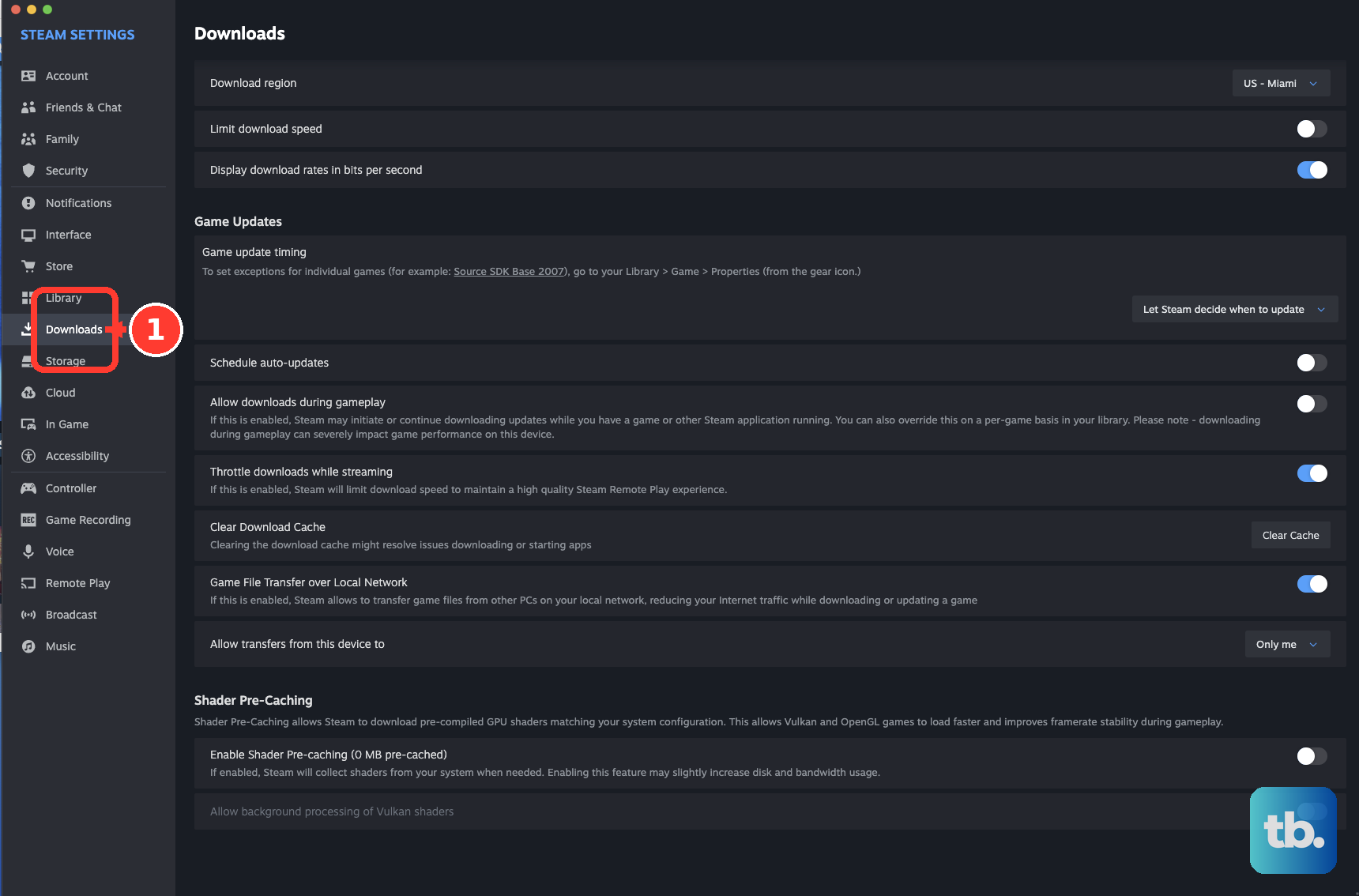
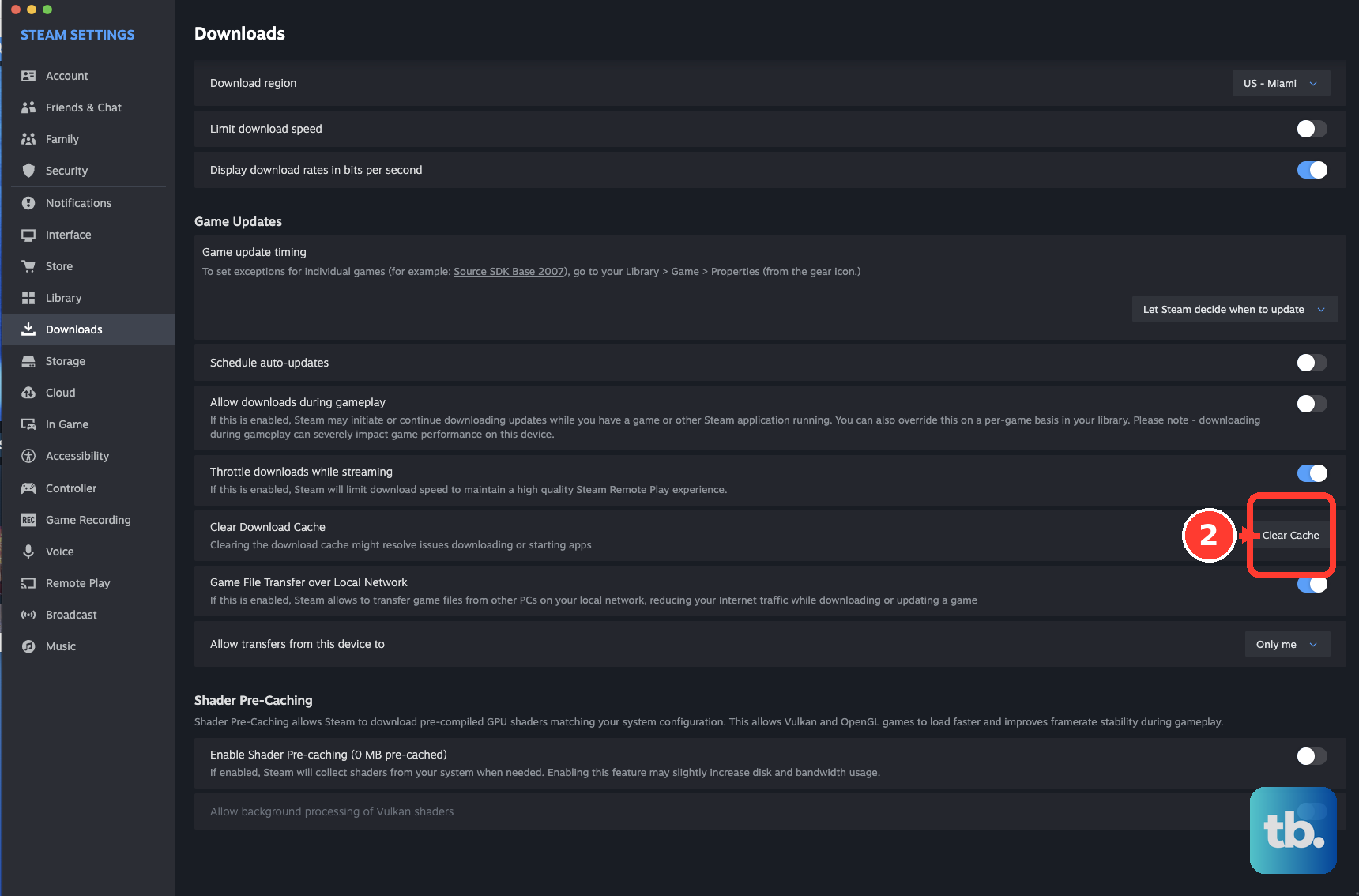
For continued download or startup trouble, open Steam > Settings > Downloads, use the button that clears the download cache, then select Confirm. Sign in again afterward and retry the game.
If installation or update permissions are failing, open Steam > Settings > Storage, select the affected drive, open the ... menu, and choose Repair Folder. Retry the failed update or installation, then launch the game.
Remove conflicting launch and client settings
Check custom launch arguments next, particularly for PUBG, whose developer recommends removing them during troubleshooting. Right-click the game in Library, open Properties > General, and save a copy of anything in Launch Options. Clear the field, close Properties, and retry the game.
On Windows, disable compatibility settings for both Steam.exe and steamwebhelper.exe in your actual Steam installation. Right-click each file, choose Properties > Compatibility, clear checked compatibility settings, and click Apply. Select Change settings for all users, clear corresponding settings, click OK, and restart Steam.
If you participate in the Steam client beta, test the normal client next. Open Steam > Settings > Interface > Client Beta Participation, select No beta chosen, and click Restart Now. On Mac, use Preferences in place of Settings.
Check software blocking and connection trouble
Exit suspected conflicting software, such as VPNs, IP filters, download accelerators, recording or monitoring tools, and P2P clients. Restart Steam and retry after closing each suspected application. If you identify the culprit, disable its startup behavior or uninstall it.
When Windows Firewall is confirmed to be blocking Steam or the game, open Windows Security > Firewall & network protection > Allow an app through firewall > Change settings. Check the relevant application, or select Allow another app and choose its executable. Apply permissions for the appropriate network profile.
Check Windows Security > Protection history if Microsoft Defender removed a game file. Restore a detection only when the file is confirmed safe, using Restore and then Allow on device if necessary. Verify the game files afterward to reacquire removed files.
Check your connection when Steam also has login, download, or network-access trouble. Check the game's official maintenance notices before changing local settings, and retry after any acknowledged outage ends. If no outage is acknowledged, restart your modem or router, then try Ethernet or another internet connection.
Apply fixes for PUBG or Steam Deck
For PUBG on Windows, its developer recommends testing Steam and PUBG with matching administrator access. Close both applications, right-click Steam's executable, and choose Run as administrator, then run PUBG with the same access. The usual PUBG executable is PUBG\TslGame\Binaries\Win64\TslGame.exe; administrator access is not a universal Steam requirement.
PUBG's broader launch troubleshooting also includes disabling fullscreen optimizations. Right-click TslGame.exe, open Properties > Compatibility, select Disable fullscreen optimizations, and click Apply > OK. Retry PUBG after making that change.
On Steam Deck, press Steam and open Settings > System > Software Updates to install available updates. Press Steam again and choose Power > Restart. Launch the affected game through your Library after restarting.
For a Windows game or problematic native Linux build on SteamOS, highlight the game in Library, press Menu, and open Properties > Compatibility. Select Force the use of a specific Steam Play compatibility tool and try the latest available official Proton. Steam may download the Windows build before you can retry.
Repair Steam before a full reinstall
On Windows, download the installer from the official Steam download page using Install Steam. Run it against your existing Steam installation location. Valve says this may fix issues with client and service files, and installing into the same location preserves installed games.
If you proceed to uninstall Steam on Windows, back up saves and move the steamapps folder outside the Steam installation first. On Windows 11, open Settings > Apps > Installed apps, find Steam, and choose More > Uninstall. On Windows 10, open Settings > Apps and use the Steam entry's Uninstall control, then reinstall.
On Mac, back up saves, choose Steam > Quit Steam, and move Steam from Applications to Trash. In Finder, open Go while holding Option, select Library > Application Support > Steam, and remove client data while retaining SteamApps to preserve game installations. Choose Finder > Empty Trash, then reinstall Steam.
Get help when the error persists
Before making broader system changes, compare your computer with System Requirements on the game's Steam store page. Confirm that the game supports your operating system and hardware. An unsupported platform may not become compatible through Steam client repairs.
For an unresolved error, open Steam Support and select the relevant game or client issue, then follow the help-request route. Include the exact error, affected game, operating system, and fixes you already tried. You can take a screenshot of the error to include with the request.
Some initialization failures involve the publisher's application or package configuration and need developer help. On SteamOS, reserve factory reset or recovery repair for broader system failures, and back up local data first. A factory reset deletes local data, so keep it as a last resort.
Frequently Asked Questions
Does Steam still support Windows 10 and older macOS versions?
Steam supports Windows 10 64-bit, but Windows 10 32-bit support ended on January 1, 2026. Valve's published Mac guidance requires macOS 12 or later, with macOS 11 support ending on October 15, 2025. Steam's Windows support is separate from Microsoft's Windows servicing eligibility.
What should you do if Steam shows Unexpected Transport Error?
Choose Restart Steam or Restart steamwebhelper in that error dialog. This dialog means a key component of Steam failed to initialize, and it is distinct from a game's Steam API initialization error.
Can you leave the Steam beta when Settings will not open?
On Windows, close Steam and open a Steam shortcut's Properties, then its Shortcut tab. Append -clearbeta after the executable path in Target, separated by a space. Click Apply, then OK, and launch that shortcut.
How do you restart an unresponsive Steam Deck?
Hold Power for 4 seconds on Steam Deck LCD or 7 seconds on OLED. If it remains unresponsive, hold Power for 10 seconds on LCD or 16 seconds on OLED. Use these force-restart steps only when the device is unresponsive.
Why do older instructions mention different Steam menus?
Older Steam instructions use Local Files for file verification and a separate Set launch options... button for arguments. In the current interface, use Installed Files for verification and General > Launch Options for arguments.