

Fix the asio.sys driver cannot load on this device error by updating the responsible ASUS utility or removing it if you no longer need its features. Start with the ASUS software you use, such as Armoury Crate or AI Suite 3, and install the updates offered for your hardware. Whether an update supplies a compatible replacement depends on your model.
Keep Windows security protections enabled while you update or remove the affected software. Hiding the notification leaves the driver blocked, while turning off protection reduces security and may still leave another restriction in place.
The short version
- Update first: Install applicable ASUS utility, service and driver updates for your exact hardware.
- Remove unused software: Use ASUS's dedicated removal tools for Armoury Crate and AI Suite 3 cleanup.
- Match the filename: AsIO.sys and AsIO3.sys require different file deletion commands in ASUS's limited NUC/MiniPC procedure.
- Keep protection enabled: Turning off Memory integrity or the Microsoft vulnerable driver blocklist reduces security.
| Option | When it applies | Result or limitation |
|---|---|---|
| Armoury Crate updates | Supported ASUS motherboards using version 6.0 or later | Updates offered application, service and driver components |
| AI Suite 3 installation | Your motherboard offers a package for your operating system | Installs the model-specific utility |
| Open MyASUS | Supported ASUS computers with System Update | Offers applicable packages without guaranteeing an AsIO replacement |
| Windows Update | Windows 11 with an applicable ASUS driver offered | Installs an optional replacement |
| Device Manager | The identified ASUS component and compatible package are available | Installs the supplied driver |
| Windows app removal | The identified utility is registered for uninstallation | Removes the utility and can disable its features |
| AI Suite 3 Cleaner | Your motherboard offers the cleaner | Cleans an AI Suite 3 installation |
| Armoury Crate Uninstall Tool | Supported installations on Windows 11 or Windows 10 | Removes Armoury Crate and associated services |
| Notification checkbox | Affected NUC/MiniPC with an unused feature and the checkbox present | Hides the warning only |
| ASUS removal commands | Affected NUC/MiniPC with an unused driver | Deletes the specified service and driver file |
| Memory integrity | This protection causes the block and the setting is not managed | Disabling it reduces security and may leave other restrictions |
| Microsoft vulnerable driver blocklist | Windows 11 version 22H2 or later without another enforcing protection or policy | Disabling it permits vulnerable drivers |
| Administrator policy review | A managed computer enforces the protection | Your administrator must address the driver or enforcing policy |
| Administrative recovery | Critical boot errors or instability after enabling Memory integrity | Technical support handles recovery and registry targeting |
| ASUS Download Center | You need downloads for your exact model | Provides packages offered for your operating system |
| Armoury Crate downloads | You need its installer or removal tool | Provides the dedicated ASUS packages |
Update Armoury Crate and its components
For a supported ASUS motherboard running Armoury Crate 6.0 or later, open Armoury Crate and select Settings > Update Center > Check for Updates. Install the offered application, service and driver updates. This is ASUS's supported update route for those components.
ASUS has declared the legacy AsIO.sys driver end-of-life and replaced it with AsIO3.sys. It recommends updating your installed ASUS software, such as Aura Sync or AI Suite 3, to the latest version, and says software updated to use AsIO3.sys v1.03.02 or later is not affected by the legacy driver's privilege escalation vulnerability. Whether such an update is offered depends on your hardware. If the available updates do not resolve the warning, use the dedicated removal procedure below when you no longer need Armoury Crate, or follow it with a reinstall if you still need the software.
Update or reinstall AI Suite
If you use AI Suite 3, open the ASUS Download Center and enter your exact motherboard model. Select Driver & Utility, choose your installed operating system, and find AI Suite 3 under Utility. Use this route only when your motherboard's downloads offer AI Suite 3 for that operating system.
Extract the downloaded package and open AsusSetup. Select the required programs, choose Install, and select OK after installation. If an existing installation fails, ASUS recommends using AI Suite 3 Cleaner before reinstalling.
Download AI Suite 3 Cleaner if it is offered for your motherboard, then extract it. Cleaning removes AI Suite 3 and can disable its monitoring or other utility features. Run RemoveAI3Files.exe, press Y, then press Enter.
If the shared-component prompt appears, press Y, then press Enter again. After removal finishes, press any key to close the window. Reinstall the model-specific AI Suite 3 package using the installation steps above if you still need the utility.
Check other applicable driver updates
On supported ASUS notebooks, desktops, all-in-one computers and gaming handhelds with the System Update feature, open MyASUS and select System Update. Select the applicable ASUS package, then choose Update selected items. Review Update History afterward; if installation fails, select Update to retry or Report issue. This route does not guarantee that an AsIO replacement is offered.
On Windows 11, open Start > Settings > Windows Update > Advanced options. Turn on Receive updates for other Microsoft products, then under Additional options, open Optional updates. Select an applicable ASUS driver if one is offered, choose Download and install, and restart your computer. This helps only when ASUS distributes a compatible replacement through Windows Update.
Device Manager provides another route on Windows 11 and Windows 10, but only when you can positively identify the relevant ASUS component and have a compatible installable ASUS driver package. Right-click Start, open Device Manager, right-click that ASUS device, and select Update driver. Do not choose an unrelated device because AsIO.sys is missing from the list.
For an extracted compatible ASUS package, select Browse my computer for drivers, then select Browse... and choose its folder. Select OK, then Next and Close. If these update routes do not provide a replacement and you no longer need the responsible utility, use its removal procedure.
Remove an ASUS utility you no longer need
Uninstalling an ASUS utility can disable its monitoring, lighting or other features. On Windows 11, open Start > Settings > Apps > Installed apps, locate the identified ASUS utility, select More, and choose Uninstall. Complete the utility's own uninstaller.
Removing the application through Start can also disable its utility features. As an alternative on Windows 11, find the application in Start, right-click it, and select Uninstall. Follow the uninstaller to finish.
Control Panel removal can likewise disable the utility's monitoring, lighting or other features. For desktop programs on Windows 10, or as another route on Windows 11, search for and open Control Panel, then select Programs > Programs and Features. Right-click the identified utility, select Uninstall or Uninstall/Change, and complete its uninstaller.
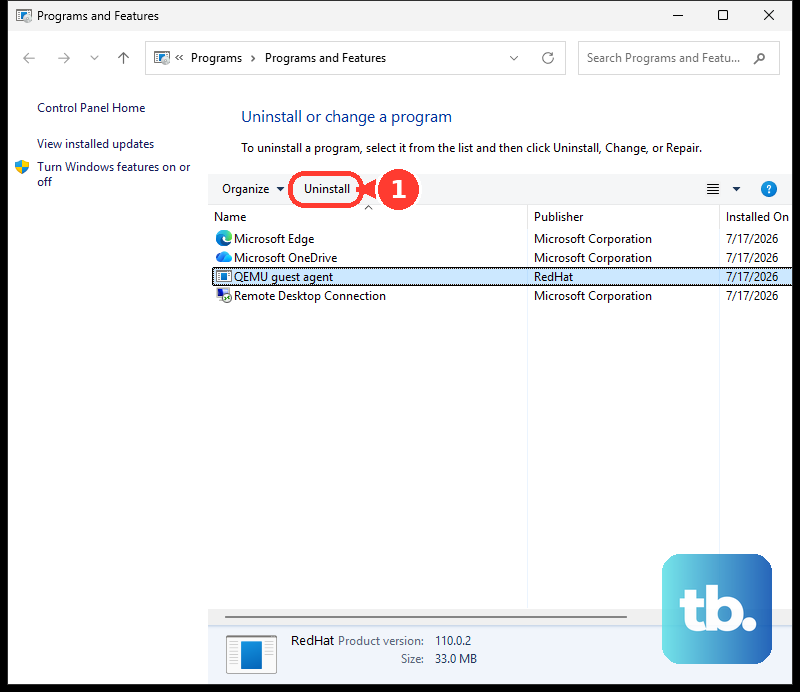
For Armoury Crate, use ASUS's dedicated removal tool to remove its associated services. For an AI Suite 3 cleanup, ASUS recommends the dedicated cleaner described above.
Remove or reinstall Armoury Crate completely
Open the Armoury Crate download page, select Driver & Tools, and choose the operating system. ASUS directs you to the Windows 10 64-bit download selection for the uninstall tool, including for its supported removal procedure on Windows 11. Find Armoury Crate Uninstall Tool and select DOWNLOAD.
The removal tool removes Armoury Crate and its associated services, which can disable its lighting or other utility features. Extract Armoury_Crate_Uninstall_Tool.zip and run Armoury Crate Uninstall Tool.exe. Restart your computer after removal.
If you still need the software, return to the same download page, find Armoury Crate & Aura Creator Installer, and select DOWNLOAD. Extract the current ArmouryCrateInstallTool.zip, run ArmouryCrateInstaller.exe, choose Armoury Crate, and select Start. Availability of a replacement for the blocked driver still depends on your hardware.
Handle an unused driver on an affected NUC or MiniPC
ASUS provides two additional options for affected NUC/MiniPC systems where AsIO.sys or AsIO3.sys loads automatically even though the associated feature is unused. When the warning includes the checkbox, check Do not show this message again to suppress the notification. This leaves the driver blocked and does not repair it.
The command procedure applies only to that unused-driver situation on affected ASUS NUC/MiniPC systems and requires administrator access. Match the driver filename to the warning. Do not apply these commands to other ASUS utility installations or different file locations.
Open Command Prompt as administrator. The following command deletes the AsIO service:
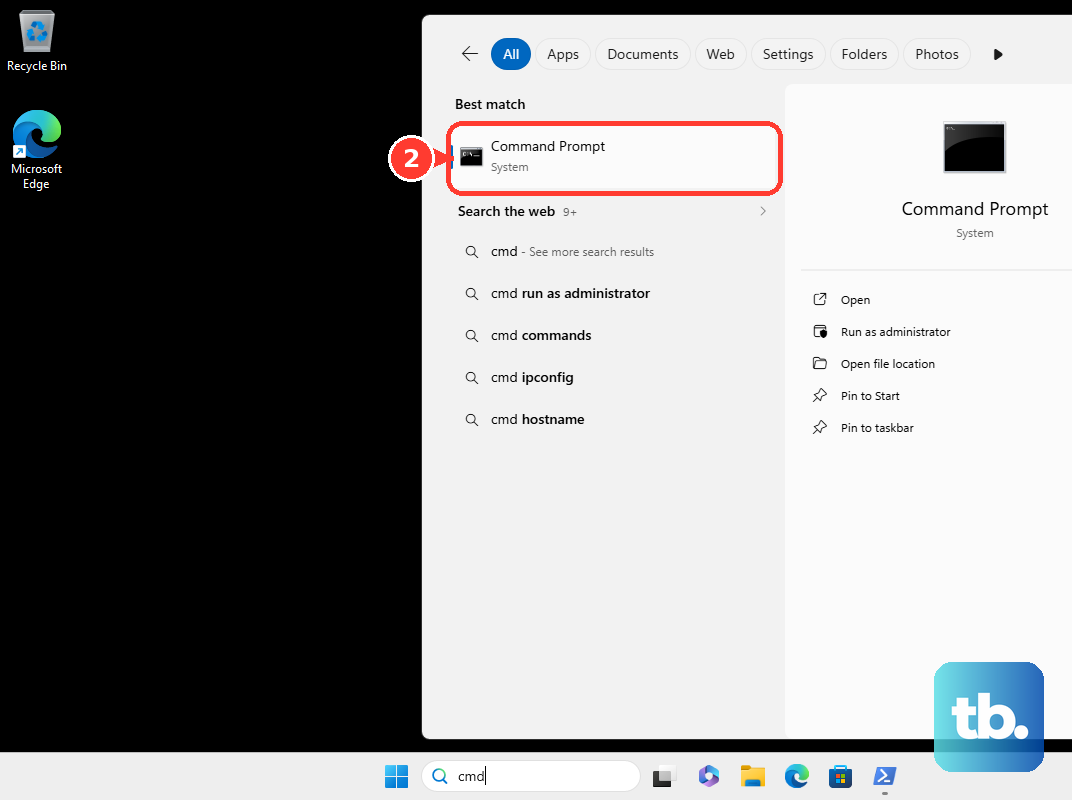
sc delete asioFor a warning naming AsIO.sys, use the following command. It deletes the AsIO.sys driver file:
del C:\Windows\System32\drivers\AsIO.sysOnly for a warning naming AsIO3.sys, use this command instead of the previous file deletion command. It deletes the AsIO3.sys driver file:
del C:\Windows\System32\drivers\AsIO3.sysConsider the Memory integrity workaround last
Microsoft describes turning off Memory integrity as a compatibility workaround when a compatible driver update is unavailable. It applies only when this protection causes the block and the setting is not controlled by your administrator. Turning it off reduces security and may not resolve a separate vulnerable driver blocklist restriction.
On Windows 11, open Start > Settings > Privacy & security > Windows Security > Device security > Core isolation details. Turn off Memory integrity, then restart your computer. Windows 10 also has this control within Windows Security.
If the warning continues, a separate vulnerable driver blocklist restriction may still apply. Turning off Memory integrity does not update or remove the ASUS component, so consider removing the utility if you can do without its features. If the setting is managed, ask your administrator to review the enforcing policy.
Check the vulnerable driver blocklist conditions
Disabling the Microsoft vulnerable driver blocklist permits vulnerable drivers rather than fixing them and reduces security. On Windows 11 version 22H2 and later, this workaround applies only when the toggle is available and no other protection or administrative policy enforces the blocklist. Memory integrity, Smart App Control or S mode can enforce it, making the toggle ineffective as a standalone workaround.
For a computer meeting those conditions, open Windows Security > Device security > Core isolation details. Turn off Microsoft vulnerable driver blocklist and restart your computer. If the toggle is missing or another protection enforces the block, return to updating or removing the responsible ASUS utility; if a policy enforces it, involve your administrator.
Get help with managed settings or boot problems
On a managed computer, ask your administrator to review the configuration enforcing Memory integrity. The administrator must resolve the incompatible driver or deliberately change the enforcing policy. A local toggle may not override that policy.
If enabling Memory integrity causes critical boot errors or makes Windows unstable, have technical support handle Microsoft's recovery procedure. It involves disabling policies enforcing VBS or Memory integrity, entering Windows Recovery Environment, and setting the affected Windows installation's HypervisorEnforcedCodeIntegrity registry value named Enabled to 0 before restarting. A recovery shell's HKLM must not be assumed to be the installed Windows registry, so support needs to target the correct installation. This recovery procedure applies to boot errors or instability, rather than an ordinary startup notification.
Frequently Asked Questions
Does AI Suite 3 Cleaner remove components shared with Armoury Crate?
Components shared with Armoury Crate are retained. Cleaning AI Suite 3 therefore does not mean every shared ASUS component is removed.
Which Windows versions does the Armoury Crate installer list?
The installer listing specifies Windows 10 version 1903 or later, or Windows 11. Your hardware must also support Armoury Crate.
Why do older Windows 10 update instructions look different?
Windows 10 uses an older Windows Update interface than Windows 11. Microsoft ended ordinary Windows 10 support on October 14, 2025, and update availability depends on your installation's servicing eligibility.
Which policy settings can your administrator check?
In Group Policy, the setting is Computer Configuration > Administrative Templates > System > Device Guard > Turn on Virtualization Based Security. In Intune, it is Virtualization Based Technology > Hypervisor Enforced Code Integrity. Group Policy editing requires a Windows edition that provides that administrative facility.
Can a UEFI lock affect changes to Memory integrity?
Yes, a UEFI-locked configuration requires additional physical firmware access. Have your administrator account for that requirement when reviewing the enforced configuration.