
If your iPhone 16 isn't buzzing, lighting up, or showing alerts when you get a new message or app notification, it's easy to miss important stuff. A Focus, Silent mode, or an app's notification settings may be silencing your alerts, and most of these checks take only a few minutes.
Start by restarting your iPhone. A simple force restart can clear out temporary software glitches that are blocking notifications. On your iPhone 16, press and quickly release the Volume Up button, then press and quickly release the Volume Down button. Finally, press and hold the Side button until you see the Apple logo appear, then let go.
Check Your Focus Modes
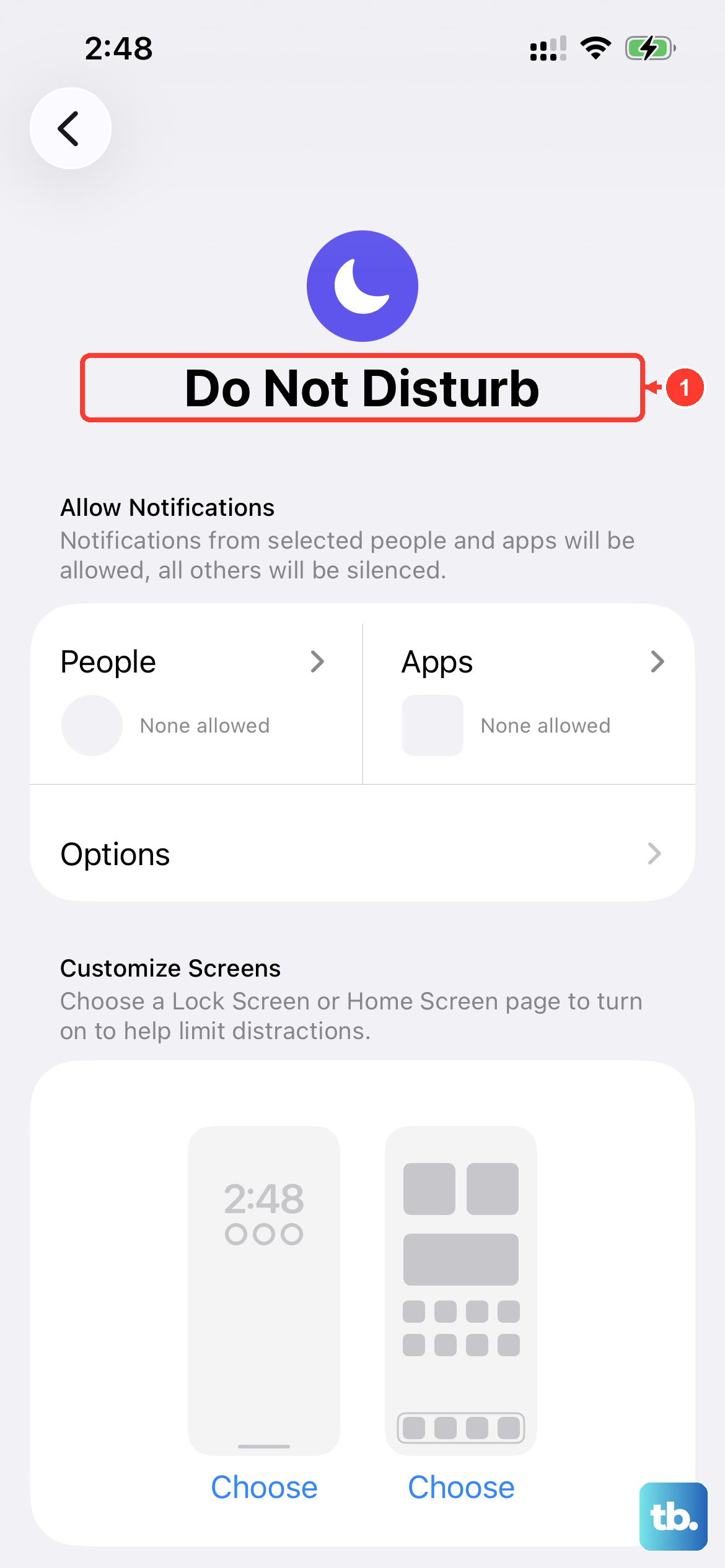
Focus modes are incredibly useful for silencing distractions, but they can sometimes stay on when you don't want them to. Swipe down from the top-right corner of your screen to open Control Center and take a look. If a Focus is active, tap its icon on the Focus button to turn it off.
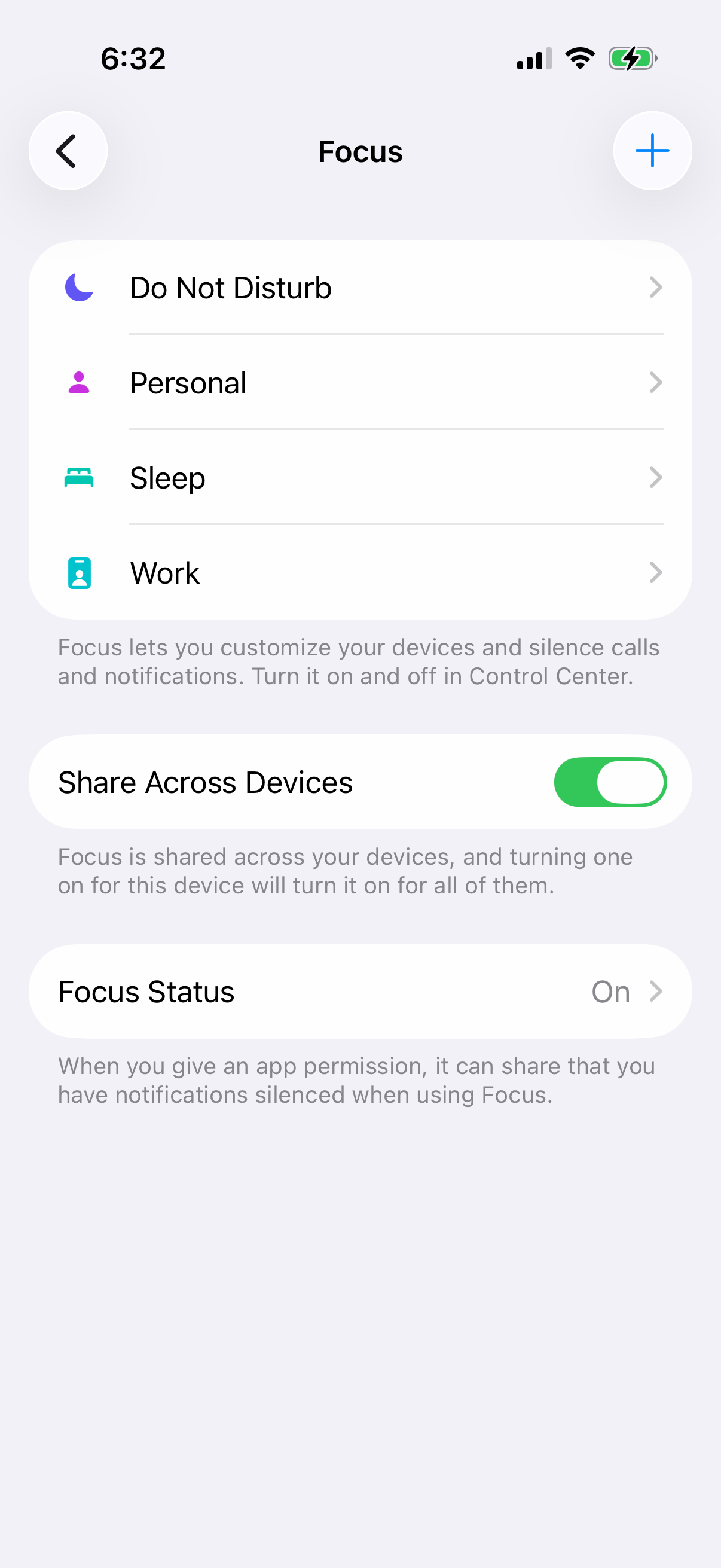
You can also check and manage all your Focus settings by going to Settings > Focus. Make sure the specific Focus isn't set to silence notifications from the apps you're missing.
Review Notification Settings for the App
Sometimes, the issue is specific to one app, like Messages or Mail. Head to Settings > Notifications. Scroll down and tap on the app that's not alerting you.
Make sure "Allow Notifications" is toggled on at the top. Then, under Alerts, select where you want notifications to appear, such as Lock Screen or Banners. Also ensure "Sounds" and "Badges" are enabled if you want those cues.
Disable and Re-enable Notifications for the App
If the settings look right but you're still not getting alerts, try toggling them off and on. Go back to Settings > Notifications, tap the problematic app, and switch "Allow Notifications" off.
Switch it back on, then check the sounds, placement, and appearance of the app's notifications. Under Alerts, select where you want them to appear, and turn on Sounds if you want audio alerts.
Check Do Not Disturb and Silent Mode
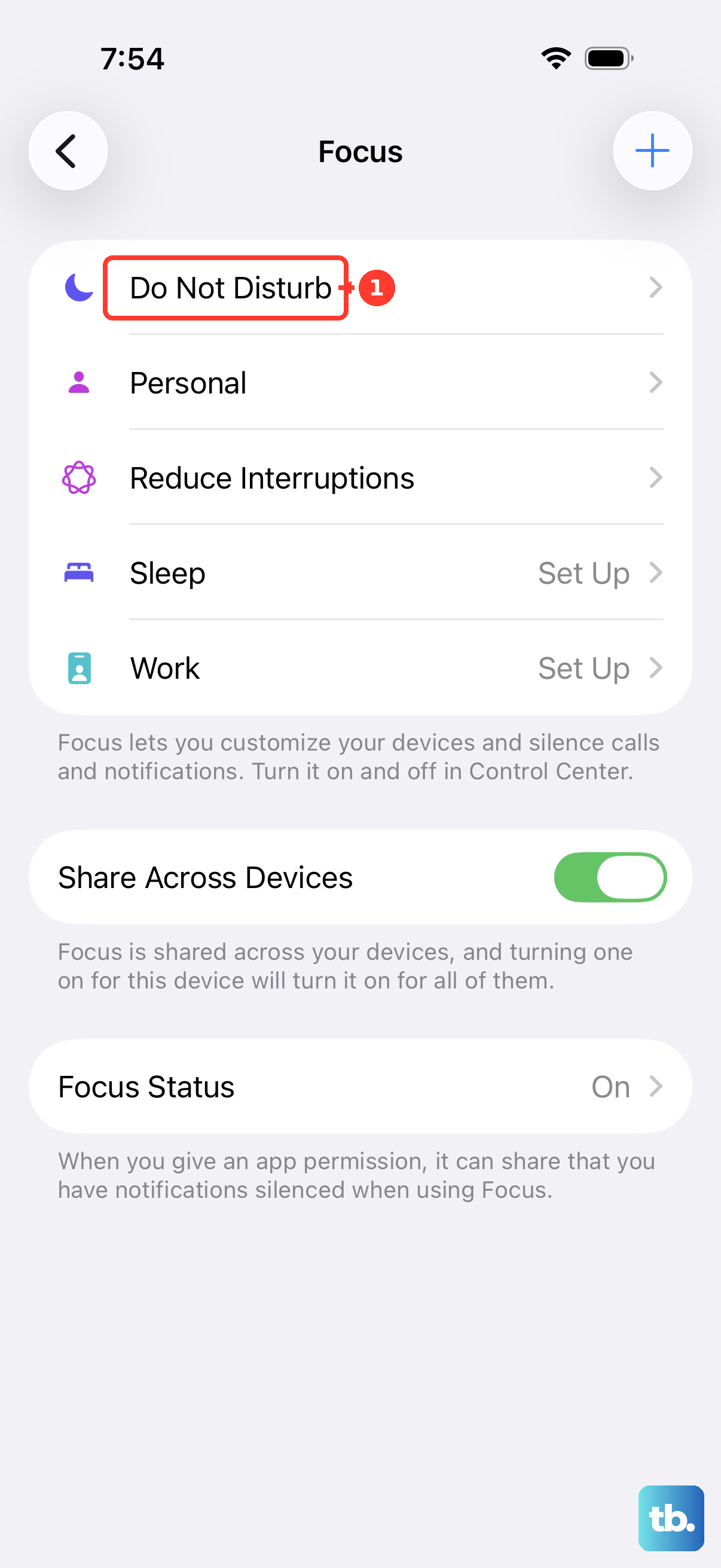
Do Not Disturb can silence notifications, while Silent mode silences notification sounds. First, check the Action button on the left side of your iPhone 16, which replaces the old Ring/Silent switch and mutes the ringer by default. Press and hold the Action button and watch the on-screen banner. If it shows Silent mode is on, press and hold it again to turn Silent mode off. You can also tap the Silent Mode toggle in Control Center.
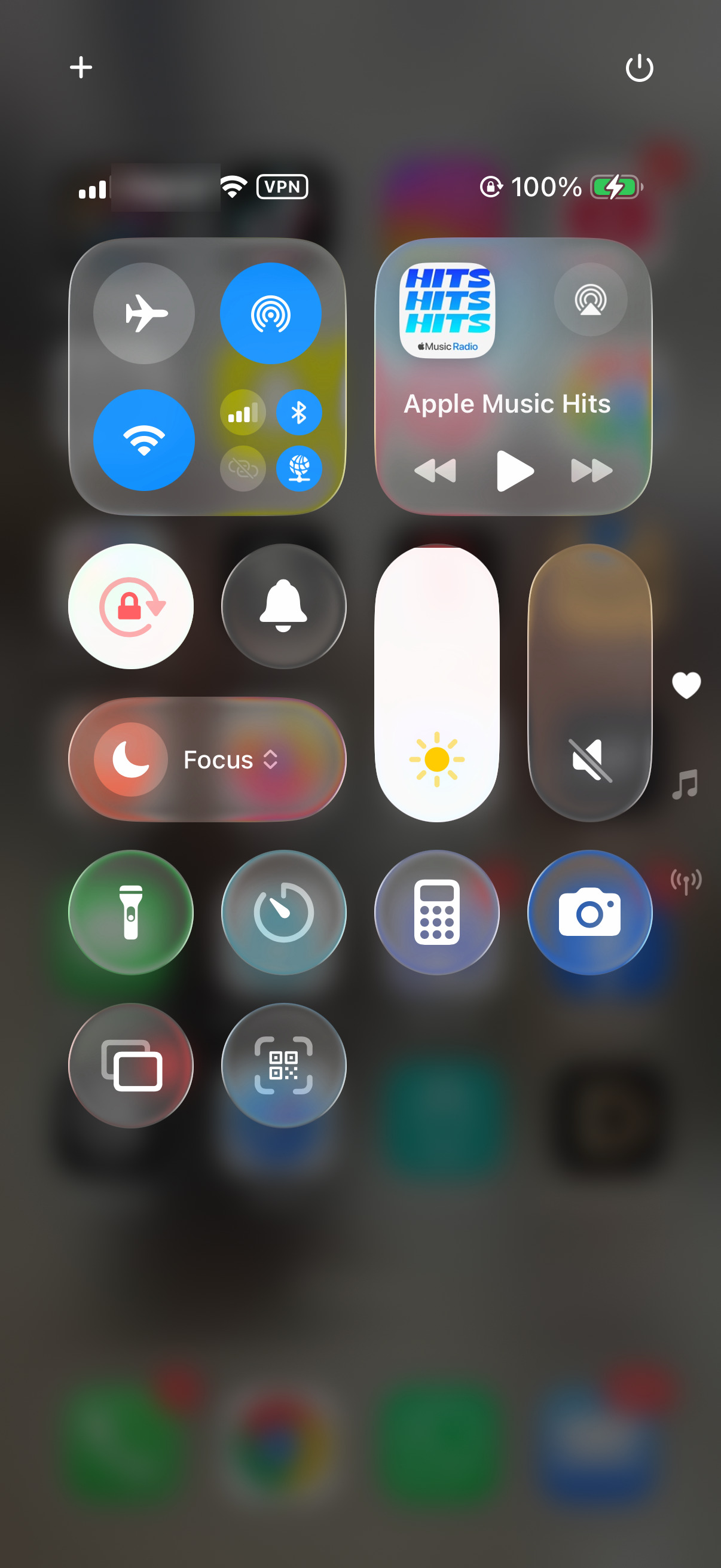
Next, open Control Center by swiping down from the top-right. If the crescent moon icon is purple, Do Not Disturb is active. Tap it to disable it.
Ensure the App Can Refresh in the Background
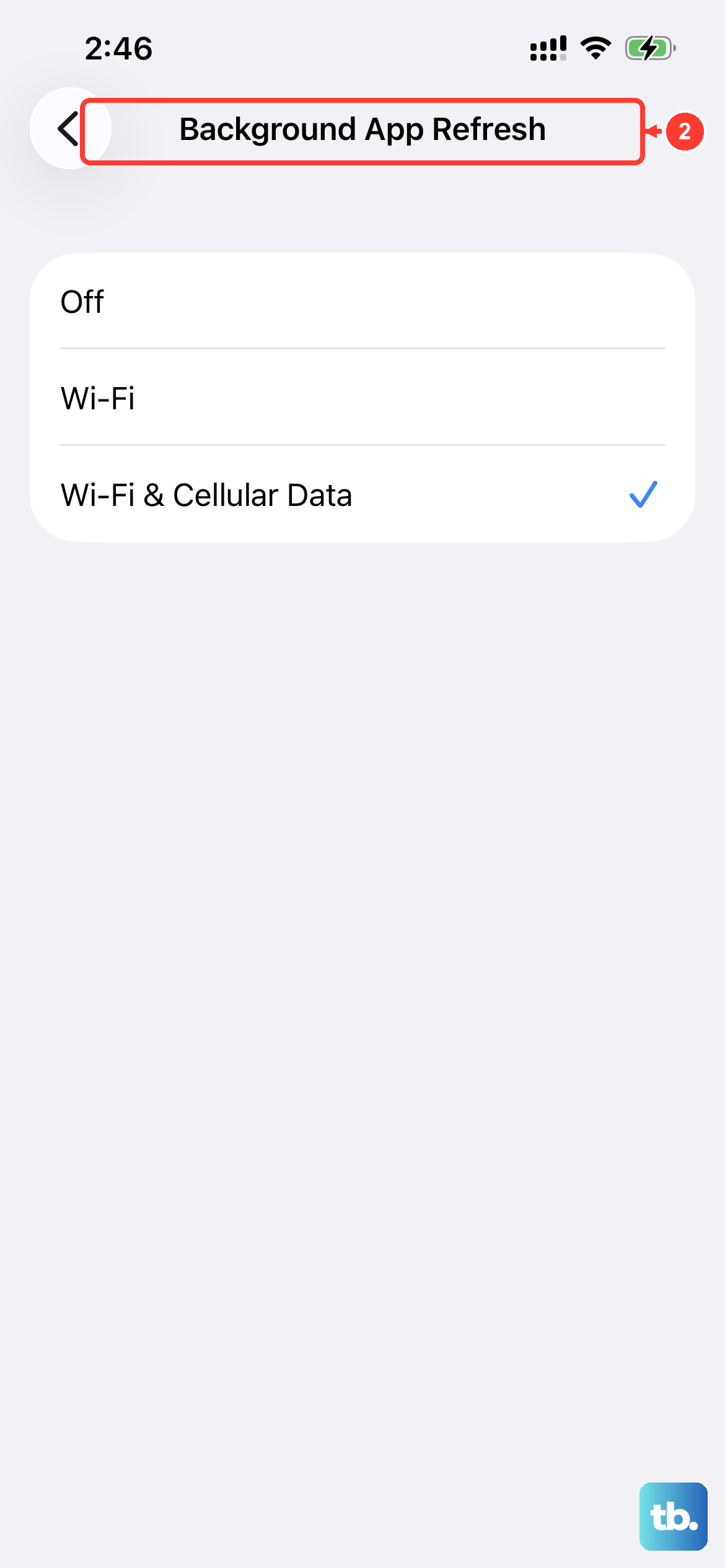
Some apps need background activity to fetch new data and trigger notifications. Go to Settings > General > Background App Refresh. Tap Background App Refresh again and choose Wi-Fi & Cellular Data or Wi-Fi.
Then, scroll through the list and ensure the toggle is enabled for the app in question. If it's off, the app might only check for new content when you open it.
Update the App and iOS
An outdated app can have bugs that break notifications. Open the App Store, tap your profile icon in the top right, then tap App Updates and tap Update next to the app you're having trouble with.
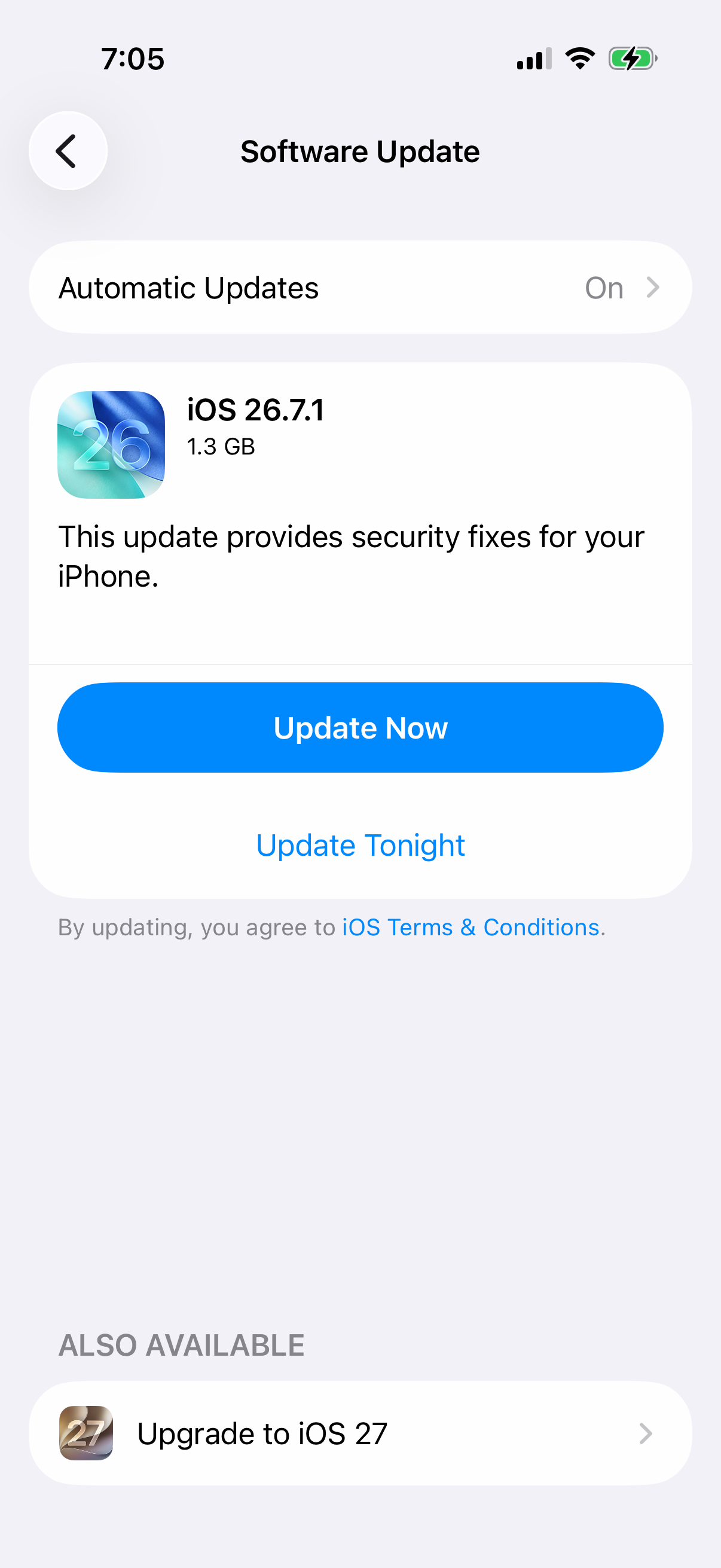
More importantly, a system update can fix broader notification issues. Go to Settings > General > Software Update. If an update is available, back up your iPhone, connect it to power and Wi-Fi, then tap Download and Install.
Reset All Settings
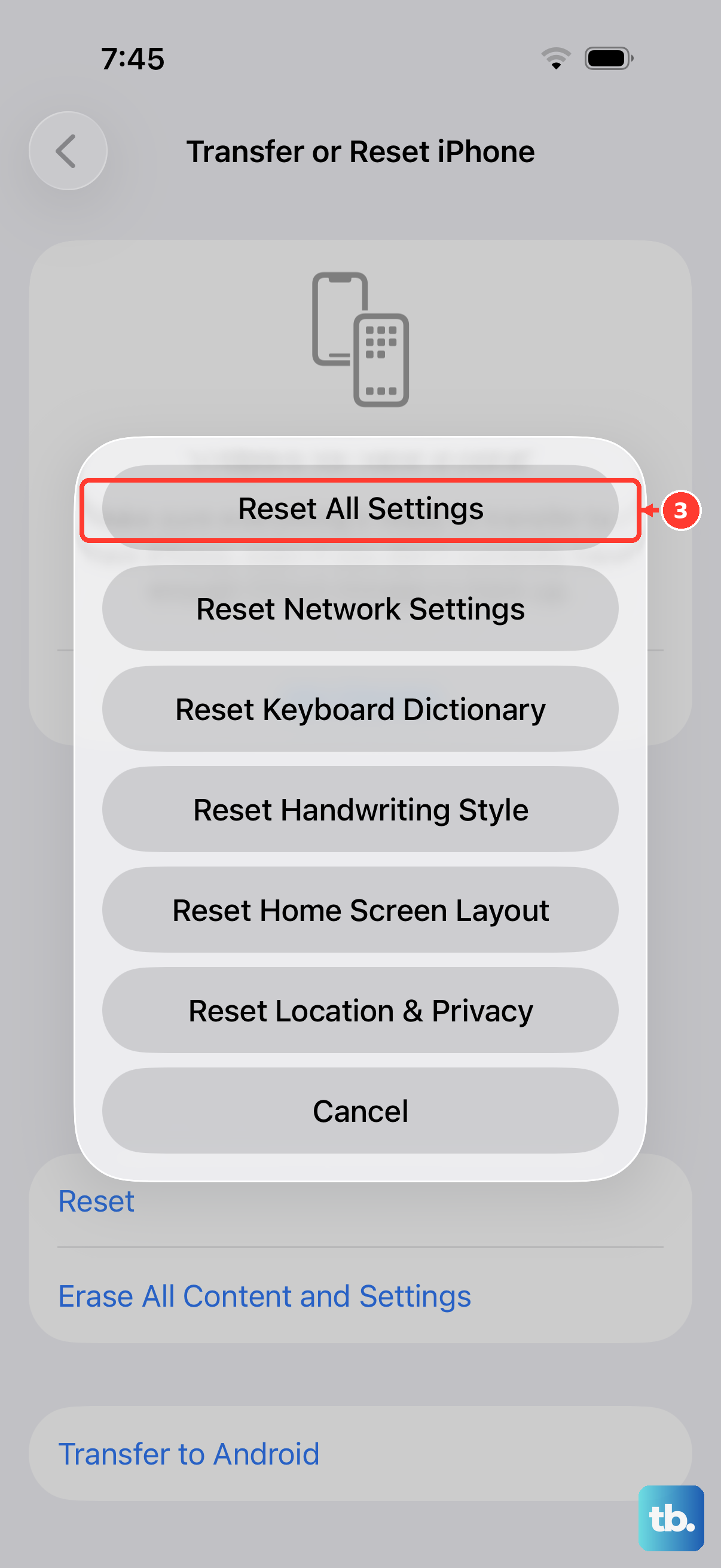
This is a more comprehensive step if the simpler fixes haven't worked. It will reset all your system settings, like Wi-Fi passwords, wallpaper, and privacy permissions, back to default without deleting any of your personal data or apps.
Go to Settings > General > Transfer or Reset iPhone. Tap "Reset" at the bottom, then choose "Reset All Settings." You'll need to enter your passcode to confirm. After your phone restarts, you'll need to set up Face ID again, rejoin Wi-Fi networks, re-pair Bluetooth devices and any Apple Watch, and review your notification settings.
Check for Notification Summary or Scheduled Delivery
iOS has features that bundle non-urgent notifications. Go to Settings > Notifications > Scheduled Summary. If this is on, notifications from selected apps will only be delivered at the scheduled times you set.
For summaries of notification text, go to Settings > Notifications > Summarize Notifications. Turn Summarize Notifications on or off, or adjust it for individual apps. Tap a summarized notification to expand it and read the full text.
Check Lock Screen Notification Previews
If alerts appear without their message text, go to Settings > Notifications > Show Previews and select Always if you want to see their contents without unlocking your iPhone. This makes notification text visible on the Lock Screen, so choose it only if you're comfortable showing that information.
To check alerts you may have missed, swipe up from the middle of the Lock Screen to open Notification Center. Tap a group of notifications to see the recent alerts from that app.
Check Third-Party App Permissions After an Update
If notifications stopped after an update, check the affected app's permissions. It's worth revisiting the app's notification settings even if you've checked before. Go to Settings > Notifications, tap the app, and just double-check every toggle, especially for Lock Screen and Banners.
If the app uses critical alerts (like for medical or security apps), there's a separate setting for that called "Critical Alerts" which you'll need to enable.