Your Mac screenshot shortcut should either save a file or copy an image, so a dead shortcut gets annoying fast. The fix usually comes down to the capture command, save location, disabled shortcut, keyboard input, app permission, or protected content. Start with the fastest checks below, then move into the deeper Mac settings only if screenshots still fail.
1. Try the right Mac screenshot shortcut first
Press Shift-Command-3 to capture the entire screen. Wait for the file to save, or click the thumbnail if it appears.
Need only part of the screen? Press Shift-Command-4, drag over the area you want, then release the mouse or trackpad button.
Press Esc to cancel, or hold the Space bar while dragging to move the selected area without resizing it.
For a window or menu, open it first. Press Shift-Command-4, press the Space bar, then click the window or menu.
To capture without the window shadow, hold Option while clicking.
On MacBook Pro models with a Touch Bar, press Shift-Command-6 to capture the Touch Bar.
2. Check where the screenshot saved
Your Mac screenshot can be working even when the file is not on the Desktop.
- 1.Press Shift-Command-5.
- 2.Click Options.
- 3.Check Save to.
- 4.Choose Desktop, Documents, Clipboard, Mail, Messages, Preview, or Other Location.
- 5.If delayed captures are confusing the result, set Timer to None.
If you pressed Control with the shortcut, macOS copied the screenshot to the Clipboard instead of saving a file. Open an app and press Command-V to paste it. To save a file again, use Shift-Command-3, Shift-Command-4, or Shift-Command-5 without Control.
3. Open Screenshot without the keyboard shortcut
Open Applications > Utilities > Screenshot.
Choose the capture tool you want.
For the entire screen or a selected portion, click Capture. To capture a window, move the pointer to the window, then click the window.
If the shortcut does nothing, opening Apple’s Screenshot app directly is the cleanest test when the Screenshot app works but the keyboard shortcut does not. You can also press Command-Space bar, search for Screenshot, and open it from Spotlight.
4. Restore screenshot shortcuts in System Settings
Screenshot shortcuts can be turned off or changed. Go to Apple menu > System Settings > Keyboard > Keyboard Shortcuts > Screenshots, then select the checkbox next to the shortcut you want. For a clean reset, click Restore Defaults in the bottom-left corner.
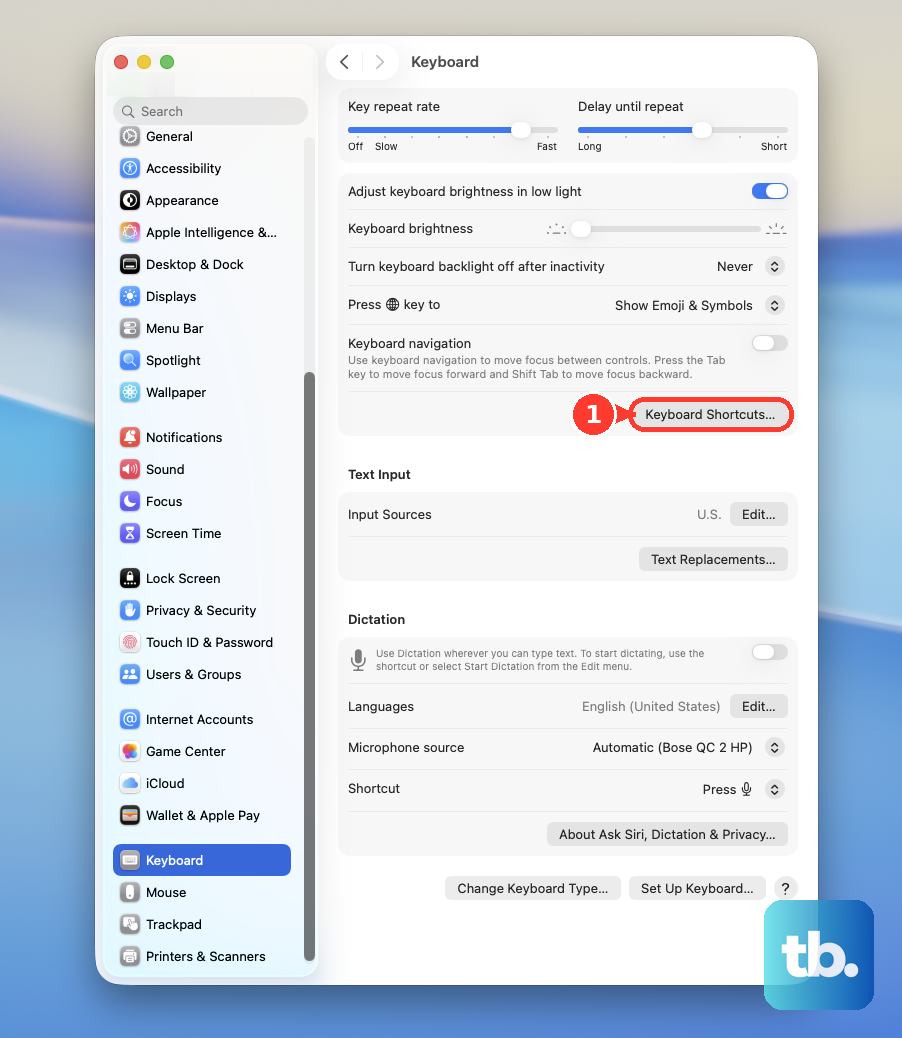
If macOS shows a shortcut conflict, stay in Keyboard Shortcuts. Select the category with the warning icon, such as Screenshots, Mission Control, Spotlight, or App Shortcuts. Double-click the shortcut, then press a new key combination.
5. Fix keys that are not registering correctly
Check the keyboard and accessibility settings when Shift, Command, number keys, or the Space bar do not behave correctly.
Open Apple menu > System Settings > Accessibility > Keyboard, then turn off Slow Keys.
Next, open Apple menu > System Settings > Accessibility > Pointer Control, then turn off Mouse Keys.
Then go to Apple menu > System Settings > Keyboard > Text Input > Edit, turn on Show Input menu in menu bar, then use Input menu > Show Keyboard Viewer to confirm the expected keys are registering.
For an external keyboard, turn on Bluetooth, charge the keyboard, reconnect it, try another port, test another Mac, or try a different keyboard. On a Mac laptop, connect power or an external keyboard to check for keyboard alerts.
6. Give third-party capture apps permission
Open Apple menu > System Settings > Privacy & Security > Screen & System Audio Recording.
Turn access on for the app, browser, or website that needs to capture your screen.
Quit and reopen the app if macOS prompts you.
Apple’s built-in screenshot shortcuts usually do not need extra permission, but third-party screenshot tools, screen recorders, browser capture tools, and web-conferencing apps need macOS privacy access to capture the screen.
If the app uses a global screenshot hotkey, also open Apple menu > System Settings > Privacy & Security > Input Monitoring, then turn access on for that screenshot or automation tool.
7. Use Preview when Screenshot is stuck
Preview gives you another built-in capture surface for times when the Screenshot app or floating thumbnail is acting stuck. Open Preview, then choose File > Take Screenshot > From Entire Screen, From Selection, or From Window.
For From Selection, drag across the area and release.
For From Window, click the window.
If captures still hang, restart the Mac from Apple menu > Restart. After the restart, test Shift-Command-5 or Shift-Command-3 again.
8. Remove conflicts and test Safe Mode
If screenshots broke after you installed a screenshot, clipboard, window-management, keyboard, or automation utility, remove it from login first.
Open Apple menu > System Settings > General > Login Items & Extensions.
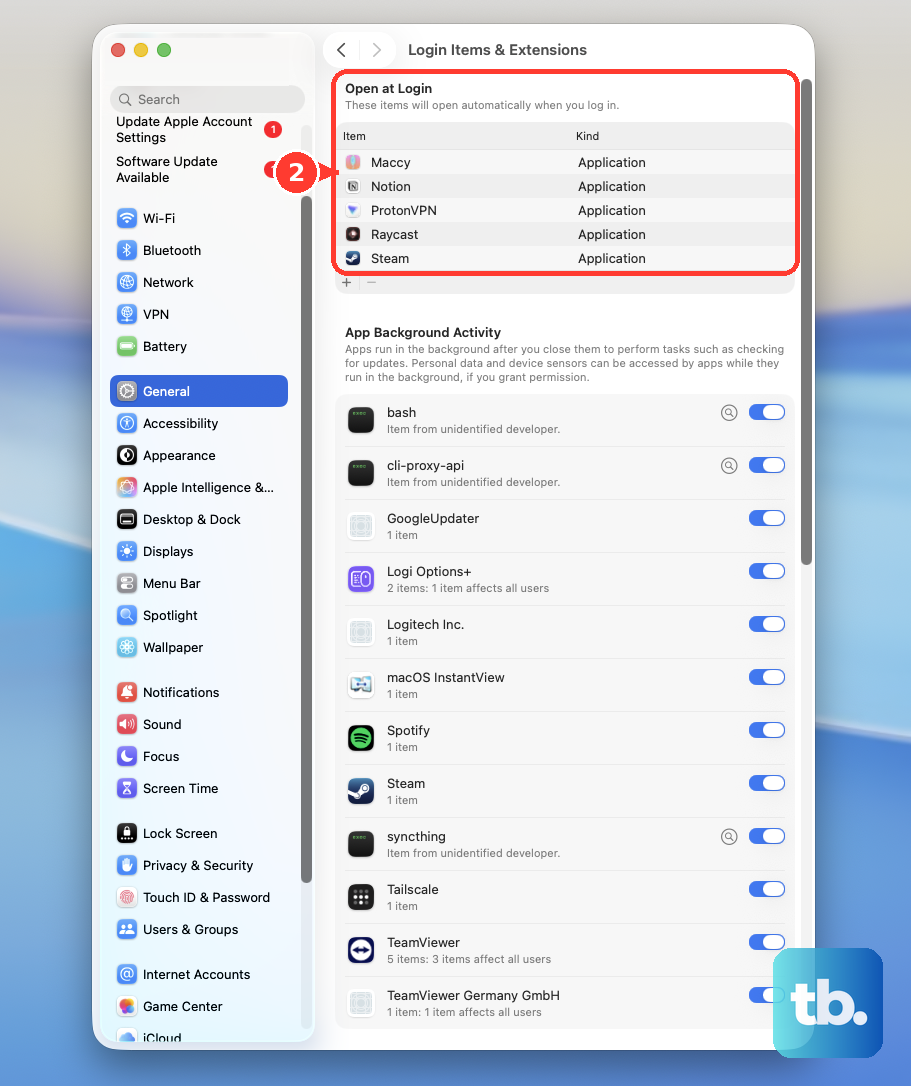
Make a list of items under Open at Login.
Select the suspected utility, then click the Remove button.
Restart the Mac and test screenshots again.
To isolate startup software conflicts, start in Safe Mode. On Apple silicon, choose Apple menu > Shut Down, hold the power button until Loading startup options appears, select a volume, hold Shift, then click Continue in Safe Mode. On an Intel Mac, turn on or restart the Mac, then immediately hold Shift until the login window appears.
When a third-party app is the conflict, quit it and remove it from Applications. If it includes Uninstall [App] or [App] Uninstaller, run that. Otherwise, drag the app to Trash or select it and choose File > Move to Trash.
9. Know when screenshots are blocked or restricted
Some protected media windows intentionally block screenshots. If the problem happens only inside the Apple TV app or another protected media surface, take a normal Finder or Desktop screenshot.
If that works, use the app’s supported sharing or export options.
On a work or school Mac, device management can block screenshots and screen recordings. If screenshots cannot be saved anywhere on a managed Mac, contact the organization’s administrator and ask about the Screenshots and screen recordings restriction.
Older tutorials mention Grab. Do not use it on current macOS. Use Shift-Command-5 or Applications > Utilities > Screenshot instead.
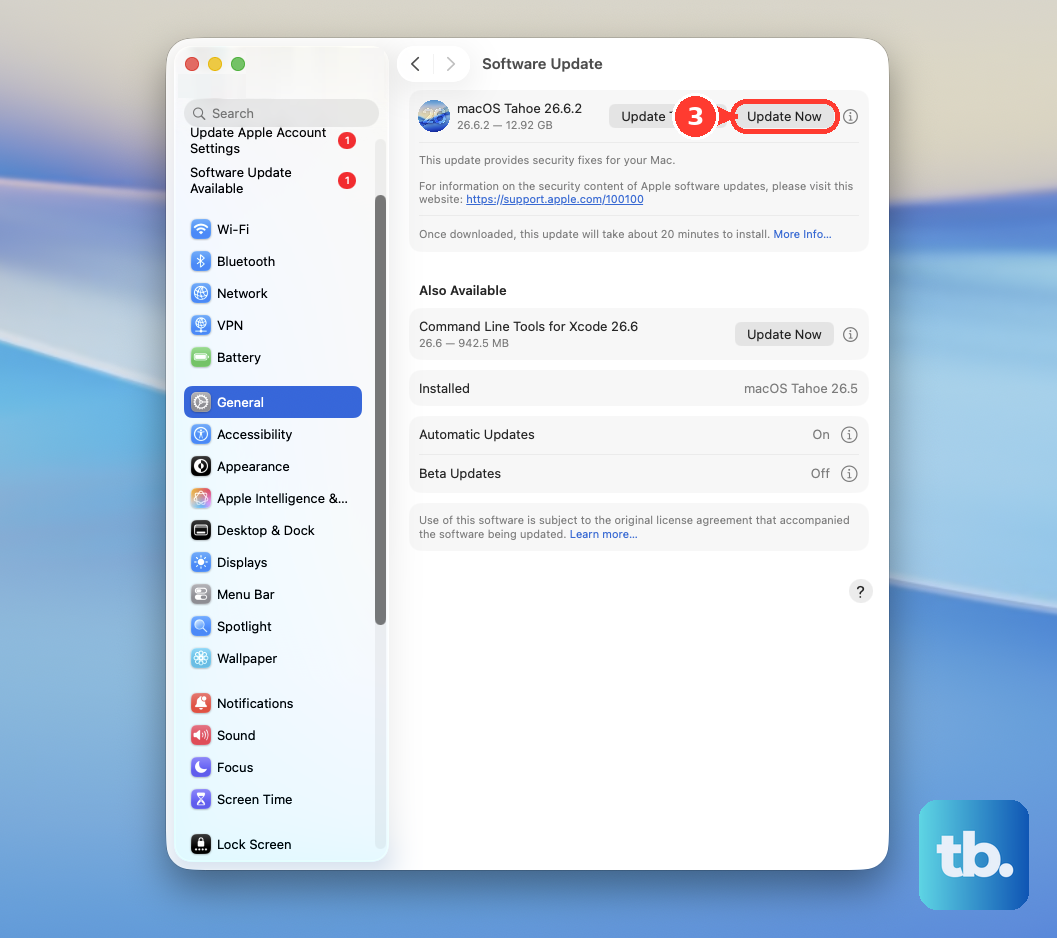
If nothing above fixes it, update macOS from Apple menu > System Settings > General > Software Update. Click Update, Upgrade, or Restart Now if one appears. If no update appears, click Check for Update, press Command-R, or close and reopen Software Update.
10. Use the floating thumbnail while it is available
After a screenshot, macOS may show a floating thumbnail in the corner, and the file can wait there briefly before it saves. If you need the screenshot immediately, swipe the thumbnail right to save it.
You can also drag the thumbnail into a document, email, note, or Finder window, or click it to mark up or share the screenshot. When the pointer hovers over the thumbnail, macOS keeps it onscreen until you act on it or move the pointer away.
Frequently Asked Questions
What is the main screenshot shortcut on Mac?
Use Shift-Command-3 for the entire screen, Shift-Command-4 for a selected area, and Shift-Command-5 to open the Screenshot app with more capture options.
How do I move the selected screenshot area on Mac?
Press Shift-Command-4, start dragging the selection, then hold the Space bar while dragging. Release the mouse or trackpad button to capture it.
How do I take a screenshot of a Mac window without the shadow?
Open the window, press Shift-Command-4, press Space bar, then hold Option while clicking the window.
Can Preview take screenshots on Mac?
Yes. Open Preview, choose File, Take Screenshot, then pick From Entire Screen, From Selection, or From Window.