Safari stops loading on a Mac when a page hangs, a bad tab reopens, stored website data breaks, or a network setting blocks the connection. Start with the fastest Apple-supported fixes, then move through site data, extensions, privacy controls, VPN settings, updates, and Mac-level repair.
Reload the page and restart Safari
Use this first when Safari opens but a page is blank, frozen, slow, or stuck loading. A reload makes the current page try again without changing your settings.
In Safari, choose View then Reload Page, or press Command-R.
If Safari still responds, choose Safari then Quit Safari, or press Command-Q. Reopen it from the Dock, the Apps icon in the Dock, Spotlight, or Applications in the Finder sidebar. On macOS Sequoia or earlier, Launchpad also works.
When Safari is frozen, press Option-Command-Esc, select Safari in Force Quit Applications, then click Force Quit. You can also open the Apple menu, choose Force Quit, select Safari, and click Force Quit.
Restart your Mac when Safari stays stuck
A restart clears the stuck app or macOS networking state behind many Safari freezes.
Choose the Apple menu then Restart. After the Mac comes back on, open Safari and try the page again.
If the Mac will not restart normally, press and hold the power button for up to 10 seconds until it turns off. Press and release the power button to turn it back on.
If Safari still opens to the same bad page or crashes during launch, open Safari without restoring the previous session.
Stop Safari reopening a bad tab
When Safari keeps bringing back the same broken page, quit Safari with Safari then Quit Safari. Hold Shift while opening Safari again to start without restoring the problem windows or tabs.
To change what Safari opens next time, go to Safari then Settings then General. Use Safari opens with to change the startup behavior.
If Safari opens with a new window, use New windows open with to choose what appears in new windows. This stops a bad homepage or saved window set from putting Safari back into the same broken state.
Test the site in a private window
Open Safari and choose File then New Private Window.
You can also press Shift-Command-N.
Try the same website in that private window.
If it works there, remove the stored website data for that site next.
Use this split test before removing cookies, cache, or site data.
A private window helps when one website fails while other pages load normally.
Clear website data for the broken site
The most common site-specific cause is stored website data that no longer works correctly.
Go to Safari then Settings then Privacy then Manage Website Data. Select the affected website, click Remove, click Done, then open the website again in a regular browser window.
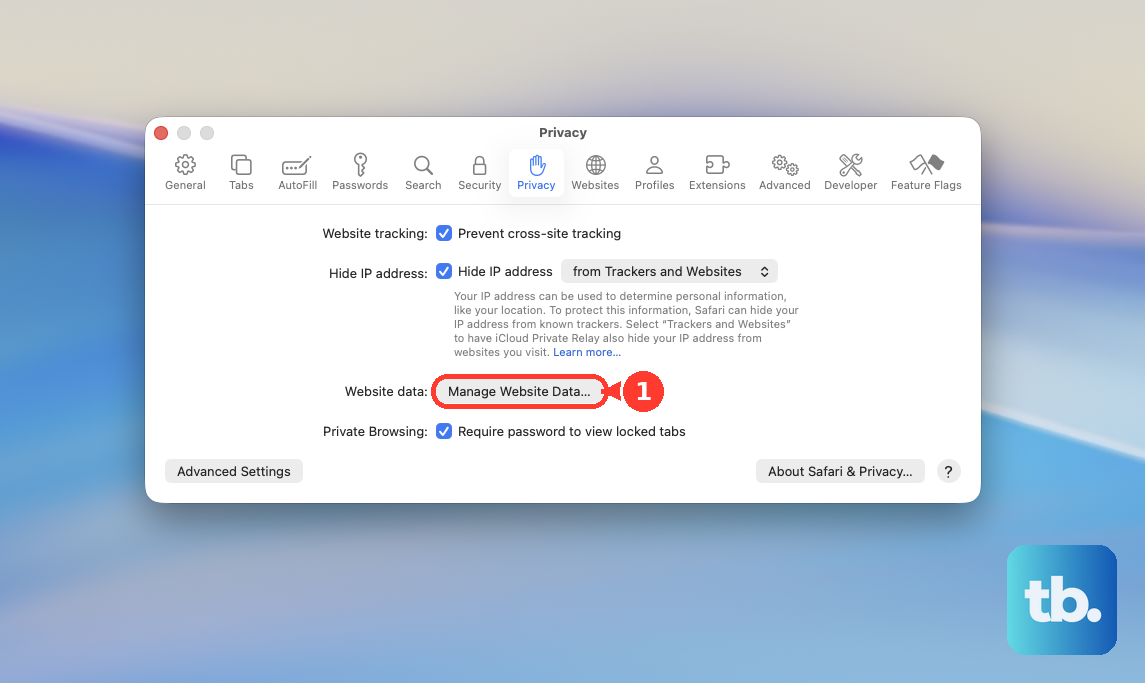
For broader Safari problems, select more than one website in Manage Website Data and click Remove, or click Remove All. Removing website data signs you out of sites and changes site behavior.
To clear browsing history, open Safari, then choose History then Clear History in the menu bar. Choose how far back to clear; Apple says this removes related Safari records such as recent searches and snapshots for open webpages, but not downloaded files.
Check extensions and content blockers
Extensions and content blockers stop pages from loading scripts, pop-ups, permissions, and resources they need.
- 1.Open Safari then Settings then Extensions, and deselect each extension checkbox to test without extensions.
- 2.Select a problem extension in Extensions and click Uninstall.
- 3.Go to Safari then Settings then Websites then Content Blockers, select the site, and choose Off.
- 4.Open Safari then Settings then Websites then Pop-up Windows, select the site, and choose Allow when the site needs pop-ups.
- 5.Use Safari then Settings then Websites to set the needed option for Camera, Microphone, Location, Downloads, Notifications, Auto-Play, Page Zoom, Reader, Screen Sharing, or Lockdown Mode.
Fix privacy settings that block a website
Some websites fail when cookies, JavaScript, IP visibility, or privacy protections block something the site requires. Start with the setting tied to the symptom.
If a site will not sign in or load correctly, open Safari then Settings then Advanced and deselect Block all cookies. Apple warns that blocking all cookies prevents some websites from working properly.
If a site depends on JavaScript, go to Safari then Settings then Security and select Enable JavaScript. Apple says some websites cannot work properly when JavaScript is disabled.
For a Private Browsing page affected by advanced tracking and fingerprinting protection, choose View then Reload Reducing Privacy Protections. If iCloud+ Private Relay affects a website, use View then Reload and Show IP Address; Apple says that menu item appears only when Private Relay is on for the network.
Rule out Wi-Fi VPN DNS and proxy problems
Safari looks broken when the network path is the problem. This fits when every website fails, only some domains open, or Safari works on one network and fails on another.
Turn Wi-Fi off and on from Apple menu then System Settings then Wi-Fi. To test another network, move the pointer over a network and click Connect.
If a saved Wi-Fi network is stale, open System Settings then Wi-Fi, click the More button next to the network under Known Networks, and choose Forget This Network. Reconnect from Other Networks or Known Networks by clicking Connect and entering the password.
For VPN issues, go to Apple menu then System Settings then VPN and turn the VPN service off. To manage it, click the Info button next to the service; use Remove configuration to remove it.
For proxy settings, open Apple menu then System Settings then Network, click your network service, click Details, then click Proxies. Turn off or correct proxies that should not be used, then click OK.
If the issue is DNS, open System Settings then Network, click your network service, click Details, click DNS, use the Add button under DNS Servers to enter a DNS server, then click OK.
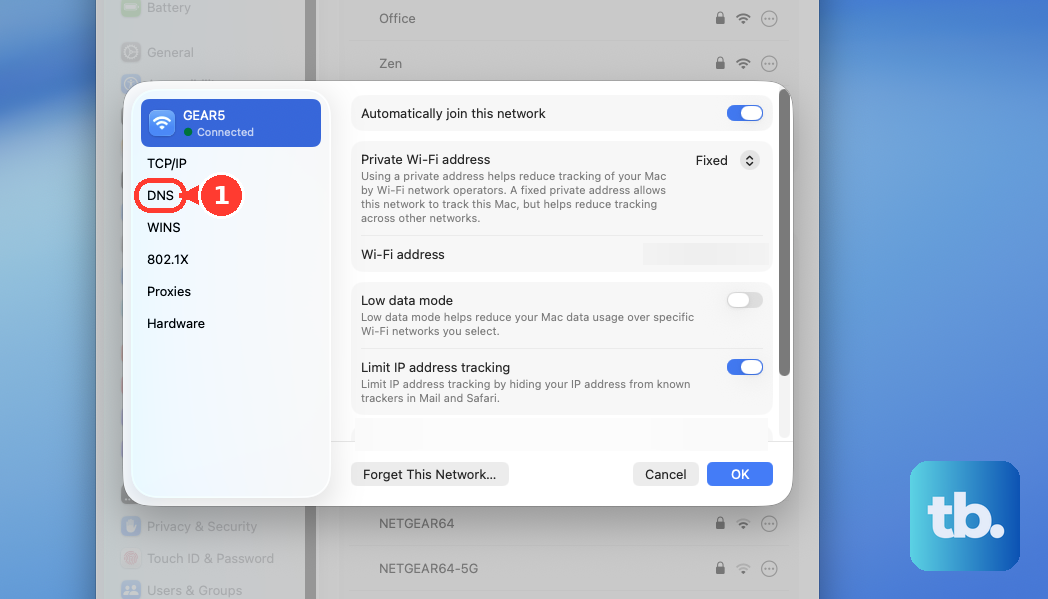
If Safari still fails after network checks, update Safari through macOS and test whether the issue is tied to your Mac user account.
Update Safari and isolate deeper Mac issues
This fixes outdated Safari components, broken system files, third-party startup interference, and user-specific Safari problems.
Open Software Update with Spotlight, or choose the Apple menu then System Settings then General then Software Update.
If new software is available, click Update, Upgrade, or Restart Now.
Safari is included with macOS, so current Safari updates come through Software Update rather than a separate Safari download.
If no update appears, click Check for Update, press Command-R, or close and reopen Software Update.
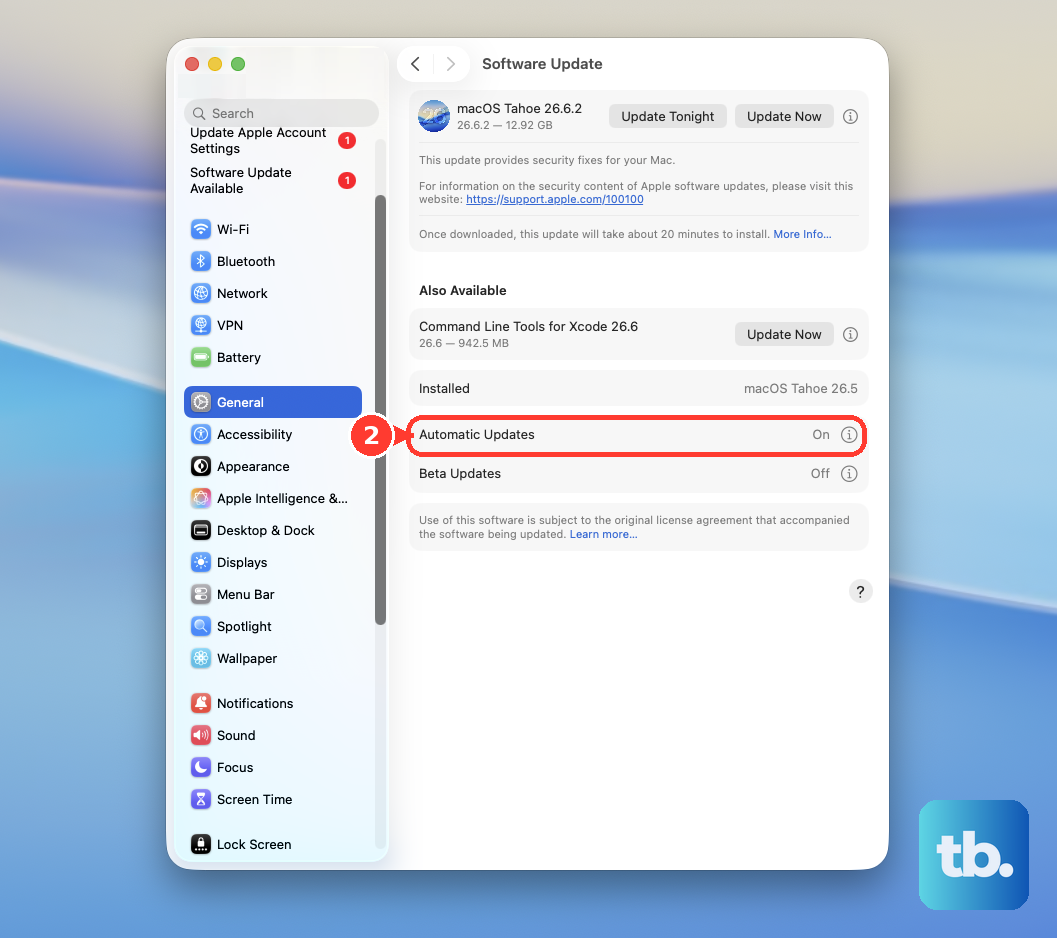
On macOS Tahoe 26 or later, open System Settings then General then Software Update, click the More Info button next to Automatic Updates, and make sure Install system data files and security updates is turned on.
To test third-party startup, network, or security software, start the Mac in Safe Mode. On Apple silicon, shut down from the Apple menu, hold the power button until Loading startup options appears, select a volume, hold Shift, then click Continue in Safe Mode; on an Intel Mac, restart or turn on the Mac, then hold Shift until the login window appears.
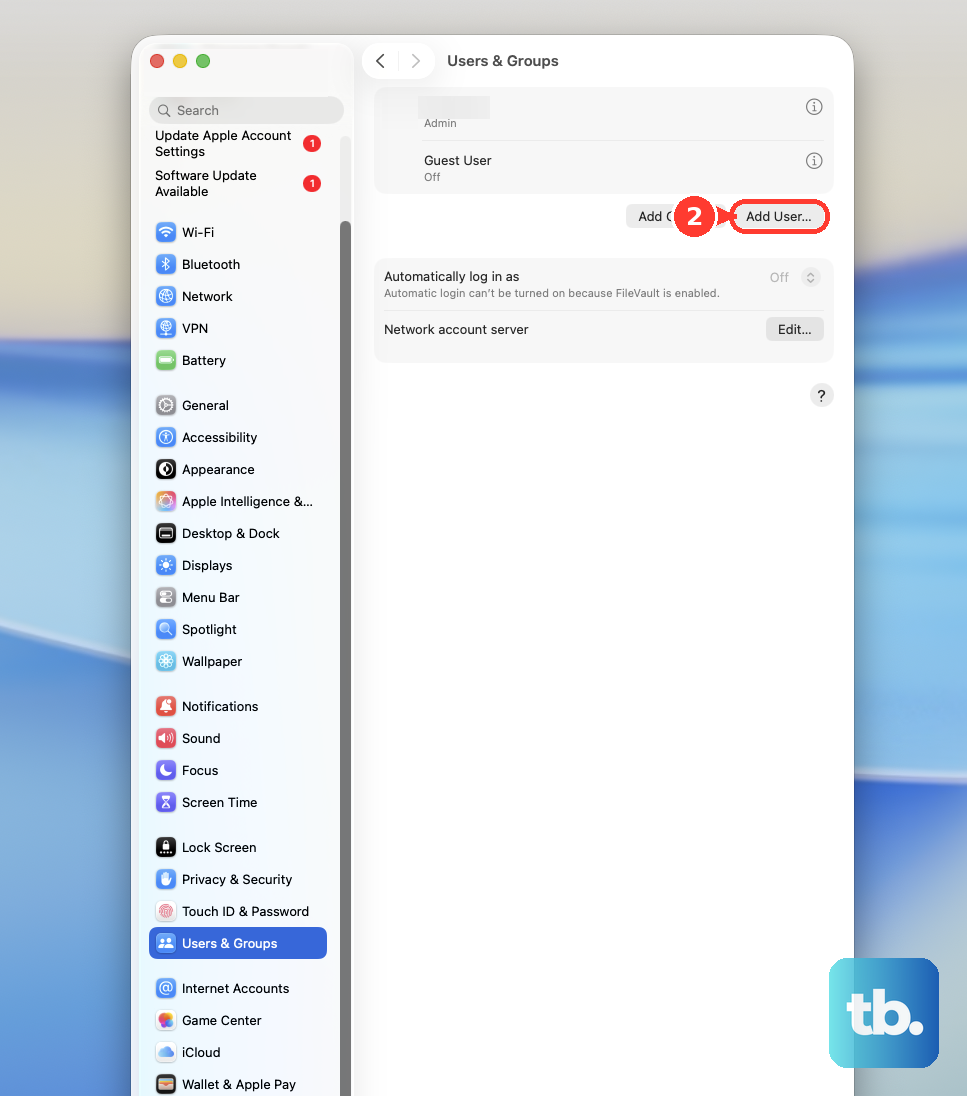
To check whether the problem is only in your macOS user account, go to Apple menu then System Settings then Users & Groups, click Add User, create another user, and test Safari there.
For a final system repair, back up your Mac, start up from macOS Recovery, select the option to install or reinstall macOS, click Continue, and follow the onscreen instructions.
Apple says reinstalling macOS does not remove apps or personal data, but backing up first is recommended.
Older guides mention Safari then Reset Safari or uninstalling Safari itself. Apple’s current fixes are clearing history, removing website data, disabling extensions, changing settings, updating macOS, and reinstalling macOS when system repair is needed.
If the Mac belongs to work or school, ask the administrator to review content filtering, DNS, proxy, VPN, system extension, and Safari extension management settings. Managed Macs block or force settings that a regular user cannot change.
Frequently Asked Questions
Why is Safari not working on Mac but Chrome is?
The issue is tied to Safari data, extensions, content blockers, privacy settings, or Safari-specific website permissions. Test the site in a Private Window, remove the site’s website data, and disable Safari extensions.
Can I reinstall Safari by itself on a Mac?
No. Current Safari is included with macOS. Apple’s supported path is updating macOS through Software Update or reinstalling macOS when deeper system components need repair.
Will clearing Safari website data delete my downloaded files?
No. Apple says clearing history removes related Safari records such as recent searches and snapshots for open webpages, but not downloaded files. Removing website data signs you out of sites and changes site behavior.
What should I do if only one website does not work in Safari?
Reload the page, test it in a Private Window, remove that site’s website data, check cookies and JavaScript, and turn off site-specific blockers or permissions that interfere. If it still fails, report the issue to the website owner or developer.