

To fix Pinterest not working on your laptop, check for a Pinterest outage, reload the website, then troubleshoot your browser’s extensions and stored site data. If Pinterest displays a login restriction or account error, use the matching account fix. The Windows menu paths below use Windows 11.
The short version
- Check first: If Pinterest reports a matching outage, wait for its resolution and retry.
- Compare browsers: If Pinterest works in another browser, investigate the original browser’s extensions, data and settings.
- Clear selectively: Removing Pinterest’s cookies can sign you out, so start with its site data rather than data for every website.
- Match the symptom: Login restrictions, Save extension failures and connection problems have different fixes.
| Fix | When to use it |
|---|---|
| Check Pinterest Status | Pinterest may have an active outage |
| Open Pinterest directly and reload | A bookmark or individual page fails in Chrome |
| Try another installed browser | You need to narrow down a browser problem |
| Restart Chrome | Pages fail to load |
| Close unused tabs and applications | Chrome tabs crash or run short of memory |
| Force-close Chrome | Ordinary closing fails on Windows or Mac |
| Restart the laptop | Browser troubleshooting has not helped |
| Update Chrome | Chrome has an available update |
| Update Edge | Edge has an available update |
| Update Safari through macOS | Your Mac has an available Safari update |
| Update Firefox | Firefox has an available update |
| Try Chrome’s Incognito mode | You need to investigate website loading |
| Disable Chrome extensions | An extension may interfere |
| Disable Firefox extensions | An extension may affect the page |
| Delete Pinterest’s Chrome site data | You need to troubleshoot stored cookies and data |
| Clear Pinterest’s Firefox site data | You need to troubleshoot stored cookies and data |
| Remove Pinterest’s Safari website data | You need to troubleshoot its cache and cookies |
| Clear Edge’s cached files | You need to troubleshoot cached content |
| Review Chrome site permissions | Images or controls fail after permission changes |
| Temporarily allow third-party cookies | Chrome blocks cookies needed for sign-in or embedded content |
| Test Firefox tracking protection | Protection may interfere with Pinterest |
| Test Edge tracking prevention | Strict prevention breaks sign-in or content |
| Reload without Safari Private Relay | Pinterest fails with iCloud+ Private Relay enabled |
| Sign into Pinterest again | Your session is stale or the wrong account is open |
| Reset your Pinterest password | You forgot it and can access the registered email |
| Open a reset link privately | The link fails in an ordinary window |
| Try a connected Google login | Your existing Pinterest account uses that login |
| Wait thirty minutes | Pinterest explicitly reports a suspicious-activity restriction |
| Use a regular browser window | The Pinterest Save extension fails in private browsing |
| Enable JavaScript in Chrome | JavaScript is disabled and saving fails |
| Enable JavaScript in Safari | JavaScript is disabled and website controls fail |
| Reinstall Chrome’s Pinterest Save extension | Saving still fails after the earlier checks |
| Restore Windows Wi-Fi | Other websites also fail |
| Complete public Wi-Fi sign-in | Your network requires a portal login |
| Restart the modem and router | Multiple websites fail on your home network |
| Disconnect an active VPN or proxy | You need to check whether it affects Pinterest |
| Check security software | Filtering may block the browser |
| Contact Pinterest support | A website, account or Save extension problem persists |
Check Pinterest and reload the page
Open Pinterest Status and check for an active incident affecting the component you are trying to use. If Pinterest reports a matching outage, wait for its resolution and retry.
In desktop Chrome, open pinterest.com directly, especially when a bookmark or individual Pinterest URL fails. Select Reload this page and try again. On a Windows, Mac or Linux laptop with another browser installed, open the same page there. If it works, concentrate on the original browser’s extensions, stored data and settings.
Restart and update your browser
For Chrome on Windows, select More > Exit, then reopen Chrome. On a Mac, select Chrome > Quit Google Chrome and reopen it. On a Chromebook, close the browser window and open Chrome again from Launcher.
If Chrome will not close normally on Windows, press Ctrl + Alt + Delete and select Task manager > Processes. Select Google Chrome or chrome.exe, then select End task and reopen Chrome. On a Mac, press Command + Option + Esc, select Google Chrome, then select Force quit and reopen it.
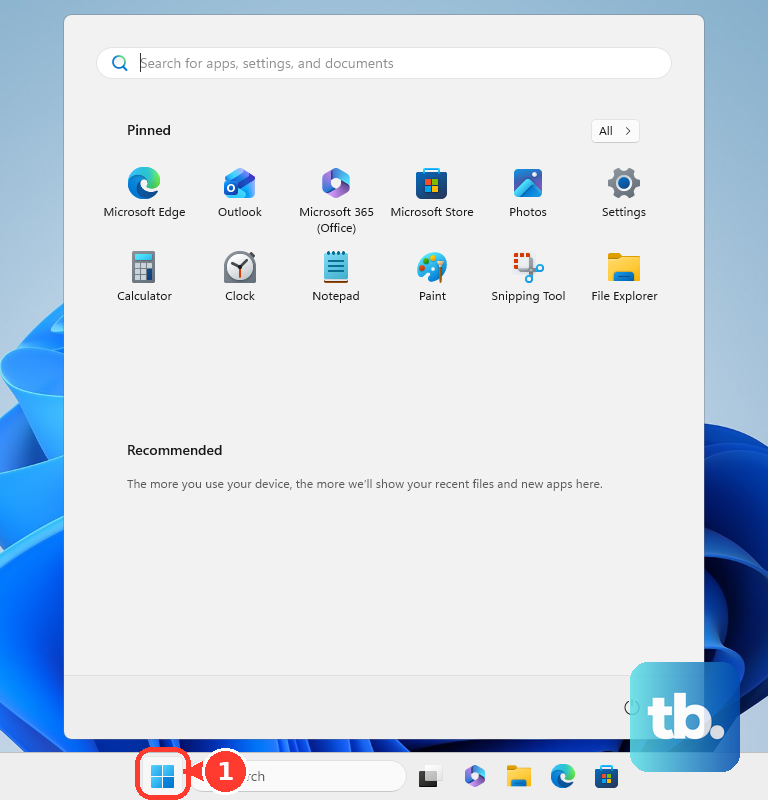
For crashing Chrome tabs, close unused tabs and other applications, pause downloads, then retry Pinterest. If browser troubleshooting does not help, save your work before you restart your computer. On Windows 11, select Start > Power > Restart, then reopen Pinterest.
To update Chrome on supported Windows and macOS versions, select More > Help > About Google Chrome. Let it check for updates, then select Relaunch if offered. Linux Chrome packages update through the package manager, while Chromebook Chrome updates with ChromeOS.
In Edge, select Settings and more > Settings > About Microsoft Edge and apply an available update. For Safari, install available macOS updates containing Safari updates. Retry Pinterest after updating.
For Mozilla-installed Firefox on a Mac, select Firefox > About Firefox. On Windows or Linux, open the menu, select Help or Help and Report, then select About Firefox. After the download, select Restart to update Firefox. Firefox installed through the Microsoft Store or a Linux distribution uses that installation’s update mechanism.
Check for an interfering extension
Open the Pinterest website in Chrome’s Incognito mode as a diagnostic test. If it works there, return to ordinary browsing and investigate extensions and browsing data. Use a regular window when checking the Pinterest Save extension, which does not work in private or Incognito mode.
In Chrome, select More > Extensions > Manage extensions. Turn extensions off, then reload Pinterest, paying particular attention to ad blockers, script blockers and privacy extensions. Re-enable them individually to identify which one interferes.
In Firefox, open the menu and select Extensions and themes > Extensions. Turn extensions off individually and reload Pinterest after each change. If extensions do not explain the failure, check the browser’s stored data next.
Clear Pinterest’s stored browser data
Clearing Pinterest’s cookies can sign you out of Pinterest. In Chrome, select More > Settings > Privacy and security > Third-party cookies > See all site data and permissions. Search for Pinterest, select Delete beside its entry, then select Delete again and sign back in if prompted.
Removing Pinterest’s cookies and site data in Firefox deletes that stored data and can sign you out. Visit Pinterest, open the site-information control to the left of the address, and select Clear cookies and site data. Confirm with Clear or Remove, whichever label your Firefox displays, then reload Pinterest.
Removing Pinterest’s stored website data in Safari clears its cache and cookies and can sign you out. On a Mac, select Safari > Settings > Privacy > Manage Website Data. Select Pinterest’s stored entry and choose Remove.
Clearing Edge’s cache deletes its cached images and files. Select Settings and more > History > Open history page > Delete browsing data. Set Time range to All time, select Cached images and files, then select Clear now.
Review permissions and privacy settings
If images or controls stopped working after permission changes, review Pinterest’s site permissions in Chrome. Visit Pinterest and select View site information > Site settings. Check restrictions under Images and JavaScript.
When blocked cookies affect sign-in or embedded content and Chrome displays Third-party cookies blocked, select that control and temporarily turn on Third-party cookies. Close the panel to reload the page and check whether the affected content works.
In Firefox, visit Pinterest, select the shield beside the address, and turn off Enhanced Tracking Protection to check the reloaded page. This change affects Pinterest only. Restore protection if it does not help.
When Edge’s Strict tracking prevention breaks Pinterest’s sign-in or content, select View site information and turn off Tracking prevention for this site as a diagnostic check. In Safari on a Mac with iCloud+ Private Relay enabled, open Pinterest and select View > Reload and Show IP Address.
Fix a Pinterest login problem
Sign in only through Pinterest’s own app or website, and never share a code, password, or remote access with someone who contacts you. For a stale session or an accidentally selected account, open Pinterest’s top-right account menu and select Log out. Open the Pinterest login page and sign into the intended account.
If you have forgotten your password and can access the registered email address, select Forgot your password? on the login page. Search for your account and select This is me, then open the recovery email and select Reset password. Enter a new password and select Change password.
If the reset link fails in an ordinary window, open it in a private Chrome, Firefox or Safari window and complete the reset. For an account previously connected to Google, select Continue with Google on the login page instead. If it fails, check Pinterest’s connection in your Google account settings and reauthorize access if requested. Pinterest says Apple login is only available on iOS, so it is not a laptop sign-in option.
When Pinterest explicitly blocks login or saving because of suspicious activity, wait thirty minutes before trying again. If the applicable steps do not resolve your account problem, use Pinterest support.
Repair the Pinterest Save extension
The Pinterest Save extension does not work in private or Incognito browsing. Leave that window, sign into Pinterest in a regular browser window, and retry saving. If saving still fails, check for interfering extensions and ensure JavaScript is enabled.
In Chrome, select More > Settings > Privacy and security > Site Settings > Javascript, then select Sites can use Javascript. To enable JavaScript for website controls in Safari on a Mac, select Safari > Settings > Security and select Enable JavaScript. Retry the affected control after changing the setting.
Removing Pinterest Save Button uninstalls that extension from Chrome. To reinstall it, select More > Extensions > Manage extensions, find Pinterest Save Button, and select Remove twice. Open Pinterest’s Save extension installation page, follow the Chrome Web Store route, then select Add to Chrome and Add extension.
Check the connection when other sites fail
When Pinterest and other websites fail, check the laptop’s connection. On Windows 11, open Settings > Network & Internet > Airplane mode and turn it off. Enable Wi-Fi through the taskbar network control. If your laptop has a physical wireless switch, turn it on.
On hotel, airport or café Wi-Fi, complete the network’s portal sign-in when Chrome prompts, then retry Pinterest. For a home-network problem affecting multiple websites, disconnect power from the modem and router and wait at least 30 seconds. Reconnect the modem first, then the router, and wait for connectivity to return.
If you use a VPN or proxy, temporarily disconnect it using its supplied controls and retry Pinterest. If security software may be blocking the browser, update that software and investigate its blocked-application or website entries.
Contact Pinterest with the remaining error
For a persistent website, account or Save extension failure, open Pinterest support. Provide the affected URL, browser, operating system, exact error message and troubleshooting results. Include whether the same page worked in another browser.
The contact form requires JavaScript. If its controls do not work, enable JavaScript using the Chrome or Safari steps above before trying again.
Frequently Asked Questions
Can you use your phone to sign into Pinterest on a laptop?
Yes, if the Pinterest login page offers it, select Use QR code. Sign into the Pinterest mobile app on a phone connected to the same Wi-Fi as the laptop, then scan the displayed QR code with the phone camera. On the phone, select Confirm.
What should you do if Pinterest says your account is suspended?
If you believe the suspension is mistaken, follow the appeal link in Pinterest’s login troubleshooting help article. Browser maintenance cannot reverse an account suspension.
How do you get help when Pinterest verification prevents login?
Open Pinterest’s two-factor authentication help article and select Contact us when verification blocks login or the linked phone number needs changing. Two-factor authentication availability varies by region.
Why are Pinterest’s controls misplaced in Firefox?
Abnormal page zoom can make the layout or controls appear misplaced. With Pinterest active in Firefox, press Ctrl + 0 on Windows or Linux, or Command + 0 on a Mac, to reset the zoom.