


To fix OneDrive sync problems in Windows 10, open OneDrive, resume paused syncing, and check its cloud icon for an error before relinking or resetting the app. Missing folders, full storage, and files held open by another application each need a different fix.
These steps apply to the current desktop sync app on Windows 10 22H2. Check your installed Windows version first, and move an older Windows installation to a supported version before relying on current OneDrive fixes.
The short version
- Start with the cloud icon: Open OneDrive and inspect the reported problem.
- Restart syncing: Resume a paused transfer or close and reopen OneDrive.
- Check the affected files: Confirm folder selection, available storage, and any file errors.
- Escalate gradually: Relink the account, reset the sync engine, then reinstall if the problem persists.
| Fix | When to use it |
|---|---|
| Open OneDrive | The cloud icon is missing |
| Sign in again | The cloud is gray or crossed out |
| Enable automatic startup | OneDrive opens only when launched manually |
| Create a startup shortcut | OneDrive is absent from the startup list |
| Pause and resume | Transfers are paused or stuck |
| Close and reopen OneDrive | Resuming does not restart transfers |
| Connect to power or adjust battery saver | Battery saver has paused synchronization |
| Change the metered connection setting | A metered network interrupts transfers |
| Try a phone hotspot | The original connection may be blocking OneDrive |
| Check service status | Sign-in or connection failures may reflect an outage |
| Adjust transfer limits | Uploads or downloads are restricted |
| Allow large batches to finish | OneDrive is processing many changes |
| Check folder selection | A cloud folder is missing locally |
| Enable PC folder backup | Desktop or Documents is outside OneDrive |
| Download online-only files | You need files while offline |
| Use browser access | You need cloud files during troubleshooting |
| Release downloaded copies | The local disk is full |
| Review cloud storage | A personal account is full or frozen |
| Delete unwanted cloud content | You need to reduce stored content |
| Save and close an open file | An application is holding the file open |
| Correct the file name | A name contains unsupported characters or wording |
| Shorten the path | A file is too deeply nested |
| Correct file permissions | OneDrive cannot read or write the file |
| Inspect hidden files | A folder remains on Sync pending |
| Replace a stuck folder | No hidden file explains the delay |
| Resolve a temporary file problem | A temporary file blocks synchronization |
| Unlink and relink | The account connection remains faulty |
| Choose another sync location | The original drive lacks space or is unsuitable |
| Clear saved sign-in configuration | Stale sign-in information persists |
| Reset the Store cache | You are beginning Microsoft's reset procedure |
| Reset the desktop sync engine | Earlier fixes have not restored synchronization |
| Update the desktop app | You need the current OneDrive installation |
| Install Windows updates | Applicable system updates are available |
| Reinstall OneDrive | App errors persist after resetting |
| Use the troubleshooter or support | The reported error remains unresolved |
Open OneDrive and read its status
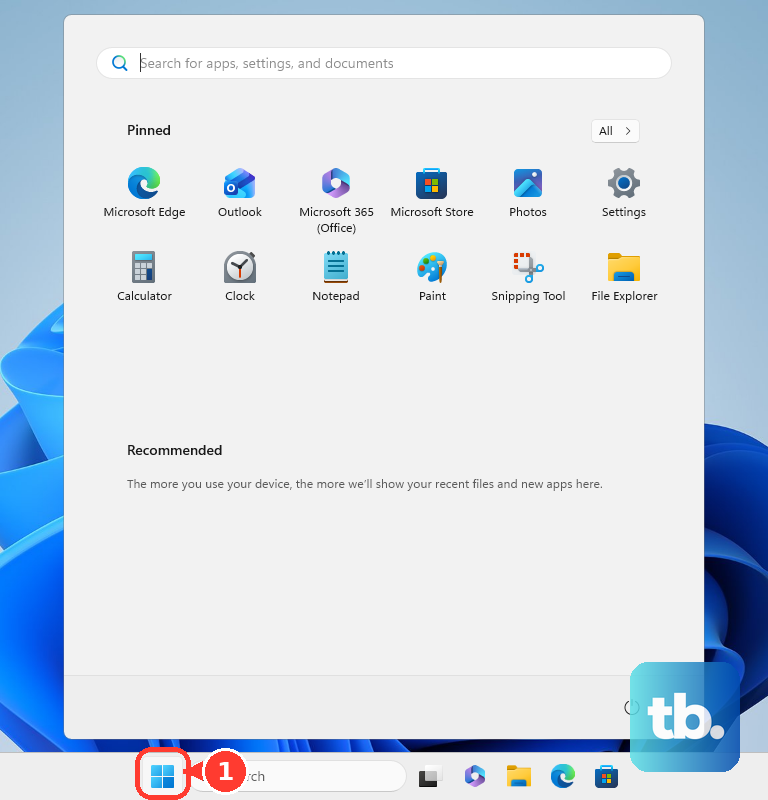
Check the notification area's Show hidden icons arrow for the OneDrive cloud. If it is missing, select Start, search for OneDrive, and open it. Complete account setup when prompted; follow the steps to set up OneDrive on Windows if setup is unfinished.
Select the cloud icon for the affected account and read the reported problem. A gray or crossed-out cloud can mean you need to sign in again with the intended account. Sign in only through Microsoft’s own app or website, and never share a code, password, or remote access with someone who contacts you.
Check that you can sign in with that account in a browser too. For a work or school OneDrive site, use your organization's account; a personal Microsoft account cannot substitute for it.
If OneDrive works when opened manually but does not start with Windows, restore automatic startup. On Windows 10, open Start > Settings > Apps > Startup, then set Microsoft OneDrive to On if it is listed.
If OneDrive is missing from that list, create a shortcut in the Windows startup folder instead. Press Windows + R, enter the following command, and press Enter.
shell:appsfolderOpen another Run window with Windows + R. Enter the following command, press Enter, then create a shortcut for the installed OneDrive application in that startup folder.
shell:startupResume syncing and check the connection
For paused syncing, open the paused cloud icon and select the yellow paused-status panel in the activity center. To pause and resume a stuck transfer yourself, open the cloud menu, choose Pause syncing, and select 2, 8, or 24 hours. Then select the yellow panel to resume immediately; handle each account separately if you use more than one.
Restart the app if transfers remain stuck. Select the cloud icon > Help & Settings > Close OneDrive, then launch OneDrive again from Windows search.
If battery saver has paused synchronization on a laptop or tablet, connect the device to power. Alternatively, on Windows 10, open Start > Settings > System > Battery and turn off Battery saver status until next charge. Resume OneDrive afterward if it remains paused.
Turning off a metered connection setting permits additional data usage. If you control the setting, on Windows 10, open Settings > Network & Internet > Wi-Fi, select the connected network, then Properties, and turn off Set as metered connection. For a wired connection on Windows 10, open Settings > Network & Internet > Ethernet, select the connected network, and turn off Set as metered connection.
Try connecting through a phone hotspot to check whether the original network is blocking the connection. If only the original network fails, contact its administrator or your internet provider. For a possible outage, select Check the OneDrive service status on Microsoft's OneDrive sign-in help page and retry after service recovery.
Slow transfers may reflect a restrictive speed limit. Open OneDrive's Settings, go to the tab for sync and backup settings, expand Advanced settings, and increase the upload or download limits as appropriate, or select Adjust automatically for uploads where available. Your administrator may control these limits for a work or school account.
Leave OneDrive running when it is processing a large initial upload or a large batch of recent changes. Check your connection speed before treating a prolonged Processing changes status as a stalled transfer.
Restore missing folders and offline files
A missing folder may be excluded from local synchronization. Open OneDrive's Settings > Account > Choose folders, check each folder you need locally, and select OK. The checkbox names match your own folders.
Files in Desktop or Documents may be outside OneDrive because folder backup has not been enabled. Open OneDrive's Settings, go to the tab for sync and backup settings, and open the folder backup options. Turn on the desired folder's toggle when its status is Not backed up, then select Save changes.
Online-only files are not themselves evidence of failed syncing. While connected, right-click a needed file in File Explorer and select Always keep on this device to download it for offline access. To download your entire OneDrive folder on this PC, select Download all files in Files On-Demand settings only when you have enough disk space.
You can also access your OneDrive cloud files in a browser while troubleshooting the desktop app. Browser access helps distinguish a desktop failure from an account or service problem, but it does not synchronize local changes that have not uploaded.
Resolve local disk and cloud storage warnings
Local disk space and OneDrive cloud storage are separate limits. For a local disk-full error, release unnecessary downloaded copies before retrying synchronization. Files On-Demand is enabled by default in current OneDrive builds.
Using Free up space removes the downloaded copy while retaining the cloud copy. With Files On-Demand enabled, right-click a synchronized file or folder in File Explorer and select Free up space. Retry syncing once local working space is available.
For a full or frozen personal account, sign in to the account receiving the warning and select Manage your OneDrive storage from Microsoft's frozen-account help page. Review the stored content before deciding what to remove.
Deleting synchronized content also deletes it on connected devices, so preserve needed files elsewhere first. On the OneDrive website, select unwanted items and select Delete. Open Recycle bin, select items you no longer need, and select Delete again.
Fix individual files that will not sync
For a file-in-use error, save the file and close the application using it. Allow OneDrive to retry before changing anything else.
For an unsupported name, select the affected item in File Explorer and press F2. Remove prohibited characters, leading or trailing spaces, or reserved names identified on Microsoft's OneDrive restrictions page.
For an overly long path, shorten file and folder names or move the file nearer the top of the OneDrive folder hierarchy. If File Explorer cannot rename it, rename it on the OneDrive website. Windows and individual applications can have different path limits.
When OneDrive cannot access a file, right-click it and open Properties > Security. Select your account under Groups or user names, then select Edit if a change is needed. If you have authority to change the file's permissions, check Read and Write in the Allow column and apply the change.
A folder marked Sync pending can contain a hidden file causing the delay. In Windows 10 File Explorer, open View, check Hidden items, and inspect the affected folder. If no hidden file explains the problem, create another folder, copy the contents into it, and verify the copies.
Removing the original stuck folder deletes that original, so keep the verified copies in the new folder first. Then remove the original folder.
Changing a temporary file can disrupt the application that created it, so preserve unsaved work first. For a stuck .TMP file, upload it manually through OneDrive's website, rename its extension, or move it outside OneDrive. If you cannot rename it, restart first and try again. Delete it only when you are certain it is unused.
Reconnect your OneDrive account
Unlinking disconnects this PC from the OneDrive account until you sign in again. Select the cloud icon > Help & Settings > Settings > Account > Unlink this PC, then select Unlink account.
Sign in again and complete setup. When reusing the existing location, select Use this folder, then allow synchronization to finish. If the original drive has insufficient space or the location is unsuitable, select Choose new folder during setup to use another suitable local location.
Stale sign-in configuration can require an additional step during this unlinking and relinking procedure. Deleting PreSignInSettingsConfig.json removes that saved sign-in configuration. Press Windows + R, enter the following path, and select OK.
%localappdata%\Microsoft\OneDrive\settingsDelete PreSignInSettingsConfig.json, then reopen OneDrive. Sign in again to complete the reconnection.
Reset the OneDrive sync engine
A desktop reset resets OneDrive's sync engine, and you will need to restore selective-folder choices afterward. Microsoft also includes a preliminary Store-cache reset, which clears that cache. Press Windows + R, enter the following command, and select OK.
wsreset.exeLet the command finish, then close Microsoft Store. Open Run again with Windows + R, enter the desktop reset command below, and select OK.
%localappdata%\Microsoft\OneDrive\onedrive.exe /resetIf Windows cannot find that location, try the next installation path. Enter this command in Run and select OK.
C:\Program Files\Microsoft OneDrive\onedrive.exe /resetIf Windows cannot find that path either, try the following alternative. Enter it in Run and select OK.
C:\Program Files (x86)\Microsoft OneDrive\onedrive.exe /resetReopen OneDrive from Start after the reset. Return to OneDrive's Settings > Account > Choose folders and restore the folders you want synchronized.
Update or reinstall the desktop app
Install the current desktop app from Microsoft's OneDrive download page to update the existing installation. Run the installer and sign in when prompted. This is also the installation route if the desktop sync app is missing.
For available system updates on Windows 10, open Start > Settings > Update & Security > Windows Update, then select Check for updates. Install applicable updates and restart. Update availability depends on Windows servicing and Extended Security Updates eligibility.
Uninstalling removes the OneDrive desktop app, which you must reinstall and sign in to again. If errors persist after resetting, search Start for Add or remove programs. Under Apps & features, select Microsoft OneDrive, then select Uninstall. Install the desktop app from the download page above and sign in again.
For a remaining error, open Microsoft's OneDrive troubleshooting page and select the matching icon or Start troubleshooter. To escalate the problem, select Contact Microsoft Support, describe what is failing, and select Get Help. For a managed work or school account, contact your organization's helpdesk.
Frequently Asked Questions
Does OneDrive still receive updates on Windows 10?
Microsoft specifies OneDrive updates for Windows 10 22H2 through October 10, 2028. Earlier Windows 10 releases stopped receiving OneDrive updates after August 15, 2026, although existing installations may still function.
Why does the OneDrive app show files but never sync Windows folders?
The separate Microsoft Store viewer does not synchronize Windows folders. On Windows 10, open Start > Settings > Apps and search for OneDrive to check the installed application. Microsoft OneDrive is the desktop backup and sync application.
What should you try when uploads fail only in Word or Excel?
Reconnect OneDrive as a service in the affected Microsoft 365 desktop application through File > Account > Add a service > Storage > OneDrive. Sign in with the account authorized to save the file.
Can a very large file or collection cause OneDrive problems?
Each synchronized file must stay within OneDrive's 250 GB limit. For performance, Microsoft recommends no more than 300,000 items in the synchronized cloud content. The newer million-item preview does not include Windows 10.
Can you fix synchronization by running OneDrive as administrator?
Use a normal, non-elevated OneDrive process. OneDrive requires a supported local sync location; network or mapped drives, symbolic links, junctions, and authenticated proxies are unsupported. Ask IT to correct a managed configuration.
How long can a personal account remain frozen after you free storage?
Allow up to 24 hours for a storage quota change to take effect. Contact Microsoft support if the account remains frozen after 48 hours.
Can you stop syncing a folder locally while keeping it in the cloud?
Deselecting a folder removes its local copy while retaining its cloud copy. Open OneDrive's Settings > Account > Choose folders, uncheck the unwanted folder, and select OK. Some protected folders and Personal Vault cannot be deselected.