Your Philips monitor is on, the computer is running, and all you see is a no video input message. The cause is usually a loose cable, the wrong input or a display setting on the computer. The fixes below start with the quickest checks and move on to Windows, Mac and monitor settings.
Start With Power and Cables
Most no-signal messages come from something physical, so rule these out first.
- 1.Make sure the monitor's power cable is secure, then switch the monitor on.
- 2.Confirm the computer is actually running.
- 3.Reconnect the video cable firmly at both ends.
- 4.Look at the connectors for bent or damaged pins, and replace the cable if you find any.
- 5.Unplug the monitor's power, wait at least six seconds, then plug it back in and turn it on.
Pick the Right Input on the Monitor
This fixes a monitor that's set to a different port than the one your cable is plugged into.
Open the on-screen menu (OSD). On the Philips Evnia 27M2N5500, you use the joystick on the back of the monitor.
Go to Input.
Choose the port your cable is plugged into: HDMI 1, HDMI 2, or DisplayPort.
To have the monitor switch to whichever port has a signal, set Input > Auto > On. Other models use different input names and controls, so check your manual if the labels don't match.
Fix a Blank USB-C or DisplayPort Connection
Some ports on a monitor don't accept video. On the Philips 24B2U3601, USB-C video has to go into USB C1, not USB C2, which only handles charging and data. Incoming DisplayPort video belongs in DP IN, not DP OUT.
Your computer's USB-C port also has to support DisplayPort Alt Mode. A port that charges your laptop doesn't necessarily carry video, so check your computer's specifications.
Computers without HBR3 support may need more bandwidth set aside for video. On the 24B2U3601, open USB Setting, choose the submenu shown as USB or USB-C Setting, and select High Resolution. A daisy chain needs a graphics card that supports DisplayPort MST and a second monitor that supports DisplayPort multi-streaming. Connect the first monitor's DP OUT to the second monitor's input, then set Setup > DP Out Multi-Stream > Extend. How many monitors you can chain depends on your graphics card and whether you connect over DisplayPort or USB-C.
If none of that works, connect the monitor straight to the computer with a plain HDMI or DisplayPort cable. That shows whether the problem is the USB-C connection or the monitor.
Wake the Display With Windows Shortcuts
Press Windows+P and choose Extend to turn the external display back on.
If the monitor was working and suddenly stopped, press Windows+Ctrl+Shift+B to reset the graphics driver.
On a working screen, go to Start > Settings > System > Display > Multiple displays and click Detect. If that fails, use Start > Power > Restart, or Shut Down and then turn the PC back on.
Repair Driver and Refresh Rate Problems on Windows
The most common cause here is a graphics driver update or a refresh rate change that the monitor can't handle.
To undo a bad driver update, open Device Manager, expand Display adapters, right-click your graphics card, and select Properties > Driver > Roll Back Driver. You must be signed in with administrator permissions to roll back a driver.
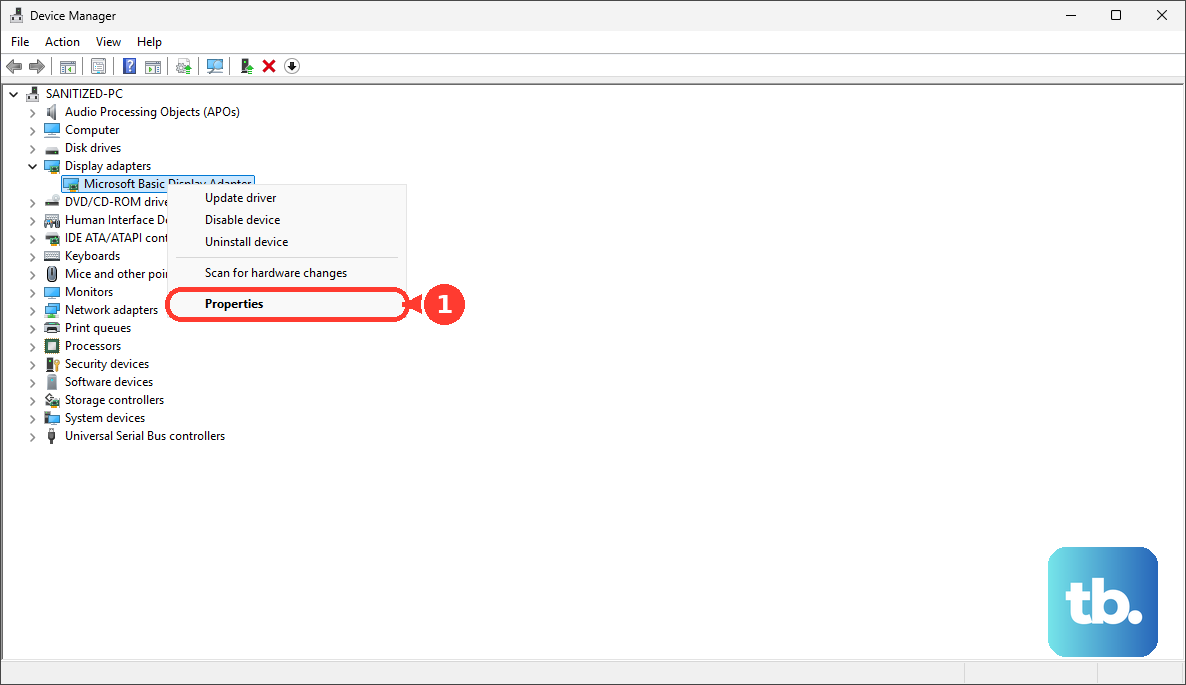
For a newer driver on Windows 11, open Settings > Windows Update > Advanced options > Optional updates, choose Download and install on the graphics driver, and restart. On Windows 10, go to Settings > Update & Security > Windows Update, select Check for updates, then View optional updates if it appears, and install the graphics driver. You can also right-click the GPU in Device Manager and select Update driver > Search automatically for updated driver software.
If that fails, save your work, right-click the GPU, choose Uninstall device, confirm, and restart. Windows will try to reinstall the driver.
For a refresh rate problem, use a working screen. On Windows 11, open Settings > System > Display > Advanced display, select the Philips monitor, and pick a supported rate under Choose a refresh rate. On Windows 10, open Settings > System > Display > Advanced display settings, select the Philips monitor, and pick a supported rate under Refresh rate.
If the boot screen shows but Windows goes blank, open the Windows recovery options. From a working screen, hold Shift while choosing Power > Restart. With no working screen, turn the PC on and hold the power button to force it off before Windows finishes loading. After doing this twice, Windows starts the recovery options on the third start. Go to Troubleshoot > Advanced options > Startup Settings > Restart, then press 3 or F3 for Enable low-resolution video. Encrypted PCs may ask for the BitLocker recovery key.
If the Philips monitor is plugged into an NVIDIA graphics card, open NVIDIA Control Panel > Display > Set up Multiple Displays, check the Philips display, and apply. If it isn't listed, select My display is not shown....
Get a Mac to Detect the Monitor
Unplug the monitor from both the Mac and power, then reconnect it.
Put the Mac to sleep and wake it, or close and reopen the laptop lid.
Restart the Mac if the screen is still blank.
Open Apple menu > System Settings > Displays, hold Option, and click Detect Displays.
On an Apple silicon laptop, unlock the Mac, reconnect the monitor, and click Allow when asked. A rejected monitor can still charge the Mac without showing video.
To change that behavior, open Privacy & Security > Accessories > Allow accessories to connect and choose a policy such as Automatically allow when unlocked.
Skip the dock and connect directly with a cable or adapter that supports your resolution and refresh rate.
If the screen went blank after a resolution change, wait 15 seconds or press Esc. If it stays blank, start in safe mode, choose Default under System Settings > Displays, and restart normally.
Tip: with the lid closed, the Mac needs to be plugged into power and have an external keyboard and mouse connected.
Unlock, Reset, or Update the Monitor
If the monitor's buttons don't respond, the controls may be locked. On the 24B2U3601, turn the monitor off, then hold the menu/OK button while pressing power.
A factory reset clears wrong monitor settings but can't fix a missing signal from the computer. On the 27M2N5500, choose Setup > Reset > Yes, then select your input again.
On the 32M2N6800MD, fix a blank MultiView pane under System > PIP/PBP > PIP/PBP Input, or set PIP/PBP Mode to Off. That model also supports firmware updates from a Windows PC through Philips Evnia Precision Center, but not every Philips monitor does.
Skip the old AUTO button. It only adjusts the picture on older analog monitors and does nothing for HDMI or DisplayPort.
Isolate the Faulty Part
Swapping parts one at a time shows whether the monitor, the cable or the computer is at fault.
Try a video cable you know works.
Plug the monitor into a different video output on the computer.
Remove docks, dongles and adapters, and connect directly.
Connect a different computer. If it also gets no picture, the monitor is the likely problem.
On a Surface, open the Surface app, expand Help & support, and select Check for updates.
On a managed work laptop or Mac, contact your IT administrator, because company policy can block accessories.
If every test points to the monitor, contact Philips customer service with your exact model number and the results of your cable and computer swaps.
Frequently Asked Questions
Why does my Philips monitor say no video input when the cable is plugged in?
The monitor is usually set to a different input than the port you're using, or the computer isn't sending a signal. Choose the correct input in the OSD or turn on Auto input, then check the cable and the computer.
Can a USB-C cable that charges my laptop also carry video?
Not always. Your laptop's USB-C port has to support DisplayPort Alt Mode, and on some Philips models only certain USB-C ports accept video.
Will a factory reset fix a missing signal?
Only if a wrong monitor setting is the cause. A reset can't fix a bad cable or a computer that isn't sending video. Select your input again after the reset.
Does the AUTO button fix no input on HDMI?
No. On older Philips analog monitors, AUTO only adjusts the picture and doesn't work with digital inputs like HDMI or DisplayPort.