

To fix Netflix profiles not loading on your TV, fully restart the TV or streaming player, then sign out of Netflix and sign back in if loading still fails. Next, check your connection and update Netflix and your device software. If Netflix displays a Profile Lock PIN or Household restriction, follow the steps for that message.
The short version
- Restart fully: Disconnect the TV or player from power to restart it completely.
- Refresh your session: Sign out of Netflix and sign back in to address profile-switching errors.
- Check the connection: Open another internet-connected app to check whether the problem extends beyond Netflix.
- Match the message: Follow PIN and Household procedures only when those restrictions appear.
| Fix | When to use it | Next action |
|---|---|---|
| Restart the device or app | Profiles stay stuck loading | Disconnect power or use an offered reload control |
| Refresh the Netflix session | Profile switching fails | Sign out on the TV or through your account |
| Repair the connection | Netflix or other apps cannot connect | Check the network and restart network equipment |
| Resolve a specific profile message | A PIN, Household or connection error appears | Follow the procedure for that exact condition |
| Update apps and software | Restarting and signing in do not help | Use your platform’s update controls |
| Repair the Netflix installation | Loading still fails after updates | Force-stop, clear data or reinstall where supported |
| Get further help | Earlier fixes fail or device support has ended | Contact Netflix or use a supported player |
Restart the TV or streaming player completely
Disconnect your smart TV or streaming player from power. Press its physical Power button once, then wait one minute before reconnecting it; alternatively, leave it disconnected for three minutes. Turn it back on, open Netflix, and try the affected profile again. Standby alone does not perform this restart.
On a compatible Samsung smart TV, hold the remote’s Power button until the TV switches off and restarts, which takes approximately five seconds. For a Fire TV with a removable power connection, unplug its power adapter for one minute, reconnect it, and reopen Netflix.
On Google TV, you can restart through Settings > System > Restart. On Roku, press Home, then open Settings > System > Power > System restart, skipping Power if it is absent. Alternatively, disconnect your Roku from power for ten seconds and reconnect it.
Netflix also offers restart controls on some smart-TV error screens. If you see Unable to connect to Netflix with a reload option, select More Details > Reload Netflix. When the error screen offers exit controls instead, select Exit, or select More Details > Exit Netflix, then launch the app again.
Sign out of Netflix and sign back in
Netflix recommends signing out and back in for profile-switching errors on supported TV devices. Sign in only through Netflix’s own app or website, and never share a code, password, or remote access with someone who contacts you.
From Netflix’s home screen, press Back. With the top-menu layout, go left to the profile icon; with the left-menu layout, go to the bottom. Select Get Help > Sign out, then select Yes. Sign back in and retry the profile.
On Netflix-compatible Apple TV HD and Apple TV 4K using the current interface, press Back from Netflix’s home screen and go left to the profile icon. Select Get Help > Sign out, then select Yes and sign back in.
If you cannot reach those menus on a supported Netflix TV interface, press Up, Up, Down, Down, Left, Right, Left, Right, Up, Up, Up, Up. Netflix excludes Apple TV from this shortcut.
The shortcut’s session controls require you to sign back in afterward. Select Sign out, Reset, or Deactivate, whichever is offered, then sign back in and retry the profile.
Resetting the Netflix session from an error screen also requires you to sign back in. If the screen offers these controls, select More Details, then Sign out or Reset, whichever appears. Sign back in and retry the profile; this route includes error tvq-st-149 when those controls are present.
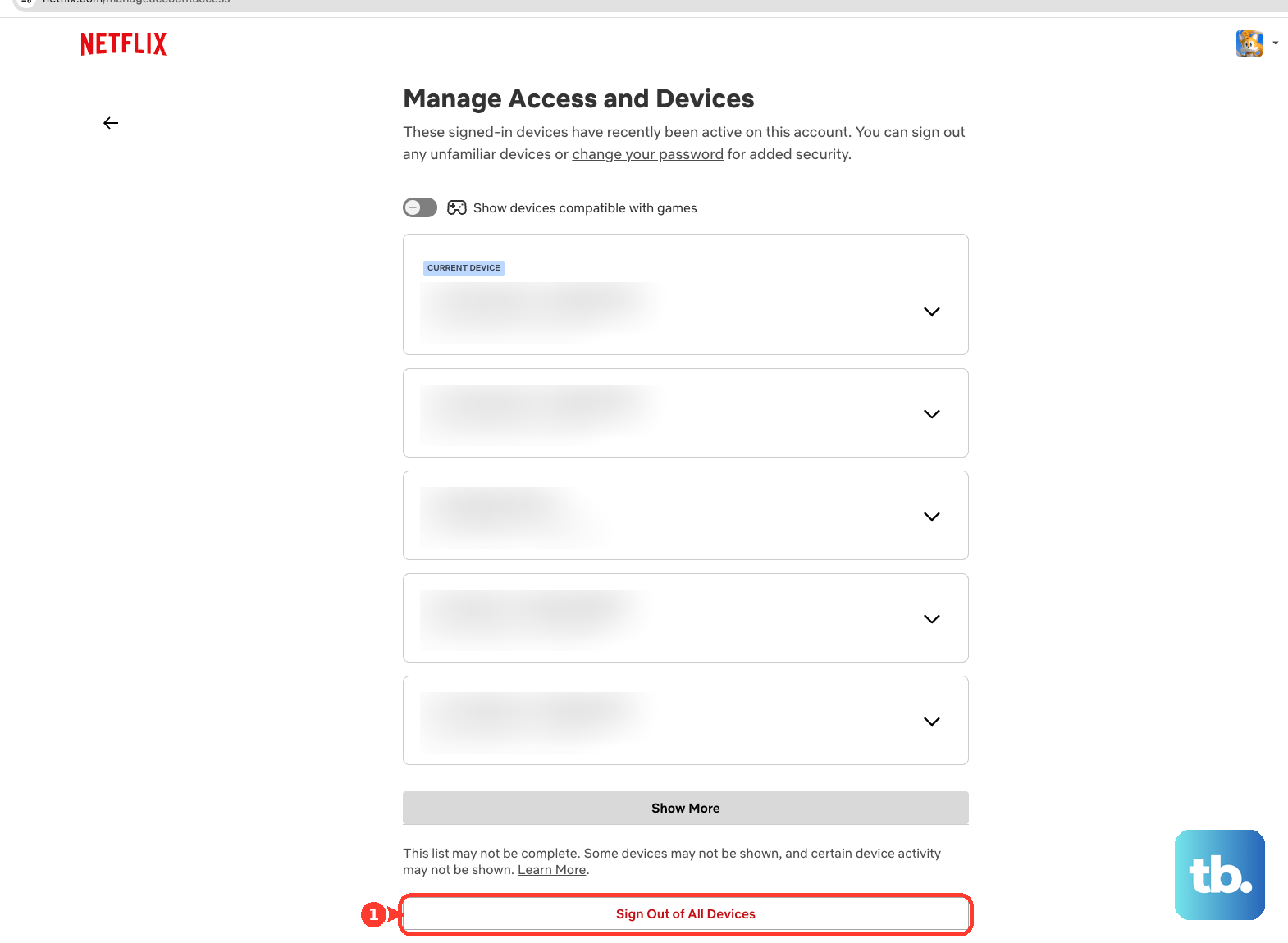
With an active account, you can also open Netflix’s Manage Access and Devices page in a browser when the TV menus cannot be reached. Expand the affected device using its down arrow, select Sign Out, and sign back in on the TV. Devices can take up to 48 hours to appear, and some are omitted.
Signing out of all devices means every device will need to sign in again. If targeted sign-out is unavailable, you can sign out of Netflix everywhere: open Manage Access and Devices, select Sign Out of All Devices, then select Sign Out. Sign back in on the TV and retry.
Check the connection before changing profiles
Launch another internet-connected app on the TV or streaming player. If that app also fails, troubleshoot the device’s network connection before changing Netflix profiles. Check Netflix’s service-status page as well; when an interruption is reported, retry after Netflix resolves it. Otherwise, search Netflix’s Help Center for any displayed error code.
If you can reach Netflix’s home screen, press Back and open the profile icon in the top-menu layout or move to the bottom of the left menu. Select Get Help > Check your Network. If Get Help is absent, look under Settings. Skip this test when the stuck profile screen prevents access.
For a home-network connection failure, turn off the TV and disconnect the modem and router from power for 30 seconds. Reconnect the modem and wait for its indicator lights to settle, then do the same for a separate router. Turn on the TV and retry Netflix. For unstable Wi-Fi, move the router closer to the TV, away from wireless interference, and into an open, elevated position.
On Google TV, open Settings > Network & Internet and check Wi-Fi and the selected network. You can instead connect by Ethernet if your device has a compatible port or adapter. On Roku, open Settings > Network > About; if disconnected, select Set up connection, then select Check connection once connected.
For LG webOS 6.0 through webOS 25, open Settings > All Settings > General > Network, then select Wi-Fi Connection or Wired Connection (Ethernet). On 2026 and newer LG TVs running webOS 26 or later, open Settings > All Settings > System > Network > Wi-Fi Connection instead. Check the connection status, or temporarily connect to a phone hotspot to distinguish a home-network problem from a TV problem. Older LG models use different paths, so ask LG for instructions for your model.
Follow the fix for a specific profile message
If a Profile Lock PIN is blocking access, select Forgot PIN? on the PIN screen to begin recovery. Alternatively, open your Netflix account and select Profiles, the affected profile, then Profile Lock. Select Edit PIN, verify your identity, enter a replacement PIN, and select Save PIN.
If the TV has not picked up changed Profile Lock settings, switch to another profile and return to the affected one. Alternatively, sign out of Netflix on the TV and sign back in. Use these steps for a PIN restriction or changed lock settings.
For an explicit Netflix Household restriction, connect to your home internet and open Netflix’s menu. Select Get Help or Settings, then Manage Netflix Household > Update Netflix Household. Select Send Email, or Send Text if offered. If Manage Netflix Household is absent, use another TV device.
Open the verification message and select Yes, This Was Me, then select Confirm Update. The verification link expires after 15 minutes.
Netflix also recommends removing special characters from a profile name when a streaming player displays Unable to connect to Netflix. On Netflix.com, open Manage Profiles, select the affected profile, and select Edit. Remove apostrophes, symbols, or emojis from the profile name, then retry Netflix on the TV.
Update Netflix and your device software
On Samsung TVs and projectors with this update menu, open Settings > Support > Software Update > Update Now. Leave power connected until installation finishes. Reopen Netflix afterward and try the profile.
For Google TV, search the TV for Google Play Store and open it. Select the profile picture or initial, then Manage apps & games > Updates > Update all. To check system software too, open Settings > System > About > System update > Check for update and install available updates.
On Fire TV, open Settings and select My Fire TV or, if that is not shown, the device and software settings entry. Select About > Check for System Update. After updating, reopen Netflix.
On Roku, press Home, highlight Netflix, press Star, and select Check for Updates. For the Roku system update, press Home and open Settings > System > Software update > Check now. Retry Netflix after completing the updates.
On supported Apple TV models running tvOS, open Settings > System > Software Updates > Update Software. Select Download and Install when an update is offered. On a compatible LG webOS TV, press Home and select Netflix to check its update flow.
Repair the app on your TV platform
On Google TV, open Settings > Apps > Netflix > Force stop, select OK, and reopen the app. On Netflix-compatible Apple TV HD and Apple TV 4K, double-press TV/Home, move to Netflix in the app switcher, and swipe up, then reopen Netflix.
Clearing Netflix data on Google TV clears its local app data and may require you to sign in again. If force-stopping does not help, open Settings > Apps > See all apps > Netflix > Clear data. Reopen Netflix and sign in as needed.
Clearing Netflix cache and data on Fire TV removes that app’s cached and local data. On Fire TV devices offering these controls, open Settings > Applications > Manage Installed Applications > Netflix, then select Clear Cache followed by Clear Data. Reopen Netflix afterward.
Deleting Netflix on Samsung removes the app. On compatible Samsung smart TVs and projectors, open Apps > Settings > Netflix > Delete; if deletion is unavailable, select Reinstall. To download Netflix again after deletion, press Return, search for Netflix, and select Install.
Removing Netflix on Roku removes the app from the device. Press Home, highlight Netflix, press Star, select Remove app, and complete the confirmation. Reinstall Netflix through the device’s app store. Removal can be unavailable with an active Roku-billed subscription; if that blocks this step, contact Netflix support for the continuing profile problem.
Deleting Netflix on Apple TV removes the app and its app data. On Apple TV 4K with the current deletion menu, highlight Netflix on the Home Screen and hold the Clickpad or Touch surface, then select Delete App and Delete. Open App Store, find Netflix, and select Get or Install.
Removing Netflix on a compatible LG webOS TV removes the installed app. If updating does not help, highlight Netflix and hold Wheel (OK) to enter app removal, then follow the on-screen removal prompts. Reinstall Netflix through the TV’s app store; if Netflix is unavailable there, check with LG.
Get help when profiles still will not load
For a persistent profile-specific failure, open Netflix’s Help Center and select Contact Us. Report the error, affected profile, TV model, and troubleshooting already completed.
For a TV, cable box, or streaming player whose menus differ from these paths, ask the manufacturer or provider for model-specific firmware-update instructions. If Netflix displays R40, R12, R25-9, or an end-of-support message, use a supported HDMI streaming player, cable box, or console with Netflix.
Frequently Asked Questions
What if the Google TV profile selector looks frozen because the remote is not responding?
Remove and reinsert the remote batteries. Under Settings > Remote & Accessories, select the remote and install an offered update. Use these steps when failed remote input makes the profile selector appear frozen.
Can an LG agreement prompt prevent Netflix from working?
LG says the Terms of Use and Privacy Policy agreements are required for Netflix; other agreements are optional. On TVs showing the updated agreement flow, open Settings > Privacy & Terms > User Agreements, review the agreements, select Terms of Use and Privacy Policy, then select Agree. If the update prompt appears first, select Restart, then select Go to Terms and Conditions. Menus vary by model.
Does offloading Netflix on Apple TV do the same thing as deleting it?
Offloading preserves app data, so it is not equivalent to deleting Netflix. When following the deletion procedure on Apple TV 4K, select Delete App, then select Delete.
Can Netflix be restored on a second or third generation Apple TV?
Netflix support for Apple TV second-generation and third-generation hardware has ended, so use a supported player instead. This restriction does not refer to the generations of Apple TV 4K.
What should you do if Netflix fails on a hotel or school network?
Ask the network administrator whether Netflix or video streaming is blocked. Request an allowed connection if necessary; the administrator controls those network restrictions.
Can Apple TV install future software updates automatically?
On supported Apple TV models running tvOS, open Settings > System > Software Updates. Enable Automatically Update for future software updates.