Your second screen is plugged in, but the computer acts like nothing is there. The fix is usually hiding in one of five places: the cable, the monitor input, the display mode, the graphics driver, or the dock.
Start with the quick checks that work across every setup, then jump to the Windows, Mac, or Chromebook section for the controls that match your device.
1. Rule Out the Monitor and Cable
Do this first: a loose cable or wrong input source creates the same “monitor not detected” problem as a bad driver, and it takes two minutes to check.
Unplug the monitor from the power outlet, then plug it back in.
Turn off the monitor and computer.
Check the video cable at both ends.
Open the monitor’s built-in menu with its buttons or joystick.
Select the correct Input Source, such as HDMI, DisplayPort, USB-C, DVI, or VGA.
Adjust Brightness and Contrast from the monitor menu when the display is detected but dark.
Try a different video cable.
Try another video output port on the computer.
Connect the monitor directly to the computer instead of through a dock, dongle, hub, or adapter.
Test the monitor with a different computer.
Do not use a basic display splitter when you want independent extended screens. Splitters duplicate the same signal; use a dock, a graphics-supported port, or a USB display adapter for separate desktops.
2. Switch the Windows Projection Mode
Press Windows logo key + P.
Select Extend to use the monitor as a second desktop.
Select Duplicate to show the same image on both screens.
Select Second screen only to use only the external monitor.
Windows can be connected to the display and still send video to the wrong screen mode, so use the projection shortcut before digging into drivers.
If the screen goes black or the picture does not come back cleanly, press Windows logo key + Ctrl + Shift + B. Windows resets the graphics driver, and the screen can flicker or beep while it does it.
3. Restart Windows and Install Updates
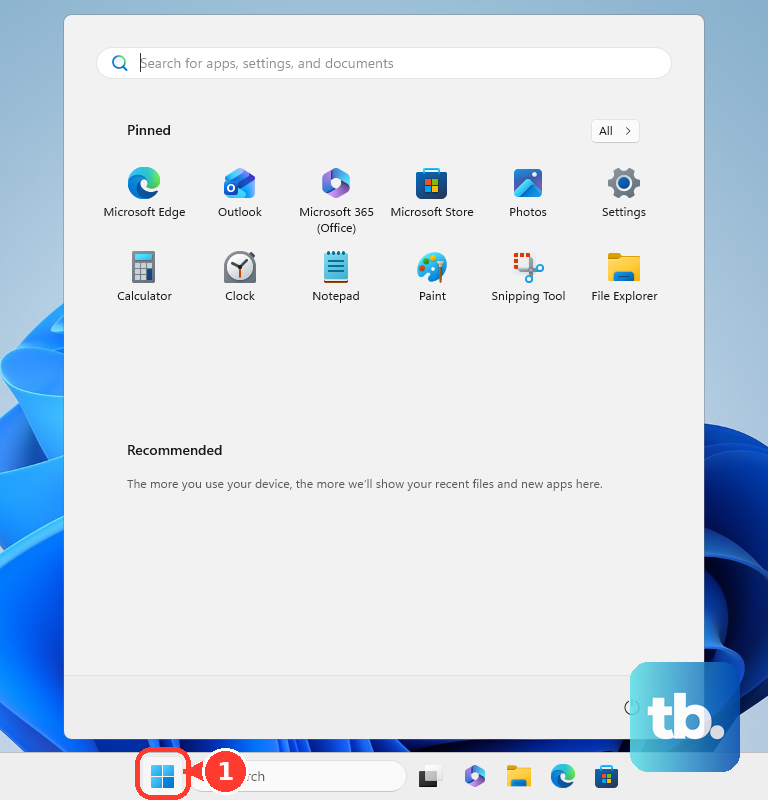
A restart clears display handoff problems after sleep, docking, and driver changes. On Windows 11, select Start > Power > Restart. If the monitor is still missing, select Start > Power > Shut Down, then turn the PC back on.
Next, update Windows:
- 1.Open Start > Settings > Windows Update.
- 2.Select Check for updates.
- 3.Install available updates.
- 4.Restart when Windows prompts you.
Then check driver updates delivered through Windows Update. Open Start > Settings > Windows Update > Advanced options > Optional updates. If driver updates are listed, select them, then select Download and install.
4. Repair the Windows Display Driver
Find the adapter: type device manager in the taskbar search box, select Device Manager, expand Display adapters, then note the manufacturer and adapter name.
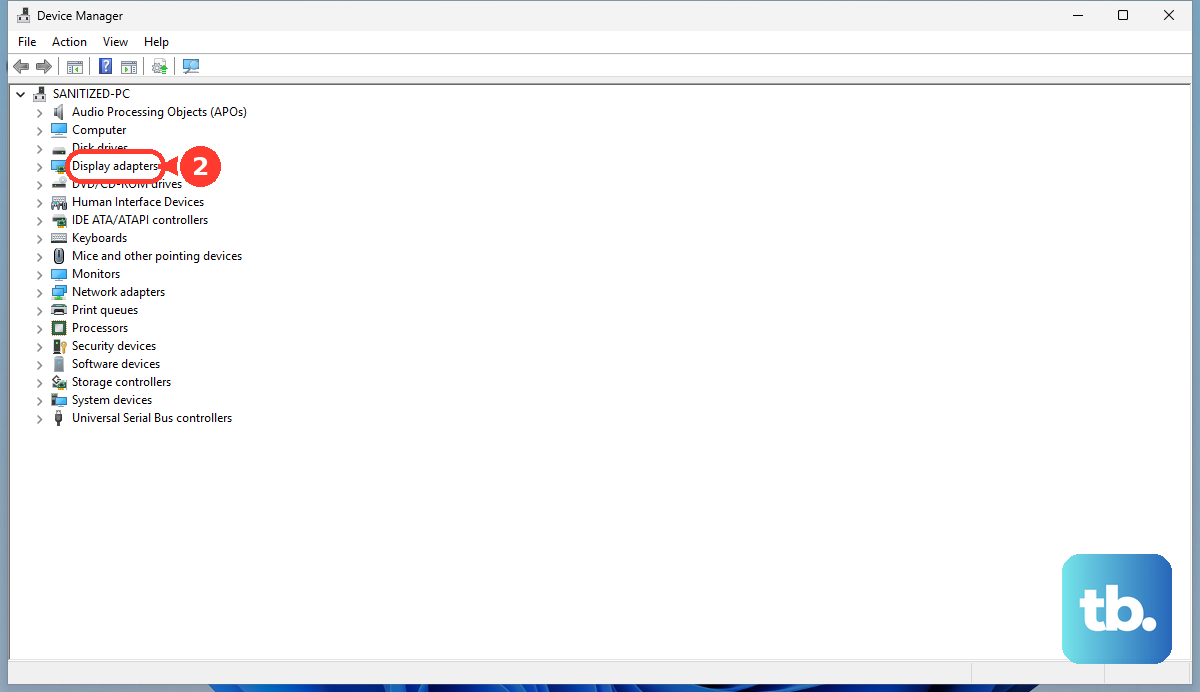
Roll back the driver: in Device Manager, expand Display adapters, right-click the display adapter, then select Properties > Driver > Roll Back Driver.
Reinstall the driver: in Device Manager, expand Display adapters, right-click the display adapter, select Uninstall device, choose Attempt to remove the driver for this device, then select Uninstall. Restart when prompted.
Search for a fresh driver: open Device Manager again, expand Display adapters, right-click the display adapter, select Update driver, then choose Search automatically for updated driver software.
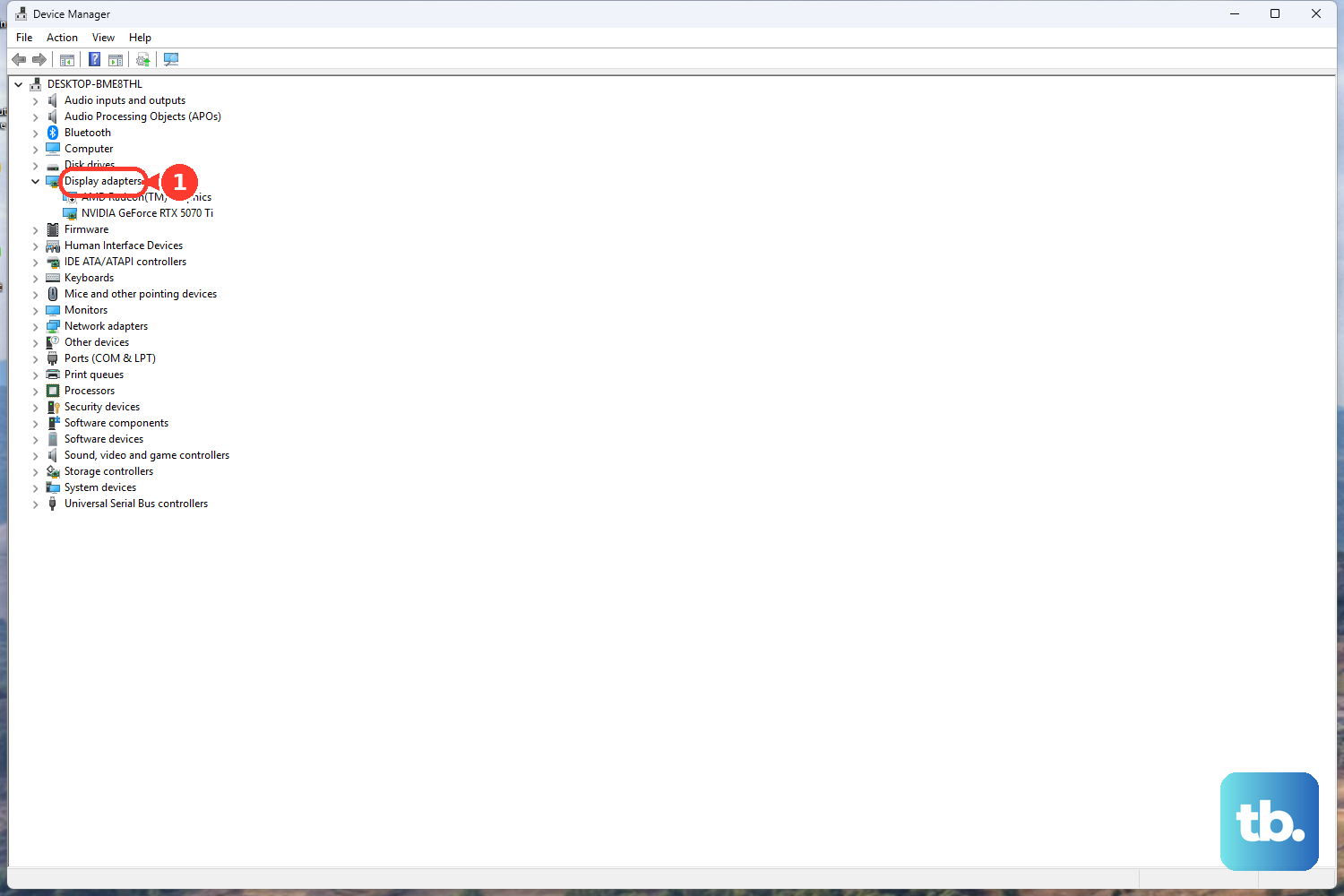
When the problem starts right after an update, the graphics driver gets top billing. Device Manager gives you the fastest official repair path.
Use official driver pages when Device Manager does not solve it. Dell PCs can use Detect This PC or a Service Tag on Dell Drivers & Downloads. Intel users can run Intel Driver & Support Assistant. NVIDIA users can download the correct driver for their GPU and operating system. AMD users can use Auto-Detect and Install or search by product; AMD Cleanup Utility removes old AMD graphics software before a fresh reinstall.
5. Enable the Display in the Graphics App
The monitor can be physically connected and still disabled inside the graphics control app.
On Intel graphics, open Intel Graphics Software on newer systems with 12th Gen or Intel Arc graphics, or Intel Graphics Command Center on other supported systems. Intel Graphics Control Panel is a legacy app that only remains where it was already installed, so do not count on installing it. Confirm the external display is enabled, then try a different Resolution and update the Intel graphics driver.
On NVIDIA systems, open NVIDIA Control Panel. Under Display, select Set up Multiple Displays, then check the box next to the inactive display you want to use. For HDMI and TV setups that still do not appear, swap the video cable.
6. Make macOS Detect the Display
Disconnect the display from your Mac and from power, then reconnect it.
Put your Mac to sleep, then wake it.
On a Mac laptop, close the lid for a few seconds, then open it again.
Open Apple menu > System Settings > Displays.
Hold Option so Detect Displays appears, then click Detect Displays.
Restart your Mac.
If the Mac will not restart, press and hold the power button for about 10 seconds, then press it again to turn the Mac back on.
Mac display fixes are split between reconnecting the hardware, forcing detection, and approving newer USB-C or Thunderbolt accessories.
For USB-C, Thunderbolt, or docked displays on Mac laptops with Apple silicon, unlock the Mac and click Allow when macOS asks about the accessory. To change the setting, open Apple menu > System Settings > Privacy & Security > Accessories, then use Allow accessories to connect.
For closed-lid use, keep the Mac laptop connected to power and use an external keyboard and mouse. Install updates from Apple menu > System Settings > General > Software Update.
7. Fix Chromebook Display Settings
Once the cable and input checks are done, use the Chromebook display controls.
Select the time at the bottom right, then open Settings.
Go to Device > Displays.
Select Mirror Built-in Display when you want both screens to match.
Select the monitor name to adjust Display and text size, Orientation, Resolution, or refresh rate.
Press and hold Decrease brightness to show the Chromebook screen only on the monitor.
Use the correct adapter when the Chromebook and monitor ports differ, such as DisplayPort to HDMI.
Use a compatible dock and stay within your Chromebook model’s supported external monitor limit.
Update ChromeOS from Settings > About ChromeOS > Check for updates, then restart when prompted. Use a hardware reset after the other fixes. A hardware reset restarts the Chromebook hardware, such as the keyboard and touchpad, and might delete some files in your Downloads folder. Turn off the Chromebook, press and hold Refresh, tap Power, then release Refresh when it starts.
8. Reconnect Wireless Displays and Docks
Wireless displays add Wi-Fi, Miracast support, and pairing state to the usual monitor problems. On Windows 11, press Windows logo key + K to check wireless display support.
Select the Network, Sound, or Battery icons on the right side of the taskbar, then turn on Wi-Fi. Confirm the wireless display supports Miracast and is turned on.
To reset the pairing, open Settings > Bluetooth & devices > Devices. Under Wireless displays & docks, select the wireless display or adapter, choose Remove device, then reconnect it.
When another PC is the wireless display, install the Wireless Display optional feature on that target PC, which is available on Windows 11 version 22H2 and later; on earlier Windows, use the Connect app instead. Then open Settings > System > Projecting to this PC and configure discovery. If it is not discoverable, type wireless display in taskbar search and open it.
On managed devices, the last step belongs to the administrator. Supervised Mac laptops with Apple silicon can have accessory approval controlled by policy. On Chromebook, check Settings > About ChromeOS > Additional details; when updates are managed by an administrator, contact your IT team.
Frequently Asked Questions
Why is my second monitor detected but black?
The display can be on the wrong input, set too dim, or using an unsupported resolution or refresh rate. Select the correct Input Source on the monitor, raise Brightness and Contrast, then choose a supported resolution in the computer’s display settings.
Why did my monitor stop working after a driver update?
The new display driver can break detection. In Windows, open Device Manager, expand Display adapters, use Roll Back Driver when available, or uninstall and reinstall the display driver.
Why will my Mac not detect a USB-C monitor through a dock?
Connect the display directly to the Mac first. On Apple silicon Mac laptops, unlock the Mac and click Allow for the USB or Thunderbolt accessory, then check Privacy & Security > Accessories.
Can a Chromebook use more than one external monitor?
Yes, but the supported count depends on the Chromebook model and dock. Google lists a range of 1 to 3 external monitors depending on the device.











