
Windows not detecting devices turns a simple plug-in into a dead end. The cause is usually a loose connection, a missing driver, a blocked permission, or the wrong Windows setting. Start with the quick checks, then move through Windows Update, Device Manager, and the settings that match your device.
1. Restart Windows after reconnecting the device
A clean reconnect and restart clears the basic Windows detection problems before you spend time changing drivers.
Disconnect the device from your PC.
Reconnect it firmly.
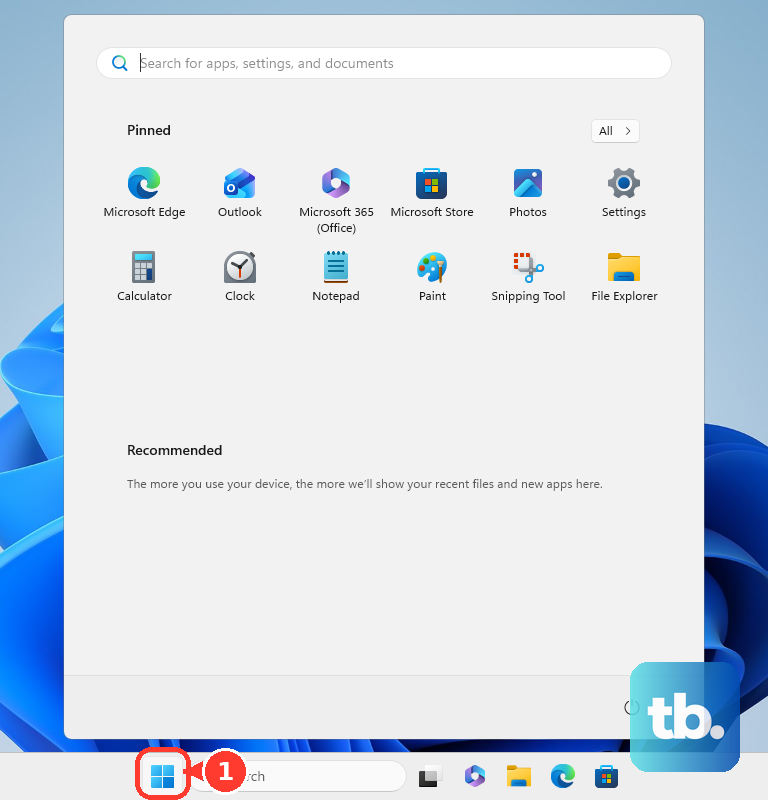
Select Start > Power > Restart.
For a printer, turn the printer off, unplug it, wait 30 seconds, plug it back in, turn it on, then restart Windows.
2. Rule out the cable, port, dock, and power
Use the cable that came with the device or a certified cable.
Connect the device directly to the PC instead of using a dock, dongle, or adapter.
Try another USB port or video output port.
Plug in the device's own power adapter if it has one.
Disconnect unused USB devices, then reconnect the missing device.
Test one change at a time so you know what fixed it. For an external monitor, use the monitor's Input or Source menu and choose the connected port, such as USB-C, DisplayPort, or HDMI.
3. Install Windows and driver updates
If the connection checks out, let Windows pull the current hardware updates first.
- 1.Select Start > Settings > Windows Update > Check for updates.
- 2.Install every available update, then restart.
- 3.Go back to Start > Settings > Windows Update > Advanced options.
- 4.Turn Receive updates for other Microsoft products on.
- 5.Under Additional options, select Optional updates.
- 6.Select any listed driver updates, choose Download and install, then restart.
4. Refresh the device in Device Manager
Device Manager is the next stop when Windows still acts like the hardware is missing.
Right-click Start, then select Device Manager.
If the category is missing, select View > Show hidden devices, then Action > Scan for hardware changes.
If the device appears disabled, expand its category, right-click the device, then select Enable device.
To update the driver, right-click the device and select Update driver > Search automatically for updated driver software.
If Windows shows Search for updated drivers on Windows update, select it and follow the prompts.
If Windows Update does not find a driver, download the correct driver from the device manufacturer's official site.
Then open Device Manager, right-click the device, select Update driver > Browse my computer for drivers > Browse, choose the driver folder, select OK, then select Next.
Skip non-manufacturer driver sites.
5. Reinstall or roll back the driver
Use this when the device appears in Device Manager but still fails, or when the problem started right after a driver update.
Right-click Start, then select Device Manager.
Expand the device category.
Right-click the device and select Uninstall device > Uninstall.
Right-click Start, then select Shut down or sign out > Restart.
If the device does not reinstall, open Device Manager, then select Action > Scan for hardware changes.
To undo a bad driver update, right-click the device in Device Manager, then select Properties > Driver > Roll Back Driver.
Choose a reason, select Yes, then restart if Windows prompts you.
This requires administrator access and a previous driver stored on the PC.
6. Pair Bluetooth devices the Windows 11 way
For headphones, mice, keyboards, speakers, phones, printers, and scanners, turn Bluetooth on before you try pairing again.
Select Start > Settings > Bluetooth & devices, then switch Bluetooth on.
Turn on the Bluetooth device and put it in pairing mode.
Select the Network, Sound, or Battery icon next to the time.
Select the Manage Bluetooth devices chevron on the Bluetooth quick setting.
Choose the device under New devices.
Follow the prompts, then select Done.
If the device is in pairing mode but does not appear, go to Start > Settings > Bluetooth & devices > Devices.
Under Device settings, set Bluetooth devices discovery to Advanced, then pair it again.
For a Swift Pair device, make it discoverable, select Yes when Windows asks to allow Swift Pair, then select Connect in the notification.
7. Add printers, scanners, cameras, and monitors from their own settings
Some hardware needs its own Windows entry point, so jump to the one that matches the missing device.
Printer or scanner: Select Start > Settings > Bluetooth & devices > Printers & scanners.
Next to Add a printer or scanner, select Add device.
Choose Add device next to the device, or select Add a new device manually.
Printer reinstall: Open Printers & scanners, select the printer, choose Remove, confirm, restart, then add it again with Add device.
Shared printer: Open Printers & scanners > Add device > Add manually > Select a shared printer by name, enter the shared printer path, then follow the prompts.
Network printer discovery: Go to Start > Settings > Network & internet > Advanced network settings > Advanced sharing settings.
Turn on Network discovery and File and printer sharing.
External display: Press Windows logo key + P, then select Extend.
If the display stopped working, press Windows logo key + Ctrl + Shift + B, then restart Windows.
Disabled camera: Select Start > Settings > Bluetooth & devices > Cameras.
Under Disabled cameras, select the camera, then choose Enable.
Scanner app: Install Windows Scan from the Microsoft Store if Scan does not appear in Search.
Turn on the scanner, right-click Start > Search, type Windows Scan, select Scan, then choose the detected scanner.
8. Fix app permissions, missing drives, and managed PC blocks
Narrow the problem by where it fails. If Windows sees the device but an app does not, fix permissions or select the device inside the app.
If File Explorer misses a drive, use Disk Management.
If a work or school PC blocks the same hardware that works elsewhere, management policy is the culprit.
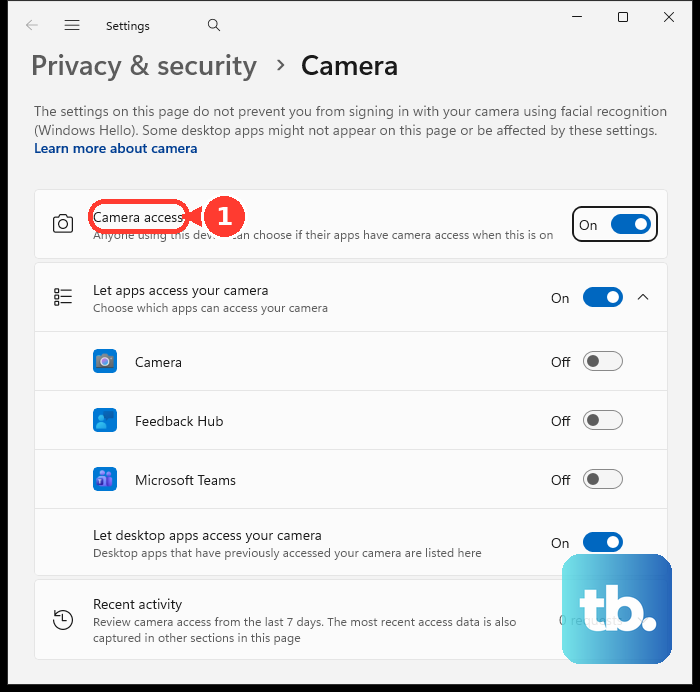
For camera access, go to Start > Settings > Privacy & security > Camera.
Turn on Camera access, Let apps access your camera, the app's individual toggle, and Let desktop apps access your camera.
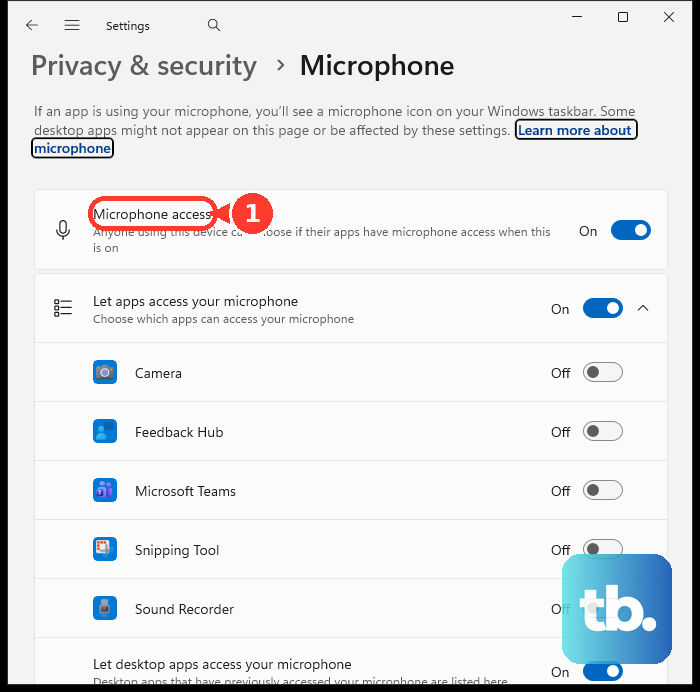
For microphone access, go to Start > Settings > Privacy & security > Microphone.
Turn on Microphone access, Let apps access your microphone, the app's individual toggle, and Let desktop apps access your microphone.
Microsoft Edge: When a website asks for camera or microphone permission, select Allow.
To reverse a block, open Settings > Cookies and site permissions > All sites, select the site, then set Camera and Microphone to Allow.
Google Chrome: Select More > Settings > Privacy and security > Site settings.
Select Camera or Microphone, choose the correct device, then allow the site or remove it from the blocked list.
Microsoft Teams: Select Settings and more next to your profile picture > Settings > Devices, then choose the correct speaker, microphone, and camera.
Zoom: In the Zoom desktop app, select your profile picture > Settings.
Use Video & effects to choose the camera and Audio to choose or test the speaker and microphone.
For a drive that Windows detects but File Explorer does not show, open Disk Management.
Right-click the disk and select Online if it is offline.
To prepare a new disk, right-click the disk, select Initialize Disk, confirm the correct disk, then select OK.
To make storage appear in File Explorer, right-click unallocated space and select New Simple Volume, then choose Next, size, Next, drive letter, Next, format options, and Finish.
For internal drives or CD/DVD drives that Windows does not recognize, enter the PC's BIOS or UEFI using the manufacturer's documented key or recovery menu.
Verify the device is activated, then install current chipset or storage drivers from the PC or device manufacturer's site.
On managed Windows 11 PCs, device installation restrictions, camera policy, and Bluetooth proximity policy can block detection or pairing.
Ask the IT admin to review Device Installation Restrictions, Allow Use of Camera, and AllowPromptedProximalConnections, the Bluetooth policy that governs Swift Pair and other proximity-based connections.
Use the current Get Help app for built-in troubleshooting.
Open Get Help, search for Bluetooth troubleshooter, camera troubleshooter, printer troubleshooter, audio troubleshooter, then select Start and follow the prompts.
For network issues, search for connect to network and internet, then select Run network diagnostics.
Skip the old Hardware and Devices troubleshooter and msdt.exe /id DeviceDiagnostic.
Microsoft lists Hardware and Devices among removed legacy inbox troubleshooters, and the MSDT platform is being removed.
Frequently Asked Questions
Why does Windows detect my camera or microphone but the website still cannot use it?
Windows permission and browser permission are separate. Turn on access in Windows privacy settings, then allow the site in Edge or Chrome and choose the correct camera or microphone there.
What is the safest place to get a missing device driver?
Use Windows Update first. If that does not find the driver, download it from the PC maker or device manufacturer's official support site.
Why does my Bluetooth device show up only after changing discovery to Advanced?
Windows 11 has a Bluetooth devices discovery setting. Setting it to Advanced makes Windows look for devices that do not appear in the standard pairing list.
Why is my external drive detected but missing from File Explorer?
The drive needs to be online, initialized, formatted, or assigned a drive letter in Disk Management before File Explorer shows it.
Does this apply to Windows 10?
Many older Windows 10 paths still exist, but Microsoft support for Windows 10 ended on October 14, 2025. These steps use current Windows 11 paths.