

To fix Minecraft Launcher update errors on Mac, quit and reopen the launcher while connected to the internet, then reinstall it from the official Mac download if updating still fails. Minecraft Launcher automatically updates when you start it. Try these fixes before changing network settings or removing saved game data.
These steps apply to the official launcher for Minecraft: Java Edition on macOS. Use the conditional fixes only when they match your symptoms, and leave a full game-data reset until last because it deletes local worlds and other saved files.
The short version
- Retry first: Quit Minecraft Launcher, reconnect to the internet, and reopen it to trigger its automatic update.
- Replace the app: Reinstall the launcher using the official download page’s Mac option.
- Check the Mac: Confirm that macOS meets the launcher’s update minimum and that the startup disk has room.
- Match the symptom: Investigate your connection, installation warning, or permissions only when that problem applies.
- Protect your worlds: Back up Minecraft data before removing its retained folder for a complete reinstall.
| Fix or option | When it applies |
|---|---|
| Retry automatic updating | Start the installed launcher while online |
| Quit and reopen | The launcher can still quit normally |
| Force quit | The launcher is unresponsive |
| Stop the process in Activity Monitor | The process remains after its window closes |
| Restart the Mac | The updater remains stalled |
| Use the power button | The entire Mac cannot restart normally |
| Download the official Mac launcher | You need a replacement installer |
| Uninstall and reinstall the app | Automatic updating keeps failing |
| Remove retained Minecraft data | Simpler fixes fail and your data is backed up |
| Update macOS | Your operating system is unsupported |
| Find Software Update through search | You need another route to macOS updates |
| Accept the Rosetta installation prompt | An Apple silicon Mac needs Intel translation |
| Install Rosetta through Terminal | You have confirmed an Intel component requires it |
| Free storage | The startup disk lacks space |
| Allow identified developers | An App Store restriction blocks installation |
| Allow a trusted app to open | A developer verification warning blocks it |
| Correct file permissions | An affected file has confirmed incorrect permissions |
| Try another network | The update download cannot complete |
| Use a personal hotspot | You need an alternative internet connection |
| Restart or update the router | Your home connection is unreliable |
| Use Wi-Fi diagnostics | You suspect a wireless connection problem |
| Renew the DHCP lease | An address or lease problem affects connectivity |
| Correct the clock | The date or time is wrong |
| Temporarily stop network filtering | Third-party software may block the download |
| Disconnect a VPN | A connected VPN may affect downloading |
| Create a network location | You suspect incorrect network configuration |
| Correct DNS settings | A confirmed name resolution problem blocks access |
| Correct proxy settings | Your proxy configuration is wrong |
| Test safe mode | Startup software may interfere |
| Check login items | Safe mode suggests startup interference |
| Test a fresh macOS account | You suspect user-specific settings |
| Refresh Microsoft sign-in | The launcher opens but authentication fails |
| Contact the administrator | Device or network restrictions are managed |
| Select the latest game release | The launcher works but the game is outdated |
Quit the launcher and retry its update
With Minecraft Launcher active, press Command + Q to quit it. Reconnect to the internet if your connection has dropped, then open the launcher from Finder’s Applications folder. Starting it again triggers the automatic update attempt.
If the launcher is frozen, press Option + Command + Esc, select Minecraft, and click Force Quit, then reopen it. You can also force quit a frozen Mac app through Apple menu > Force Quit. Force quitting can lose unsaved changes.
When the launcher’s window closes but its process remains running, open Activity Monitor and select the stalled Minecraft process under Process Name. Click the Stop button, choose Quit, and use Force Quit only if needed. Open the launcher again after the process stops.
If updating remains stuck, choose Apple menu > Restart, sign in, and retry the launcher. If the entire Mac cannot restart normally, restart an unresponsive computer by holding its power button for up to 10 seconds until it turns off, then pressing and releasing it. On a Mac laptop with Touch ID, hold the Touch ID button to turn it off.
Reinstall the official Mac launcher
Minecraft recommends reinstalling the launcher for launcher problems. Quit Minecraft, open Finder’s Applications folder, select Minecraft, and choose File > Move to Trash. Enter administrator credentials when requested.
Open the official Minecraft download page and select Mac under Other versions & platforms. Open the downloaded disk image and follow its installation instructions. Start the newly installed launcher while connected to the internet.
Removing the application alone does not reset Minecraft’s retained game data. Keep that data in place during this first reinstall to preserve your worlds and settings. If the replacement launcher still cannot update, check compatibility, storage, and the connection before considering full removal.
Check macOS compatibility and available storage
Minecraft lists macOS 10.15 as the launcher’s update minimum, while game requirements are separate. Open Apple menu > System Settings > General > Software Update and install the compatible update offered. Enter your administrator password when requested.
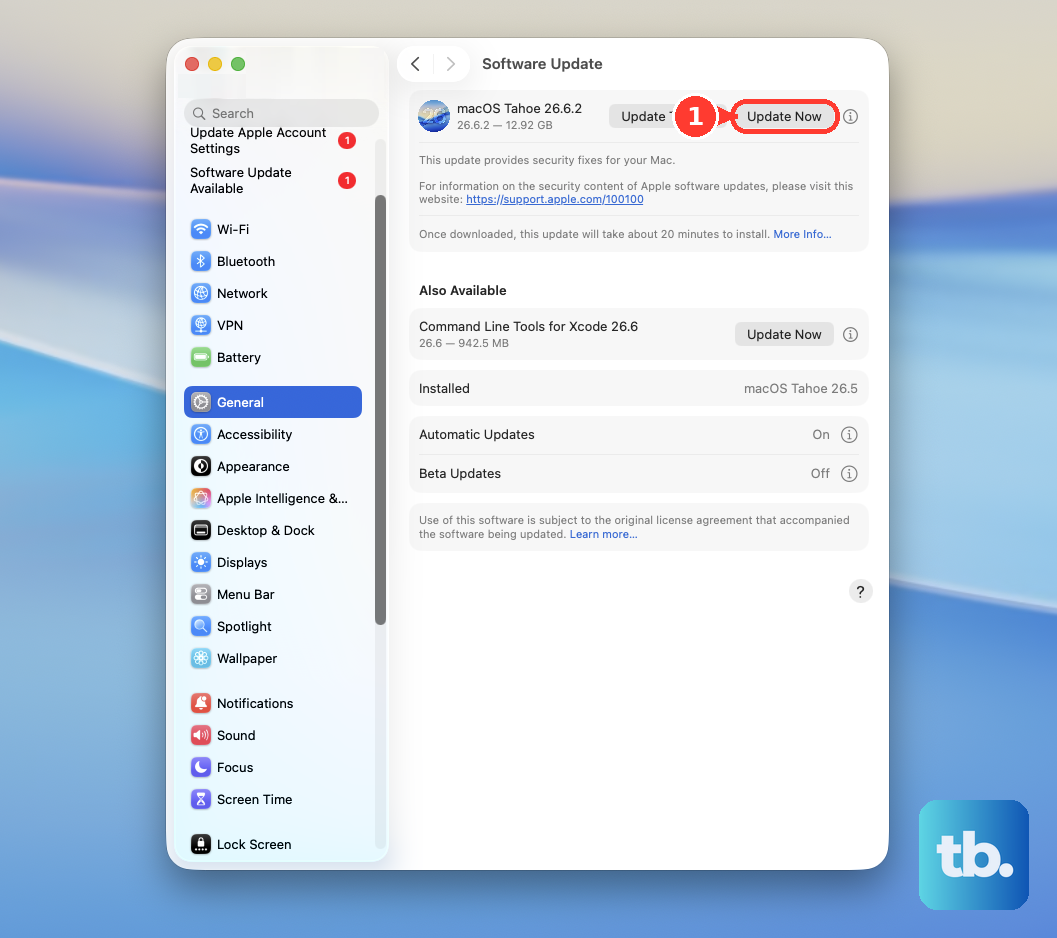
When no update appears, click Check for Updates, press Command + R, or close and reopen Software Update. You can also use Spotlight or Siri AI in the menu bar to search for Software Update, open it from the results, and install the compatible update offered. If your Mac cannot reach the launcher’s required operating system, you need a supported device.
If your startup disk lacks space, open Apple menu > System Settings > General > Storage on macOS Ventura 13 or later. Review the categories and their More Info buttons, then move unneeded files to external storage or delete them. Empty the Trash and retry the launcher.
On earlier macOS versions, open Apple menu > About This Mac > Storage to review available space. If storage and compatibility are already adequate, check the download connection next.
Check the connection used for the download
Try another functioning internet connection when the launcher cannot download its update. Click the Wi-Fi menu, select another network, enter its password when requested, and click Join. Reopen Minecraft Launcher and retry the update.
For an iPhone or cellular iPad with a hotspot-capable plan, open Settings > Personal Hotspot on that device and enable it. Select the device from the Mac’s Wi-Fi menu, checking Other Networks if necessary. Enter the hotspot password unless the same Apple Account enables Instant Hotspot; downloads use mobile data.
You can also connect the hotspot device to your Mac by USB. If prompted, accept Trust This Computer? by selecting Trust, and accept Allow accessory to connect? by selecting Allow. Retry the launcher using that connection.
If the update works on another connection, restart your router using its manufacturer’s procedure and retry after connectivity returns. If you manage the router, install its current firmware through the manufacturer’s configuration webpage or app. Contact the ISP or network administrator if the failure remains limited to that network.
For suspected Wi-Fi trouble, open the Wi-Fi menu and select Wi-Fi Recommendations if present. Alternatively, hold Option while clicking Wi-Fi, select Open Wireless Diagnostics, and follow the instructions. Recommendations are unavailable for personal hotspots and certain enterprise networks, and diagnostics identifies connection problems rather than repairing Minecraft itself.
To check a VPN, open Apple menu > System Settings > VPN and turn off the connected service. You can also disconnect through its VPN status menu or its own app. Retry the launcher with the VPN disconnected.
Look in Finder’s Applications folder for firewall, antivirus, parental-control, or content-blocking software, then temporarily stop filtering through the relevant app. Apple also suggests searching System Settings for VPN, profile, firewall, and filter to locate connectivity controls. Restart after changes and retry; if your organization manages those settings, ask its administrator to review them.
If the clock is wrong, open System Settings > General > Date & Time. Enable Set time and date automatically and Set time zone automatically using your current location. If necessary, use Set to configure the network time server, click Done, and retry.
Correct network settings when the connection is faulty
If your connection uses DHCP and an address or lease problem affects internet access, open Apple menu > System Settings > Network. Select the affected service, then choose Details > TCP/IP > Renew DHCP Lease > OK. Retry the download after renewing the lease.
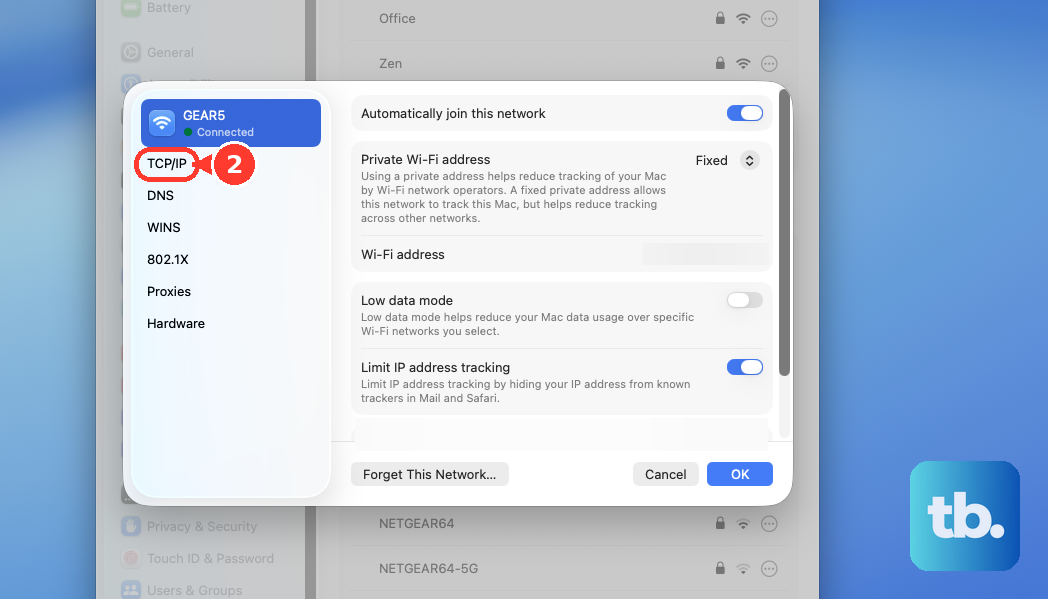
For a confirmed DNS problem, open System Settings > Network, select the service, and choose Details > DNS. Under DNS Servers, use + to add the server supplied by your ISP or administrator. To remove an incorrect manually added server, select it and use −.
For a confirmed proxy problem, open System Settings > Network, select the service, and choose Details > Proxies. Use your administrator’s information to correct the applicable Auto proxy discovery, Automatic proxy configuration, Web proxy (HTTP), Secure web proxy (HTTPS), or SOCKS proxy setting. Ask the administrator to handle settings that are managed or unavailable.
Resolve installation warnings and Rosetta prompts
If macOS blocks the downloaded app because only App Store apps are permitted, open System Settings > Privacy & Security. Under Security > Allow apps downloaded from, select App Store and identified developers. This addresses an opening restriction, not an update failure inside an already running launcher.
For a trusted download blocked because its developer cannot be verified or it is not notarized, attempt to open it first. Return to System Settings > Privacy & Security, scroll down, click Open Anyway, and click Open in the repeated warning. Use this only when you trust the download’s source and integrity, never to override a malware warning.
On an Apple silicon Mac running macOS 27 or earlier, an Intel component may require Rosetta. Connect to the internet, open the app, click Install when macOS asks to install Rosetta, and enter your macOS username and password. An Intel Mac does not need Rosetta.
To inspect the app’s architecture, select it in Finder, choose File > Get Info, and check Kind. Install Rosetta only for a confirmed Intel component requirement. It supplies translation support and does not repair downloaded updater files.
For the same confirmed requirement, you can install Rosetta through Terminal instead. Connect to the internet, open Terminal from Applications > Utilities, and enter this command:
softwareupdate --install-rosettaPress Return and follow the onscreen instructions. Once installation finishes, reopen the launcher.
Correct a confirmed file permission problem
Use Finder’s permission controls only when incorrect permissions are established on a file or folder the updater must modify. Select that item, choose File > Get Info, and expand Sharing & Permissions. Unlock the settings, select your user under Name, and choose Read & Write.
Apple also provides Apply to enclosed items in the Action menu and controls for changing ownership. Use those only when the affected folder and permission problem are established, then retry the launcher. Mojang does not present permission changes as a universal launcher repair, so leave unrelated folders alone.
Test for interference from startup software
Try safe mode when startup software may interfere or ordinary installation or removal fails. On an Apple silicon Mac, shut down and hold the power button until startup options appear. Select the startup disk, hold Shift, and click Continue in Safe Mode.
On an Intel Mac, restart and immediately hold Shift until the login window appears. Sign in and test the launcher or reinstall it, then choose Apple menu > Restart to leave safe mode. Some networking and graphics features behave differently there, so a failed download alone does not establish the cause.
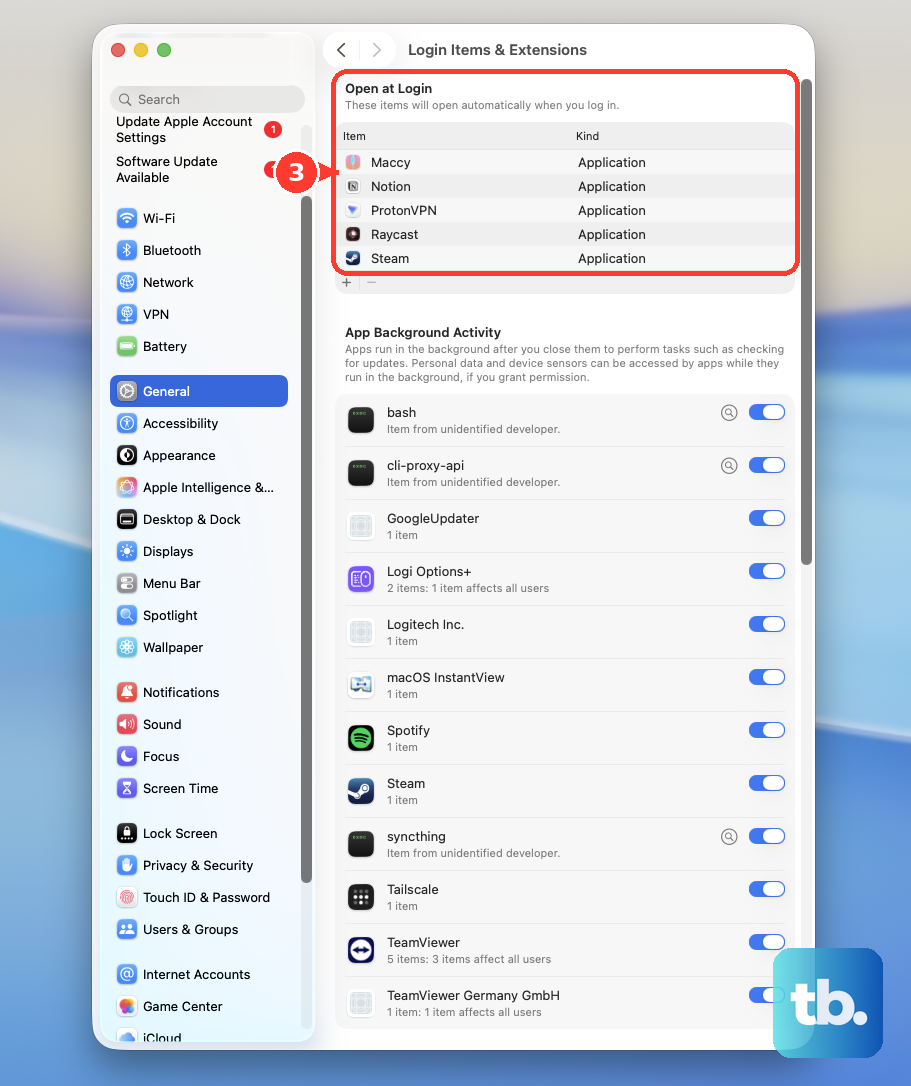
If the launcher works in safe mode, open System Settings > General > Login Items & Extensions. Record the Open at Login list, remove its items using the Remove control, and restart. If the problem disappears, restore items one at a time and restart after each to identify the conflict.
Back up your worlds before a complete reinstall
A complete reinstall removes retained Minecraft data as well as the application. Back up your worlds and other Minecraft data before proceeding. Removing the retained folder deletes local worlds, screenshots, settings, and other saved data.
Quit Minecraft and uninstall the app from Applications. In Finder, press Shift + Command + G to open Go to Folder, then enter this folder path:
~/Library/Application Support/Remove the Minecraft folder there, normally named minecraft. Reinstall the launcher using the official download page’s Mac option, then open it while connected to the internet. Minecraft recommends this full removal procedure for persistent Java Edition update or opening errors.
If a complete reinstall still fails, stop making unrelated system changes. On a managed Mac or connection, ask the organization’s administrator to review installation, security, profile, VPN, or filtering restrictions that you cannot change.
Frequently Asked Questions
Does selecting Latest Release fix a launcher update error?
Selecting Latest Release updates the selected Java Edition game version, not the launcher’s updater. If the launcher opens successfully but the game is outdated, open the version dropdown beside Play and select Latest Release.
Should you sign out of Microsoft to repair the updater?
Signing out cannot repair a native updater that fails before the launcher interface opens. Once the launcher is accessible, address an authentication or ownership problem by opening the top-left dropdown containing your Gamertag, choosing Log out, and selecting Microsoft Login. Sign in again, choosing Sign in with a different account to switch accounts or Lets Go to continue.
Can another macOS user account help narrow down the problem?
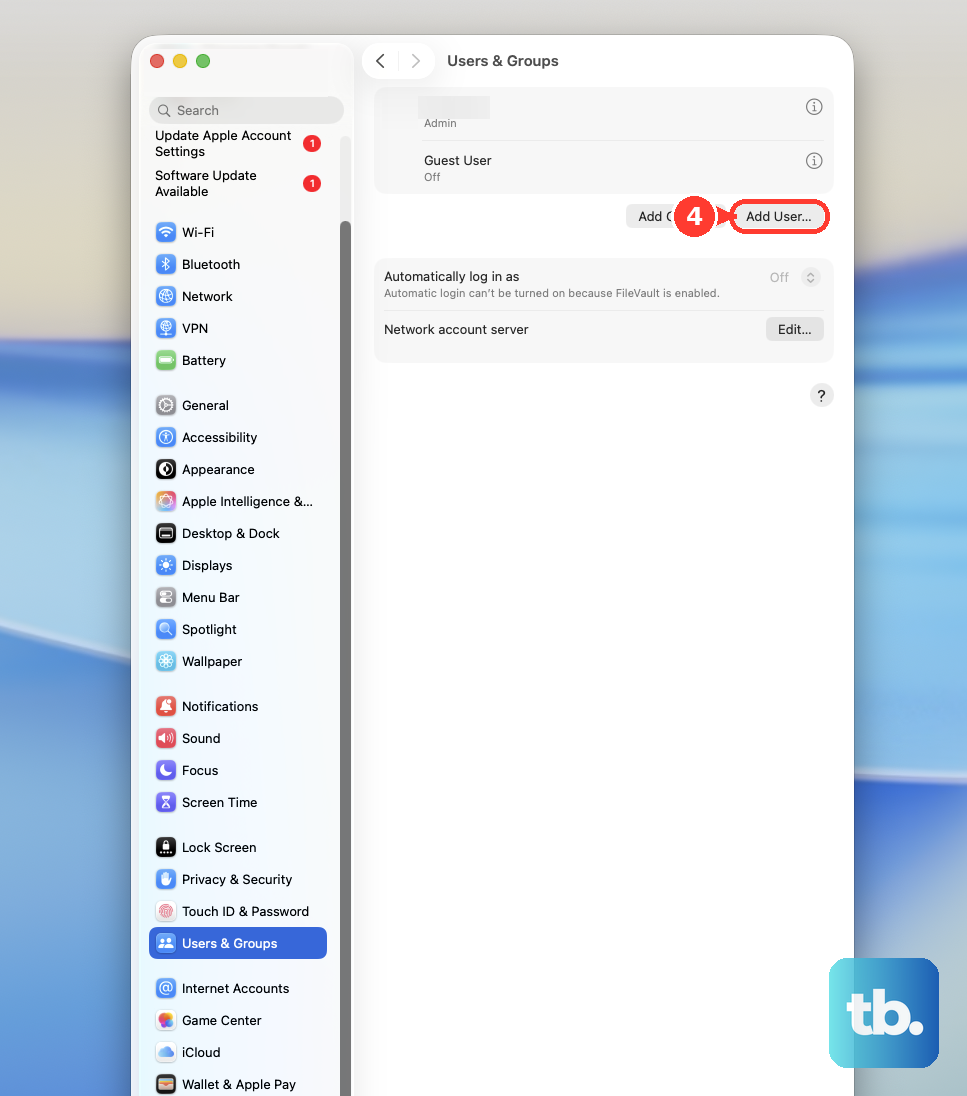
A fresh account can help identify a problem with user-specific settings or startup software. A Mac administrator can open System Settings > Users & Groups > Add User, choose Standard under New User, enter the details, and click Create User. Restart, sign into that account, and test the launcher with the Microsoft account that owns Minecraft.
Should you clear Safari’s cache to fix Minecraft Launcher?
Clearing browser cache does not reset Minecraft’s updater. For a confirmed proxy problem, Safari offers another route to the system controls: open Safari > Settings > Advanced, then select Change Settings beside Proxies.
Can you preserve your network settings while testing a new configuration?
Creating a new network location retains the old location so you can restore its settings. On macOS Ventura or later, open Apple menu > System Settings > Network, then More > Locations > Edit Locations. Click +, name the location, click Done, and exit Network settings to finish switching. On earlier macOS, use System Preferences > Network > Location > Edit Locations, then click +, name the location, and select Done followed by Apply.
Should you use the old Monterey update bypasses?
Use the current official launcher instead of the historical --skipUpdate or offline-opening workarounds. Those applied to a resolved Monterey-era launcher bug that received a fixed launcher release; they are not current repair steps.