


To fix Microsoft Print to PDF not working, select the correct printer and complete the save dialog, then clear stuck jobs or reinstall the Windows feature if printing still fails. Try a simple document in another app before changing Windows components. These steps use Windows 11 menus.
The short version
- Finish saving: Select Microsoft Print to PDF, choose Print, then enter a filename and select Save.
- Narrow the problem: Try a different document and a second app before repairing Windows.
- Clear stuck jobs: Cancel queued documents and restart the Print Spooler service.
- Restore the feature: Install Windows updates, then enable or reinstall Microsoft Print to PDF through Windows Features.
- Save an urgent PDF: Use a browser PDF destination or Office PDF export while troubleshooting.
| Fix or check | When to use it |
|---|---|
| Complete the save dialog | No PDF file appears after printing |
| Review document print settings | A document or page range fails |
| Choose another output folder | The save dialog opens but saving fails |
| Set the default printer | Your app keeps choosing another printer |
| Try another document and app | You need to isolate the failure |
| Restart the app and Windows | Printing continues to fail |
| Print a Windows test page | You need to check the printer directly |
| Cancel queued jobs | Documents remain in the queue |
| Restart the spooler | Print processing remains stuck |
| Restore automatic spooler startup | The service is disabled |
| Clear the spool folder | Canceling jobs does not work |
| Install Windows updates | The printer is missing or feature installation fails |
| Install .NET Framework updates | An affected app fails during printing or preview |
| Enable or reinstall the PDF feature | The printer is missing or fails across apps |
| Remove and restore the printer | The installed printer entry remains broken |
| Run the printer troubleshooter | You need guided Windows diagnostics |
| Update Edge | PDF printing fails in Edge |
| Retry Edge print preview | The print dialog fails temporarily |
| Use the system print dialog | Edge preview still fails after updating |
| Print through Immersive Reader | One supported webpage fails |
| Repair Edge | Other apps print successfully but Edge does not |
| Update Office | Printing fails only in Office |
| Repair Office | Updating Office does not help |
| Get a fresh local PDF copy | One source PDF fails in Acrobat |
| Update Acrobat | Printing fails specifically in Acrobat |
| Print the source PDF as an image | PDF fonts or graphics cause trouble |
| Save through Edge or Chrome | You need a PDF without the Windows printer |
| Export from Office | You need a PDF of an Office document |
| Run DISM and System File Checker | Windows components may be damaged |
| Reinstall Windows through recovery | Component repair does not resolve the failure |
Check the printer and finish saving
Open File > Print in the affected application and select Microsoft Print to PDF. Review the paper size, orientation, layout, and page range, then select Print. In Save Print Output As, choose a folder, enter a filename, and select Save.
If the document fails, try a small, valid page range. If the save dialog opens but saving fails, choose a different folder you can write to.
When an app keeps choosing another printer, making the PDF printer your default can help. Open Settings > Bluetooth & devices > Printers & scanners, then under Printer preferences, turn off Let Windows manage my default printer. Select Microsoft Print to PDF > Set as default. This changes printer selection but does not repair damaged components.
Find out whether one app or every app fails
Print a different file from the same application, then try a simple document from Notepad or Paint with Microsoft Print to PDF selected. If the second app works, focus on the original app or document. Close the affected app completely and reopen it before trying again.
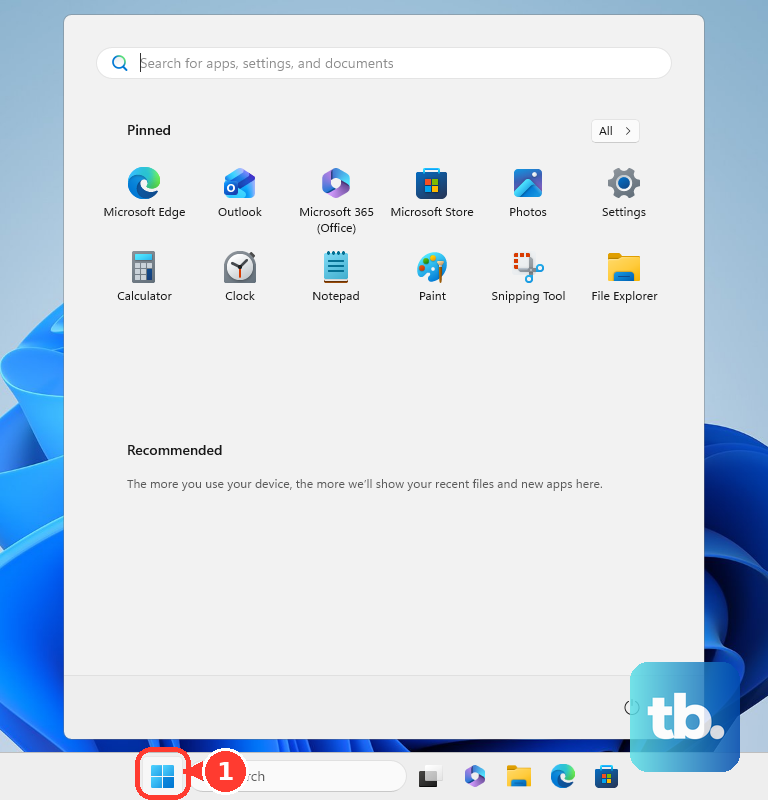
Next, save your work and select Start > Power > Restart. Reopen the application and repeat the simple printing check. If printing still fails across apps, continue with the Windows printer fixes.
You can also check the PDF printer directly from Windows. Open Settings > Bluetooth & devices > Printers & scanners > Microsoft Print to PDF > Printer properties > General. Select Print Test Page and complete the PDF save dialog if it appears.
Clear stuck jobs and restart the spooler
Open Settings > Bluetooth & devices > Printers & scanners > Microsoft Print to PDF > Open print queue. Right-click each stuck job and select Cancel. Retry printing after the queue clears.
If jobs remain stuck, restart the service that handles printing. Press Windows + R, enter the following command, and press Enter.
services.mscRight-click Print Spooler and select Restart, then try printing again. If its startup configuration has been disabled, double-click Print Spooler and set Startup Type to Automatic. Select Start if the service is stopped, then select OK. Administrator access may be required.
When cancellation still does not clear the queue, right-click Print Spooler and select Stop. Open File Explorer and enter the following path in the address bar.
%WINDIR%\System32\spool\PRINTERSDelete the files inside that folder, then return to Services, right-click Print Spooler, and select Start. This requires administrator access and discards queued jobs for all printers. Submit the document again after restarting the service.
Update Windows and restore the PDF feature
Open Settings > Windows Update > Check for updates, install applicable updates, and restart. Microsoft fixed a Windows 11 24H2 issue that could remove the PDF printer or cause error 0x800f0922. Install the latest applicable cumulative update before retrying feature installation.
If an affected WPF application on Windows 11 25H2 fails during printing or preview, install the latest applicable .NET Framework cumulative update through Windows Update and restart. Microsoft says its September and October 2026 updates resolve specific font and in-memory XPS printing failures.
If the printer is missing, enable its built-in Windows feature. Press Windows + R, enter the following command, and press Enter.
optionalfeatures.exeCheck Microsoft Print to PDF, select OK, and restart if requested. If it is already checked, uncheck Microsoft Print to PDF, select OK, and restart Windows. Open Windows Features again, check Microsoft Print to PDF, select OK, and complete any requested restart.
For a printer entry that remains broken, open Settings > Bluetooth & devices > Printers & scanners > Microsoft Print to PDF, select Remove, then select Yes. Repeat the Windows Features disable and enable procedure to restore it. Microsoft Print to PDF is a Windows feature and does not need a separate PDF-printer installer.
If the queue and feature checks have not helped, open Start > Get Help, enter printer troubleshooter in the search bar, and follow the diagnostic prompts. Get Help is the current replacement for the retired MSDT printer troubleshooting wizard.
Fix printing that fails only in Edge
Update Edge first by opening Settings and more > Help and feedback > About Microsoft Edge. Install the available update and restart Edge when prompted. Microsoft fixed a Print to PDF regression in version 154.0.4258.48, so install the latest available version.
For a temporary preview failure, select Cancel, press Ctrl + P, reselect the printer, and retry. You can also press Ctrl + Shift + P to open the Windows system print dialog. Choose Microsoft Print to PDF, select Print, and finish saving. Switching dialogs alone does not resolve the affected Edge 154 release.
If just one webpage fails, try its simplified version by selecting Immersive Reader in the address bar or pressing F9. This works only on webpages that support Immersive Reader. Press Ctrl + P and retry printing the simplified page.
When Edge still fails while other apps print normally, close Edge for all signed-in users. Open Settings > Apps > Installed apps, find Microsoft Edge, and select Modify. Select Yes, then Repair with an internet connection available, and retry printing afterward. Administrator access is required, and Modify may be unavailable on an organization-managed installation.
Repair a failing Office app or source PDF
If only Word or Excel fails, open the app and create a document, then select File > Account > Update Options > Update Now. Finish updating and retry printing. If that fails, right-click Start, select Installed apps, find Microsoft 365 or Microsoft Office, and open its ellipsis menu > Modify.
For a Click-to-Run installation, choose Quick Repair and complete the repair. If printing still fails, return and choose Online Repair > Repair, then retry printing after it finishes. Online Repair requires internet access.
For a source PDF that fails in Acrobat, download or copy it again to the local hard drive, open that copy, and retry printing. If it still fails, update Acrobat through Menu > Help > Check for updates, restart the app, and retry.
Difficult fonts or graphics may need Acrobat's image-printing option. Select Print this file, choose Microsoft Print to PDF, open Advanced, and check Print as Image. Select OK, then Print, and save the output. Rasterized output can lose selectable text and sharpness.
Create the PDF another way when needed
To save a webpage immediately, use the browser's own PDF destination. In Edge, press Ctrl + P, choose Save as PDF in the printer selector, and save the output. This bypasses Microsoft Print to PDF and is unavailable in the Windows system print dialog.
Chrome also offers a separate PDF destination. Press Ctrl + P, choose Save as PDF under Destination, and select Save. Choose the output location and filename, then select Save.
In Word, you can save a document as a PDF through File > Save a Copy (or Save As for a file you have not saved yet), choose Browse, select PDF, and choose Save. In Excel, open File > Save As or select Save a copy, choose PDF (*.pdf), and select Save. In PowerPoint, open File > Export, select PDF (*.pdf), and select Save. These routes create the file without repairing the Windows PDF printer.
Repair Windows components if the feature still fails
Use system repair when the PDF feature still cannot be enabled or fails across applications after updating and reinstalling it. Search for Command Prompt, select Run as administrator, and select Yes. Run this command and wait for successful completion.
DISM.exe /Online /Cleanup-image /RestorehealthNext, run System File Checker with the command below. Let verification finish before retrying the PDF feature.
sfc /scannowRetry enabling or using Microsoft Print to PDF. If damaged Windows components continue to prevent recovery, an eligible Windows 11 installation can reinstall its current version while preserving apps, files, and settings.
Open Settings > System > Recovery, then under Fix problems using Windows Update, select Reinstall now and select OK. Keep the PC connected to power and the internet until installation finishes, then restart. If that recovery option is absent, this route is unavailable on your installation.
Frequently Asked Questions
How do you save an Outlook email with Microsoft Print to PDF?
In classic Outlook, open the message and select File > Print, choose Microsoft Print to PDF, and select Print. In new Outlook or Outlook on the web, open the message, select More actions > Print > Print, then choose the PDF printer and select Print. Choose a folder, enter a filename in Save Print Output As, and select Save.
Why are webpage backgrounds missing from the saved PDF?
Edge can omit webpage backgrounds unless background printing is enabled. Open its print dialog, expand More settings, and check Background graphics before printing to Microsoft Print to PDF.
Can Windows Security prevent a PDF from saving?
Controlled folder access can block the application involved in saving. If Windows Security reports a familiar, trusted program as blocked, note its executable path and open Windows Security > Virus & threat protection > Manage ransomware protection > Allow an app through Controlled folder access > Add an allowed app. Select the identified trusted program and retry saving.
Can Firefox create a PDF without Microsoft Print to PDF?
Yes, Firefox has its own Save to PDF destination. Open the application menu, select Print…, choose Save to PDF under Destination, and save the resulting file.
Should you reset an app when only that app cannot print?
Try Repair first through Settings > Apps > Installed apps, then the app's More menu > Advanced options, if available. If repair fails, you can select Reset where offered, but it can remove application data and settings. For traditional programs, open Control Panel > Programs > Programs and Features, right-click the program, and select Repair or Change.