Instagram video calls break in a few recognizable ways: the call button is missing, the screen stays blank, audio fails, or calls arrive silently. The fixes below start with the settings that block calls most often, then move through notifications, app refreshes, updates, cleanup, desktop permissions, outages, and account restrictions.
Give Instagram camera and microphone access
The most common cause is that Instagram is blocked from using your camera or microphone.
On iPhone or iPad, open Settings, go to Privacy & Security, then Camera, and turn on Instagram. Go back to Privacy & Security, open Microphone, and turn on Instagram there too.
On Android, open Settings, go to Apps, choose Instagram, then open Permissions. Set Camera to Allow only while using the app, then do the same for Microphone.
If Android has blocked camera or microphone access for every app, open Settings, go to Security & privacy, then Privacy, then Privacy controls. Turn on Camera access and Microphone access.
If Android removed Instagram’s permissions because the app was unused, open Settings, go to Apps, choose Instagram, then open Unused app settings. Turn off Pause app activity if unused, then return to Permissions and allow Camera and Microphone again.
Start the call from the supported chat screen
Instagram video calling starts from Direct messages. Open Instagram, tap the Messages or Messenger icon, open the person or group chat, then tap the video camera icon inside the chat.
For a new call, tap the Messages or Messenger icon, use compose or search to find the person, open the chat, and tap the video camera icon. If the person is in Message Requests, accept the message first, because accepted-message contacts can video chat you.
If the call button is still missing after that, close and reopen Instagram before changing more settings.
Turn your camera or microphone back on during the call
A call can connect correctly while still looking broken because your own controls are muted. During the Instagram call, tap the microphone control to unmute your audio.
Tap the camera or video control to turn your video back on. This is the quickest fix when the other person can hear you but cannot see you, or can see you but cannot hear you.
If you are using wired, USB, or Bluetooth audio, check the headset’s inline mute switch too. A physical mute can block your voice even when Instagram’s on-screen microphone button looks right.
Reset stuck iPhone privacy prompts
Open Settings.
Tap General.
Tap Transfer or Reset iPhone or Transfer or Reset iPad.
Tap Reset.
Choose Reset Location & Privacy.
Reopen Instagram and start a video call so iOS asks for camera and microphone access again, then allow the prompts.
This resets privacy and location prompts for all apps, so expect other apps to ask again later.
Fix missed or silent Instagram calls
This fixes Instagram calls that work after you open the app but do not ring, alert you, or show reliably in the background.
Open Instagram and tap your profile picture.
Open the menu, then go to Settings and activity.
Tap Notifications.
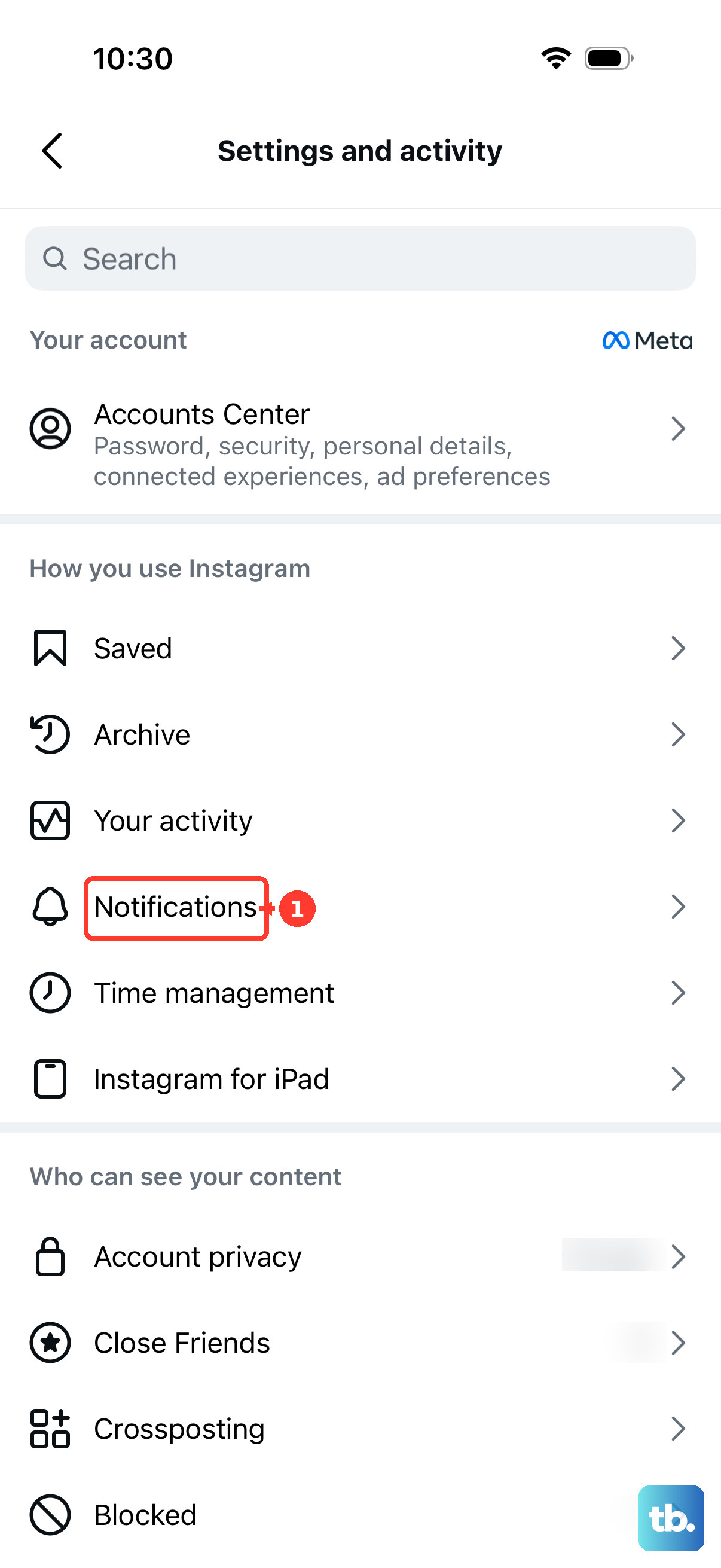
Open Calls (Messages has its own row).
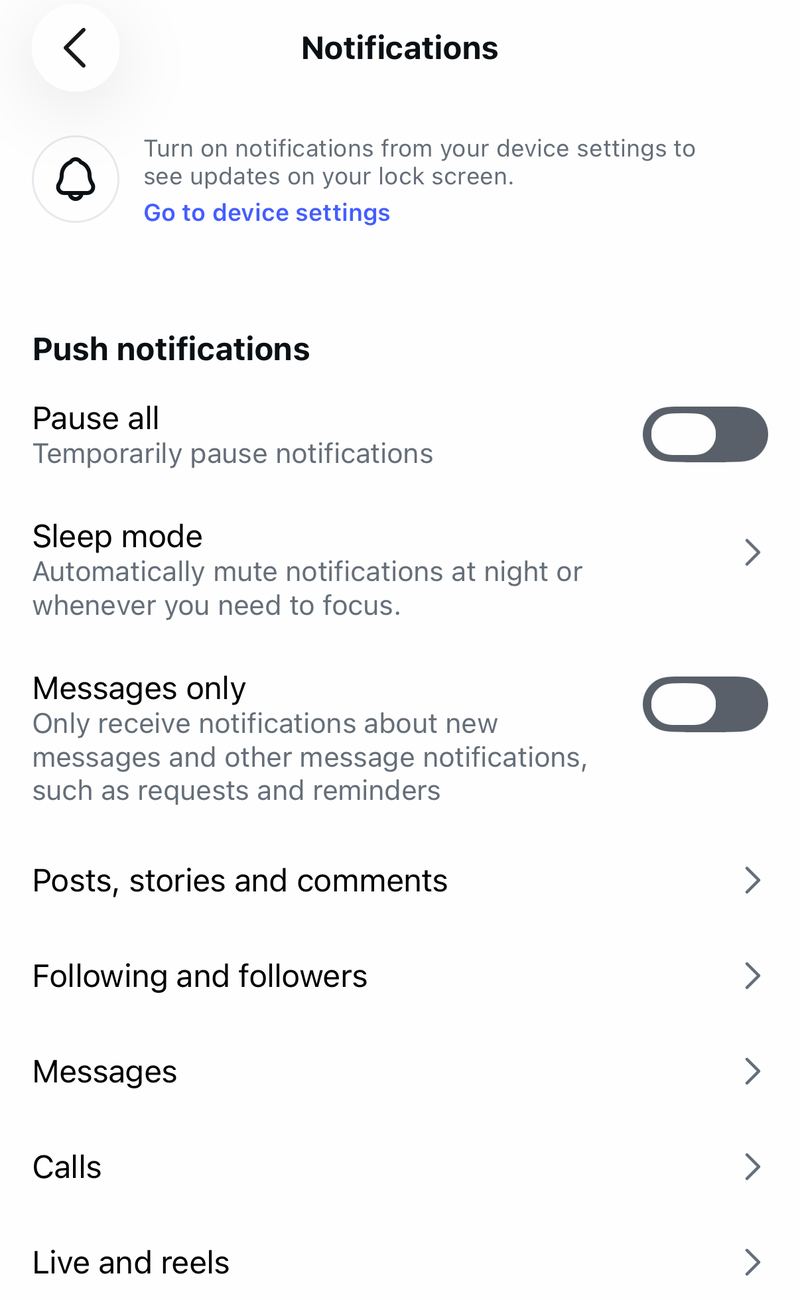
Under Video chats, choose From everyone or From people I follow instead of Off.
Make sure Pause all is off.
For one muted conversation, open the person or group chat, tap the name at the top, tap Mute, and turn off Mute calls.
For a group chat, also check Mute messages and Mute @mentions if group alerts are missing.
Refresh the app and your device
When the call screen freezes, controls disappear, or calling fails right after a permission change, restart the app first.
- 1.On iPhone, open the App Switcher, find Instagram, swipe up on Instagram, then reopen Instagram.
- 2.On Android, swipe up from the bottom, hold, let go, swipe up on Instagram, then reopen Instagram; you can also use Settings, Apps, Instagram, Force stop.
- 3.On Windows, select the Close button in the upper-right corner, then reopen Instagram.
- 4.Restart your phone or tablet if video or microphone services still stay stuck.
- 5.If an iPhone is completely unresponsive, use Apple’s force-restart button sequence for your model.
Update Instagram and the operating system
On iPhone or iPad, open the App Store.
Tap the My Account button or your photo.
Open App Updates.
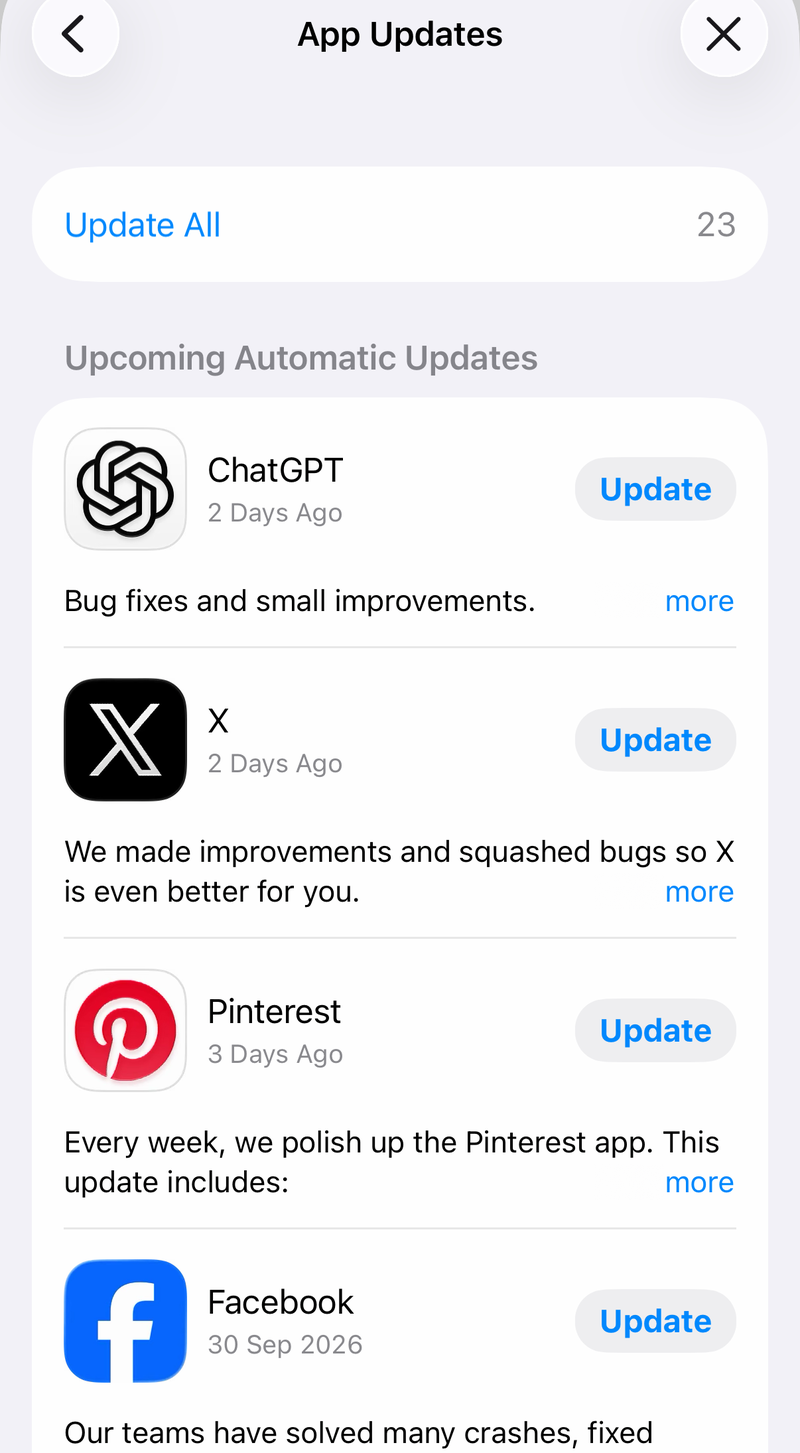
Tap Update next to Instagram, or open the official Instagram App Store page and tap Update or Get.
On Android, open the Google Play Store, tap your profile picture, go to Manage apps & device, then Manage, choose Instagram, and tap Update.
To keep Android updates automatic, open the Instagram details page in Google Play, tap More, and turn on Enable auto update.
Update the device too: on iPhone or iPad, go to Settings, General, Software Update; on Android, use Settings, System, Advanced, System update, or Settings, About phone, Software update.
Keep Instagram auto updates on if video calls have broken after old app builds before.
Use cache, reinstall, or Windows repair after basic fixes
Use these cleanup fixes after permissions, mute controls, notifications, and updates are already correct. They remove stuck local app data or repair the installed app package.
On Android, open Settings, go to Apps, choose Instagram, then open Storage & cache and tap Clear cache. If the app still fails and you are ready to sign in again, use Clear storage or Clear data.
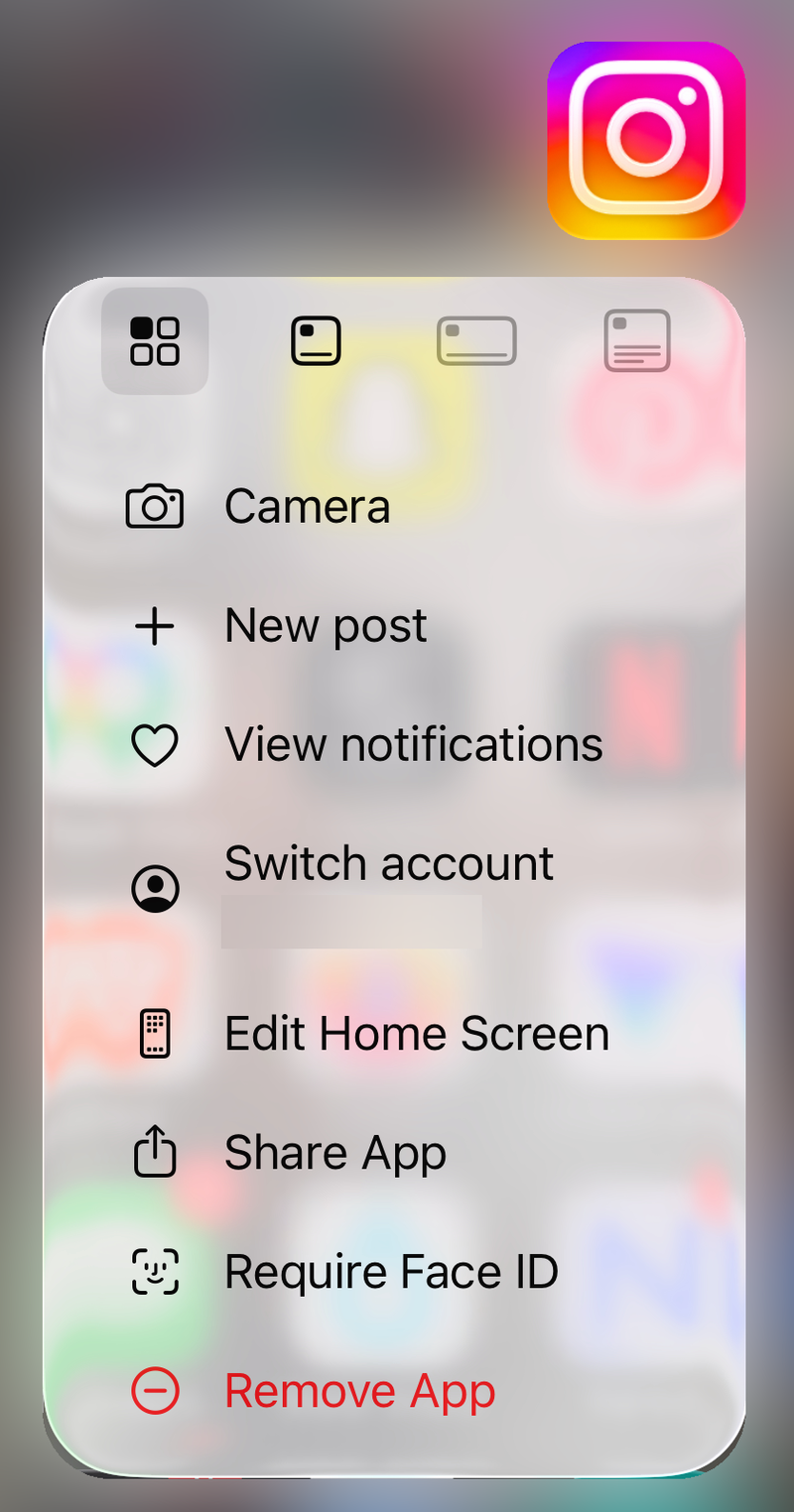
On iPhone or iPad, touch and hold Instagram, tap Remove App, then Delete App, then Delete. Install Instagram again from the App Store.
On Android, open the Google Play Store, tap your profile icon, go to Manage apps and devices, then Manage, choose Instagram, and tap Uninstall. Reinstall Instagram from Google Play.
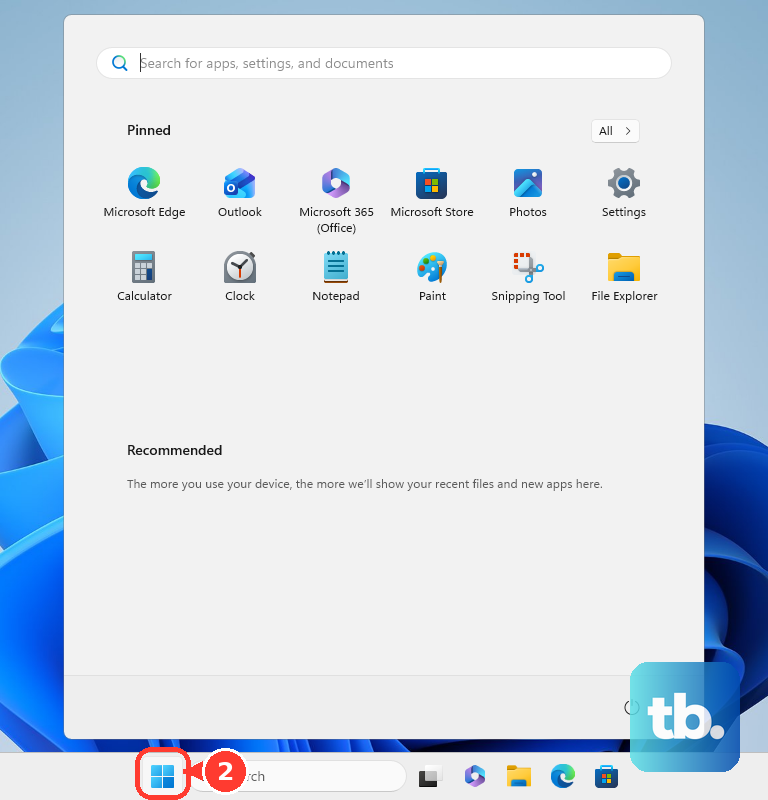
On Windows 11, open Start, go to Settings, then Apps, then Installed apps, choose Instagram, open More options, then Advanced options, and select Repair. On Windows 10, open Start, go to Settings, then Apps, then Apps & features, choose Instagram, open Advanced options under the app name, and select Repair when it is available. If repair does not help on either version, use Reset, sign in again, then run Microsoft Store, Library, Get updates.
Check browser, outage, and account restrictions
The most common cause on desktop is that Windows or Chrome is blocking camera and microphone access for the Instagram app, browser, or installed web app.
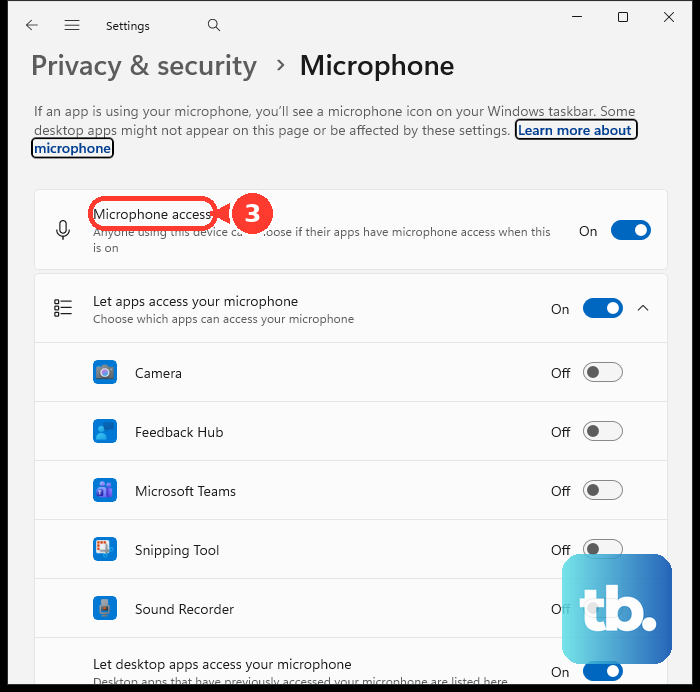
On Windows 11, open Start, go to Settings, then Privacy & security, then Camera. Turn on Camera access, Let apps access your camera, and the Instagram app toggle when it appears.
On Windows 10, open Start, go to Settings, then Privacy, then Camera. Turn on Camera access for this device, Allow apps to access your camera, and the Instagram app toggle when it appears.
Repeat the same path under Microphone on your version: turn on Microphone access and Let apps access your microphone on Windows 11, or Microphone access for this device and Allow apps to access your microphone on Windows 10. For browser or installed web app use, also turn on Let desktop apps access your camera and Let desktop apps access your microphone on Windows 11, or Allow desktop apps to access your camera and Allow desktop apps to access your microphone on Windows 10.
In Chrome, open More, then Settings, then Privacy and security, then Site settings, then Camera. Select instagram.com under blocked sites and change it to Allow, then repeat under Microphone; use the down arrow to choose the correct camera or microphone.
If calls suddenly fail for several people or on multiple devices, check Downdetector or StatusGator for Instagram and wait if many users are reporting problems. Meta’s public status page mainly covers business products, so it is not a complete consumer Instagram call status page.
For a child account, school device, work device, or managed browser, ask the parent or administrator to allow Instagram camera, microphone, notification, install, or update access.
Older guides may mention changing camera and microphone permissions inside Instagram itself or using Android emulators on PC. Use the supported routes instead: operating-system permissions, the official mobile apps, instagram.com when calling is available for your session, and the Microsoft Store Instagram app.
After the local fixes fail, report the problem from Instagram. Shake your phone on the broken call screen and tap Report a problem, or go to your profile, open the menu, tap Help, then Report a problem, describe the video-call issue, and send it.
Frequently Asked Questions
Why is there no video call button on Instagram?
Open the chat from Direct messages and start the call from the video camera icon inside that conversation. If the person is in Message Requests, accept the message first.
Why can I hear the other person but they cannot hear me?
Your microphone may be muted in the call, Instagram may not have microphone permission, or your headset may have a physical mute switch turned on.
Why do Instagram calls only show up when I open the app?
Turn Instagram call notifications back on inside Instagram, then make sure operating-system notifications for Instagram are enabled on iPhone, Android, or Windows.
Does clearing cache fix Instagram video calls on iPhone?
No. iOS does not offer a normal per-app cache clear for Instagram. Delete and reinstall the app if you need a clean install on iPhone or iPad.