An Instagram confirmation code can fail because the link expired, the code went to the wrong place, SMS was filtered, or two-factor authentication is asking for a different method. Start with a fresh Instagram request, then move through the inbox, phone, and recovery paths in the order below.
Use the newest code or reset link Instagram sends. Old messages can lead you back to an expired or already replaced login attempt.
Request a fresh Instagram code first
In the Instagram app, go to the login screen, tap Forgot password?, enter your username, email address, or phone number, tap Send login link, tap OK, and follow the on-screen instructions.
Use only the newest message Instagram sends. Delete the mental shortcut of reopening an older email or text, because previous reset links can expire.
From a browser, open Instagram's password reset page, enter your email, phone, or username, and send a new login or reset link.
Check where Instagram sent the email
The most common email-side cause is that the Instagram reset message is sitting in a filtered folder.
Open your email app or webmail and check Spam or Junk. Search for Instagram so you catch a reset message that did not land in the main inbox.
In Outlook on the web or Outlook.com, open Settings, choose Mail, open Junk email, add the Instagram sender or domain under Safe senders and domains, select OK, then select Save.
After changing the filter, request a new Instagram reset email from the app or web reset page.
Use another recovery path when contact access is gone
Use this when Instagram is sending the code to an old number, closed email account, or inbox you cannot open. The right move is the app recovery path, not another request to the same unreachable destination. One limit is worth knowing up front: if you cannot open the registered email account and your Instagram and Facebook accounts were never linked, Meta states it is unable to give you access, so recovering that email account with your email provider comes first.
From the Instagram login screen, tap Forgot password?, enter your username, and tap Continue.
Choose Try another way, then follow the prompts to submit a support request.
If your account may have been hacked or the contact details were changed, open instagram.com/hacked or use the recovery prompts in the app.
Complete Instagram's identity checks when prompted, including a video selfie or ID submission.
Use a backup code for two-factor login
Backup codes work only if two-factor authentication was already enabled and you saved the codes before this login problem started.
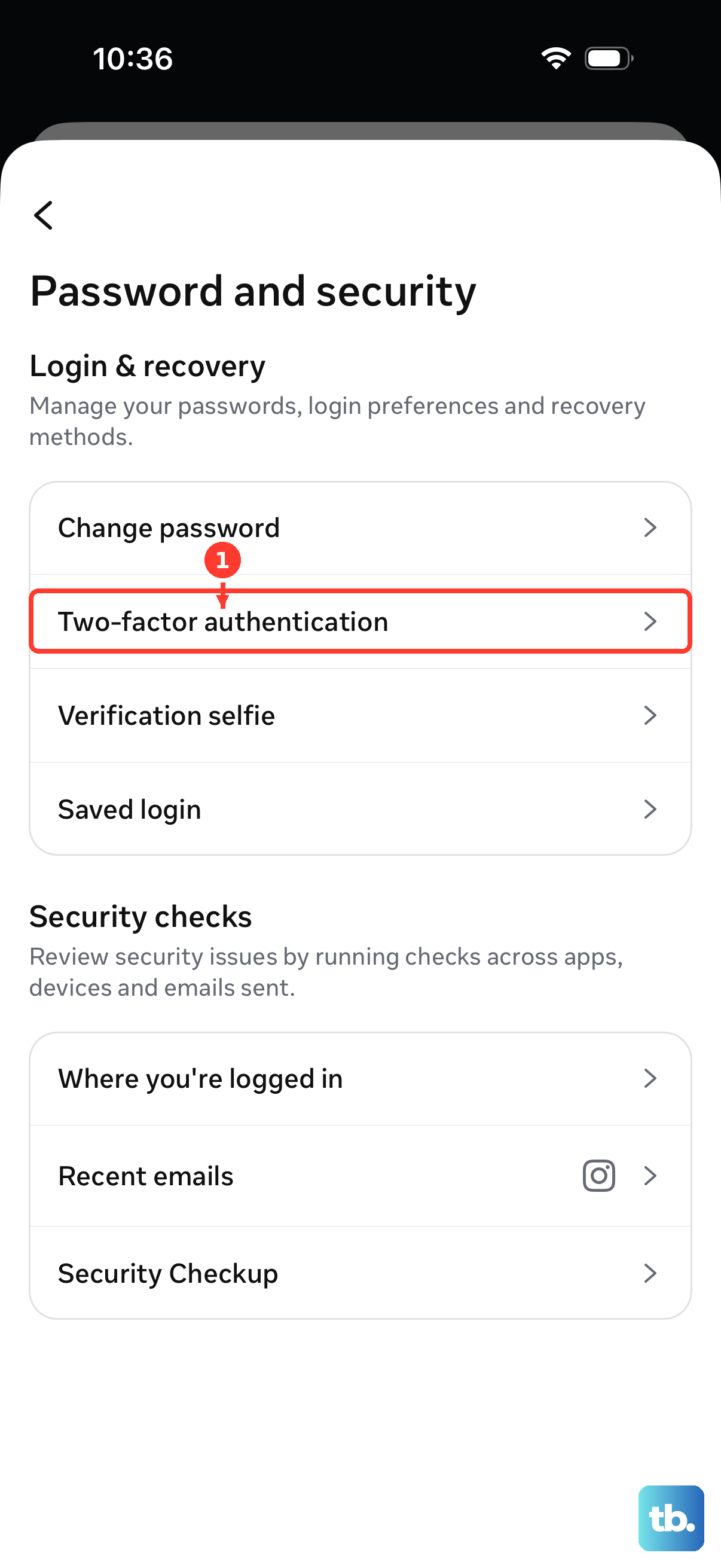
At the two-factor authentication prompt, choose the backup code option. Enter one saved Instagram backup code exactly as shown.
After you regain access, open your profile picture, tap Menu, go to Accounts Center, choose Password and security, open Two-factor authentication, select your Instagram account, open Additional methods, choose Backup codes, and tap Get new codes.
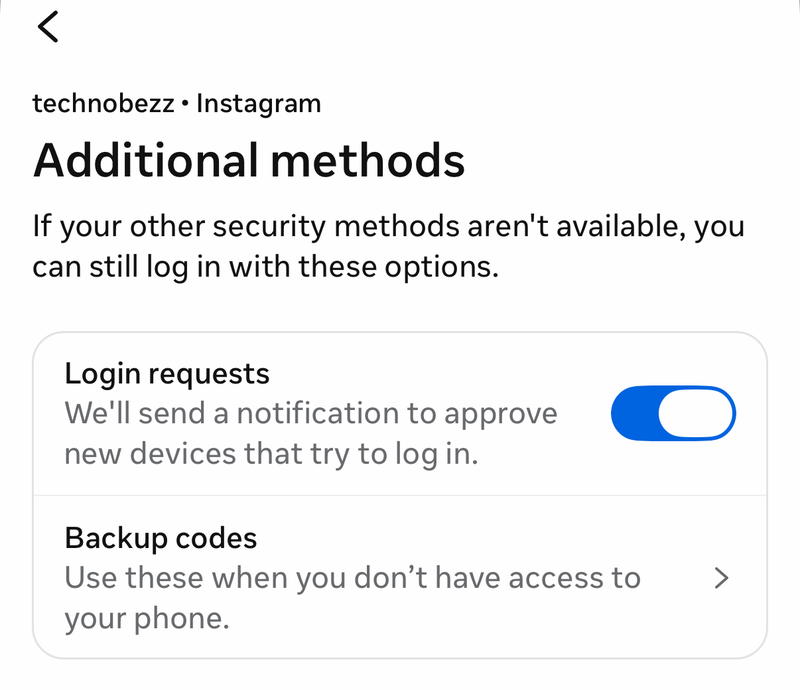
If the backup code fails, use an authentication app code or approve the login from a trusted device.
Try an authentication app or trusted device
Open the authentication app you previously connected to Instagram.
Copy the current Instagram code from that app.
Return to the Instagram login screen and enter the code before it changes.
On another phone or tablet where you are already logged in, open the Instagram login-request notification.
Review the location and device type, then approve the request when it is yours.
Keep an authentication app and fresh backup codes active after you get back in.
Fix missing verification texts on your phone
Use this when Instagram says it sent an SMS code but nothing arrives. The message can be filtered, blocked, or stopped by a broader short-code delivery problem.
On iPhone, open Messages, tap Filters, and check Unknown Senders for the Instagram or short-code message.
To change iPhone filtering, open Messages, tap Filters, choose Manage Filtering, open Unknown Senders, and turn Screen Unknown Senders on or off. On iOS 18 the same toggle is named Filter Unknown Senders.
To unblock a sender on iPhone, open Settings, go to Privacy & Security, choose Blocked Contacts, tap Edit, remove the blocked contact or short code, then tap Unblock.
On Android with Google Messages, open Google Messages, tap your profile photo or icon, choose More options, then open Spam & blocked and look for the Instagram or short-code message. To change the filtering itself, tap your profile photo or icon, go to Messages settings, choose Protection & Safety, and open Spam protection.
Refresh the app or browser before retrying
Use this cleanup when the code screen loops, the reset page loads stale prompts, or Instagram keeps failing before you can enter the newest code.
- 1.Update Instagram from the official App Store or Google Play page, or use App Updates on iPhone and Manage apps & device on Android.
- 2.Restart your phone to refresh app and message delivery.
- 3.In Chrome, open More, choose Delete browsing data or Clear browsing data, select Cookies and site data and Cached images and files, then clear the data.
- 4.Retry Instagram in the app or on the reset page with the newest code or link.
Reinstall Instagram only for app problems
Reinstalling helps with a damaged app install or corrupted local app state. It does not fix an unreachable email address, an account-side recovery block, or carrier short-code blocking.
On iPhone, touch and hold Instagram on the Home Screen or in the App Library, tap Remove App, choose Delete App, then confirm with Delete.
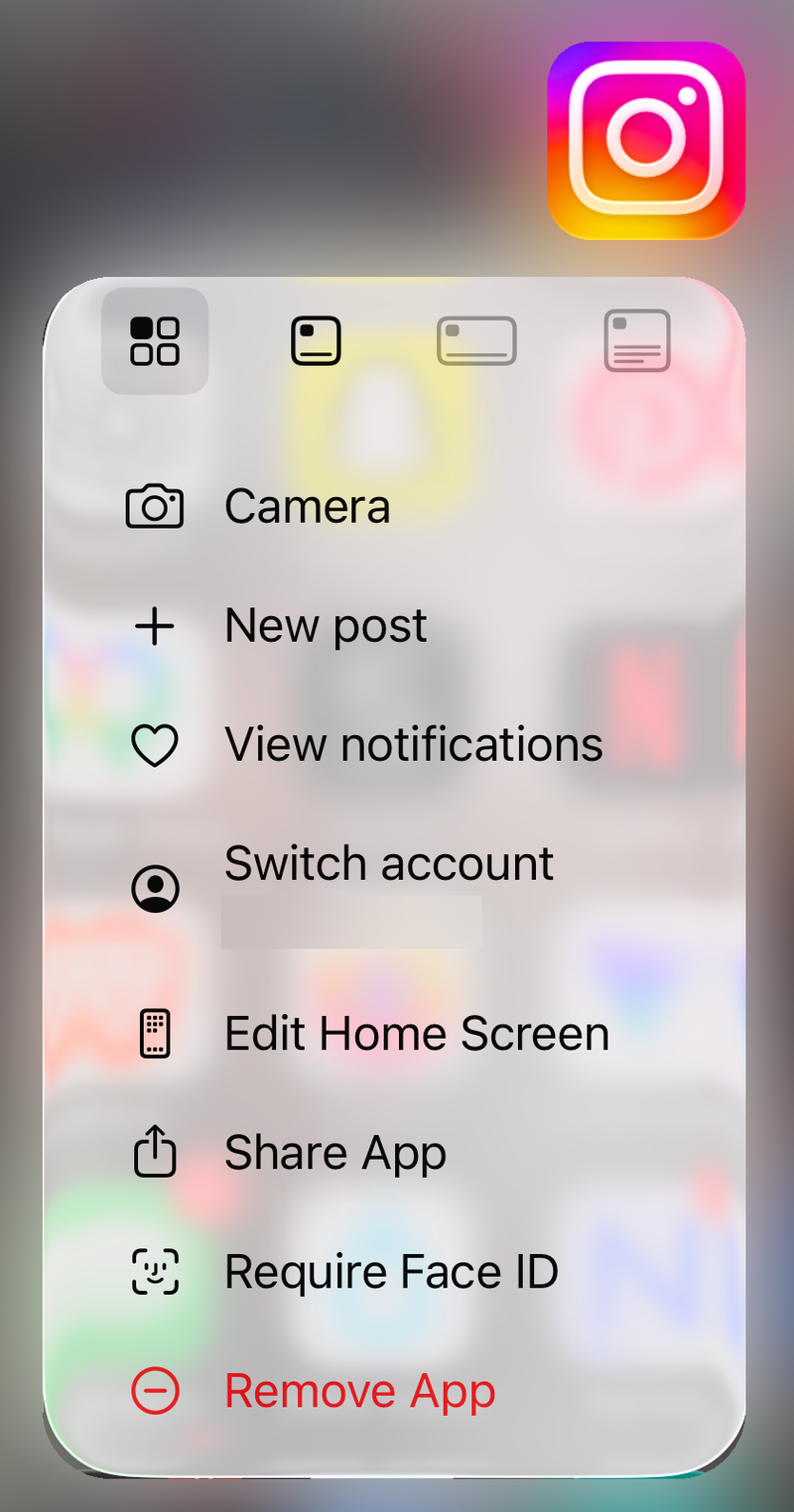
Reinstall Instagram from the official App Store page.
On Android with Google Play, open Google Play Store, tap your profile picture, choose Manage apps & device, open Manage, select Instagram, then tap Uninstall.
Reinstall Instagram from the official Google Play page.
Skip older iTunes app-sync advice for iPhone. Current Apple support points users to App Store update paths for apps.
Ask an admin or carrier to remove blocking
This fixes messages that are blocked before they reach your inbox or phone.
If your Instagram account uses a school or work Google Workspace email address, contact the organization’s email admin.
Ask the admin to check Gmail spam settings, address lists, approved senders, or allowlists for Instagram or Meta sender domains under the organization’s policy.
If SMS codes fail across multiple services, contact your mobile carrier.
Ask carrier support to check message blocking, premium SMS, and short-code restrictions on your line.
After the admin or carrier changes filtering, request a fresh Instagram reset email or SMS code.
Frequently Asked Questions
Why does Instagram say my confirmation code is wrong?
The code or reset link can be expired, copied incorrectly, or from an older request. Request a fresh code or link and use only the newest Instagram message.
Can I log in without the Instagram SMS code?
Yes, if another method was set up first. Use a saved backup code, an authentication app code, or approve the login request from a device already logged in.
What should I do if Instagram sends the code to an old phone number?
Use the app recovery path: tap Forgot password, enter your username, tap Continue, choose Try another way, and submit the support request.
How do I check whether an Instagram email is legitimate?
In Instagram, open your profile picture, Menu, Accounts Center, Password and security, then Recent emails. Compare the message you received with Instagram’s recent security or login emails.