iMessage notifications can go quiet for a bunch of everyday reasons: a muted thread, Focus, alert settings, filtering, or Apple Watch routing. Start with the quick checks that control whether Messages is allowed to alert you at all.
Once those are clean, work through the fixes that match what you are seeing, whether alerts are missing, silent, delayed, or showing up on another device.
Start with Messages notification settings
Open Settings > Apps > Messages and turn on Allow Notifications. Check the notification appearance, sound, and behavior for Messages while you are there.
If Messages alerts show in Notification Center but not on the Lock Screen or as banners, open Settings > Notifications > Messages. Under Alerts, choose the places where Messages should appear, then use Sounds to choose an audio alert.
If Messages is open and active on one of your devices, you do not get a notification for every new message. Close the conversation or leave Messages, then test again from another device or contact.
If this does not fix it, check whether only one conversation is muted.
Unmute one quiet conversation
This fixes iMessage alerts that fail for one person or group while other Messages notifications still work. Open Messages. Tap the conversation that is not alerting you. Tap the person, group image, or icon at the top of the conversation.
Turn off Hide Alerts. From the conversation list, you can also swipe left on that conversation and tap the Mute button to change the mute state.
Check Focus and Do Not Disturb
Open Control Center. Tap the active Focus, such as Do Not Disturb or Work.
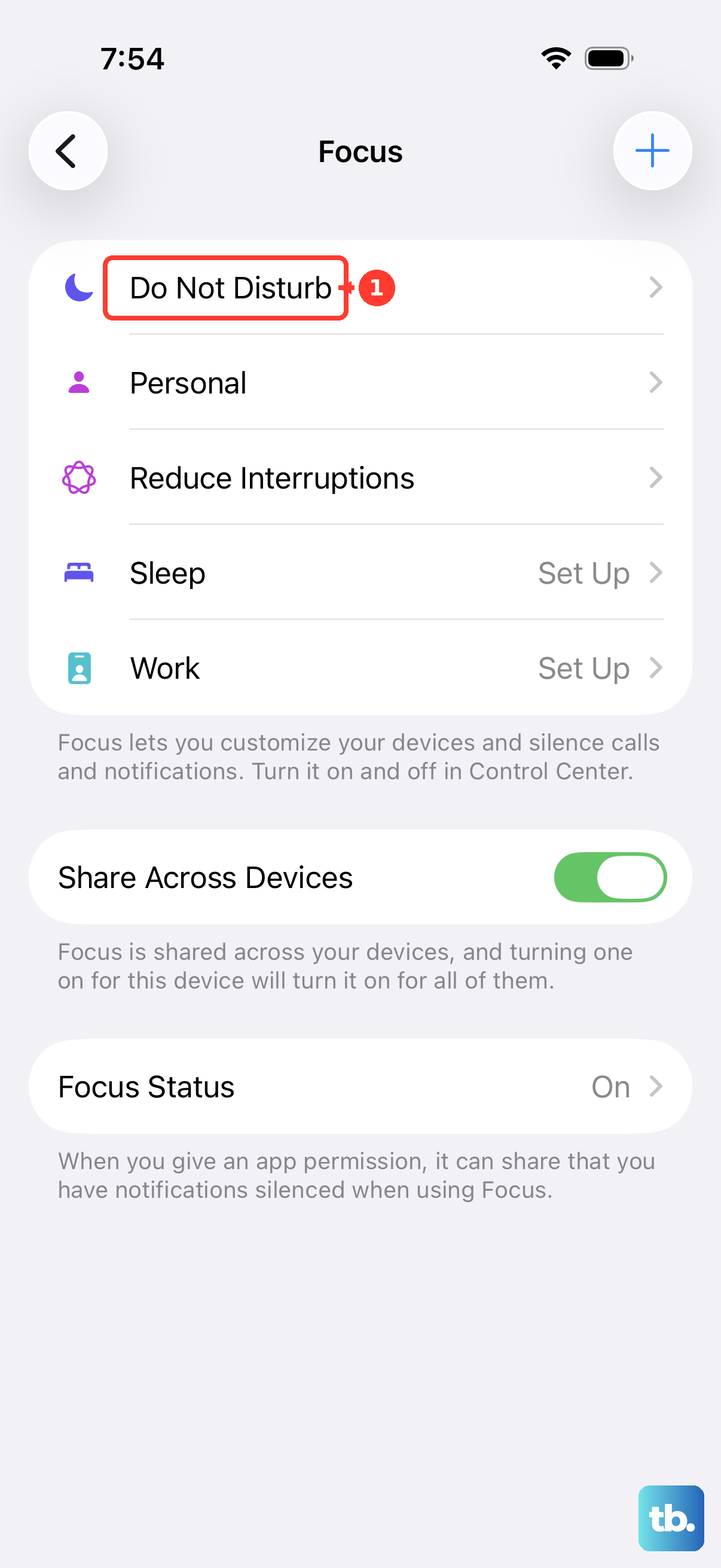
Tap that Focus again to turn it off. Open Settings > Focus, then tap the Focus you use most often. Tap Apps and choose Allow Notifications From. Tap Add Apps, choose Messages, then tap Done.
For contact-specific alerts, tap People, choose Allow Notifications From, tap Add People, select the contacts, then tap Done. Driving Focus does not support app-specific notification allowlisting.
Stop Focus from turning itself back on
A Focus can re-enable itself after you turn it off. Open Settings > Focus > Do Not Disturb, scroll to Set a Schedule, and turn off any schedule that keeps silencing Messages.
Focus can also sync across devices signed in to the same Apple Account. Open Settings > Focus > Share Across Devices and turn it off, or disable the Focus on the linked device that is enabling it.
For one contact who must always get through, open Contacts, select the contact, tap Edit, choose Ringtone or Text Tone, then turn on Emergency Bypass. Sound and vibration can come through even when other notifications are silenced.
Fix silent or barely audible alerts
Use this when notifications show on screen but do not make a sound or vibration. It also helps when the first alert is too easy to miss.
Open Settings > Sounds & Haptics and raise the Ringtone and Alerts slider. Tap Text Tone and choose an alert tone. Tap Haptics and choose a vibration option.
On iPhone models with an Action button, open Settings > Sounds & Haptics and turn Silent mode off, or press and hold the Action button when it is assigned to Silent Mode. On models with a Ring/Silent switch, move the switch toward the front of the iPhone so orange is not showing. When media is not playing, press the side Volume buttons to adjust ringer and alert volume.
To stop the buttons from changing ringer behavior later, open Settings > Sounds & Haptics and turn off Change with Buttons. Open Settings > Notifications > Messages > Customize Notifications > Repeat Alerts and choose a repeat count from Never to 10 Times.
Remove Messages from summaries and priority sorting
On iPhone 15 Pro, iPhone 15 Pro Max, all iPhone 16 and later models, and supported iPad models with Apple Intelligence, notification features can change how alerts are grouped or prioritized. Open Settings > Notifications > Summarize Notifications and turn Summarize Notifications off, or use Choose Notifications to Summarize to exclude Messages.
If you use Scheduled Summary, open Settings > Notifications > Scheduled Summary. Under Apps in Summary, make sure Messages is off, or turn Scheduled Summary off.
On Apple Intelligence-capable iPhone models running iOS 18.4 or later, open Settings > Notifications > Priority Notifications or Settings > Notifications > Prioritize Notifications. Turn Priority Notifications off, or open Settings > Notifications > Prioritize Notifications and turn it off for Messages.
If this does not fix delayed or hidden alerts, check message filtering next.
Check unknown senders and blocked contacts
Messages from unknown senders can be routed away from your main list. In iOS 26, Screen Unknown Senders is off by default, but it stays on after upgrading from iOS 18 when Filter Unknown Senders was already enabled.
Open Messages, tap the Filter button at the top right of the conversation list, then tap Manage Filtering. Turn on Screen Unknown Senders when you want filtering, tap Allow Notifications, and turn on the sender categories you want, including time-sensitive texts where available.
To move a person out of the unknown sender area, tap Filter, open Unknown Senders, tap the message, then tap Mark as Known. You can also tap the sender's email address or phone number and choose Create New Contact.
If messages from someone are not delivered at all, open Settings > Privacy & Security > Blocked Contacts, tap Edit, tap the delete button next to the contact, then tap Unblock.
Check Apple Watch Mac CarPlay and headphones
Open the Apple Watch app on iPhone, then tap My Watch > Notifications > Messages. Choose Mirror my iPhone, or tap Custom and choose Allow Notifications. Avoid Send to Notification Center and Notifications Off when you want Watch alerts. On Apple Watch, open Control Center and turn off Do Not Disturb.
On Mac, open System Settings > Notifications > Application Notifications > Messages and turn on Allow notifications. On iPhone, open Settings > Notifications > Announce Notifications to turn on spoken Messages alerts for supported headphones, CarPlay, and other supported announcement surfaces. Apple Watch notifications normally go to either your Apple Watch or your iPhone, not both.
Use the last resort fixes
This helps when Messages notification settings look right but the device still behaves inconsistently. Restart your iPhone first. On iPhone X, iPhone 11, iPhone 12, iPhone 13, or later, press and hold either volume button and the side button until the power-off slider appears.
Drag the slider. Wait 30 seconds. Hold the side button until the Apple logo appears.
Update iPhone or iPad next. Back up the device, then connect it to power and Wi-Fi. Open Settings > General > Software Update. Tap Download and Install when an update is available.
Use Reset All Settings only after the narrower fixes fail. Open Settings > General > Transfer or Reset iPhone > Reset > Reset All Settings. This does not erase your content, but it resets settings such as network, privacy, and notification preferences.
For a school or work iPhone, iPad, Shared iPad, or Mac, a device management policy can control Messages notification behavior. Ask your administrator to check whether Messages notifications are allowed for your managed device.
Skip older advice that says to delete and reinstall Messages on iPhone or iPad. Messages is not a removable built-in app on current iPhone and iPad software, so use notification settings, Focus, filtering, updates, or Reset All Settings instead.
Frequently Asked Questions
Why am I getting iMessages on my Apple Watch but not my iPhone?
Notifications normally appear on either Apple Watch or iPhone, not both. When your iPhone is locked or asleep, alerts can go to your Apple Watch instead.
Why do iMessage notifications work for everyone except one person?
That conversation is usually muted, blocked, filtered as unknown, or silenced by a Focus rule. Check Hide Alerts, Blocked Contacts, Unknown Senders, and Focus People settings for that contact.
Can deleting and reinstalling Messages fix iMessage notifications?
No. Messages is not a removable built-in app on current iPhone and iPad software, so deleting and reinstalling Messages is not a supported fix.
What should I do if I switched from iPhone and no longer get texts from iPhone users?
Use Apple's iMessage deregistration page, or put the SIM back in your iPhone and turn off iMessage in Settings > Apps > Messages. That is for switching to a non-Apple phone, not for fixing alerts on an active iPhone.