

To fix IDM not showing in Chrome, enable IDM Integration Module, pin its toolbar icon, and turn on Chrome integration in IDM. If the extension is missing, install the genuine companion extension alongside the IDM desktop application. These steps apply to Chrome on Windows.
A hidden toolbar icon, downloads that bypass IDM, and a missing video panel need different fixes. Start with the extension checks, then follow the steps for the part that still does not work.
The short version
- Missing icon: Open Extensions and select Pin beside IDM Integration Module.
- Missing extension: Install the official IDM Integration Module and the Windows desktop application.
- Downloads bypass IDM: Check Google Chrome under Options > General in IDM.
- Missing video panel: Update IDM, reload the page, and check video formats and site exceptions.
| Fix or option | When you need it |
|---|---|
| Pin the extension | Only the toolbar icon is missing |
| Enable the extension | IDM Integration Module is turned off |
| Restore website permissions | Website access is restricted |
| Install the genuine extension | The companion extension is missing |
| Install the IDM desktop application | You installed only the Chrome extension |
| Accept Chrome's installation prompt | Chrome offers to enable the companion extension |
| Enable Chrome integration in IDM | Chrome downloads bypass IDM |
| Add the browser executable | Your Chrome installation is absent from IDM's list |
| Launch Chrome normally | Chrome is running with administrator elevation |
| Update IDM | Integration or video panels remain broken |
| Update Chrome | Your existing browser needs compatibility maintenance |
| Use Google's Chrome product page | Chrome needs installing |
| Restore automatic file capture | A particular file type bypasses IDM |
| Remove download exclusions | A site or address is excluded |
| Check interception shortcuts | Keyboard overrides affect capture |
| Launch IDM before YouTube | YouTube's download panel is missing |
| Reload the video page | An individual page lacks its panel |
| Restore video formats | Only some formats show a panel |
| Remove video site exclusions | A site was excluded from panel display |
| Clear cached files | A panel is missing or misplaced |
| Compare YouTube sessions | The problem persists on YouTube |
| Try another connection | YouTube's panel remains missing |
| Allow Chrome background apps | The icon has a cross or integration repeatedly stops |
| Check extension conflicts | Another extension interferes with IDM |
| Resolve application interference | Security software or a standalone blocker interferes |
| Compare VPN connections | A video panel problem may involve your VPN |
| Ask an administrator to allow IDM | Managed Chrome restricts installation |
| Repair extension corruption | Chrome identifies the extension as corrupted |
| Repair the desktop installation | Earlier capture or panel fixes fail |
| Replace broken or unofficial extensions | Existing IDM extensions need replacing |
| Use IDM directly | You need a download while browser controls are broken |
| Contact IDM support | Repair fails or a site uses an unsupported protocol |
| Allow Incognito access | IDM fails specifically in Incognito |
| Restore the selected-links panel | Selecting links does not display a panel |
| Update IDM on Windows ARM | Advanced integration fails on an ARM device |
| Use the link context menu | The extension works but automatic capture fails |
Enable IDM and restore its toolbar icon
Open Extensions in Chrome, find IDM Integration Module, and select Pin. Pinning restores toolbar visibility but does not repair download capture. To check whether the extension is disabled, enter chrome://extensions in Chrome's address bar and turn on IDM Integration Module.
Select Details for IDM Integration Module and set Site access to On all sites. Alternatively, open Extensions, open the extension's More menu, and select This can read and change site data > On all sites. If IDM Integration Module is absent, install it next.
Install the official IDM extension
Open the official IDM Integration Module listing in a normal Chrome window. Select Add to Chrome, then select Add extension. The extension needs the Windows IDM desktop application installed alongside it.
If you installed only the extension, get the desktop application from the official IDM download page, run the installer, and follow its installation instructions. When Chrome reports that the desktop application installed its companion extension, select Enable. If your work or school manages Chrome and blocks installation, follow the administrator steps below.
Turn on Chrome integration in IDM
Open IDM and select Options > General. Under Capture downloads from the following browsers, check Google Chrome, then select OK. Restart Chrome after changing these settings.
If your Chrome installation is missing from IDM's browser list, select Add browser... under Options > General. Locate that browser's executable, save the configuration, and restart the browser.
IDM identifies administrator elevation as a possible cause of integration problems. Close the elevated Chrome session and launch Chrome normally from Windows. Avoid launching it through an administrator-run application or elevated portable launcher.
Update IDM and Chrome
In IDM, open Help > Check for updates... and install the offered update. IDM's release notes identify fixes for missing video panels and interference from antivirus screen protection. Update before changing individual video settings.
In Chrome, open More > Help > About Google Chrome, then let the update check finish. Select Relaunch when offered; you can also review how to manage automatic updates in Chrome. Updating Chrome is compatibility maintenance, not a guaranteed IDM fix.
If Chrome needs installing, use Google's official Chrome product page. For an existing installation, use the built-in update procedure above.
Restore capture for ordinary downloads
If particular file downloads bypass IDM, open Options > File types in IDM. Add the intended file extension to the automatic-download list and select OK. These controls are separate from the video panel's format settings.
Removing an automatic-download exception removes the exclusion for that site or address. Under Options > File types, remove the affected site or matching wildcard from the automatic-download exclusion list. Open Edit list..., remove any matching address exception, and save the dialogs.
Release Alt before clicking a download link, because IDM uses that key to bypass interception. Try holding Ctrl while clicking to force interception. If your configured combinations differ, inspect Options > General > Keys....
Bring back the video download panel
For a missing YouTube panel, open IDM manually and confirm that its icon appears on the taskbar, then reload the YouTube page. On an affected video page, press F5 or Ctrl + F5 and check the panel again. IDM recommends repeating the reload if necessary.
If the panel works on some sites or formats, open IDM's Options > General. Select Edit... beside Customize IDM Download panels in browsers, then open For web-players. Enable the relevant format, such as MP4; if it is absent, select Add, enter its extension, and select OK, then save with OK.
Deleting a video-panel exception removes the site's exclusion from panel display. In the same For web-players settings, open Exceptions and delete the affected site or matching wildcard from the exceptions text. Select OK and save the enclosing dialog.
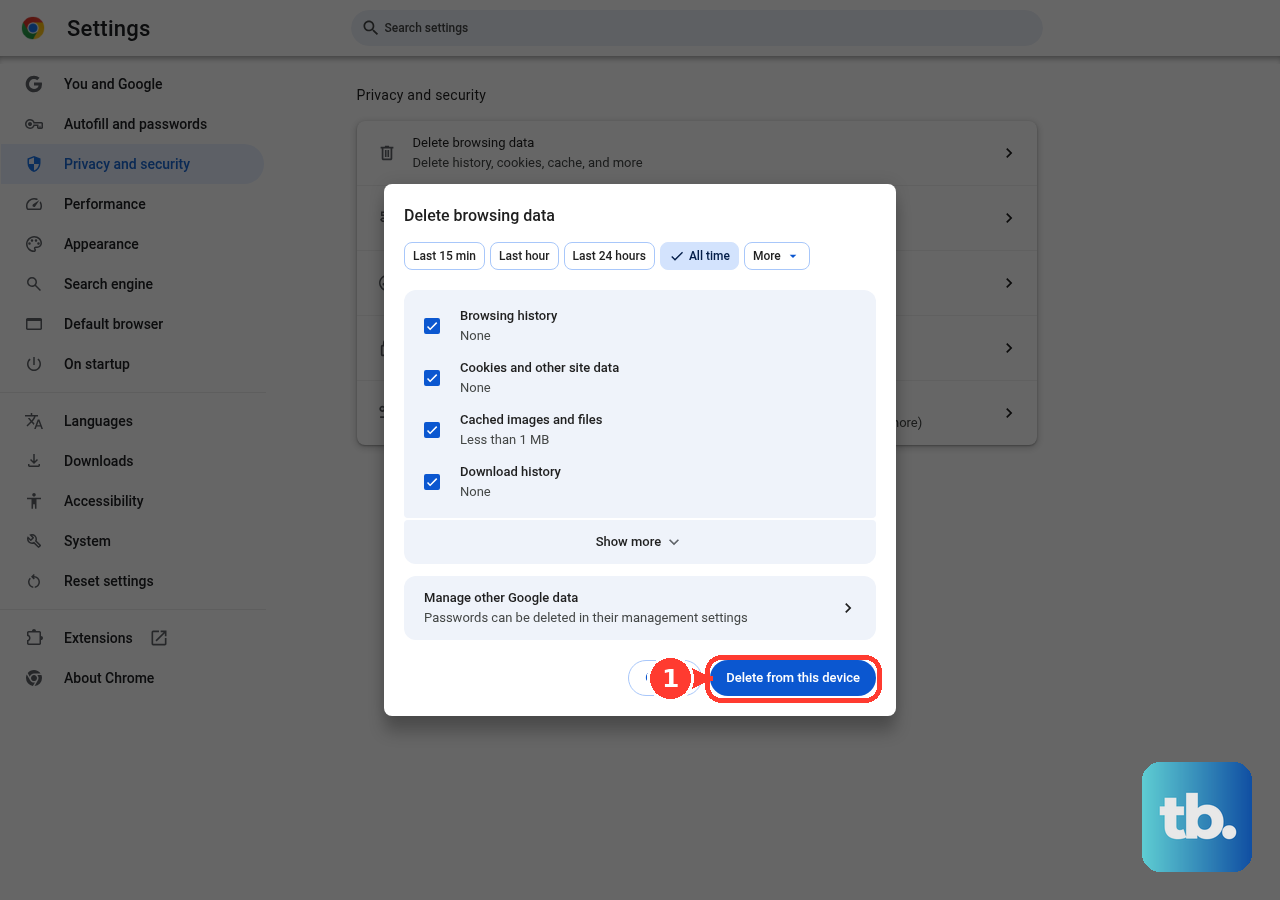
Clearing cached images and files deletes Chrome's cached copies of that content. For a panel that remains missing or appears in the wrong place, open Chrome's More > Delete browsing data and choose All time. Check Cached images and files, leave unrelated data categories unselected, select Delete data, and reload the affected page.
For a persistent YouTube problem, compare the same video while signed in to your Google account and while signed out, reloading after each session change. You can also connect the Windows computer through another internet provider or a phone hotspot, then reload the affected YouTube page and check the panel. Connection controls depend on your device.
Check background behavior and software conflicts
If the IDM toolbar icon has a cross or integration repeatedly becomes unavailable, enter chrome://settings/system in Chrome's address bar. Enable Continue running background apps when Google Chrome is closed.
IDM identifies filtering, privacy, and VPN extensions as possible sources of interference. Open chrome://extensions and temporarily turn off every extension except IDM Integration Module. Check IDM, then turn the others on individually until the problem returns, and leave the identified conflicting extension disabled.
When security software is confirmed to be blocking IDM or Chrome's extension files, use that product's exception mechanism for IDM. The exact menus depend on the installed product. For a video-panel problem, compare the affected page with your VPN connected and disconnected, using the VPN application's connection control and reloading after each change.
For an identified conflict with a standalone pop-up blocker, exit the blocker and check IDM again. Removing the blocker removes that application. If exiting it confirms the conflict and removal is necessary, remove the blocker.
Ask your administrator to allow IDM
If managed Chrome blocks the extension, ask your administrator to open the Google Admin console and select Devices > Chrome > Apps & extensions > Users & browsers. In Chrome Enterprise Core, the path is Chrome browser > Apps & extensions. These changes require administrator access.
Your administrator can locate extension ID ngpampappnmepgilojfohadhhmbhlaek, or select Add > Add Chrome app or extension by ID to add it. They must set Installation policy to Allow install or Force install, then select Save. You also need the IDM desktop application installed.
Repair IDM when the earlier fixes fail
If Chrome identifies the extension as corrupted, open chrome://extensions, select Repair on the affected extension, and confirm the repair. If corruption returns, scan for software modifying the extension.
Installing over the existing copy replaces the current IDM installation. For persistent capture or video-panel problems, download current IDM from its official download page above and install it over the existing installation. Restart Windows if requested, then replace the browser extensions as described next.
Removing an IDM extension deletes that extension from Chrome. Open chrome://extensions, select Remove for each existing IDM extension being replaced, and confirm with Remove. Install the genuine IDM Integration Module again from the official listing above, including when the previous extensions were duplicates, outdated, or unofficial copies.
While browser controls remain broken, copy a direct file URL and select Add URL in IDM. This starts a download through the desktop application but does not repair Chrome integration.
If repair does not resolve the problem, contact IDM support with the affected site and symptoms, including when a site uses an unsupported protocol. On IDM's browser-integration support form, turn on the setting that reads "I have repaired my IDM installation, but I still face a problem". Complete the contact fields and verification code, then select Send message.
Frequently Asked Questions
How do you make IDM work in Chrome Incognito?
Install IDM Integration Module in a normal Chrome window first. Open chrome://extensions, select Details for IDM Integration Module, and enable Allow in incognito. This permission is needed specifically for Incognito browsing.
Why does selecting download links fail to show an IDM panel?
The selected-links panel has its own setting. In IDM, open Options > General and select Edit... beside Customize IDM Download panels in browsers. Open For selected files, check Show download panel for any selected links, and select OK.
What should you try for IDM integration failures on Windows ARM?
Installing over your existing copy replaces that IDM installation. Install the latest IDM over the existing version to obtain IDM's fix for Advanced integration on Windows ARM. This applies to Windows ARM devices, including Windows running through Parallels Desktop on Apple hardware, rather than native macOS Chrome.
Can you start an IDM download from Chrome without automatic capture?
Yes, if the IDM extension is functioning, right-click the actual download link and select Download with IDM. This gives you another way to start the download when automatic capture fails.
Can you drag a download link into IDM?
Yes, drag the link into IDM's main window, or enable Tasks > Show drop target and drag it there. Clipboard monitoring can also prompt you to download recognized file URLs.
Can you paste any video webpage address into IDM?
A webpage URL is not necessarily a downloadable media URL. For the Add URL fallback, copy a direct file URL rather than assuming the video's page address points to a downloadable file.
Which Windows versions support current Chrome?
On Intel systems, current Chrome requires Windows 10 or later. On ARM systems, it requires Windows 11 or later.
Should you use an old Manifest V2 workaround for IDM?
No, Google ended Manifest V2 support in Chrome 139 and later and removed its enterprise availability policy. Replace the old extension with the current official IDM Integration Module instead of using old flags or the ExtensionManifestV2Availability policy.