

Set your gaming monitor as the main display in Windows, then close and relaunch the game to change its default screen. A game's own monitor selection can override that choice, while moving a running window may only change its position for the current session. The Windows steps below use Windows 11 menus.
The short version
- Start with the default: Select your gaming monitor in Windows display settings, then check Make this my main display.
- Move a running game: With the game window focused, press Windows + Shift + Left arrow or Windows + Shift + Right arrow.
- Handle fullscreen: In games that support it, press Alt + Enter, move the window, then restore fullscreen.
- Use launch options carefully: Unity and Valve Source or GoldSrc games have different supported arguments.
| Fix | When to use it | Main limitation |
|---|---|---|
| Choose the main display | Change the Windows default screen | A game's monitor selection can override it |
| Move with a keyboard shortcut | Move a running window quickly | Placement may not persist after relaunching |
| Leave fullscreen and drag | Move a game supporting automatic DXGI fullscreen switching | Games can disable or replace the behavior |
| Use one display | Play on a laptop's external screen | Temporarily changes the desktop setup |
| Use Unity launch options | Select a monitor or request windowed mode | Requires a compatible Unity game |
| Use Source or GoldSrc launch options | Start a supported Valve game in a movable window | Applies only to the specified engines and games |
| Remember window locations | Restore placement after reconnecting a monitor | Does not override an explicit fullscreen monitor choice |
| Use PowerToys FancyZones | Restore a compatible game's window to a zone | Exclusive fullscreen placement is not guaranteed |
| Check display connections | Recover a missing or unstable monitor | Does not establish a launch preference |
| Reset the graphics driver or restart | Recover a previously working display setup | Does not save a game-monitor preference |
| Repair graphics software | Address detection or driver faults | Requires a driver matching your hardware and operating system |
| Assign a Mac desktop | Place games that participate in Spaces | Games managing their own fullscreen output can behave differently |
| Choose Ubuntu's primary display | Change the preferred GNOME screen | Individual games can use different placement rules |
| Disable an unwanted Ubuntu display | Use the intended screen without the other monitor | Changes which displays are enabled |
Set the intended monitor as the main display
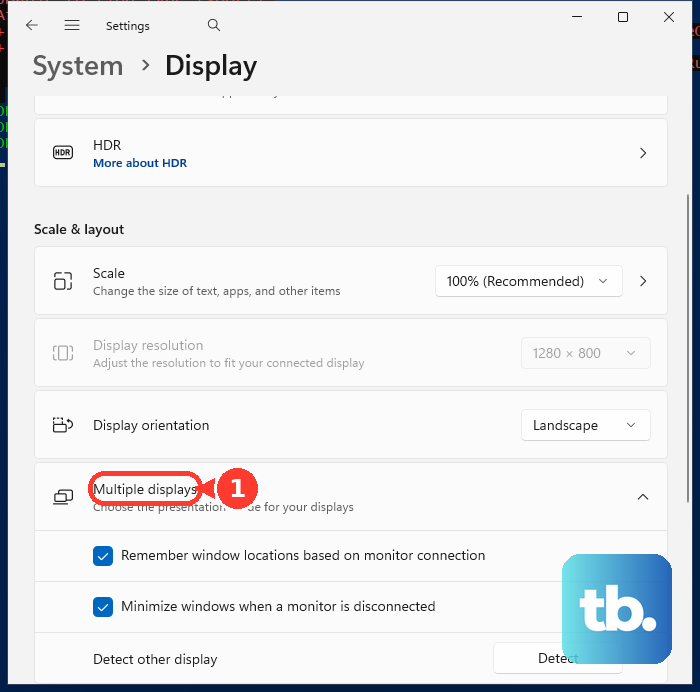
Open Settings > System > Display and select Identify to match the display rectangles to your physical screens. Select the monitor you want to play on, expand Multiple displays, then check Make this my main display. Close and relaunch the game so it can use the new default.
If the intended monitor is missing, open Multiple displays and select Detect. If Windows still cannot find it, follow the connection checks below. Changing the default display helps games that follow Windows' choice, but a game's own monitor selection can take precedence.
Move the running game with a keyboard shortcut
Focus the game window, then press Windows + Shift + Left arrow or Windows + Shift + Right arrow. This moves a compatible window to the adjacent monitor. Repeat the shortcut if the intended display is farther across your desktop arrangement.
If the window moves in the wrong direction, return to Settings > System > Display. Drag the display rectangles to match the screens' physical positions, then select Apply. That arrangement controls movement between screens; rearranging the rectangles does not itself choose where a game launches.
A game can intercept the shortcut, and exclusive fullscreen can prevent movement. Switch to a movable windowed mode before trying again, using the fullscreen method below when the game supports it. The shortcut moves the current window, but it does not guarantee that the game will remember the screen when you relaunch it.
Leave fullscreen before dragging the game
For a game that supports automatic DXGI fullscreen switching, press Alt + Enter to leave fullscreen. Drag the window onto your gaming monitor, placing most or all of it on that screen. Press Alt + Enter again to return to fullscreen.
Microsoft says automatic DXGI fullscreen selection uses the display containing most of the window's client area. Games can disable or replace that behavior, so the shortcut is not universal. If it does not work, use a compatible engine's windowed launch option below, or temporarily use only the intended screen.
Temporarily use only the gaming screen
Close the game, then press Windows + P. Choose Second screen only to use the external screen, or PC screen only to use the PC screen. Relaunch the game after selecting the display mode.
This is most straightforward with a laptop and one external monitor. These choices are not a numbered selector for an arbitrary three-monitor arrangement. When you finish playing, press Windows + P again and select Extend to restore the extended desktop.
Use launch options that match the game
Steam's launch options pass arguments to the game, so the correct argument depends on its engine. For a compatible Unity Standalone game, -monitor N selects a monitor using an index that starts at 1. Game code can still override the startup setting.
For a Steam-distributed Unity game, open your Steam Library, right-click the game, then select Properties > General > Launch Options. To request monitor 2, enter this argument:
-monitor 2Replace the number with the intended monitor's index. This argument applies to compatible Unity games, so do not assume it will work in every Steam game. If you need a movable window instead, a compatible Unity game can request windowed mode with this argument:
-screen-fullscreen 0Move the resulting window with the Windows shortcut or by dragging it. On Windows, compatible Unity players also accept -window-mode borderless for borderless fullscreen behavior and -window-mode exclusive for exclusive fullscreen. Use -monitor N separately when you need an explicit monitor choice.
For Valve's supported Source and GoldSrc games, use the same Steam Properties > General > Launch Options field. Enter the following argument, close Properties, and launch the game in a movable window:
-windowedUse these Valve steps only for its supported Source and GoldSrc games, rather than assuming they apply to other third-party games or Source 2 titles. Once the window opens, move it to the intended monitor.
Restore the position of a windowed game
When the problem follows disconnecting and reconnecting a monitor, open Start > Settings > System > Display > Multiple displays. Check Remember window locations based on monitor connection, then move the game window to the desired screen. This helps restore window placement when the same monitor connection returns, but it does not override a game's explicit fullscreen monitor choice.
For more control over compatible windowed games, get PowerToys through Microsoft's PowerToys installation page. Open PowerToys > FancyZones and enable Move newly created windows to the last known zone. Open the layout editor with Windows + Shift + ` and configure a zone on your gaming monitor.
Hold Shift while dragging the game window into that zone, then relaunch the game to check whether it accepts restored placement. FancyZones manages compatible movable windows, so it is not a guaranteed solution for exclusive fullscreen games. If the game enforces its own output, use its supported monitor argument or the single-display workaround.
Repair a missing or unstable monitor connection
Use connection troubleshooting when the intended monitor disconnects, disappears, or becomes unavailable as the game launches. Close the game, secure the display cable, and test another cable or output port. Also test without an intervening dock or adapter, then reconnect the monitor and relaunch after Windows detects it.
If a previously working display setup stops behaving correctly, press Windows + Ctrl + Shift + B to reset the graphics driver. If the display problem remains, save your work and select Start > Power > Restart. Recheck the display arrangement before relaunching the game.
For detection or driver faults, you can find and update your graphics driver with a driver matching your hardware and operating system. NVIDIA and AMD provide driver-selection routes, while Intel provides drivers through its Download Center. Computer-manufacturer customization can affect Intel driver choice, so check compatibility when choosing a driver.
Choose the display on Mac or Ubuntu
On a Mac, hold Control and click the game's Dock icon, then select Options. Under Assign To, choose Desktop on Display [number] for the intended screen. This applies to applications that participate in macOS Spaces; a game that manages its own fullscreen output can behave differently.
On Ubuntu's GNOME desktop, open Activities, type Displays, and open Displays. Use Primary Display to choose the intended screen, then select Apply and Keep Changes. Individual games and other Linux desktop environments can follow different placement rules.
If choosing the primary display does not produce the intended result, you can disable the other monitor. In Ubuntu's Displays settings, select the unwanted monitor and turn its switch off. Select Apply, then Keep Changes.
Frequently Asked Questions
Can NVIDIA Control Panel change which monitor a game uses?
It can change the primary display when the NVIDIA GPU controls the relevant screens. Open NVIDIA Control Panel > Display > Set up multiple displays, right-click the intended display icon, select Make Primary, then select Apply and relaunch the game. Display controls may be unavailable for screens driven by another GPU, so use Windows' main-display setting in that case.
Can duplicating the screens make the game visible on both monitors?
Yes, on Windows 11 with compatible display modes, press Windows + P and select Duplicate. Both displays show the same desktop, making the game visible on the intended screen too. Select Extend when you want the extended desktop back.
How do you choose a screen for a game that does not handle AMD Eyefinity's combined resolution?
On a supported Radeon desktop system with an active Eyefinity group, open AMD Software, search for Display, and open Display Settings. Under Global Display, select the intended screen and set Preferred Display to Enabled. This setting is intended for games that do not properly support the combined Eyefinity resolution.
Can FancyZones put a game on whichever monitor is currently active?
For compatible windowed applications, open PowerToys > FancyZones and enable Move newly created windows to the current active monitor. Activate the intended monitor before launching the game. This feature is experimental, and the remembered-zone option takes precedence when it is enabled and a saved zone exists.