

To fix the Failed to load IL2CPP error in Steam games, restart Windows, update the affected game, and verify its installed files. If it still fails, check whether antivirus software blocked a game file, then repair the Visual C++ runtime your game requires. The Windows security and runtime fixes apply to Windows PCs, and the game-specific fixes apply only where indicated.
The short version
- Start with Steam: Restart Windows, install the game's updates, and verify its files.
- Check blocked files: Restore or allow a game DLL only after confirming that its detection was a false positive.
- Repair the runtime: Use Microsoft's supported Visual C++ package in the architecture required by the game.
- Keep fixes specific: Use mod removal, storage repairs, and security changes only when they match your game's circumstances.
| Fix or option | When to use it |
|---|---|
| Restart Windows | Before changing settings |
| Update the game | A corrected build may be available |
| Verify game files | Files may be missing or damaged |
| Update Windows | Windows 11 updates are available |
| Update Defender detections | A false positive is suspected |
| Restore a quarantined DLL | A confirmed false positive remains quarantined |
| Allow and download a removed DLL | Defender already removed a falsely detected file |
| Add a narrow Defender exclusion | A confirmed false positive needs an exception |
| Check third-party antivirus | Another antivirus blocked game files |
| Temporarily disable real-time scanning | Confirmed antivirus interference needs diagnosis |
| Download the supported Visual C++ package | The game requires an MSVC v14 runtime |
| Install or repair Visual C++ | The required runtime needs installation or repair |
| Remove interfering modifications | Party Animals has third-party additions |
| Test administrator privileges | The Piper of Dawn still fails |
| Inspect application-control events | A policy may be blocking the game DLL |
| Turn off Smart App Control | A Windows 11 block is confirmed and you accept losing its protection |
| Clear Steam's download cache | Download repair or reinstallation is needed |
| Reinstall the game | Earlier local repairs failed |
| Remove leftover game files | Creator Chronicles has files left after uninstalling |
| Repair library permissions | Write permissions prevent repair or updates |
| Change download region | Replacement files fail to download |
| Move the installation | Storage or installation location is implicated |
| Download the Steam installer | You need to repair the Steam client |
| Repair the Steam client | Client or service files are corrupted |
| Contact the developer | The failure persists or needs a corrected build |
Restart Windows and repair the game files
Restart your computer, reopen Steam, and launch the affected game again. If the error returns, launch the game through Steam to trigger any required update, or open View > Downloads to manage its queued update.
To receive updates automatically, open the game's Properties > Updates > Automatic updates and select Always keep this game updated. Updating takes priority because the developer may have corrected the affected build, as happened with Creator Chronicles.
Next, right-click the game in your Steam Library and select Properties... > Installed Files > Verify integrity of game files. Wait for verification to finish, then retry the game. You can also verify game files on Steam by starting from the gear icon on the game's Library page.
Install Windows updates before security workarounds
On Windows 11, open Start > Settings > Windows Update and select Check for Windows updates. If updates are offered, select Download & install, restart when required, and retry the game. The Yet Another Zombie Survivors developer specifically recommends updating Windows for this error. Its version 1.0.2 update also says Smart App Control on Windows 11 should no longer cause the error, so Yet Another Zombie Survivors players should install the latest game update first.
Windows 10's ordinary free support ended in October 2025, so update eligibility needs to be checked separately. The Defender procedures below apply to Windows 10 and Windows 11, while Smart App Control troubleshooting applies to Windows 11 devices that have the feature.
Check whether antivirus blocked a game DLL
Your antivirus may have blocked a game file such as GameAssembly.dll or il2cpp.dll. Before adding an exception for a suspected false positive, open Windows Security > Virus & threat protection. Under Virus & threat protection updates, select Check for updates, then recheck the detection and verify the game files if needed.
Open Windows Security > Protection history and expand the detection affecting the game's DLL. Administrator access is required to inspect threat details. Proceed with restoring or allowing the file only after establishing that the original Steam game file was falsely detected.
For a Threat quarantined entry, select Restore. If Defender detects the file again, open the new detection's Actions menu and select Allow on device. Verify the game files afterward and retry the launch.
A Threat blocked entry needs a different follow-up when Defender has already removed the file. Expand the entry and select Actions > Allow, then verify the game files in Steam to download the missing file again. Allowing the detection alone does not restore an already removed file.
An exclusion changes antivirus scanning for the selected file or folder. For a confirmed false positive that needs an exclusion, on Windows 10 or Windows 11 open Windows Security > Virus & threat protection > Manage settings. Under Exclusions, select Add or remove exclusions > Add an exclusion, then choose File for the affected DLL or Folder for the game installation directory.
Keep the exception narrow and verify the game files afterward. A Defender exclusion does not create a Smart App Control exception, so a confirmed block from that separate feature needs different handling.
If you use third-party antivirus software, inspect its quarantine for the affected game's files and restore only confirmed false positives. Add the affected file or game folder to its trusted-file or exclusion list, then verify the Steam installation. Menu names depend on your antivirus product; The Piper of Dawn developer recommends this approach for affected installations.
For confirmed antivirus interference, temporarily disabling scanning is a diagnostic option, though a confirmed, narrow exclusion is preferable. Disabling real-time scanning exposes other files too. On Windows 10 or Windows 11, open Windows Security > Virus & threat protection > Manage settings and set Real-time protection to Off. Verify the game's files and retry its launch, then set Real-time protection to On.
If you can't turn off Real-time protection, continue with the confirmed false-positive procedures or contact the game's support channel with the detection details.
Install or repair the required Visual C++ runtime
Party Animals and The Piper of Dawn specifically recommend the x64 Visual C++ runtime for this error. Open Microsoft's Visual C++ download page and download the supported Visual C++ v14 Redistributable package required by your game.
After downloading the official x64 installer, open an elevated command prompt in its directory. To install the runtime, run this command:
vc_redist.x64.exe /install /passive /norestartIf the corresponding runtime is already installed and needs repair, use the repair command instead. Run it from the same installer directory:
vc_redist.x64.exe /repair /passive /norestartRestart Windows afterward and retry the game. When a game requires another architecture, download that package and substitute its matching installer filename in the command.
Apply the fixes specific to your game
For Party Animals, the developer recommends removing interfering third-party mods, plugins, mod loaders, DLL injectors, and overlay software. Removal takes those additions out of your installation. Follow each addition's own removal instructions, then relaunch the game.
Steam file verification is not a complete mod uninstaller. For another game, follow its own mod removal instructions.
The Piper of Dawn developer also recommends testing the game executable with administrator privileges, including in its v1.0.9 troubleshooting notes. Locate the verified original game executable in File Explorer, right-click it, and select Run as administrator. Use this test for The Piper of Dawn or when your own game's developer recommends it.
Investigate application control blocks
When an application-control policy may be blocking the game, open Event Viewer > Applications and Services Logs > Microsoft > Windows > CodeIntegrity > Operational. Look for events matching the failed launch and game DLL. Event 3077 identifies an enforced policy block, while event 3089 supplies signature information. On a managed PC, give the administrator the blocked file and policy details for review.
For a confirmed Smart App Control block on Windows 11, prefer obtaining a corrected or correctly signed build from the developer. Microsoft provides no individual-app exception for Smart App Control. Adding the game to Defender's exclusions will not bypass that block.
Turning off Smart App Control disables its protection system-wide. If you choose that workaround for a confirmed block, on Windows 11 open Windows Security > App & browser control > Smart App Control settings and select Off. Older Windows builds can have different restrictions on turning it back on, so do not assume the change is freely reversible on every PC.
Clear the download cache and reinstall if needed
Clearing Steam's download cache signs you out of Steam, while installed games remain installed. Open Steam > Settings > Downloads > Clear Download Cache and select Confirm. Sign in again and retry the download or game.
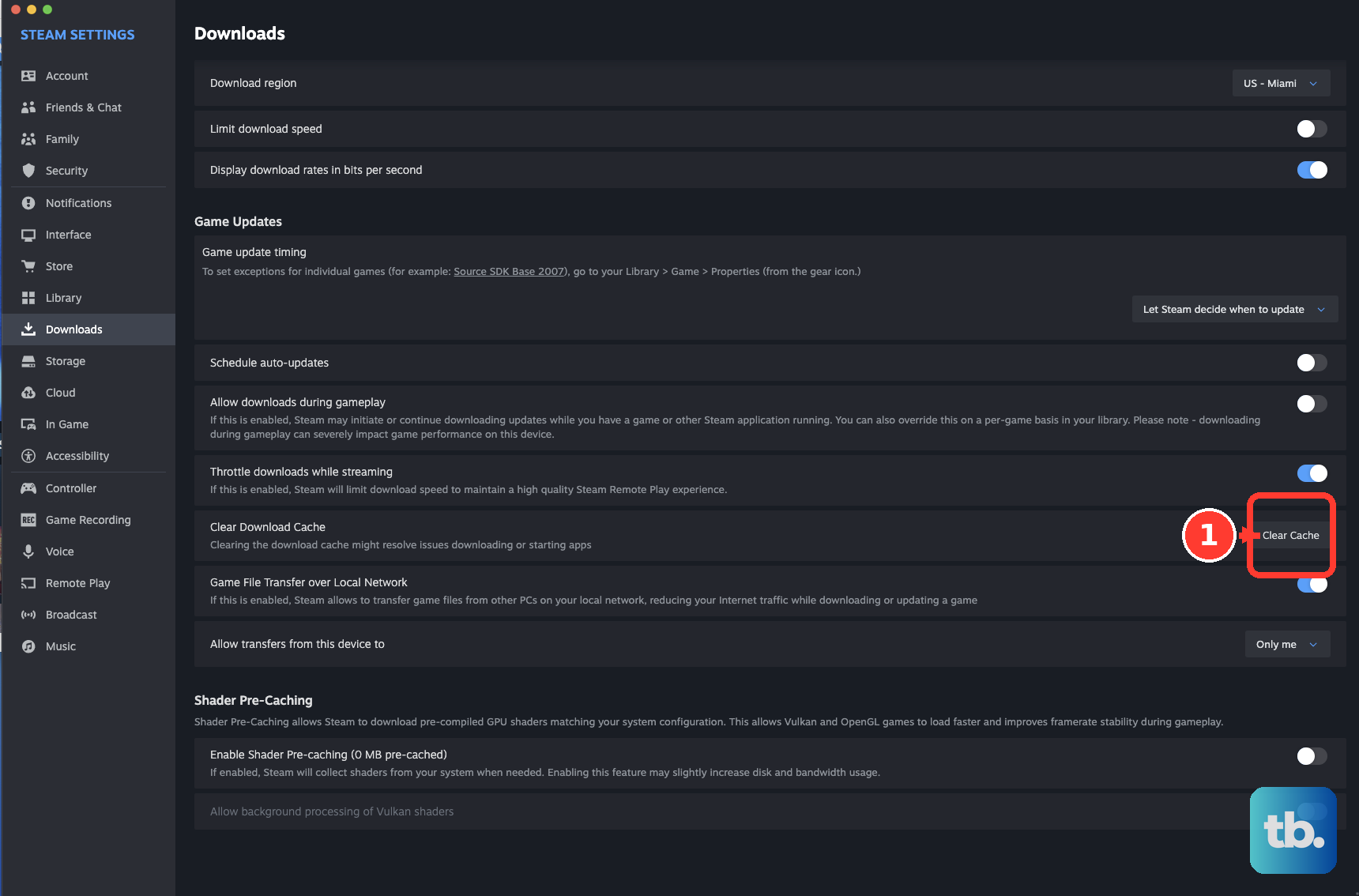
Slime Rancher 2's developer specifically recommends clearing the cache followed by reinstallation for this error. Party Animals and Everything is Crab developers also recommend reinstalling when needed. Use that repair after the earlier checks fail.
Uninstalling removes the game's installation, so back up your game saves first. In Steam Library, right-click the game and select Manage > Uninstall. Reinstall it through its Library page, then launch it again.
For Creator Chronicles with leftover files, particularly after mod use, the developer also recommends cleaning up the remaining installation folder. Deleting that folder removes its remaining files, so back up saves before uninstalling and cleaning it up. After uninstalling Creator Chronicles, remove its remaining steamapps\common\Creator Chronicles directory before reinstalling. Use this exact folder instruction only for that game, and prioritize its latest update first.
Fix failed repairs or contact the developer
If library write permissions prevent verification or updates from completing, open Steam > Settings > Storage, select the affected library, open ..., and select Repair Folder. Retry verification or installation afterward. When Steam reports a permissions error, follow the steps to fix Steam's missing file privileges error.
When replacement files fail to download correctly, open Steam > Settings > Downloads > Download Region. Choose another region and retry the failed download or update. Use this option when downloading or updating the game is failing.
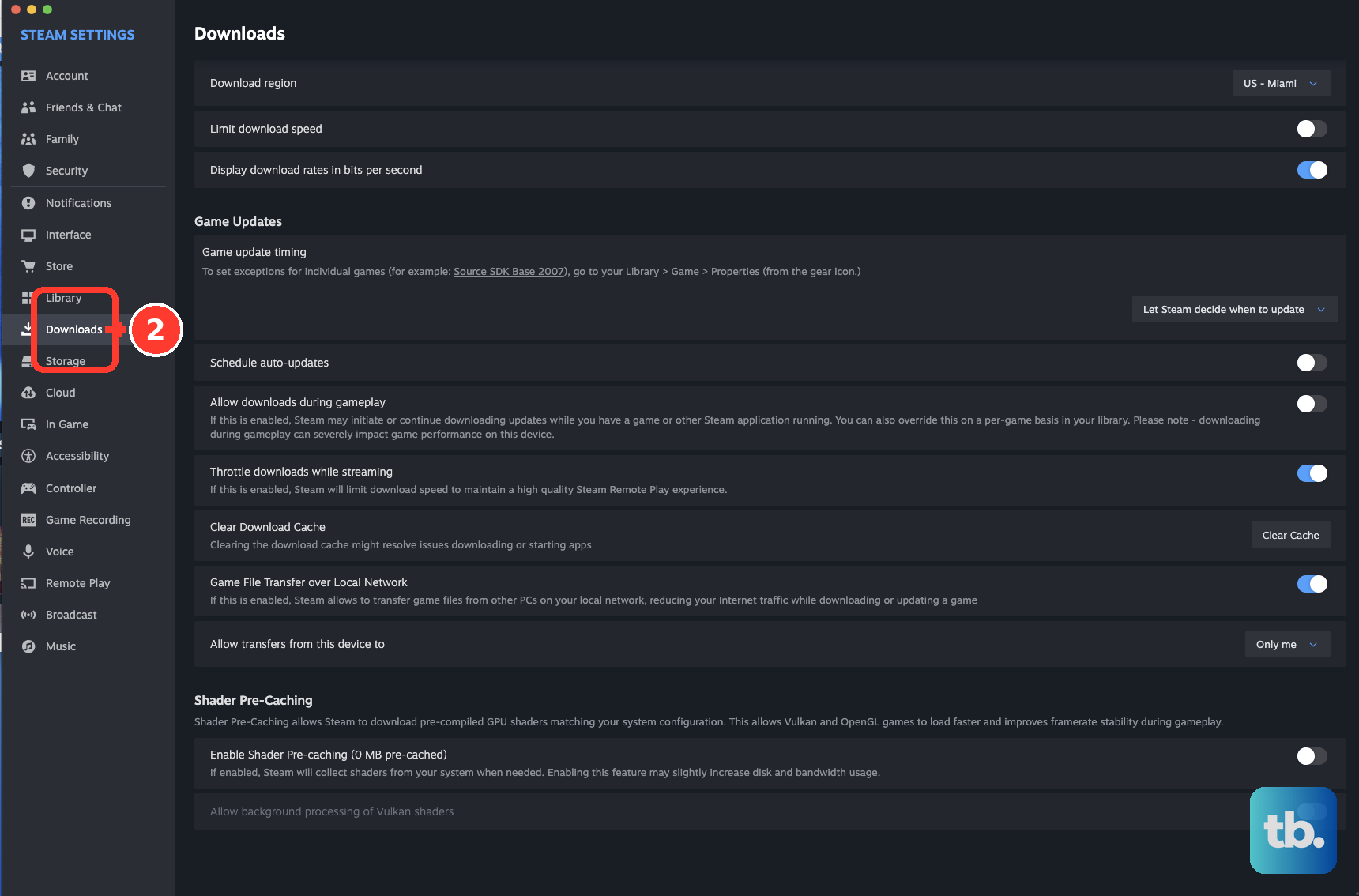
For storage or installation-location problems, open Steam > Settings > Storage and create another library with + if needed. Select the source drive, select the affected game, and select Move. With another library available, you can alternatively open the game's Properties... > Installed Files > Move Install Folder....
If Steam's client or service files are corrupted, Valve says reinstalling Steam into its existing location can repair those files while preserving installed games. Uninstalling Steam first can delete game content. Open Valve's Steam download page, select Install Steam for your operating system, and install it into the same location as your existing installation.
For a persistent failure, contact the affected game's official support channel with the exact error, game version, verification results, antivirus detection details, and any blocked DLL information. If Smart App Control is confirmed as the cause, request a correctly signed or corrected build. A build-specific problem may need the developer's repair even after your local installation has been repaired.
Frequently Asked Questions
Does a failed file verification always mean the game is damaged?
Steam says some local configuration files can fail verification normally. That result alone does not establish that those files caused the IL2CPP error.
Should I download the x64 runtime just because my PC has a 64-bit processor?
Choose the runtime architecture required by the application, not simply your computer's processor. X86 is for a 32-bit application, while ARM64 should be selected when specifically required. Party Animals and The Piper of Dawn specifically recommend x64 for this error.
Should I follow an older fix that installs Visual C++ 2015?
Use the current supported v14 package instead of the unsupported standalone Visual C++ 2015 version 14.0.24212. Microsoft recommends an in-place upgrade to the current runtime. This does not mean every package described as 2015 through 2022 is unsupported.
Can Smart App Control be turned back on without reinstalling Windows?
Microsoft says eligible, updated devices can re-enable Smart App Control without a clean installation. Older Windows builds can have different restrictions, so the answer depends on the device and its update state.
Does Event Viewer event 3033 prove Smart App Control blocked the game?
Event 3033 alone does not prove Smart App Control caused the failure. Check the application-control events matching the failed launch and game DLL before deciding which repair applies.
How do I remove a Defender exclusion after resolving the error?
Removing the exclusion ends the scanning exception for that file or folder. On Windows 10 or Windows 11, open Windows Security > Virus & threat protection > Manage settings, then under Exclusions, select Add or remove exclusions. Select the exception and select Remove.