To fix the Steam missing file privileges error, restart your computer, repair the affected Steam library, and verify the game's files. Retry the installation or update after each fix, and stop when it completes. If the error persists, check for an antivirus block and make sure your account can write to the game library.
The short version
- Start simple: Exit Steam completely, restart your computer, and retry the failed operation.
- Repair the library: Open Settings > Storage, select the affected drive, and use Repair Folder.
- Check game files: Verify the installed game, then clear the download cache if the error continues.
- Check access: Resolve confirmed security blocks and library permission problems before reinstalling.
| Fix | When to use it | Main catch |
|---|---|---|
| Restart your computer | Your first attempt | Exit Steam completely first |
| Close a stuck game process | A Windows game has not exited | End only the affected game |
| Repair the library | Installation or updates fail | Select the affected drive |
| Verify game files | The game is already installed | Let replacement downloads finish |
| Clear the download cache | Library and game repairs fail | You may need to sign in again |
| Restore a quarantined file | Antivirus quarantined a legitimate game file | Confirm that the detection is incorrect |
| Add an antivirus exception | A confirmed false positive blocks the game | Limit the exception to the trusted item |
| Allow a blocked executable | Controlled folder access blocks Steam or the game | A scan exclusion does not bypass this protection |
| Correct Windows folder permissions | Your account cannot modify the library | Change only the affected library |
| Correct Mac folder permissions | Your account lacks library write access | Check enclosed items if necessary |
| Allow Mac location access | The library is in a protected location | Separate from folder permissions |
| Correct Linux folder permissions | The library owner lacks write access | Requires a filesystem supporting Unix permissions |
| Allow Flatpak library access | Flatpak Steam cannot access an external library | Does not change underlying folder permissions |
| Create another library | Another writable drive is available | Install the affected game there |
| Move an installed game | You have another library ready | Source files must be readable |
| Replace a Mac NTFS library location | macOS cannot write to the external drive | Folder permissions cannot make NTFS writable |
| Rediscover existing files | Steam shows an existing game as uninstalled | Select the library already holding its files |
| Reinstall the affected game | One game still fails after repairs | Back up local saves and modifications |
| Reinstall the Windows client in place | You suspect Steam client corruption | Use its existing installation location |
Restart Steam and your computer
Exit Steam completely, then restart your computer. On Windows, open Start > Power > Restart. On a Mac, open the Apple menu and select Restart.
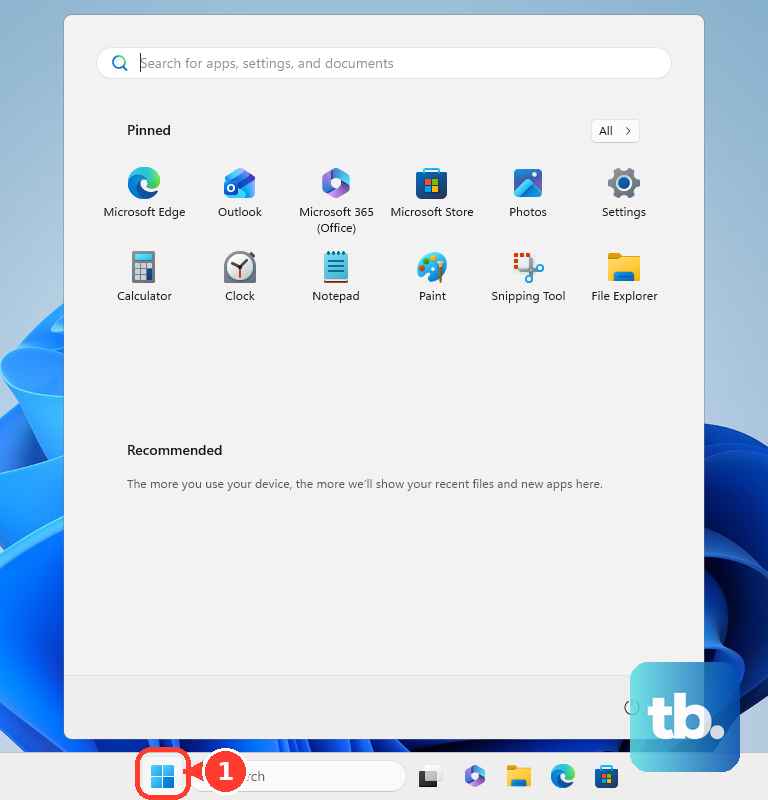
A restart can help when another process holds a game file open. After your computer starts, reopen Steam, select the bottom Downloads link, and retry the affected installation or update. Opening that screen lets you retry the operation after a repair; it does not itself change file access.
If a Windows game has not exited, press Ctrl + Shift + Esc to open Task Manager and select Processes. Select the affected game's executable, then choose End Task. Retry Steam once the process closes, and continue with library repair if the error returns.
Repair the affected Steam library
Open Steam > Settings > Storage. Select the library or drive containing the affected game, open its ... menu, and choose Repair Folder. Let the repair finish before retrying the download or update.
Choose the affected library carefully if you use more than one drive. The current repair controls are under Settings > Storage. If repairing that library does not resolve the error, check the game's installed files next.
Verify the game files
In Library, right-click the affected game and select Properties. Open Installed Files, then select Verify integrity of game files. Allow verification and any replacement downloads to finish before trying the update again.
Your game needs to be installed sufficiently for Steam to offer verification. If a new installation has not reached that point, continue to the download cache fix. Also move on if verification finishes but the same error returns.
Clear the download cache
Go to Steam > Settings > Downloads and select Clear Cache, also called Clear Download Cache in Valve's instructions. Confirm the action and sign in again if requested. Reopen Downloads and retry the failed operation.
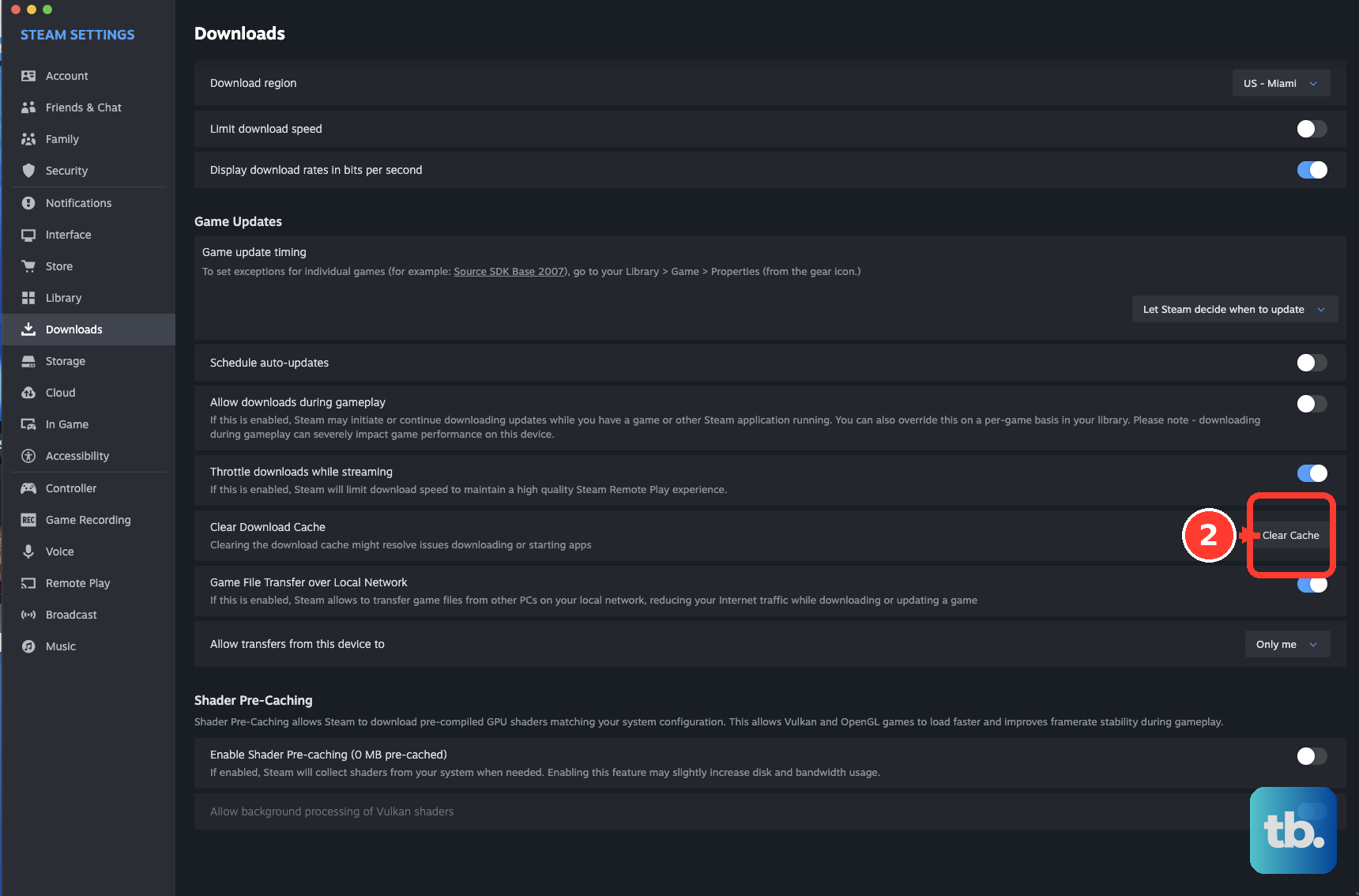
Clearing the cache is a download troubleshooting step. If a security app is blocking game files or your library is unwritable, you still need to correct that access problem. Check your security software next if the error persists.
Check for blocked game files
Check your antivirus app's detection history and blocked application records for Steam or the affected game. SEGA identifies antivirus interference as a cause of this error in Football Manager. Configure an exception only for a confirmed legitimate blocked item, then retry Steam or verify the game files again.
With Microsoft Defender, open Windows Security > Protection history and expand the relevant detection. Reviewing threat details there requires administrator privileges on the device. For a legitimate quarantined game file, select Actions > Restore. For a confirmed false positive, select Allow on device when offered, then verify the game in Steam to replace missing files.
If the file has already been removed, allowing it permits a subsequent download rather than restoring the removed file. To add a targeted scan exclusion, open Virus & threat protection > Manage settings > Exclusions > Add or remove exclusions. Select Add an exclusion > Folder and choose the affected trusted game folder.
Controlled folder access is a separate protection, and an antivirus scan exclusion does not bypass it. If it blocks Steam or the game, open Virus & threat protection > Manage ransomware protection > Allow an app through Controlled folder access. Select Add an allowed app, use Recently blocked apps or Browse all apps to choose the actual blocked executable, and restart that app.
Other antivirus products have their own exception and quarantine controls. Use the product that recorded the block, keeping the exception limited to the trusted affected item. If no security record points to Steam or the game, check your library's access permissions next.
Correct access to the library folder
Use manual permission changes when your account cannot modify the affected library. Close Steam first, and limit changes to that folder. These operating system controls can address a specific access problem, but they are not a guaranteed fix for every Steam installation error.
On Windows, right-click the affected library folder in File Explorer and select Properties > Security > Edit. Select your Windows account, or use Add, enter its account name, select Check Names, and choose OK if it is missing. Grant the required Write or Modify permissions, then select Apply.
On a Mac, select the affected library folder in Finder and open File > Get Info > Sharing & Permissions. Unlock the controls when required and set your account to Read & Write. If files inside the library also need that permission change, use the action menu and select Apply to enclosed items.
A Mac library in a protected location may also need permission for Steam to access that location. On macOS 13 or later, open the Apple menu > System Settings > Privacy & Security > Files & Folders. If Steam is listed, expand it and enable access to the required location; this is separate from ordinary folder permissions.
On Linux using GNOME Files, right-click the library folder and open Properties > Permissions. Give its owner Create and delete files, and use Change Permissions for Enclosed Files… to correct child file and folder permissions. This applies to filesystems supporting Unix permissions.
If you use Flatpak Steam, its sandbox may also need access to your external library. Close Steam and run the following command in a terminal, replacing /actual/SteamLibrary with your library's actual directory.
flatpak override --user --filesystem="/actual/SteamLibrary" com.valvesoftware.SteamReopen Steam and add or select that library under Settings > Storage. The allowance does not change the folder's underlying ownership or permissions. The community Flatpak package is not supported by Valve, so its package maintainer handles this access mechanism.
Try another writable library
When another writable drive is available, open Steam > Settings > Storage and select +. Create or select a library on that drive, then install the affected game there. Use this option if the original library remains inaccessible.
For an installed game, right-click it in Library and open Properties... > Installed Files > Move Install Folder.... Select the destination library and let the move finish. Moving requires an existing destination library and readable source files, so it cannot bypass unreadable files in the original location.
On a Mac using an external drive, select the disk in Finder and open File > Get Info to check Format. Built-in macOS NTFS support reads NTFS but does not ordinarily write to it. Move your library to a writable volume in that case; changing folder permissions will not make the NTFS volume writable.
If Steam shows a game as uninstalled even though its files remain, start its installation into the library already containing those files. Steam can then recognize the existing files during the download process. If another writable library also fails, continue with a targeted reinstall or support.
Reinstall after the repairs fail
For a failure confined to one game, back up local saves and modifications you need to preserve. Right-click the game in Library, select Manage > Uninstall, then reinstall it from Library. Use this fallback after verification and library repair have failed.
If you suspect Steam client corruption on Windows, you can reinstall the client over its existing installation. Exit Steam, get the installer from the official Steam download page using Install Steam, and run it using the existing Steam installation location. Do not uninstall Steam first when your intention is to preserve installed games.
If you choose a full uninstall instead, prepare your backups because removing Steam can remove installed game content. Exit Steam and move steamapps outside the Steam installation directory before uninstalling. Separately preserve your saves and userdata, because steamapps alone is not a complete backup of every game's saves.
If the problem remains confined to one game, use its publisher's support after Steam-side verification. For broader failures, open Steam Support, select the affected product or issue, and follow the help wizard to its contact option when offered. Include the complete error and affected library location.
Frequently Asked Questions
Should you run Steam as administrator to fix missing file privileges?
You can try it once on Windows to check whether elevated access helps: exit Steam, right-click steam.exe in its installation directory, and choose Run as administrator. Approve the Windows prompt and retry through Library. SEGA documents elevation for a different Steam initialization error, so using it here is a diagnostic attempt when access rights appear responsible. Avoid making it permanent by default because Valve generally recommends removing Steam compatibility overrides.
Can changing the download region fix this error?
Changing the download region may help with download or server trouble, but it does not repair filesystem permissions. Open Steam > Settings > Downloads > Download Region, select another region, and retry. Use it if download trouble remains after you address local access problems.
Should you end or delete igfxEM.exe?
Do not routinely end or delete igfxEM.exe as a fix for this error. The historical folder access issue involved older Intel graphics drivers. If your computer has that older driver problem, identify your Intel graphics model and Windows version, then use the matching Intel driver or your computer maker's recommended driver.
Will allowing Steam through the firewall repair file privileges?
A firewall allowance can address connection or download trouble, but it does not repair local file permissions. Use firewall troubleshooting when you have identified a network block. Changing the firewall will not resolve an antivirus quarantine or grant your account permission to modify a library.
How can you reach these repair controls on Steam Deck?
First restart through Steam > Power > Restart. If the error continues, open Steam > Power > Switch to Desktop, then open desktop Steam to use its library repair, cache, and verification controls. Use the right trackpad to move the pointer, R2 to left-click, and L2 to right-click. Press Steam + X when you need the keyboard.