

To fix Facebook reactions not working, update Facebook and restart your iPhone or Pixel, then clear Facebook’s cache on Pixel or Samsung Galaxy; in a browser, reload Facebook and check extensions and website data. These general troubleshooting steps may resolve the malfunction, but they do not guarantee a reaction repair.
Follow the steps for your device or browser, and try a reaction after each change. Save app data resets and reinstalling for later because they can remove locally stored data.
The short version
- Start with updates: Install an available Facebook update before resetting anything.
- Refresh the app: Restart a supported iPhone or Pixel, then clear Facebook’s cache on Pixel or Galaxy if needed.
- Check your browser: Reload Facebook and check whether extensions or stored website data are involved.
- Reset last: Clear local app data or reinstall only after simpler fixes fail.
| Fix | Where to use it | When to try it |
|---|---|---|
| Update Facebook | Android, iPhone, iPad | Start here for app problems |
| Force stop Facebook | Pixel | The app remains unresponsive |
| Restart your phone | Specified iPhone and Pixel models | The app still malfunctions |
| Clear Facebook’s app cache | Pixel and Samsung Galaxy | Updating and restarting did not help |
| Reload Facebook | Desktop Chrome and Mac Safari | Reactions fail on the website |
| Restart the browser | Chrome on Windows or Mac, Mac Safari | Reloading did not help |
| Update the browser | Desktop Chrome and Edge | An update is available |
| Try a private session | Desktop Chrome and Mac Safari | Check normal-session data and extensions |
| Disable a suspected extension | Desktop Chrome | An extension alters or blocks Facebook |
| Use Troubleshoot Mode | Firefox on Windows or Mac | Check extensions and hardware acceleration |
| Try a tracking-protection exception | Desktop Firefox | Check protection interference on Facebook |
| Enable JavaScript | iPhone and iPad Safari | Interactive content fails and JavaScript is off |
| Try another network | iPhone and iPad Safari | Facebook content also fails to load |
| Delete Facebook-specific website data | Desktop Chrome and Mac Safari | Check stored Facebook data |
| Remove Safari website data | iPhone Safari | Earlier Safari fixes failed |
| Clear Chrome cookies and cache | Android Chrome | Facebook fails inside Chrome |
| Update the operating system | Eligible Pixel, iPhone, iPad | App updates did not resolve the failure |
| Reset local Facebook data | Pixel and Samsung Galaxy | Earlier app fixes failed |
| Reinstall Facebook | iPhone and iPad | Earlier app fixes failed |
| Resolve app deletion restrictions | Restricted iPhone and iPad | Deletion is unavailable |
Update the Facebook app
On Android devices with Google Play, open Google Play Store, tap your profile icon, then select Manage apps & devices. Under Updates available, update Facebook when an update is offered. Open Facebook again and try a reaction before moving on.
On iPhone or iPad, open App Store and tap My Account or your photo, then open App Updates. Tap Update beside Facebook, then reopen Facebook and try a reaction.
Restart your phone or force stop Facebook
On a Pixel, open Settings > Apps > See all apps > Facebook > Force stop, then tap OK. Reopen Facebook and try again. If the problem continues, restart the phone using the controls for your model.
For Pixel 6 and later, including Fold, hold Power and Volume up for a few seconds, then tap Restart. On Pixel 5a and earlier, hold Power for approximately 30 seconds or until the phone restarts.
On iPhone X or later with Face ID, hold either Volume button and the Side button until the power-off slider appears. Drag the slider, wait 30 seconds, then hold the Side button until the Apple logo appears. On iPhone SE (2nd or 3rd generation), use the Side button alone to display the slider, then follow the same shutdown and startup sequence.
Clear Facebook’s cache on Pixel or Galaxy
On a Pixel, open Settings > Apps > See all apps > Facebook > Storage & cache. Tap Clear cache, then reopen Facebook and try a reaction. Leave the storage reset for later if clearing the cache does not help.
For Samsung Galaxy phones and tablets, open Settings > Apps > Facebook > Storage. Tap Clear cache, then reopen Facebook. Samsung gives this path for Canadian models and says menus can differ by model and region.
Reload Facebook and update your browser
In desktop Chrome on Windows or Linux, press Ctrl + R to reload Facebook. If that does not help, press Ctrl + Shift + R to reload without cached content. On Mac, use Command + Shift + R to bypass cached content.
For Safari on Mac, choose View > Reload Page, or press Command + R. Quit and reopen Safari if reloading does not help. To restart Chrome on Windows, choose More > Exit; on Mac, choose Chrome > Quit Google Chrome, then reopen it.
Update Chrome on Windows or Mac through More > Help > About Google Chrome, let the update check finish, and select Relaunch when offered. Linux installations update through their package manager, while Chromebooks update Chrome through ChromeOS. In desktop Edge, open Settings and more > Settings > About Microsoft Edge and apply an available update.
Check extensions and browser protections
A private-session test can help narrow down problems with normal-session website data or extensions. In desktop Chrome, open an Incognito window and sign in to Facebook. In Safari on Mac, choose File > New Private Window, then sign in and try a reaction.
If reactions work in that session, check extensions and stored website data in your regular session. In desktop Chrome, open More > Extensions > Manage extensions, turn off a suspected extension, and try Facebook again. Focus on extensions that alter or block Facebook content.
Firefox offers a diagnostic mode that temporarily disables extensions and hardware acceleration. Close Firefox, then hold Shift while starting it on Windows, or Option while starting it on Mac. In the Troubleshoot Mode dialog, click Open and try Facebook.
You can also try a site-specific tracking-protection exception in desktop Firefox. With Facebook open, click the shield beside the address bar and turn off Enhanced Tracking Protection; Firefox reloads the page. Restore the switch if the change does not help.
On iPhone or iPad, interactive Safari content can fail when JavaScript is off. Open Settings > Apps > Safari > Advanced and turn on JavaScript if it is off. If Facebook also fails to load in Safari, try cellular data instead of your current Wi-Fi connection, or connect to another Wi-Fi network, and check any active VPN.
Remove stored Facebook website data
Deleting Facebook’s Chrome site data removes its stored cookies and website data, and you will need to sign in again. In desktop Chrome, open More > Settings > Privacy and security > Third-party cookies > See all site data and permissions. Search for facebook.com, select Delete beside the site, then select Delete again. Sign in to Facebook again and try a reaction.
Removing Facebook’s Safari website entry deletes the data stored for that site. On Mac, open Safari > Settings > Privacy > Manage Website Data. Select Facebook’s entry, click Remove, click Done, and reopen Facebook.
The following iPhone Safari step removes all stored website data, including cookies and cache. Open Settings > Apps > Safari > Advanced > Website Data, tap Remove All Website Data, then tap Remove Now. This affects Facebook in Safari, rather than the native Facebook app.
Clearing Chrome’s cookies and cache on Android deletes those selected categories of browsing data. Open Chrome, then choose More > Delete browsing data > More options. Set Time range to All time, then select Cookies and site data and Cached images and files, leave unrelated categories unselected, and tap Delete data. This affects Facebook in Chrome rather than Facebook’s app cache.
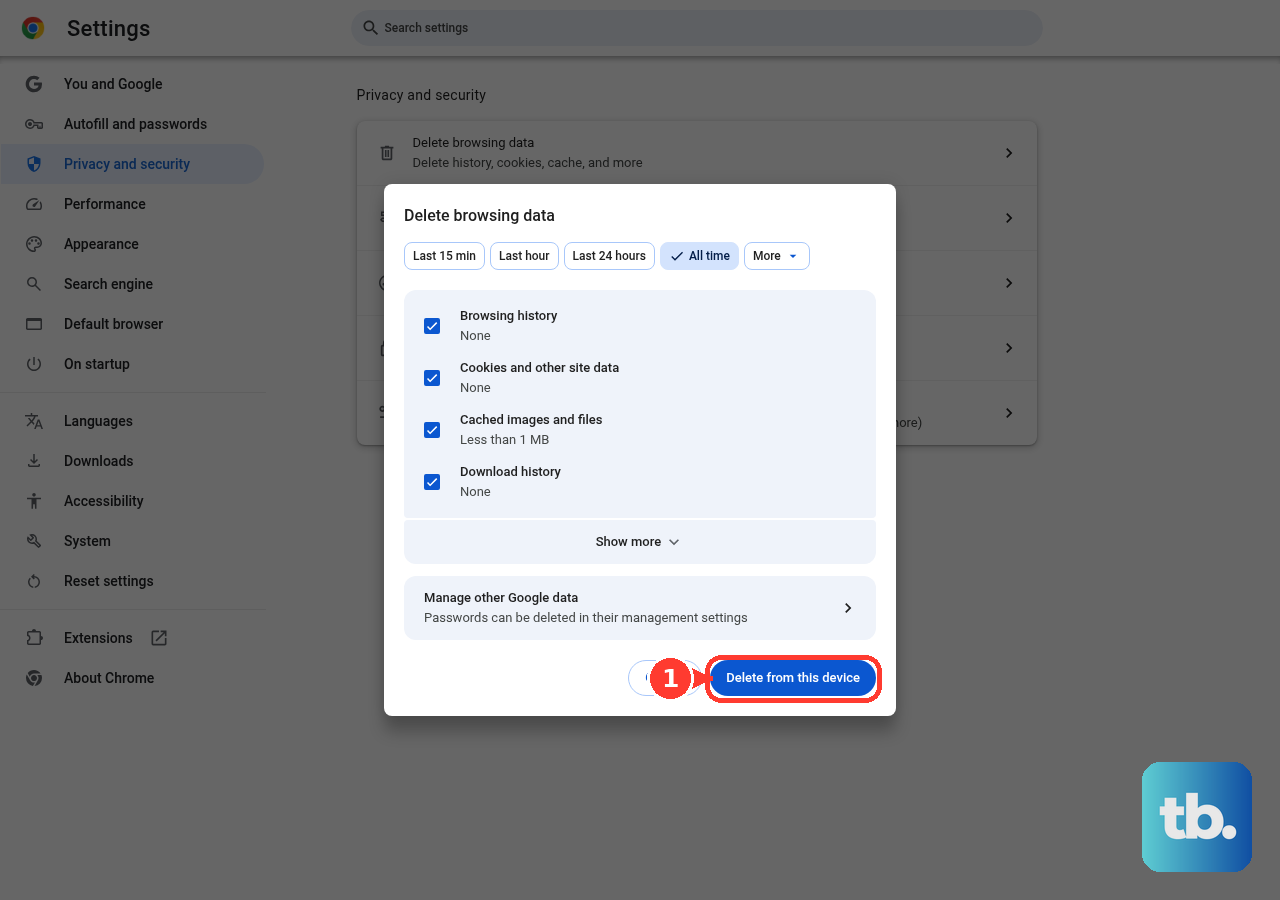
Install an available system update
If updating Facebook has not resolved the malfunction on iPhone or iPad, back up the device and connect it to power and Wi-Fi. Open Settings > General > Software Update, then tap Download and Install when offered. Complete the installation prompts; an iOS or iPadOS update also updates bundled Safari components.
On an eligible Pixel, open Settings > System > Software update. Check for an available update and follow the phone’s installation instructions. Return to Facebook afterward and try a reaction before resetting app data.
Reset local app data or reinstall Facebook
Resetting Facebook’s storage on Pixel erases locally stored app data. Open Settings > Apps > See all apps > Facebook > Storage & cache. Tap Clear storage or Clear data, whichever your phone shows, tap OK, then reopen Facebook and sign in.
Resetting Facebook on Samsung Galaxy removes local app settings and data. Open Settings > Apps > Facebook > Storage, tap Clear data, then tap Delete. Reopen Facebook and sign in; Samsung uses this confirmation wording for Canadian models.
Deleting Facebook on iPhone or iPad can lose locally stored app data. Touch and hold Facebook, tap Remove App, tap Delete App, then tap Delete. Redownload it from Facebook’s official App Store listing and sign in.
If parental controls prevent deletion, ask the parent or device administrator to check the restriction and set Deleting Apps to Allow. For an organization-managed device, contact its administrator. Sign in only through Facebook’s own app or website, and never share a code, password, or remote access with someone who contacts you.
Frequently Asked Questions
Can Facebook Lite help when reactions fail in the main app?
Facebook Lite supports reactions on compatible Android devices where it is available. Open Meta’s official Facebook Lite listing in Google Play, select Install, sign in, and try a reaction. Comparing the two apps may help isolate a main-app problem, but it does not guarantee a fix.
How can you keep Facebook updated automatically on iPhone or iPad?
Open Settings > Apps > App Store and turn on App Updates. This applies to App Store apps collectively. Use the manual update method when you need an immediately available Facebook update.
What should you try if Facebook freezes alongside other apps on a Samsung Galaxy?
On Galaxy models with these controls, open Settings > Device care > Optimize now, then tap Done. For memory pressure, open Device care > Memory > Clean now and try Facebook again. This is a general performance measure rather than a reaction-specific repair.
Why does a Facebook Like widget on another website no longer work?
GoDaddy’s Facebook Like widget was retired after February 10, 2026, and browser cleanup cannot restore vendor support. Open the relevant content directly on Facebook instead. That retirement does not mean reactions inside Facebook were discontinued.
What else can you try when the problem occurs only in Safari on Mac?
With iCloud+ Private Relay enabled and Facebook open, choose View > Reload and Show IP Address to try the page without Private Relay. In Safari 26 or later, you can also reload Facebook, open the Page Menu button in the Smart Search field, and select Report a Website Issue. Describe the failure using the available menus, then click Report.