


To fix Ethernet without a valid IP configuration, reconnect the cable, restart your router and PC, then restore automatic IP assignment and renew the IP address if your network provides DHCP. Test Ethernet after each change, and preserve any intentionally configured static address. The steps use Windows 11 menus.
The short version
- Start with the connection: Reseat the cable, try another router LAN port, and restart your network equipment and PC.
- Restore automatic addressing: Choose Automatic (DHCP) when your network provides DHCP.
- Renew the address: Release and renew the Ethernet adapter's DHCP lease from an administrator Command Prompt.
- Save broader resets for later: Address driver problems before using Network reset.
| Fix or check | When to use it | Main consideration |
|---|---|---|
| Reseat or replace the cable | First | Connect to a router LAN port |
| Try another Ethernet port | After checking the cable | Test another computer port if available |
| Reconnect a USB Ethernet adapter | You use an external adapter | Inspect its plugs and cable |
| Compare another computer | You need to isolate the failure | Use the same Ethernet connection |
| Try Wi-Fi temporarily | Your PC and router support Wi-Fi | Use it for diagnosis and downloads |
| Restart the modem and router | Cable checks do not help | Restore modem power first |
| Restart Windows | After checking the connection | Save your work first |
| Run network tests | Ethernet still fails | Use Get Help |
| Restart the adapter in Get Help | During network troubleshooting | Select Restart adapter |
| Inspect Ethernet in Settings | Before changing addressing | Record intentional manual settings |
| Restore automatic IP assignment | Your network provides DHCP | Select Automatic (DHCP) |
| Use classic IPv4 properties | You prefer the classic addressing controls | Restore automatic IP and DNS addressing |
| Correct a static address | Your network requires manual addressing | Obtain valid, nonconflicting values |
| Inspect the full IP configuration | Before renewing the address | Record the adapter name and DHCP details |
| Renew the DHCP lease | Automatic IPv4 addressing is enabled | Use the actual adapter name |
| Reset Winsock | Address renewal does not help | Restart afterward |
| Reset TCP/IP | The connection still fails | Record static settings first |
| Install Windows and driver updates | You have a working internet connection | Choose a driver offered for your hardware |
| Roll back the Ethernet driver | Failure followed a driver change | A previous driver must be available |
| Uninstall and redetect the adapter | Driver trouble persists | Save the correct driver first |
| Install the manufacturer driver manually | Automatic reinstallation does not help | Match the hardware and Windows architecture |
| Reset Windows networking | Less disruptive fixes fail | Networking software may need reconfiguration |
Check the Ethernet cable and ports
Disconnect and firmly reconnect both ends of the Ethernet cable. Make sure the computer connects to a LAN port on the router, then check the corresponding Ethernet indicator. Substitute a known-working cable before moving on.
Move the cable to another router LAN port and test the connection again. If your computer has another Ethernet port, test that port too. For a Windows 11 PC using a USB Ethernet adapter, reconnect the adapter securely and inspect its plugs and cable for looseness or damage.
Test another computer using the same Ethernet connection when possible. Failure on both computers points toward shared equipment or service, while success helps isolate the original PC. If your computer has Wi-Fi and you have a wireless router, connect over Wi-Fi to test internet access and download an Ethernet driver if needed.
Restart your router and computer
Disconnect power from the router and modem, removing the modem's backup battery if necessary. Wait at least 30 seconds, restore modem power, and wait for it to initialize before restoring router power. For a combined modem and router gateway, restart that single device.
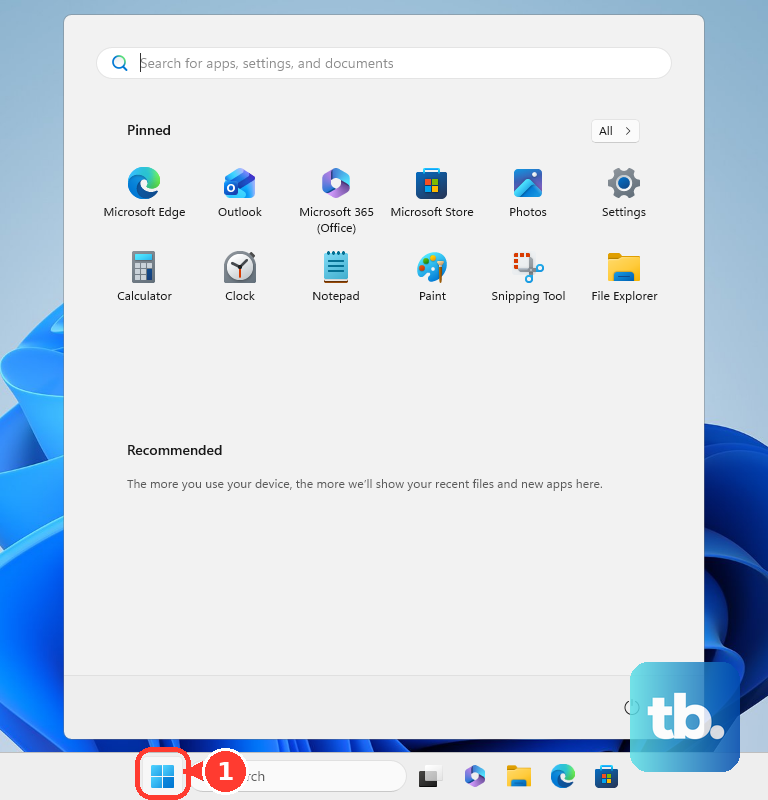
Save your work on the PC, then select Start > Power > Restart. Once Windows and the network equipment are ready, test Ethernet again. If another computer also fails on the same connection, keep the shared equipment and service in mind before making deeper changes to Windows.
Run network tests and restart the adapter
Press Windows + I, then open Settings > System > Troubleshoot > Other troubleshooters. Beside Network and Internet, select Run. In Get Help, select Run network tests and follow the troubleshooting steps.
Within the network troubleshooter, expand Restart the Ethernet network adapter and select Restart adapter. Test the connection after it restarts.
Restore automatic IP assignment
Open Settings > Network & internet > Ethernet and select the connected network if necessary. Inspect the IPv4 address and IP assignment before changing anything. Record any intentional manual settings so you can restore them if needed.
For a network that provides DHCP, select Edit beside IP assignment. Under Edit IP settings, choose Automatic (DHCP), then select Save. Retest Ethernet before continuing.
The classic adapter properties provide another route to automatic addressing. Search Start for View Network Connections, open it, right-click your Ethernet connection, and select Properties. Open Internet Protocol Version 4 (TCP/IPv4), select Obtain an IP address automatically and Obtain DNS server address automatically, then select OK.
If your network intentionally uses static addressing, obtain valid, nonconflicting values from your router configuration or network administrator. In the Ethernet IP editor, select Manual, turn on IPv4, and enter the correct IP address, Subnet mask, Gateway, Preferred DNS, and Alternate DNS. Select Save, then retest Ethernet. Copying an arbitrary address can create another conflict.
Inspect and renew the Ethernet IP address
Search Start for Command Prompt, then select Run as administrator. Run the following command to inspect your adapters and their current configuration.
ipconfig /allUnder the Ethernet adapter, record the adapter name, DHCP Enabled, IPv4 Address, Default Gateway, and DHCP Server. If automatic IPv4 addressing is enabled, use the following command to release its DHCP lease. Replace Ethernet with the actual adapter name, keeping quotation marks around names containing spaces.
ipconfig /release "Ethernet"Releasing the lease is the first part of the renewal procedure. Next, request a new address with the following command, again using your actual adapter name.
ipconfig /renew "Ethernet"After renewal completes, run ipconfig /all again to inspect the configuration and test internet access. If Ethernet still fails, continue to the network stack resets.
Reset Winsock and TCP IP
A Winsock reset removes custom Winsock layered service providers. Open an administrator Command Prompt and run the following command.
netsh winsock resetRestart Windows to complete the reset, then test Ethernet. If the problem remains, record any intentional static IP settings before resetting TCP/IP. Open an administrator Command Prompt again and run the following command.
netsh int ip resetRestart Windows again after the TCP/IP reset. Retest the connection before changing drivers.
Update or reinstall the Ethernet driver
Use a working Wi-Fi connection to check for Windows and driver updates. Open Settings > Windows Update and select Check for updates, then open Advanced options > Optional updates. Select an applicable Ethernet driver offered for your hardware, choose Download and install, and restart Windows.
If the failure began after an Ethernet driver change, try restoring the previous driver; you need an administrator account and an available previous driver. Right-click Start, open Device Manager, and expand Network adapters. Right-click the Ethernet adapter, select Properties > Driver > Roll Back Driver, choose the applicable reason, and select Yes. Restart if prompted.
Before uninstalling the adapter, download and save the correct driver for your computer or adapter, Windows version, and architecture. A second computer and USB drive can supply it when Ethernet and Wi-Fi are both unusable. For ASUS hardware, get the matching LAN driver from the ASUS Download Center.
In Device Manager > Network adapters, right-click the Ethernet adapter, select Uninstall device, then select Uninstall. Restart Windows; Microsoft says Windows attempts to reinstall the device driver. If that does not restore the connection, install the saved driver.
Extract the downloaded driver, then right-click the adapter in Device Manager and select Update driver, then select Browse my computer for drivers. Select Browse..., choose the extracted folder, and select OK > Next > Close. Test Ethernet once installation finishes.
Use Network reset as a final networking fix
After the less disruptive fixes fail, open Settings > Network & internet > Advanced network settings > Network reset. Select Reset now, then select Yes and allow Windows to restart. This resets all Windows network adapters and settings.
Reconfigure VPN software or virtual networking afterward if required, then test Ethernet again. If another computer also fails using the same connection, return to the shared equipment and service checks. If only the original computer fails, keep the cable, port, and driver comparison results available for further troubleshooting.
Frequently Asked Questions
Will flushing DNS fix an invalid Ethernet IP configuration?
Flushing DNS cannot provide a missing DHCP lease. It is a companion troubleshooting step for DNS problems after usable IP addressing exists, so prioritize automatic addressing and lease renewal first.
Should you disable IPv6 to fix this error?
Do not disable IPv6 as a routine fix. Microsoft says unbinding IPv6 can result in an unsupported Windows configuration.
What should you try if Ethernet fails after sleep?
For a Windows 11 Ethernet adapter that exposes the relevant controls, open Device Manager > Network adapters, right-click the adapter, and select Properties > Power Management. Uncheck Allow the computer to turn off this device to save power, then select OK.
Can a forced speed or duplex setting cause trouble?
A forced link setting can cause negotiation trouble on compatible Intel Ethernet adapters running Windows 11. In Device Manager, open the adapter's Properties > Advanced > Speed & Duplex, select Auto Negotiation, and apply the change.
Does renewing DHCPv6 also renew the IPv4 address?
No, DHCPv6 renewal does not renew an IPv4 lease. IPv4 and DHCPv6 have separate release and renewal operations, so use the IPv4 renewal steps for an automatic IPv4 addressing problem.
Could background software be causing the failure?
Yes, a clean boot can help isolate a software conflict. As administrator, search for msconfig, open System Configuration > Services, check Hide all Microsoft services, and select Disable all > Apply. Open Startup > Open Task Manager, record and disable enabled Startup apps, close Task Manager, select OK, restart, and retest Ethernet. Re-enable items systematically to identify the conflict and restore normal startup, and remove networking software only after identifying it as the cause.