Your Android phone says mobile data is on, but apps still act offline. That usually means the phone has cellular signal, while a setting, SIM choice, VPN, APN, carrier account, or outage is blocking internet access. Start with the fastest resets, then move into the settings that actually control mobile data.
1. Restart the phone and refresh the connection
Start here. A restart clears temporary connection problems without changing your settings.
- 1.Press and hold Power until the power menu appears. On Pixel 6 and later, press and hold Power and Volume up instead, unless you have changed the button behavior under Settings > System > Gestures.
- 2.Tap Restart.
- 3.After the phone turns back on, open Settings > Network & internet or Connections.
- 4.Turn Wi-Fi off.
- 5.Open a browser or app and test mobile data again.
On phones without a dedicated Power button, swipe down twice from the top of the screen, tap the Power icon, tap Restart, then tap Restart again. If the phone is frozen, force a restart: on Pixel, hold Power for up to 60 seconds until it reboots; on Samsung and many other Android phones, hold Power and Volume down until it resets.
2. Confirm mobile data and SIM are turned on
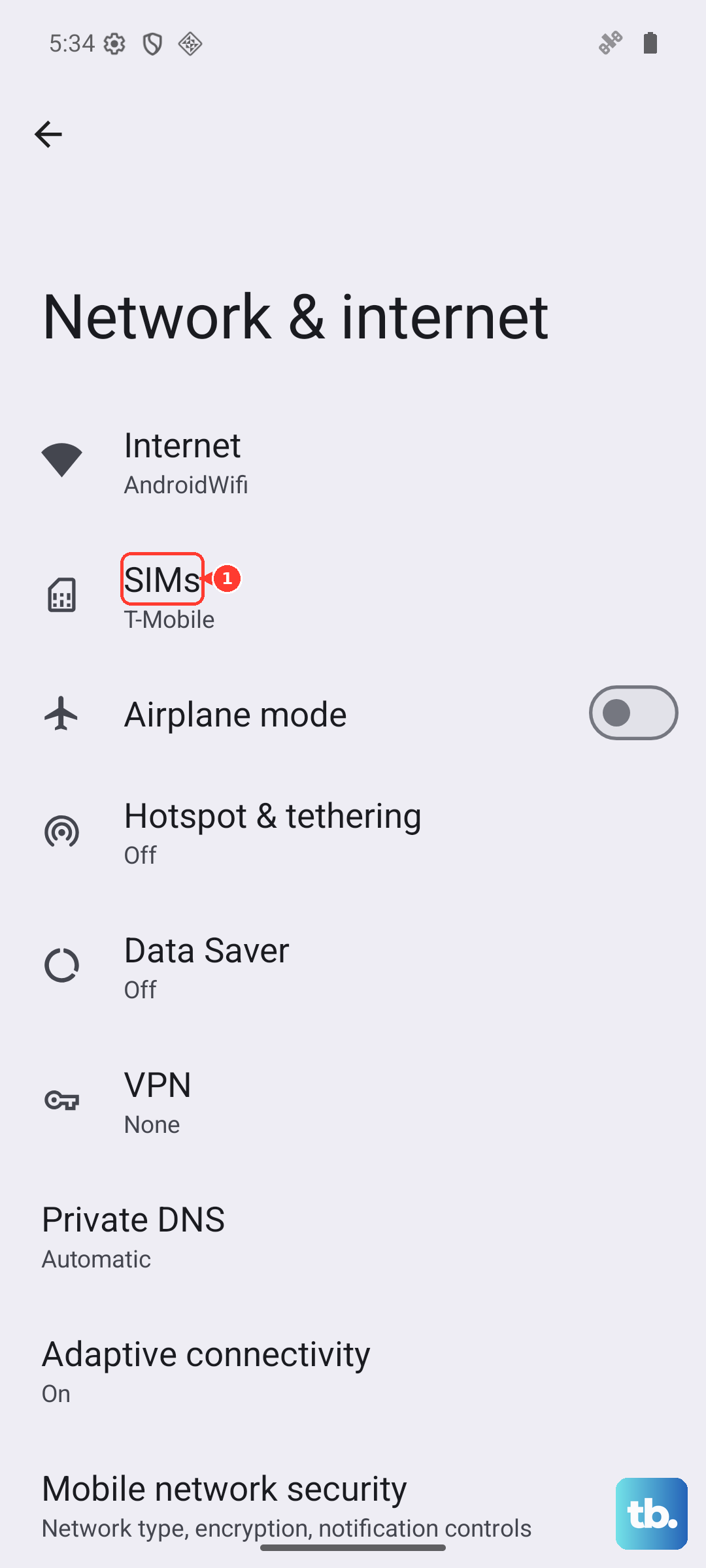
Open Settings > Network & internet or Connections.
Turn Wi-Fi off.
Turn Mobile data or Cellular data on.
Look near the signal bars for 2G, 3G, 4G, 5G, LTE, or H.
This confirms the phone is testing the cellular network, not a Wi-Fi connection that happens to be failing. On Samsung Galaxy, go to Settings > Connections > Data usage > Mobile data. On Pixel, go to Settings > Network & Internet > SIMs, turn Mobile data on, tap your carrier name, then turn Use SIM on.
3. Cycle Airplane mode and move for signal
Airplane mode forces the phone to reconnect to the cellular network.
Open Settings > Network & internet or Connections.
Tap Airplane mode.
Turn Airplane mode on.
Wait 10 to 30 seconds.
Turn Airplane mode off.
It is quick, and it saves you from digging through deeper settings too early. Check the cellular signal indicator after it reconnects. Move outside or to another area, then remove the phone case temporarily and test again.
4. Remove Data Saver and app data limits
If only certain apps fail on mobile data, Android is restricting that app or Samsung is limiting it to Wi-Fi. Open Settings > Network & internet > Data Saver, turn Data Saver off, or keep it on by tapping Unrestricted data and turning on the affected app or service.
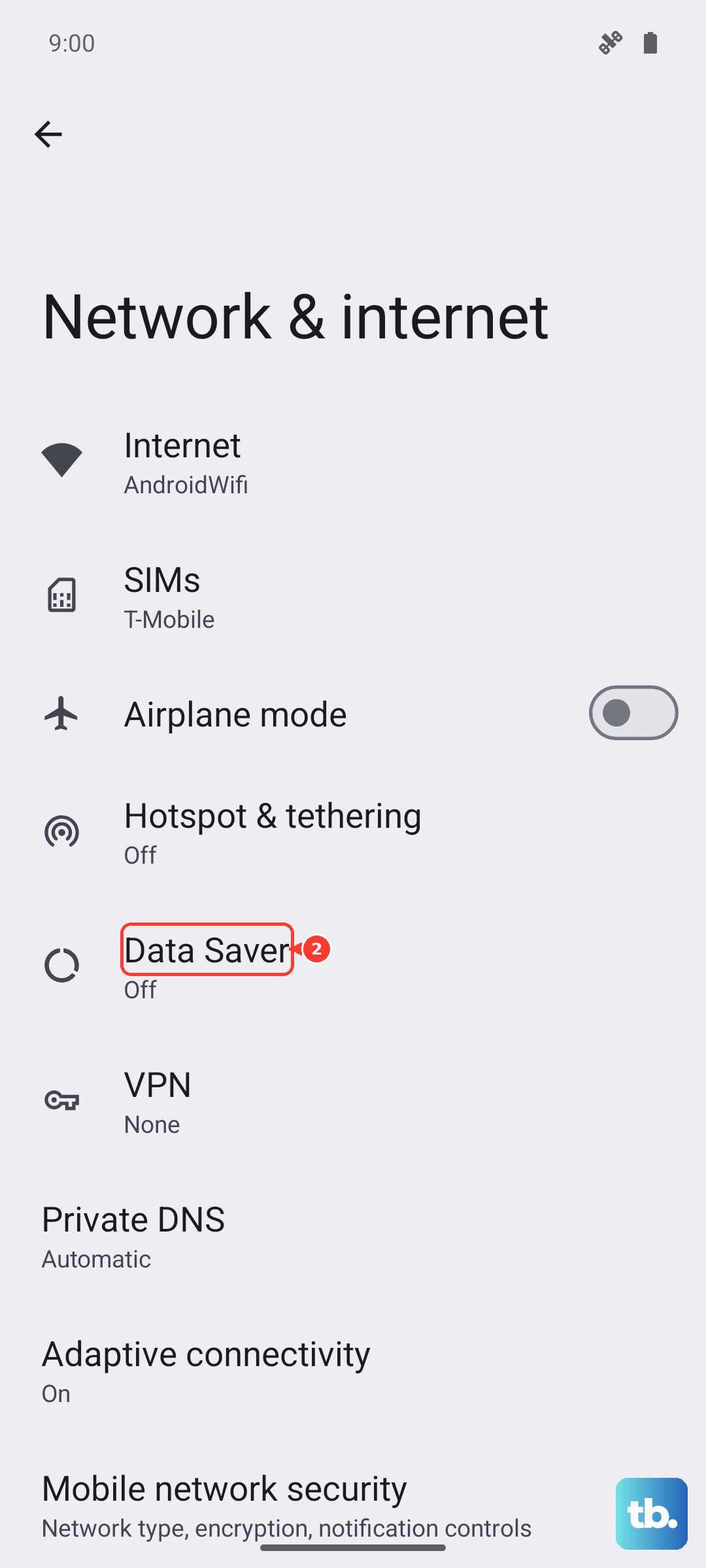
For Google Play problems on Android 7.0 or higher, open Settings > Network & Internet > Data usage > Data saver > Unrestricted data access, then turn on Google Play Store or the affected app.
On Samsung Galaxy, open Settings > Connections > Data usage. Turn Data saver off, open Billing cycle and data warning, turn Set data limit off, then open Allowed networks for apps and set the affected app to Mobile data or Wi-Fi or Mobile data preferred (avoid Wi-Fi only while troubleshooting mobile data).
5. Set the right SIM and roaming option
On Samsung Galaxy, open Settings > Connections > SIM manager.
Turn the correct physical SIM or eSIM on.
Tap Primary SIM and choose the line you use for data.
On Pixel or Google Fi, open Settings > Network & internet > SIMs.
Tap your carrier or SIM, then turn Use SIM on.
Dual-SIM and eSIM setups can leave the wrong line in charge of data. Check this before resetting anything. When you are outside your carrier's home network, turn roaming on.
On Samsung, use Settings > Connections > Mobile networks > Data Roaming Access. On Pixel, use Settings > Network & Internet > SIMs > your carrier > Roaming.
For a physical SIM, power off the phone, insert the SIM ejector tool or a small paperclip into the SIM tray hole, remove the tray, inspect the SIM for dirt or damage, wipe it with a microfiber cloth, reinstall it correctly, then power the phone back on. Keep the tool away from microphone and speaker holes.
6. Reset mobile network settings and APN
When the basics look right but mobile data still fails, reset the mobile network settings. This does not erase your apps or personal files on Samsung, and it gives the phone a clean cellular setup.
On Pixel, open Settings > System > Reset options > Reset mobile network settings.
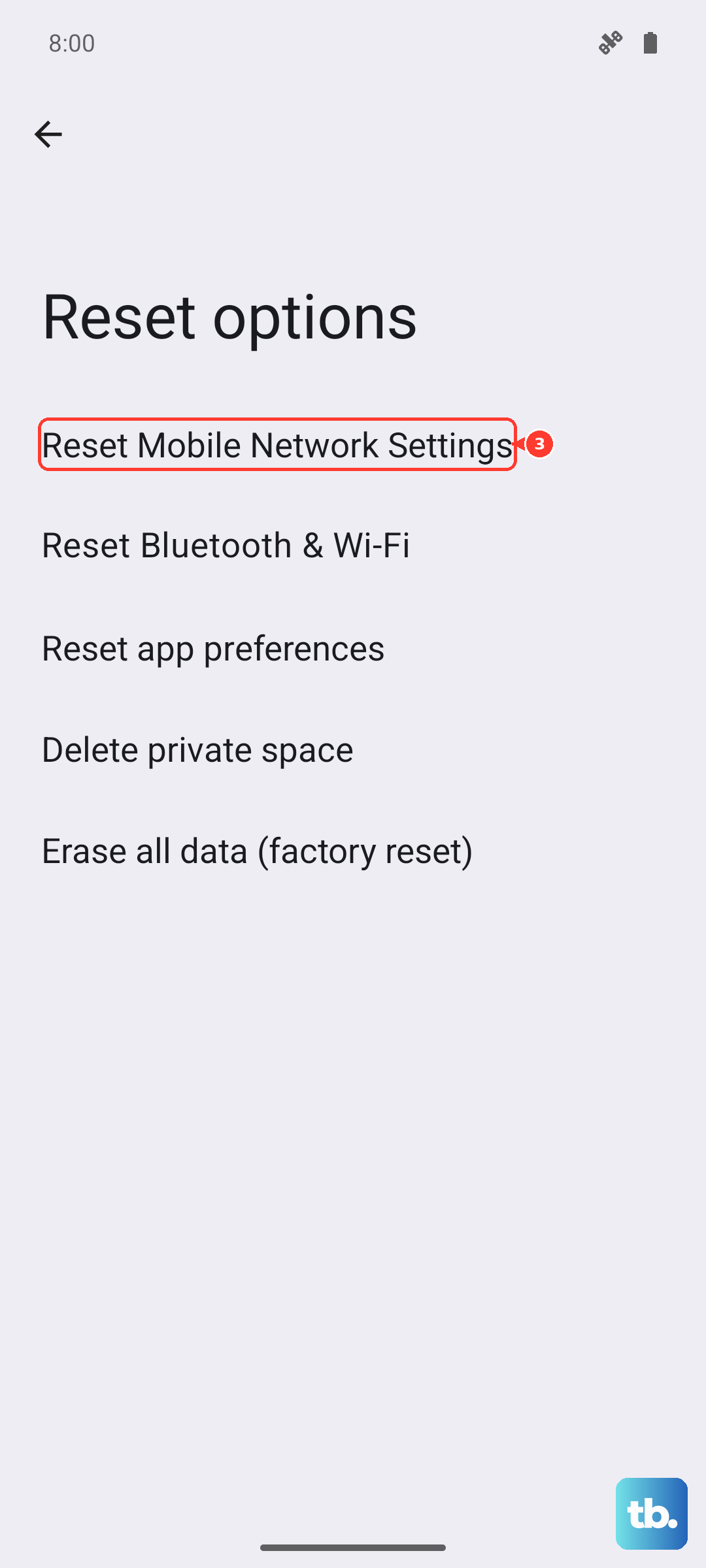
On Samsung, open Settings > General management > Reset > Reset mobile network settings.
Tap Reset settings.
Enter your PIN, password, or pattern when prompted.
Tap Reset.
Restart the phone and test mobile data again.
Next, check the APN. On Samsung, open Settings > Connections > Mobile networks > Access Point Names. Use carrier-provided APN values only, or use your carrier's Reset to default option when it appears.
7. Disable VPN and Private DNS
Open Settings > Network & internet > VPN.
Tap the VPN settings icon.
Turn the VPN off.
Turn Always-on VPN off while testing.
A VPN or custom Private DNS hostname can break browsing while the cellular icon still looks normal. On Pixel with VPN by Google, open Settings > Network & internet > VPN > VPN by Google, then turn Use VPN off. For DNS problems, open Settings > Network & internet > Private DNS, choose Off or Automatic, then tap Save.
8. Check apps, carrier status, and work controls
Test another browser, app, or website. If only Chrome fails, open Chrome > More > Delete browsing data, choose a duration, then tap Delete data.
Update affected apps in Google Play. Open Google Play Store, tap the Profile icon, tap Manage apps & device, tap See details under Updates available, then tap Update beside the affected app or Update all.
Then check your carrier account and service status. Verizon offers a network status checker, AT&T tells customers to confirm the affected number is active and check coverage, and T-Mobile tells customers to check high-speed data use plus Web Guard or FamilyMode when certain sites are blocked.
For work phones with Android Device Policy or a work profile, contact your organization's IT admin when mobile data, VPN, APN, app access, or updates are managed.
If a downloaded app started the problem, open the power menu (on Pixel 6 and later, press Power and Volume up first), touch and hold Power off or Restart, tap OK or Safe mode depending on your phone, test mobile data, then uninstall recent apps from Google Play Store > Profile icon > Manage apps & devices > Manage > app name > Uninstall. Use Factory data reset only after backing up and finishing the fixes above.
Frequently Asked Questions
Why does my Android show 5G or LTE but no internet?
The phone is registered on the cellular network, but data is being blocked by a setting or account condition. Check Data Saver, the active SIM, roaming, APN, VPN, Private DNS, carrier account status, and outages.
Will resetting mobile network settings delete my photos or apps?
No. Samsung states that resetting mobile network settings does not erase apps or personal data. It resets mobile network settings, so restart the phone and test data afterward.
Why does mobile data work in some apps but not others?
That points to an app-specific restriction or app problem. Check Data Saver, unrestricted data access, Samsung Allowed networks for apps, VPN settings, Chrome browsing data, app updates, and Safe mode.
Should I change APN settings manually?
Use only APN values from your carrier, or reset APNs to default when your carrier provides that option. Incorrect APN settings break mobile data and MMS.