

Apple TV volume control stops working even when clicks, swipes, and playback controls still respond. The failure comes from the remote connection, the Volume Control setting, IR line of sight, HDMI-CEC, or the audio route through a TV, receiver, sound bar, or HomePod. Start with the remote restart, then move through the Apple-supported settings and audio checks that restore volume control.
Restart the Apple TV Remote
Press and hold the TV/Control Center button and the Volume Down button for about five seconds.
Release both buttons when the Apple TV status light turns off and on again.
Wait for the Remote Disconnected notification.
Press any button on the remote.
Wait for Remote Connected.
Press the top half of the Volume button to test Volume Up.
Press the bottom half of the Volume button to test Volume Down.
Press Mute once to mute and again to unmute on supported setups.
If your audio setup does not support Apple TV Remote volume buttons, use the original TV, receiver, sound bar, or audio-system remote.
Set Volume Control to Auto
The most common settings cause is Volume Control pointing Apple TV at the wrong TV, receiver, or sound bar path.
Open Settings > Remotes and Devices > Volume Control.
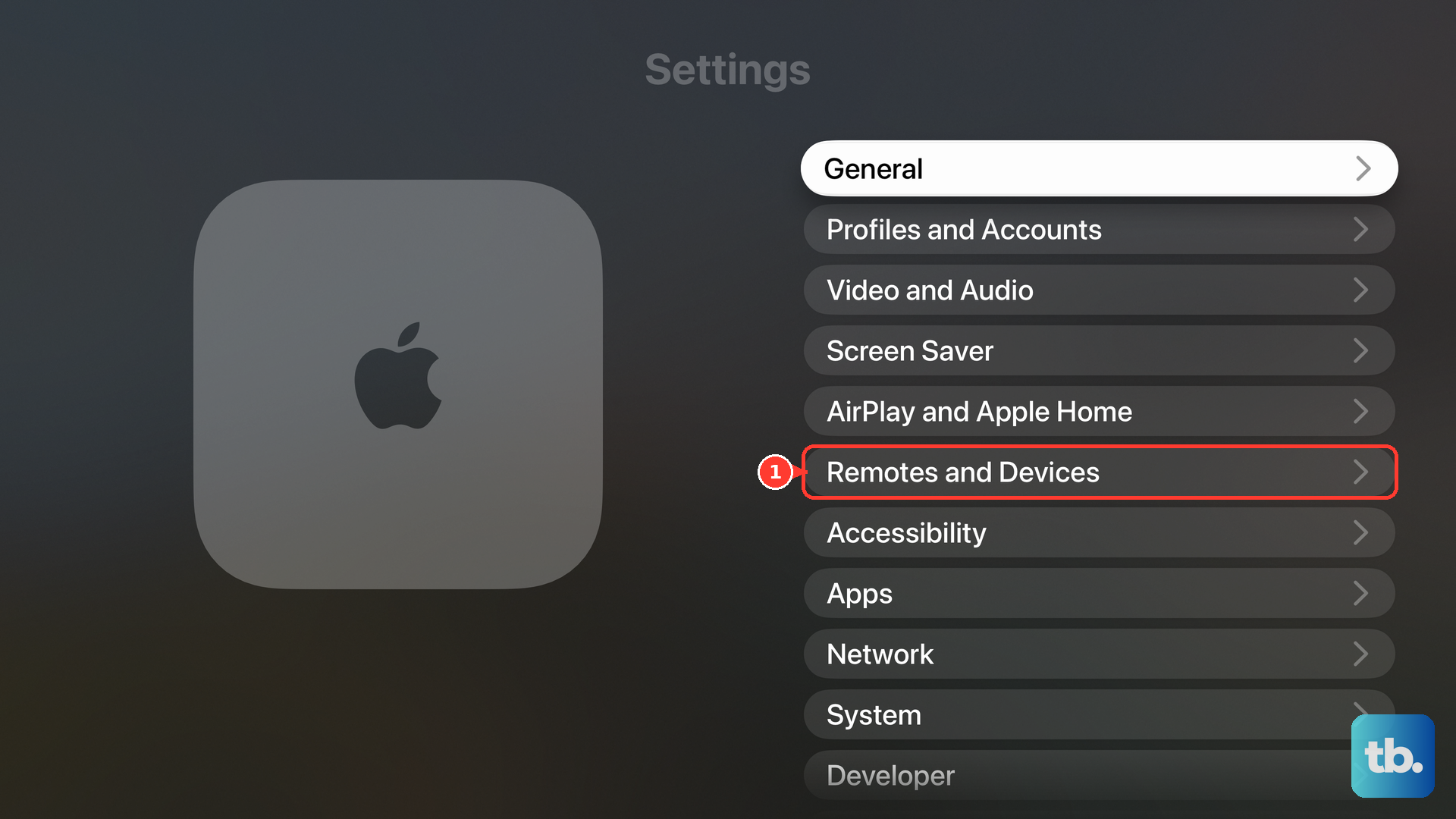
Select Auto.
Test Volume Up, Volume Down, and Mute.
Keep Auto selected when volume works.
Choose HDMI or IR when Auto fails
Use this when Auto does not control the TV, receiver, or sound bar. Apple TV sends volume commands through HDMI-CEC or infrared based on the selected Volume Control setting.
For a TV or receiver that supports HDMI-CEC, open Settings > Remotes and Devices > Volume Control.
Select HDMI.
For a receiver that uses an infrared remote and does not support HDMI-CEC, return to Volume Control.
Select Receiver via IR.
For a TV that uses infrared, return to Volume Control.
Select TV via IR.
Use TV via IR for sound bars or audio systems connected to the TV with an optical cable.
When another IR option appears under Volume Control, select that IR option.
Test Volume Up and Volume Down.
If the built-in choices still fail, select Learn New Device from Volume Control.
Follow the onscreen instructions.
Clear the IR path
IR volume control needs a clear path from the Apple TV remote to the front of the TV, receiver, or sound bar. Move anything blocking the path between the remote and the front of that device.
Point the remote at the device that handles volume, then press Volume Up and Volume Down. Some receivers use HDMI-CEC instead of IR, so this fix applies only to an IR setup.
If this fails, open Settings > Remotes and Devices > Volume Control and try HDMI, TV via IR, or Receiver via IR.
Enable HDMI-CEC on your TV or receiver
Use the remote that came with the TV or receiver and open that device's Settings menu. Turn on HDMI-CEC, then test the Apple TV remote volume buttons.
TV makers use different labels for the same feature. Apple lists LG SimpLink, Philips EasyLink, Samsung Anynet+, Sharp Aquos Link, and Sony BRAVIA Sync.
Plug Apple TV into an HDMI port that supports HDMI-CEC. Then open Apple TV Settings > Remotes and Devices > Volume Control and select HDMI or Auto.
Pair and charge the remote again
This fixes a Siri Remote or Apple TV Remote that has disconnected, has low battery, or does not respond normally.
Point the remote at Apple TV from about three inches away.
Press and hold Back or Menu and Volume Up for five seconds.
Place the remote on top of Apple TV when the onscreen prompt asks you to complete pairing.
If pairing fails, unplug Apple TV.
Wait six seconds.
Plug Apple TV back in.
Repeat the pairing shortcut.
Connect a USB-C or Lightning cable to the port on the bottom of the remote.
Connect the other end to a computer USB-C or USB port or to an Apple USB-C power adapter.
Charge the remote for 30 minutes before testing again.
Leave it connected for about three hours for a full charge.
On tvOS 18.0 or later, open Settings > Remotes and Devices > Remote.
Check Bluetooth RSSI.
Move within 20 feet of Apple TV when the signal is weak.
Move anything blocking the path between the remote and Apple TV, television, receiver, or sound bar.
Use your iPhone or iPad as a temporary remote
Use Apple TV Remote in Control Center while you troubleshoot; iPhone and iPad volume buttons work only with supported audio/video receivers or when Apple TV uses HomePod, a sound bar, or other AirPlay-compatible speakers.
- 1.Open Control Center on your iPhone or iPad.
- 2.Tap the Apple TV Remote button.
- 3.Choose your Apple TV or smart TV.
- 4.Enter the four-digit passcode when Apple TV asks for it.
- 5.Press the physical volume buttons on your iPhone or iPad.
- 6.If the Apple TV Remote button is missing, tap Add Controls > Add a Control, then tap Remote.
Fix sound bar, HomePod, and no-sound setups
When volume buttons respond but sound does not change, treat the problem as audio routing. Unplug both ends of the HDMI cable, plug them back in firmly, then test with a different HDMI cable.
If Apple TV runs through an HDMI switch or receiver, connect Apple TV directly to the TV and test again. If direct connection fixes audio, check the switch or receiver with its manufacturer.
For HomePod audio, use Apple TV 4K with HomePod or HomePod mini in the same room in the Home app on iOS 26 or iPadOS 26 or later. Open the Home app on iPhone or iPad, tap Apple TV, tap Settings > Default Audio Output, and choose the HomePod or HomePod stereo pair.
Television audio through HomePod needs Apple TV 4K (2nd generation or later), HomePod or HomePod mini set as the default audio output, and a TV that supports HDMI ARC or eARC. On that setup, open Settings > Video and Audio > Audio Output, then select Play Television Audio under Audio Return Channel. It is active when Apple TV shows On (ARC) or On (eARC).
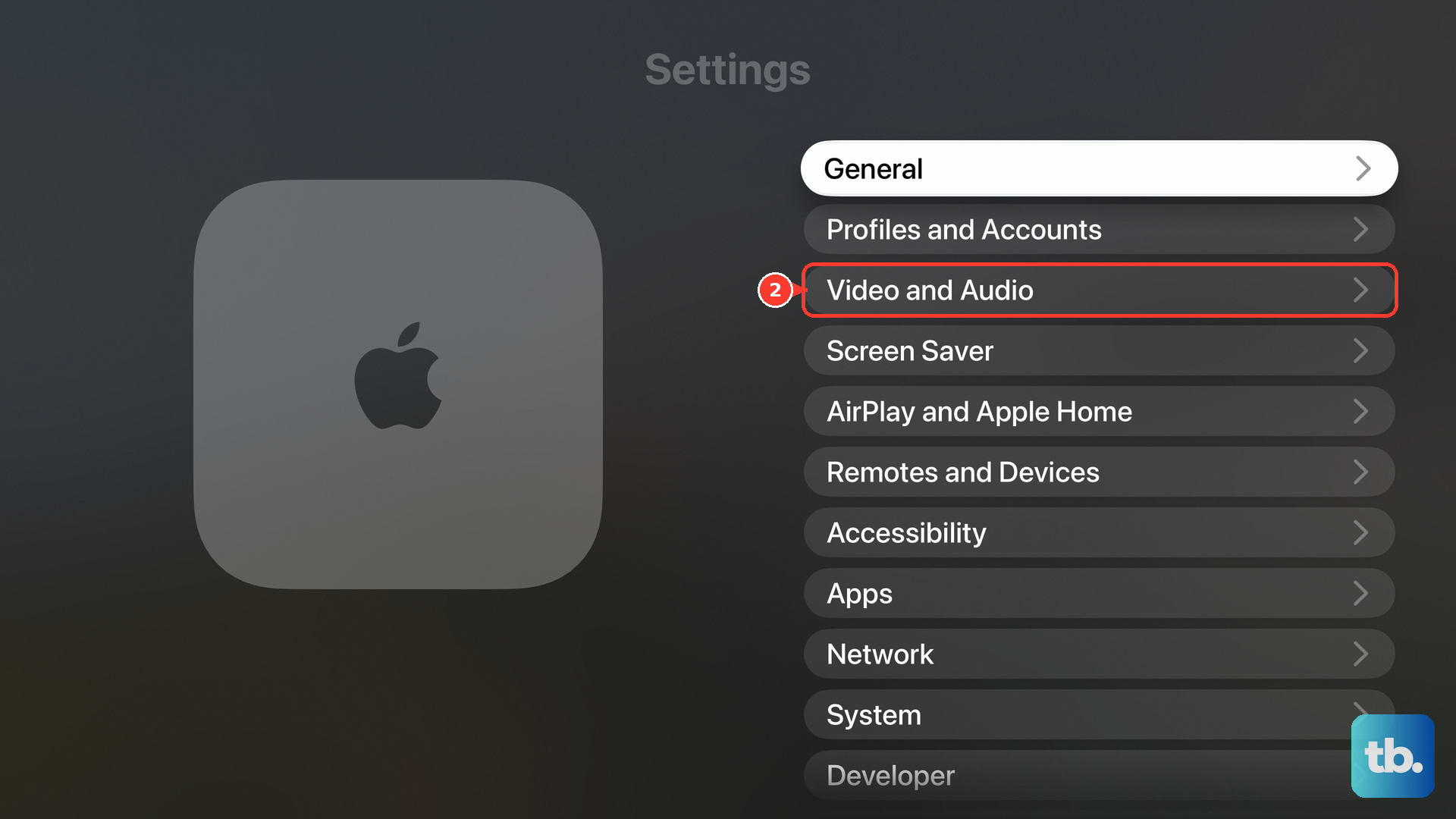
For persistent audio-output issues, open Settings > Video and Audio > Audio Format > Change Format and select a different audio format. Then open Settings > Video and Audio > Audio Mode > 16 bit. When you use TV speakers, a sound bar, or a receiver, set Audio Output to Apple TV and turn off Volume Leveling or other audio processing in the TV or receiver Settings menu.
Reset Apple TV only after restart and update
Use this when the remote and Volume Control settings are correct but Apple TV still does not behave normally. Start with restart and update because Reset and Reset and Update erase settings, accounts, and configuration.
Open Settings > System > Restart.
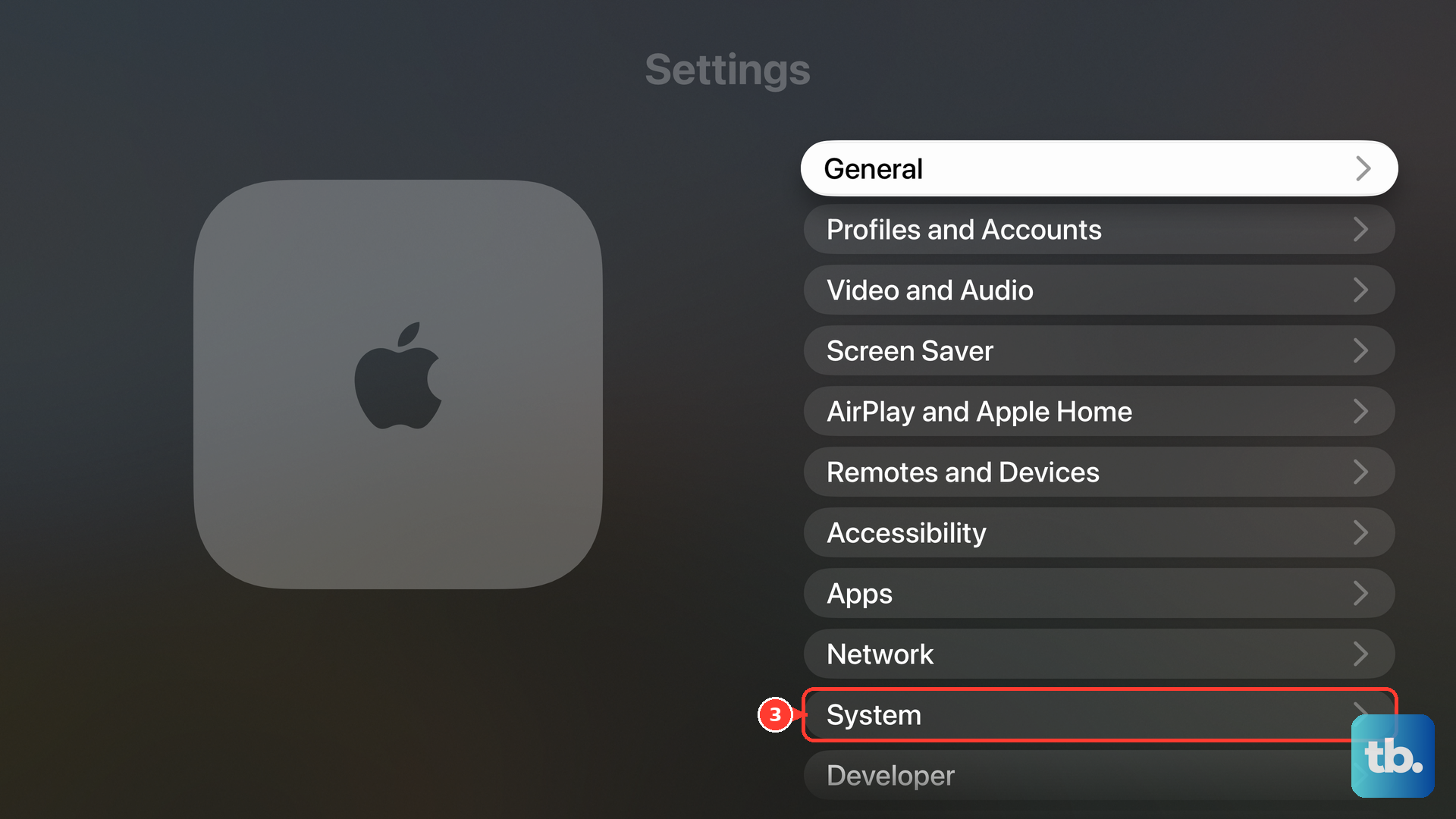
If you cannot navigate Apple TV, disconnect Apple TV from the power outlet.
Wait five seconds.
Reconnect Apple TV.
Update tvOS from Settings > System > Software Updates > Update Software.
Select Download and Install when an update is available.
Keep Apple TV connected and plugged in until the update completes.
Turn on future updates from Settings > System > Software Updates > Automatically Update.
On Apple TV 4K or Apple TV HD, use Settings > System > Reset > Reset only after the fixes above fail.
Use Reset and Update when Apple TV has an internet connection and the reset needs to install the latest tvOS.
On Apple TV (3rd generation) or earlier, open Settings > General > Reset instead. Choose Reset All Settings to reset settings, accounts, and configurations, or Restore to return Apple TV to factory settings and install software updates over an internet connection.
Keep Apple TV plugged into power until the reset finishes, then set it up again.
Open Apple Service and Repair for Apple TV and choose Get started when volume still fails after supported troubleshooting.
Frequently Asked Questions
Why does my Apple TV remote work except for volume?
Navigation uses the remote connection to Apple TV. Volume depends on the TV, receiver, sound bar, HDMI-CEC, IR, or supported audio output path.
Can Siri change Apple TV volume?
Yes, when Apple TV audio is routed through HomePod. Say a HomePod Siri request such as Set the volume to 50 percent or Make it louder.
Can Apple Watch adjust Apple TV volume?
Yes. Open the Remote app on Apple Watch, choose your Apple TV, and turn the Digital Crown. To mute, tap More, then Mute & Unmute.
What should I do if Apple TV volume is blocked on a school or work device?
Check the audio-output and Volume Control settings first, because the managed TV Remote payload does not control Apple TV volume. It restricts connections from the Apple TV app to an Apple TV and whether available Apple TV devices are displayed there, across managed Apple TV, iPhone, iPad, and Shared iPad devices. Ask the school or business admin to adjust it when the Control Center remote cannot reach your Apple TV at all.