
When your Apple TV 4K has a picture but no sound, it's usually a quick setting or connection issue. The problem could be with the audio output selection, an HDMI handshake, or a specific app. Let's run through the most effective fixes to get your sound back.
It is worth confirming the basics with a quick left and right speaker test. If neither channel plays a tone, you are looking at a hardware or connection problem rather than a settings issue.
Check Your Remote and Volume
First, grab your Siri Remote and press the volume up button. Make sure your TV or sound system isn't muted. It's easy to accidentally hit mute, especially if you're using multiple remotes that control the same device.
Also, check which device your remote is controlling. You can set it up to control your TV's volume or your receiver's. If it's set to the wrong one, pressing volume up won't do anything.
Restart Your Apple TV
This is the simplest fix for many random glitches. On your Siri Remote, press and hold the TV/Control Center button and the Volume Down button at the same time for about five seconds.
You'll see the status light on the front of your Apple TV blink rapidly, and then it will restart. This takes about 30 seconds and often clears up temporary audio processing hiccups.
Verify the Audio Output
Go to Settings > Video and Audio > Audio Output. Here, you'll see a list of available devices, like your TV, a soundbar, or an AV receiver.
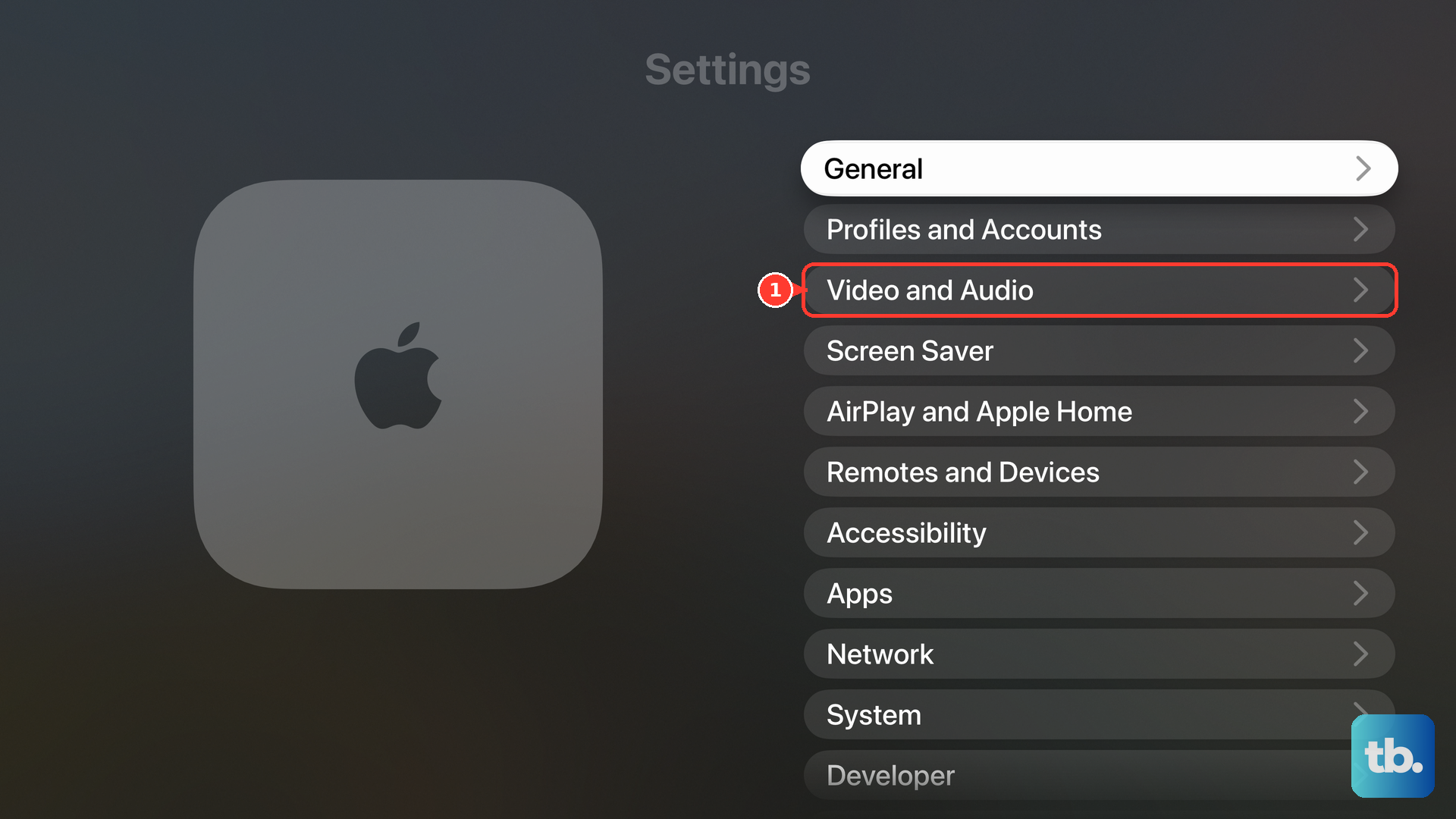
Make sure the correct device is selected. If you're using a sound system but your TV is selected, you won't hear anything from your speakers. I'd start by checking this setting first.
Check Your HDMI Connection
A loose HDMI cable is a classic culprit. Unplug the HDMI cable from both your Apple TV and your TV or receiver. Take a look at the ports for any bent pins or debris.
Plug the cable back in firmly at both ends. If you have another HDMI port on your TV, try switching to it. This can resolve handshake issues between the devices.
Change the Audio Format
Head back to Settings > Video and Audio > Audio Format. If it's set to a high-end format like Dolby Atmos that your TV or soundbar doesn't support, you might get silence.
Try changing this to Stereo or Dolby Digital 5.1 as a test. Stereo is the most universally compatible. If sound returns, you know your equipment has a format limitation.
Disable Change Format
Right below Audio Format, you'll see a setting called Change Format. When this is turned on, your Apple TV converts all audio to the format you select below it.
Try turning Change Format off. This lets your TV or receiver handle the audio decoding directly, which often fixes compatibility problems.
Test a Different App or Content
Open a different app, like the Apple TV app, and play a movie or show. If you get sound there, the issue is isolated to the first app you were using.
Some apps have their own audio settings or bugs. Try force-closing the problematic app by double-clicking the TV button on your remote, swiping up on the app's preview, then reopening it.
Check for TV or Receiver Settings
The problem might not be the Apple TV at all. Grab your TV remote and go into its sound settings. Make sure the correct audio input is selected and that any external speaker or ARC settings are configured properly.
If you're using an AV receiver, ensure it's on the right input channel. Sometimes, simply cycling the receiver's input or power can re-establish the audio connection.
Update tvOS Software
Audio bugs are frequently addressed in software updates. Go to Settings > System > Software Updates and select Update Software.
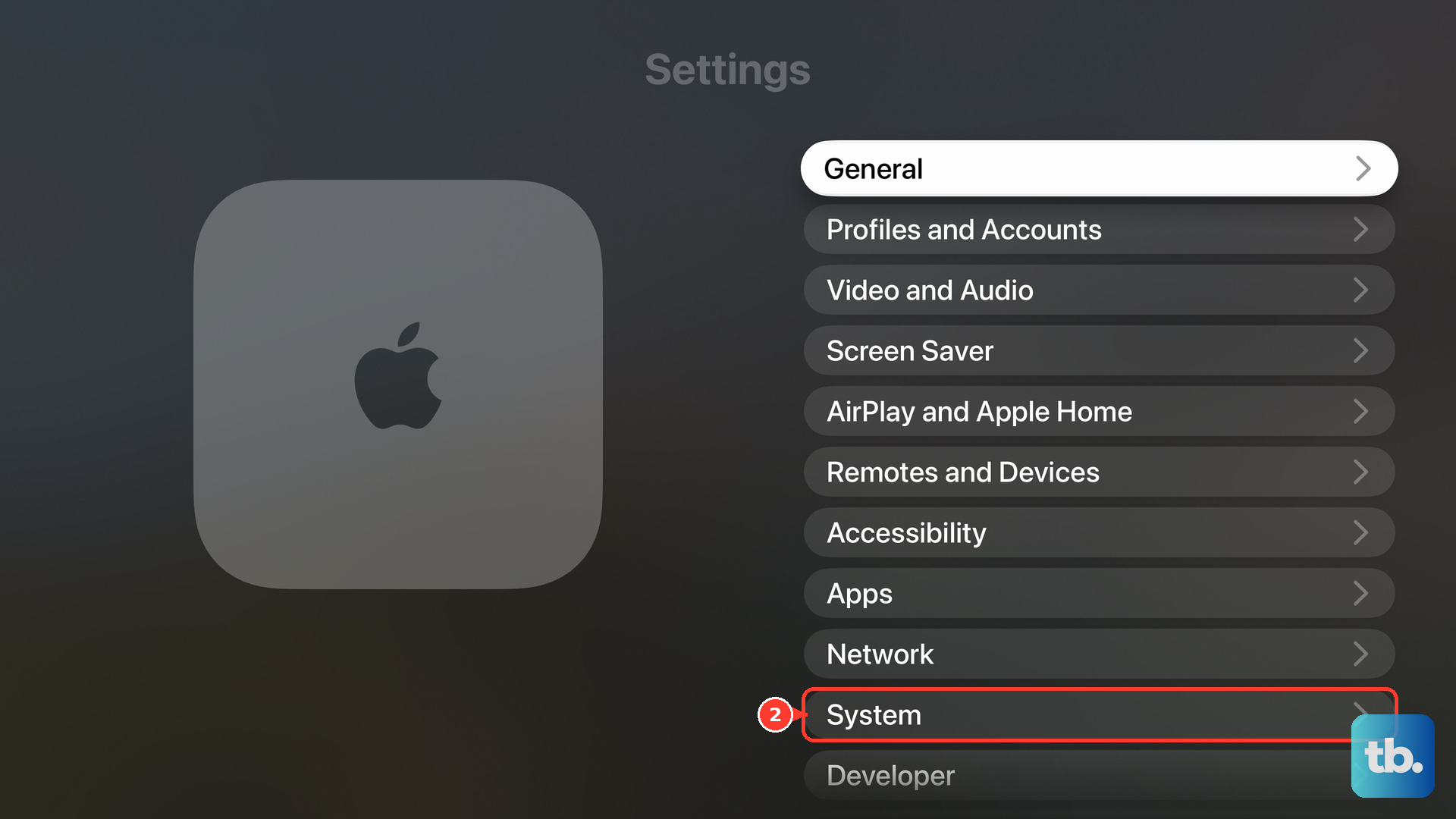
If an update is available, install it. It's a good idea to keep automatic updates turned on to prevent these kinds of issues in the future.
Try a Different HDMI Cable
Not all HDMI cables are created equal, especially for newer audio formats. The Apple TV 4K doesn't include an HDMI cable in the box, so the cable you're using may be an older one that struggles with newer audio formats.
Swap in a different, known-good HDMI cable. I've seen this resolve inexplicable audio dropouts, particularly with Dolby Atmos content. A certified High-Speed HDMI cable is what you need.
Reset All Settings
If you've tried everything else, this is a nuclear option that erases everything, including your apps, accounts, and settings. Go to Settings > System > Reset and choose Reset.
This will return all your preferences, like network settings, audio/video configurations, and privacy choices, back to their defaults. You'll have to set them up again, but it can clear out a stubborn software conflict causing the audio to fail.