


To fix Apple Pay not working on iPhone, authenticate your payment, hold the top of your iPhone near a compatible reader, and try another eligible card if the payment fails. For a declined payment, contact your card issuer; for a card setup or online checkout failure, check your internet connection and Apple Account requirements.
Start with the fix that matches what happens: the reader does not respond, your card is declined, Wallet will not open, or checkout fails online. Connection and browser fixes apply to setup and online services, rather than every in-store payment.
The short version
- Reader not responding: Authenticate first and hold the top of your iPhone near a terminal that accepts Apple Pay and your card network.
- Payment declined: Try another eligible card and ask the affected card’s issuer to investigate.
- Wallet not responding: Reopen the app, restart your iPhone, and install the latest iOS update offered for your device.
- Setup or checkout failing: Check your connection, account eligibility, issuer verification, and payment details.
| What happens | Start here | Next step |
|---|---|---|
| Reader does not respond | Authenticate and reposition iPhone | Confirm terminal acceptance with the merchant |
| Card is declined | Try another eligible card | Contact the card issuer |
| Wallet shortcut fails | Open Wallet manually | Review access and button settings |
| Wallet freezes | Quit and reopen Wallet | Restart and update iPhone |
| Card cannot be added | Check eligibility and verification | Follow the issuer or security review route |
| Setup cannot connect | Test a working internet connection | Try another network |
| Website checkout fails | Review payment and contact details | Troubleshoot the affected app or Safari |
| One saved card keeps failing | Resolve issuer issues first | Consider removing and adding that card again |
| Apple Pay update alert appears | Back up and reinstall the current software | Contact Apple if the failure persists |
Check the reader and authenticate the payment
On a Face ID iPhone, double-click the Side button, then authenticate with Face ID or your passcode. On a Touch ID iPhone, double-click the Home button and authenticate with Touch ID or your passcode. Hold the top of your iPhone near the reader until Done or a checkmark appears.
Ask the merchant whether it accepts Apple Pay and your card’s payment network, and whether NFC Contactless is enabled on the terminal. A contactless logo alone does not establish that the terminal is configured correctly. You can also search for Apple Pay in Maps to find participating stores.
Complete any additional verification the merchant or issuer requests, such as entering your card PIN or signing the receipt. Transaction limits and PIN requirements depend on the country, merchant, and issuer, so ask the merchant or issuer when authentication on your iPhone is not enough.
Try another card and resolve declines
When the default card appears, tap the cards at the bottom of the screen and choose another eligible card. Authenticate again, then hold the top of your iPhone near the reader. You need multiple eligible payment cards in Wallet to use this option.
If your Apple Pay payment is declined, contact your bank or card issuer. Ask it to check the transaction and any account or authorization restrictions. Browser cleanup and network resets are troubleshooting steps for connection or website problems, not issuer declines.
To make a working card your default, open Wallet, touch and hold that payment card, then drag it in front of the other cards. This changes which card appears first for future payments.
Restore Wallet access and payment confirmation
On a Face ID iPhone in a region where another app can be the default contactless app, open Wallet and select your payment card. Double-click the Side button, authenticate with Face ID or your passcode, then present your iPhone to the reader. To restore Apple Wallet as the default where this option is available, open Settings > Apps > Default Apps > Contactless App and select Apple Wallet.
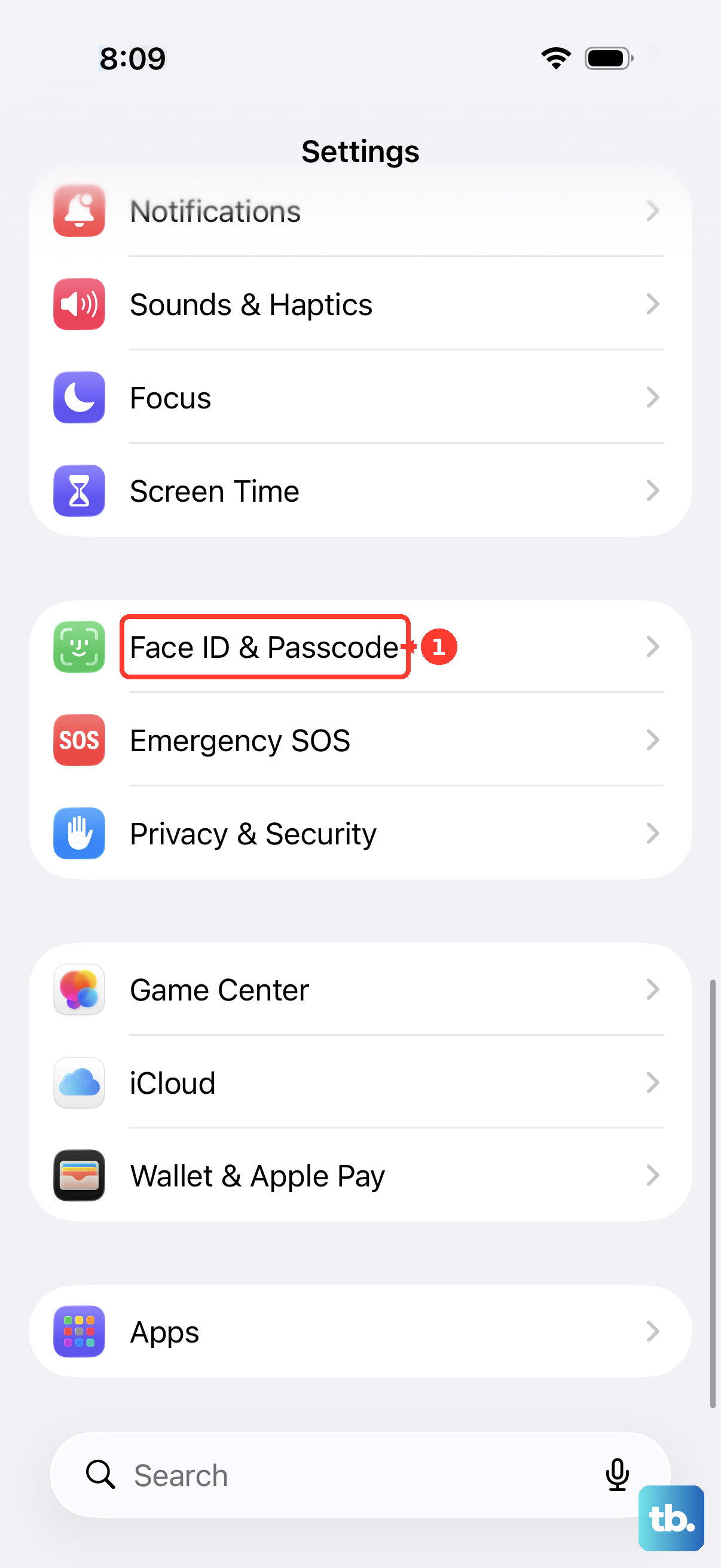
For locked-device access, open Settings > Face ID & Passcode or Touch ID & Passcode and enter your passcode. Under Allow Access When Locked, turn on Wallet. This controls convenient access from the Lock Screen.
If the double-click is difficult to complete, open Settings > Accessibility > Side Button on a Face ID iPhone or Home Button on a Touch ID iPhone. Under Click Speed, choose Slow or Slowest and retry the shortcut.
On Face ID iPhones, you can instead open Settings > Accessibility > Touch > AssistiveTouch. Turn on AssistiveTouch, configure Confirm with AssistiveTouch, and complete its setup requirements. Use the configured onscreen control when payment confirmation is requested.
When Face ID cannot recognize you, remove smudges or accessories obstructing the TrueDepth camera, keep your face visible, and hold the phone 10 to 20 inches away. For Touch ID, clean and dry your finger and the sensor, then cover the sensor and surrounding ring without moving your finger. Use your passcode as an alternative when offered.
Reopen Wallet and update your iPhone
For Wallet or a merchant app that freezes, closes unexpectedly, or will not open, open the App Switcher and find the affected app. Swipe up on its preview, then reopen it from the Home Screen or App Library. Continue with a restart if the app remains unresponsive.
On a Face ID iPhone, hold either Volume button and the Side button until the power-off slider appears. On an iPhone SE, second or third generation, hold the Side button instead. Drag the slider, wait 30 seconds, then hold the Side button until the Apple logo appears.
If the phone itself is unresponsive, force restart your iPhone using the sequence for your model. For iPhones supported by iOS 27, quickly press and release Volume Up, quickly press and release Volume Down, then hold the Side button until the Apple logo appears. Release the button when the logo appears.
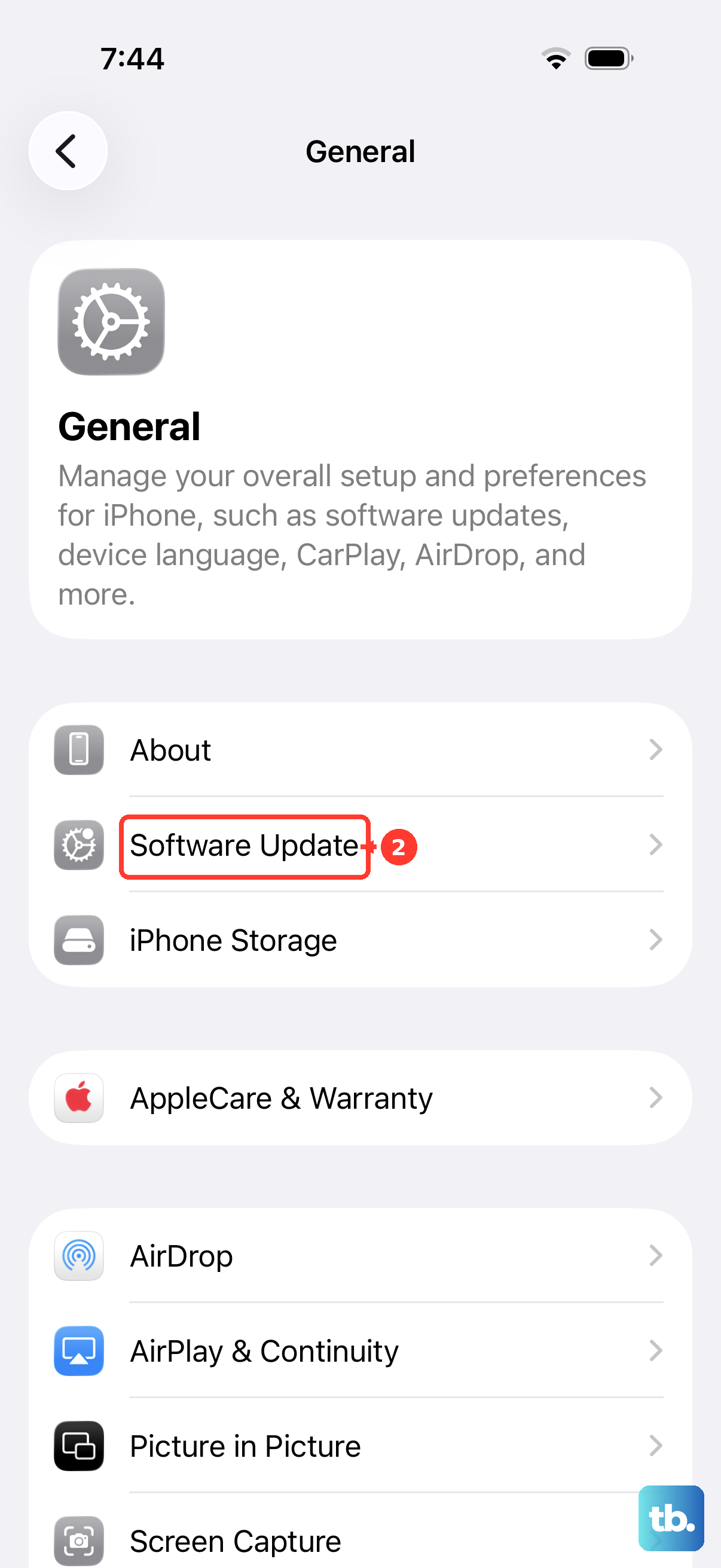
Back up your iPhone, connect it to power and Wi-Fi, then open Settings > General > Software Update. Install the latest version offered for your device. Tap Download and Install or Update Now, following the control shown on your screen, and complete the installation prompts.
Resolve card setup and verification errors
Before retrying a card addition, confirm that your iPhone, country or region, issuer, and specific card support Apple Pay. A device passcode and two-factor authentication are required, and minimum age varies by country or region. Ask your issuer when the card’s eligibility is unclear.
To enable a passcode, open Settings > Face ID & Passcode or Touch ID & Passcode, then tap Turn Passcode On. Enter a six-digit passcode and enter it again. For an Apple Account without two-factor authentication, open Settings, tap your name, choose Sign-In & Security, and turn on two-factor authentication. Complete the displayed setup.
On iOS 27, sign in if you are signed out through Settings > Apple Account > Sign in Manually. Enter your email address or phone number, password, and any requested verification code. During card setup, complete the issuer’s authentication, including its banking app when required.
Contact your bank or card issuer for Could Not Add Card, Invalid Card, or Card Device Limit errors. Ask the issuer to resolve the card-addition error before retrying setup.
A security block has a separate route on iOS 27 or later: attempt to add the card on the affected iPhone and tap Request a Review at Cannot Add Card. Read the guidance, then tap Send to Apple and allow a few days for review. Apple says existing cards continue working during this block, so keep working cards in Wallet while you wait.
Fix connection problems during setup or online payment
For card setup, issuer verification, or online checkout failures, open Settings and turn off Airplane Mode. Open Wi-Fi, turn it on, join a working network, and test a website. Try another Wi-Fi network or cellular connection when necessary; internet access is not a universal requirement for in-store NFC payments.
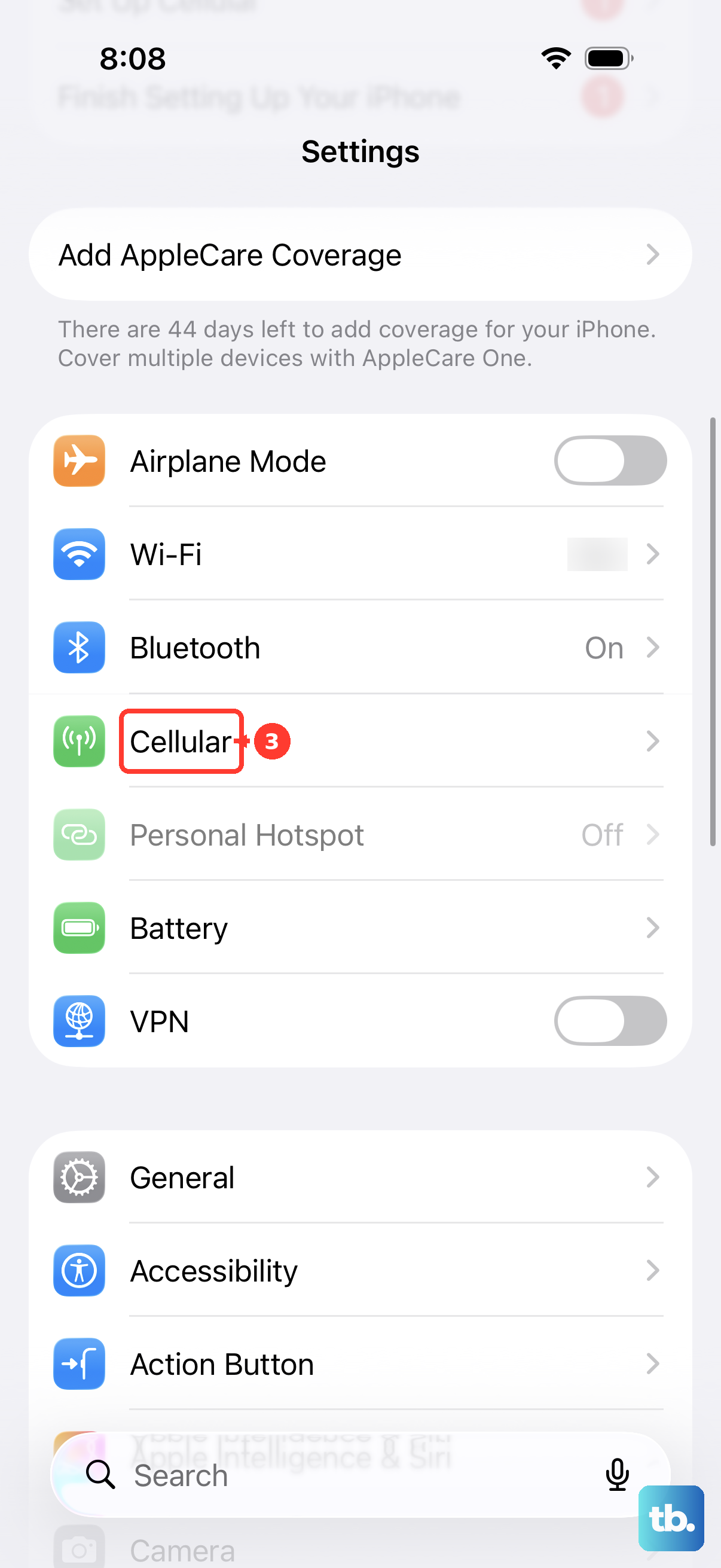
Away from Wi-Fi, open Settings > Cellular, turn on Cellular Data, and check that the affected app has cellular access. If other devices also cannot reach the internet, turn your router off and back on, then try another network. If another network works, ask your original network’s administrator or internet provider to investigate.
Check the Apple Pay and Wallet entries on Apple’s System Status page when setup or online services fail. If an incident is listed, retry after Apple reports recovery. On iOS 27, correct an inaccurate clock through Settings > General > Date & Time by enabling Set Time Automatically.
Reserve a network reset for persistent connection failures after simpler fixes fail. Open Settings > General > Transfer or Reset iPhone > Reset, then tap Reset Network Settings. This resets saved Wi-Fi networks and passwords, cellular settings, and VPN/APN settings.
Repair checkout details and app or browser problems
At a participating website or app’s checkout, choose Apple Pay and review the selected card, billing address, shipping address, and contact information. Correct any errors in the checkout sheet, then complete the requested Face ID, Touch ID, or passcode authentication.
To correct a card’s saved billing address, open Wallet, select the card, and tap More > Card Details > Billing Address. Choose the correct address or tap Enter New Billing Address. Tap Edit to correct existing details.
If the failure is isolated to one merchant, banking, or browser app, update the affected iPhone app. Open App Store, tap your photo or open My Account, then choose App Updates and tap Update beside it. Retry checkout or issuer verification afterward.
For a Safari checkout that fails to load or function, allow cookies on your iPhone through Settings > Apps > Safari > Advanced by turning off Block All Cookies if enabled. In the same menu, turn on JavaScript and reload the page. You can also temporarily turn off the relevant content blocker under Settings > Apps > Safari > Extensions and retry checkout.
If the website still malfunctions, open Settings > Apps > Safari > Clear History and Website Data. Choose a timeframe and tap Clear History. Clearing website data can sign you out of websites.
Remove and add the affected card again
After resolving eligibility, verification, and issuer issues, you can remove and add an affected card again. Apple supports these operations but does not promise they resolve every payment failure. Avoid removing working cards while a security block on new card additions remains unresolved.
Open Wallet, tap the affected card, then tap More > Card Details. Scroll down and tap Remove Card.
To add your Apple Pay card again, open Wallet > Add Card. Choose Cards Found For You for a previous card or Debit or Credit Card for a new card, then tap Continue. Hold an eligible card near your iPhone when prompted, or tap Enter Card Details Manually and enter its details if detection fails.
Complete any verification your issuer requests to finish adding the card. For local debit and credit cards in South Korea, add the card through the issuer’s mobile app.
Handle update alerts and persistent device failures
For the specific Apple Pay requires an Update on this iPhone or Apple Pay Not Available alert after an update, back up your iPhone and connect it to an updated Mac or PC. On Windows, get Apple Devices from Apple’s download page if you need the app. Tap Trust on your iPhone when prompted.
Select your iPhone in Finder or Apple Devices and open General, or select it in iTunes and open Summary. On Mac, hold Command and click Check for Update; on Windows, hold Ctrl and click Check for Update. Click Download and Update to reinstall the current software using Apple’s procedure for this alert.
For persistent device failures, open Apple’s iPhone repair service and select Get started. Describe the Apple Pay failure and arrange further support or an inspection. If the remaining problem is a declined payment, ask your bank or card issuer to investigate the authorization.
Frequently Asked Questions
Can Apple Pay work when my iPhone needs charging?
Supported iPhones can keep eligible Express cards available in power reserve for up to five hours. This applies to supported Express cards and services, rather than ordinary Apple Pay card payments generally. Manually powering off your iPhone disables this feature.
Why did Apple Pay stop working after I used Lost Mode?
Lost Mode suspends payment cards on the affected iPhone. After recovering it, unlock it with its passcode or the required biometric authentication to turn off Lost Mode. Sign back in to your Apple Account when requested.
Why does my transit card work on Apple Watch but not iPhone?
A transit card can be active on only one device. To move it back to your iPhone, use the Apple Watch app on your iPhone when you aren’t in transit.
How do I authorize a Mac Apple Pay purchase with my iPhone?
On iOS 27, open Settings, choose Wallet & Apple Pay, open Apple Pay Defaults, and turn on Allow Payments on Mac. Use the same Apple Account on both devices and ensure the authorizing iPhone is connected through Bluetooth. Retry checkout and approve the purchase on your iPhone. This applies to compatible nearby Mac checkout requesting iPhone authorization.
Does an outdated balance in Wallet mean Apple Pay is broken?
An outdated connected-account balance does not by itself mean your payments are failing. For an eligible connected card on iOS 17.1 or later, open Wallet, select the card, then open More, Card Details, Connected Account, and Connection Settings. Under Accounts, select the account and turn on Fetch Data. If the account connection fails, check issuer eligibility, internet access, and the banking app’s version.