


Fix an iqvw64e.sys driver loading error by updating the software that owns the driver or removing its obsolete installation. Start with Windows Update and the appropriate manufacturer update, then investigate a leftover driver package if the warning continues. Keep Windows security protections enabled while you try these fixes.
The Settings paths below use Windows 11 menus. The Device Manager update, reinstall, and rollback procedures also apply to Windows 10, but a compatible replacement depends on your hardware and its manufacturer.
The short version
- Identify the owner: Record the filename and company in the warning before choosing software to update or remove.
- Update first: Get the compatible replacement through Windows Update or the manufacturer.
- Remove obsolete software: Uninstall old Intel network software or a confirmed owning application when updating does not resolve the error.
- Handle leftovers carefully: Remove a Driver Store package only after confirming that it contains iqvw64e.sys.
- Preserve protection: Turning off Memory integrity reduces security and does not repair the driver.
| Option | When it fits | Main limitation |
|---|---|---|
| Windows Update | First compatible driver check | Depends on an offered replacement |
| Device Manager automatic search | Affected network adapter | May leave a separate diagnostic driver |
| Manual driver installation | Matching extracted driver available | Must match hardware and Windows |
| Intel Ethernet download | Listed Windows 11 x64 Ethernet adapter | Not a universal diagnostic replacement |
| Intel Network Connections removal | Old Intel network software installed | Save a replacement driver first |
| Control Panel or Start removal | Confirmed owning desktop program | Removes the selected program |
| SupportAssist removal | Confirmed SupportAssist ownership | Not a general Dell repair |
| SupportAssist updates | Supported Dell home PC | May not replace every offending copy |
| SupportAssist installer | Older compatible installation | Requires a compatible Dell PC |
| Model-specific manufacturer download | Replacement for your exact computer | Verify model and operating system |
| Dell Command | Update | Supported Dell model | Administrator access may be required |
| Command | Update download | Compatible Dell computer needs the utility | Not for every Dell model |
| PnPUtil removal | Confirmed Driver Store leftover | File listing requires Windows 11 version 22H2 or later |
| Adapter driver reinstall | Associated adapter needs troubleshooting | May leave a separate diagnostic package |
| Driver rollback | Error began after a driver update | Requires an available compatible previous driver |
| Memory integrity workaround | This feature causes the block | Reduces security without repairing the driver |
| Vulnerable driver blocklist workaround | Available switch without other enforcement | Reduces protection against vulnerable drivers |
| Administrator investigation | Managed security controls | Recovery depends on policy and configuration |
| Manufacturer assistance | Compatible updates do not resolve it | Provide driver and computer details |
Identify the software behind the warning
Record the driver filename and company shown in the loading warning. Keep your PC model, Windows version, and owning application name with those details. Give them to the hardware or software supplier if you need a compatible replacement.
An adapter update may leave an independently installed diagnostic driver untouched. An Intel Ethernet package is not a universal replacement for a Wi-Fi driver or a diagnostic application’s copy of iqvw64e.sys. Apply application-specific removal steps only after identifying that application as the owner.
Check Windows Update and Device Manager
On Windows 11, open Start > Settings > Windows Update > Advanced options. Turn on Receive updates for other Microsoft products, then select Optional updates under Additional options. Select the applicable driver update for your hardware, choose Download and install, and restart afterward.
Update names depend on your computer, so do not look for a universal iqvw64e.sys checkbox. A replacement depends on the manufacturer publishing a compatible driver through this route. If nothing applicable appears or the warning returns, try the manufacturer’s package.
You can also search through Device Manager on Windows 11 or Windows 10. Right-click Start, open Device Manager, and expand Network adapters. Right-click the affected adapter, select Update driver, and choose the automatic driver search option, which Microsoft labels Search automatically for updated driver software.
Install the correct manufacturer package
Choose a driver that matches the adapter, Windows version, and architecture. Consult your PC manufacturer first because its driver can include customizations. If the adapter update leaves the warning unchanged, check the owning application for an update.
For a Dell computer, open Dell Drivers & Downloads, identify your computer by Service Tag or model, and select Search. Verify the model and operating system, then use Category to locate the appropriate network driver or owning application update. Download the matching package; for another manufacturer, use its model-specific support page.
For Windows 11 x64 with an Intel Ethernet adapter, check the supported-product list on the Intel Ethernet driver download page. Only use this package when your adapter is explicitly supported, then select Download Wired_driver_31.3_x64.zip. If you accept the displayed license, select I accept the terms in the license agreement, extract the package, and follow its readme.txt installation instructions or the manual installation procedure below.
To install an extracted compatible driver manually on Windows 11 or Windows 10, right-click Start and open Device Manager > Network adapters. Right-click the affected adapter, select Update driver, then select Browse my computer for drivers. Choose Browse..., select the extracted folder, and choose OK > Next > Close.
Use the appropriate Dell update utility
On a supported Dell PC running SupportAssist for Home PCs, open SupportAssist and select Update Software, or open its available-update notification. Install the applicable offered update. This route covers supported Windows 11 PCs and supported PCs running 64-bit Windows 10 version 1809 or later.
If SupportAssist itself needs updating, open the Dell SupportAssist download page and select Download SupportAssist. Use the current installer to upgrade the older installation on a compatible Dell PC. This does not guarantee that every copy of iqvw64e.sys will be replaced.
Dell Command | Update is another option for supported Dell models, including specified Latitude, OptiPlex, Precision, and newer Dell Pro/Plus systems. If you need the utility, obtain the compatible current package from Dell’s Command | Update Drivers & Downloads page and follow its installer. Compatibility depends on the model, and administrator access may be required.
Open Dell Command Update from Start. If initial configuration appears, select Yes, run automatically with the default settings, then select OK. Select Check and review the offered updates. Select Automatically restart system (when required), select Install, then select Close when finished.
Remove obsolete or incompatible owning software
On a Windows 11 computer retaining old Intel Network Connections software, save the appropriate replacement network driver locally first. Intel staff suggest removing this software for iqvw64e.sys errors, but removal is not a universal fix. Use this route when the old package is installed.
Uninstalling removes the selected Intel Network Connections software. On Windows 11, open Start > Settings > Apps > Installed apps, find the Intel Network Connections entry, and select More > Uninstall. Its name can include a version number; complete the package’s uninstaller, restart, and install a supported replacement driver if needed.
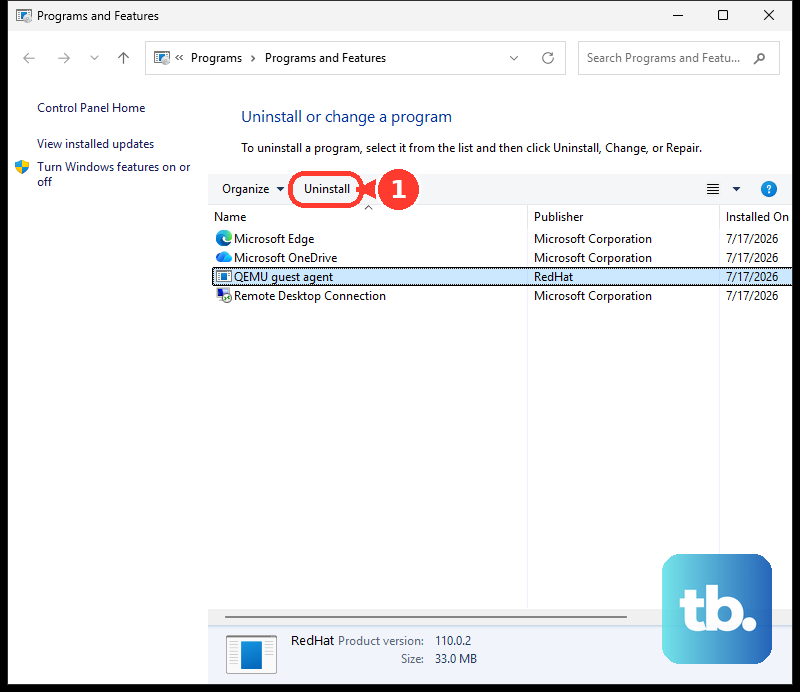
Uninstalling through Control Panel removes the selected program. On Windows 11, search for and open Control Panel, then select Programs > Programs and Features. Right-click the confirmed owning program and select Uninstall or Uninstall/Change.
The Start menu removal route also uninstalls the selected application. On Windows 11, open Start > All apps, right-click the confirmed owning app, and select Uninstall. Start layouts vary by build; if that route differs on your PC, use Control Panel.
Remove Dell SupportAssist only when the offending copy belongs to that application. Restart first, then close SupportAssist and its open logs or diagnostic files. Removing SupportAssist uninstalls the application. On Windows 11, open Settings > Apps > Installed apps, find SupportAssist, and select More > Uninstall.
Dell says additional directory or registry cleanup should no longer be necessary. If removal or reinstallation fails, restart and retry.
Reinstall or roll back the associated adapter driver
Reinstalling the associated adapter driver is a conditional troubleshooting step on Windows 11 or Windows 10. It does not necessarily remove a separate diagnostic package or replace the blocked driver. If you have identified a different owning application, focus on that software.
Uninstalling the device removes its associated driver, and Windows attempts reinstallation after a restart. Right-click Start, open Device Manager, and expand Network adapters. Right-click the affected adapter, choose Uninstall device, select Uninstall, and restart.
Consider rollback only when the error follows a driver update and an available previous driver is compatible. Rolling back replaces the newly installed driver with the previous version. On Windows 11 or Windows 10, as administrator, open Device Manager, right-click the affected adapter, and select Properties > Driver > Roll Back Driver. Choose the applicable reason, select Yes, and restart if prompted.
Restoring a vulnerable version will not defeat Windows’ block. If a compatible previous driver is unavailable, continue with the manufacturer’s replacement or the owning application.
Remove a confirmed leftover driver package
Use PnPUtil only for a driver registered in the Driver Store. On Windows 11 version 22H2 or later, its file-listing option lets you identify the package containing iqvw64e.sys. Open Command Prompt using Run as administrator, then run this command:
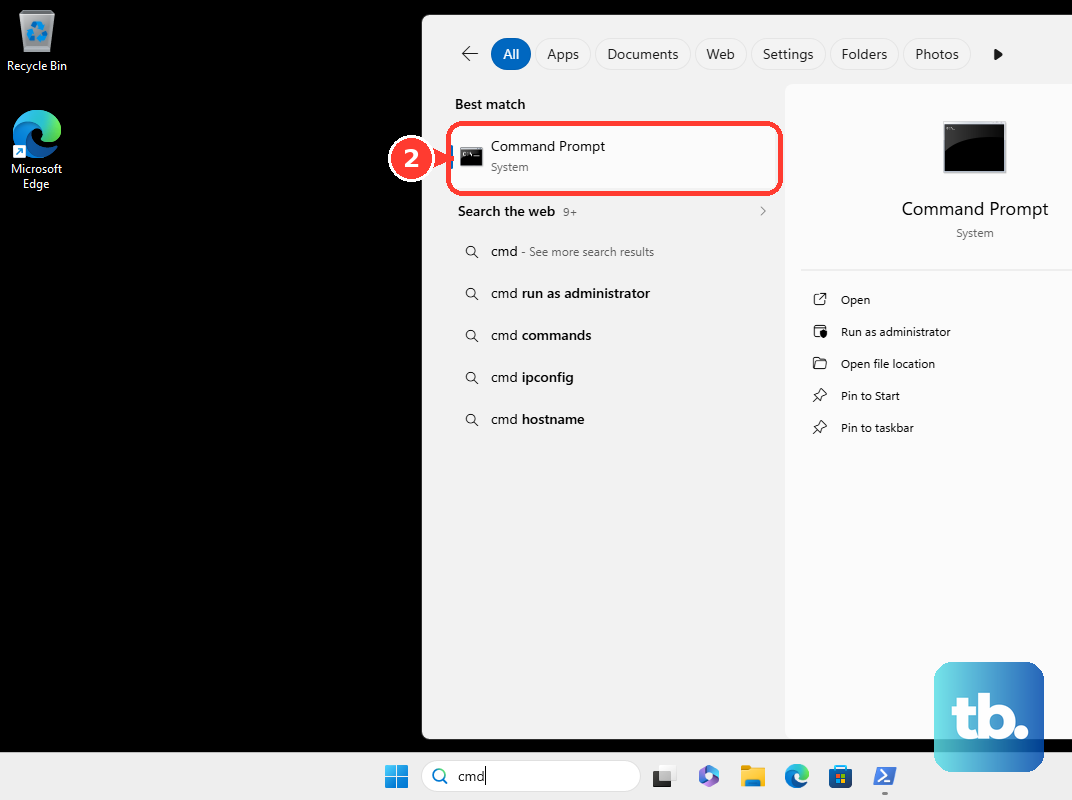
pnputil /enum-drivers /filesFind the package containing iqvw64e.sys and record its published oem#.inf name. Do not substitute the SYS filename or choose an unrelated Intel package. If no matching package appears, investigate the owning application instead.
Replace oem#.inf below with the confirmed published name. This command deletes the selected driver package, uninstalls it from devices using it, and can restart the computer:
pnputil /delete-driver oem#.inf /uninstall /rebootPackage enumeration and deletion are supported from Windows 10 version 1607, but the /files option requires Windows 11 version 22H2 or later. On Windows 10 or an earlier Windows 11 version, continue through the owning application or manufacturer if you cannot establish which package contains the file.
Treat security changes as temporary workarounds
Turning off Memory integrity reduces security and does not repair iqvw64e.sys. Use this workaround only when that feature is the blocker and policy permits changes. On Windows 11, open Start > Settings > Privacy & security > Windows Security > Device Security > Core isolation details. Turn off Memory integrity and restart.
Another enforcement mechanism can continue blocking the driver, so a persistent warning does not mean you should keep disabling protections. Restore Memory integrity after updating or removing the incompatible software.
Turning off the vulnerable driver blocklist reduces protection against vulnerable drivers. On Windows 11 version 22H2 or later, open Windows Security > Device security > Core isolation details. Where the switch is available and no other mechanism requires enforcement, turn off Microsoft Vulnerable Driver Blocklist and restart.
The blocklist is also enforced by Memory integrity, Smart App Control, or S mode. If the switch is unavailable or another mechanism still enforces the block, return to updating or removing the driver, or involve your administrator.
Escalate managed settings or an unresolved warning
If security controls are managed, have your administrator inspect Computer Configuration > Administrative Templates > System > Device Guard > Turn on Virtualization Based Security in gpedit.msc. Group Policy editing requires an edition that supplies it, normally Pro, Enterprise, or Education. If enabling Memory integrity caused instability, have the administrator handle recovery; UEFI-locked configurations require additional recovery steps.
If Windows Update and the manufacturer’s current package do not resolve the warning, contact the hardware or software supplier and request a compatible replacement. Include the filename and company shown in the warning, your PC model, Windows version, and owning application. This is especially relevant when a diagnostic utility embeds the driver outside the normal adapter package.
Frequently Asked Questions
Should you reinstall Intel PROSet to fix this on Windows 11?
Intel Ethernet PROSet and Advanced Network Services are unsupported on Windows 11; use a supported Ethernet driver instead. Windows 10 was their final supported client operating system. This restriction does not refer to similarly named Intel wireless packages.
Should you follow older instructions that use Dell Update or Alienware Update?
Use current SupportAssist instructions instead. Dell ended support for Dell Update and Alienware Update and removed those applications from its support site on December 31, 2024.
Why do older instructions show different PnPUtil commands?
The forms pnputil -e and pnputil -d are legacy syntax. Microsoft recommends the current /enum-drivers and /delete-driver forms instead.
Can SupportAssist scan for updates automatically?
Yes, Dell documents automatic update scanning in SupportAssist for Home PCs. It applies to supported Dell PCs running Windows 11 or 64-bit Windows 10 version 1809 or later.